Folder Template - Default

How to Set a Default Folder Template for All Folders in Windows 7


   Information
This will show you how to either set a folder template of your choice to be the default for all folders, or reset all folder templates back to default in all folders in Windows 7.

   Note
The folder template for Library folders cannot be changed in Windows 7.

   Tip
Automatic Folder Type Discovery is when Windows will automatically change the folder template of a folder to match the file type of the last file added or saved in the folder. For example, if your folder contains music files and you add a picture file, then Windows may change the folder template and view to the "Picture" template to match the new picture file.

By setting a specific template (steps 2 to 6) to be the default, you will disable Automatic Folder Type Discovery. Afterwards, you will still be able to set folder views and templates how you like, but without Automatic Folder Type Discovery changing them for you.

By restoring the default templates (step 1), you will enable Automatic Folder Type Discovery.


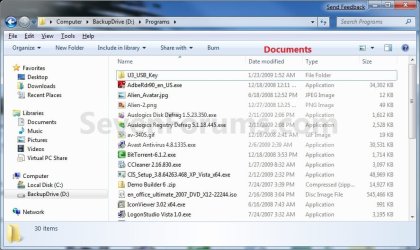
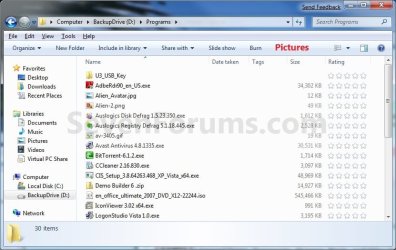
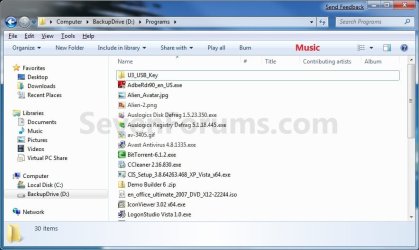
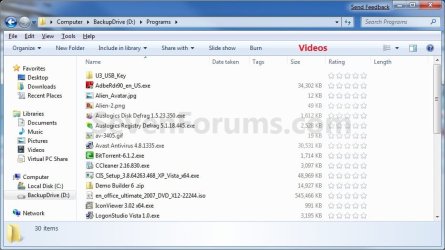
EXAMPLE: General Items, Documents, Pictures, Music, and Video templates
NOTE: These screenshots are with using the Details view. What you see in your window will also depend on what you have the View arrangement, Group by, Sort by, Stack by arrangement, or icon size set as.
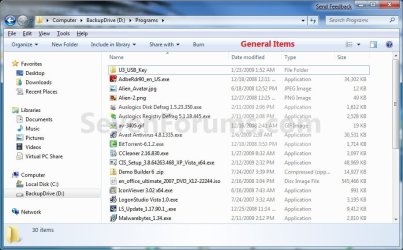
General_Items.jpg

Documents.jpg

Pictures.jpg

Music.jpg

Videos.jpg

Here's How:
1. To Restore Default Folder Templates for All Folders
NOTE: This will also reset all folder views back to default as well.
A) Click on the Download button below to download the file below.
Restore_Default_Folder_Templates.bat


Download


B) Go to step 7.
2. To Set General Items Folder Template as Default for All Folders
A) Click on the Download button below to download the file below.
All_Folders_Use_General_Items_Folder_Template.bat


Download


B) Go to step 7.
3. To Set Documents Folder Template as Default for All Folders
A) Click on the Download button below to download the file below.
All_Folders_Use_Documents_Folder_Template.bat


Download


B) Go to step 7.
4. To Set Pictures Folder Template as Default for All Folders
A) Click on the Download button below to download the file below.
All_Folders_Use_Pictures_Folder_Template.bat


Download


B) Go to step 7.
5. To Set Music Folder Template as Default for All Folders
A) Click on the Download button below to download the file below.
All_Folders_Use_Music_Folder_Template.bat


Download


B) Go to step 7.
6. To Set Videos Folder Template as Default for All Folders
A) Click on the Download button below to download the file below.
All_Folders_Use_Videos_Folder_Template.bat

Download


B) Go to step 7.
7. Save the .bat file to your desktop.

8. Close all running programs and opened windows, and run the downloaded .bat file.

9. If prompted, click on Run.
NOTE: If you like, you can stop getting the Run prompt by unblocking the downloaded .bat file.

10. You will now notice your screen flicker as explorer is restarted to apply the registry changes.

11. You can delete the downloaded .bat file if you like.

That's it,
Shawn


Attachments

Last edited:
Sorry but, this folder template issue confuses me :o
It seems that using one of the above folder templates will alter ALL of my folders throughout the whole computer. Is that true?

I don't want that to happen.

For example, I have folders for docs, folders for photos, folders for music files - I suppose we all have.
Sometimes photos and images are displayed in a folder layout that is more suited to music files.
At other times my music files are arranged in a folder that has headings for images. Grrhh. Specifying Folder Options has no effect - it never has worked, for me.

I don't seem to be able to win with this one.
The problem was with me in XP and is still haunting me in Win 7.

Will using A Selection of the folder templates that I like resolve my problem and display photos in a picture folder, docs in a documents folder, and music files in a music folder. Or can I use but one folder template.:shock:
 

My Computer

OS
Dual boot XP Pro and Seven/7127
Hello AnyKey,

Using this tutorial will change and affect all folder templates. If you want to only change the template for one folder at a time, then you would want to use the tutorial below instead. See the related links as well for other options on this.

http://www.sevenforums.com/tutorials/3918-folder-template-change.html

Hope this helps,
Shawn
 

My Computer

Computer type
PC/Desktop
Computer Manufacturer/Model Number
Self built custom
OS
64-bit Windows 11 Pro for Workstations
CPU
Intel i7-8700K OC'd to 5 GHz
Motherboard
ASUS ROG Maximus XI Formula Z390
Memory
64 GB (4x16GB) G.SKILL TridentZ RGB DDR4 3600 MHz
Graphics Card(s)
ASUS ROG-STRIX-GTX1080TI-O11G-GAMING
Sound Card
Integrated
Monitor(s) Displays
2 x Samsung Odyssey G7 27"
Screen Resolution
2560x1440
Hard Drives
1TB Samsung 990 PRO M.2,
4TB Samsung 990 PRO PRO M.2,
TerraMaster F8 SSD Plus NAS
PSU
Seasonic Prime Titanium 850W
Case
Thermaltake Core P3
Cooling
Corsair Hydro H115i
Keyboard
Logitech wireless K800
Mouse
Logitech MX Master 4
Internet Speed
2 Gb/s Download and 100 Mb/s Upload
Antivirus
Malwarebyte Anti-Malware Premium
Browser
Google Chrome
Other Info
Logitech Z625 speaker system,
Logitech BRIO 4K Pro webcam,
HP Color LaserJet Pro MFP M477fdn,
APC SMART-UPS RT 1000 XL - SURT1000XLI,
Galaxy S23 Plus phone
Brink I'm not sure if you have this, but if you want to add it to your tutorial, be my guest.

You can prevent Windows from sniffing folder contents and automatically assigning the folder type template

Code:
Windows Registry Editor Version 5.00
[COLOR=black][HKEY_CURRENT_USER\Software\Classes\Local Settings\Software\Microsoft\Windows\Shell\Bags\AllFolders\shell][/COLOR]
[COLOR=black]"FolderType"="NotSpecified"[/COLOR]

Cheers.

:)
 

My Computer

Computer Manufacturer/Model Number
Asus
OS
Windows 7 x64 Ultimate SP1
CPU
I5 875K Unlocked
Motherboard
P7P55D-E-PRO
Memory
Kingston HyperX Genesis DDR3-1600MHz 9-9-9-27 @ 1.65V XMP
Graphics Card(s)
EVGA GeForce GTX 570 HD 732 MHz GPU 1280 MB, 152 GB Mem
Sound Card
Onboard Via 1828S
Monitor(s) Displays
Samsung T240 HD
Screen Resolution
Dual 1920X1200 1027X768
Hard Drives
OCZ Vertex II Extended Sandforce SSD 60 Gig 2X WD Black Caviar 1 terabyte 6GBS Transer Sata 3 Marvell Chip
PSU
Corsair Gold fully Modular 80 Plus 850
Case
Coolermaster Half X Full Tower
Cooling
Noctua NH-U12P
Keyboard
MS
Mouse
MS
Internet Speed
Fast enough
Other Info
My fridge has a water tap

My Computer

Computer type
PC/Desktop
Computer Manufacturer/Model Number
Self built custom
OS
64-bit Windows 11 Pro for Workstations
CPU
Intel i7-8700K OC'd to 5 GHz
Motherboard
ASUS ROG Maximus XI Formula Z390
Memory
64 GB (4x16GB) G.SKILL TridentZ RGB DDR4 3600 MHz
Graphics Card(s)
ASUS ROG-STRIX-GTX1080TI-O11G-GAMING
Sound Card
Integrated
Monitor(s) Displays
2 x Samsung Odyssey G7 27"
Screen Resolution
2560x1440
Hard Drives
1TB Samsung 990 PRO M.2,
4TB Samsung 990 PRO PRO M.2,
TerraMaster F8 SSD Plus NAS
PSU
Seasonic Prime Titanium 850W
Case
Thermaltake Core P3
Cooling
Corsair Hydro H115i
Keyboard
Logitech wireless K800
Mouse
Logitech MX Master 4
Internet Speed
2 Gb/s Download and 100 Mb/s Upload
Antivirus
Malwarebyte Anti-Malware Premium
Browser
Google Chrome
Other Info
Logitech Z625 speaker system,
Logitech BRIO 4K Pro webcam,
HP Color LaserJet Pro MFP M477fdn,
APC SMART-UPS RT 1000 XL - SURT1000XLI,
Galaxy S23 Plus phone
Since you built most of this tutorial, I tought it might be respectfull to let you finish it off.

;)
 

My Computer

Computer Manufacturer/Model Number
Asus
OS
Windows 7 x64 Ultimate SP1
CPU
I5 875K Unlocked
Motherboard
P7P55D-E-PRO
Memory
Kingston HyperX Genesis DDR3-1600MHz 9-9-9-27 @ 1.65V XMP
Graphics Card(s)
EVGA GeForce GTX 570 HD 732 MHz GPU 1280 MB, 152 GB Mem
Sound Card
Onboard Via 1828S
Monitor(s) Displays
Samsung T240 HD
Screen Resolution
Dual 1920X1200 1027X768
Hard Drives
OCZ Vertex II Extended Sandforce SSD 60 Gig 2X WD Black Caviar 1 terabyte 6GBS Transer Sata 3 Marvell Chip
PSU
Corsair Gold fully Modular 80 Plus 850
Case
Coolermaster Half X Full Tower
Cooling
Noctua NH-U12P
Keyboard
MS
Mouse
MS
Internet Speed
Fast enough
Other Info
My fridge has a water tap
Thank you sir. :)
 

My Computer

Computer type
PC/Desktop
Computer Manufacturer/Model Number
Self built custom
OS
64-bit Windows 11 Pro for Workstations
CPU
Intel i7-8700K OC'd to 5 GHz
Motherboard
ASUS ROG Maximus XI Formula Z390
Memory
64 GB (4x16GB) G.SKILL TridentZ RGB DDR4 3600 MHz
Graphics Card(s)
ASUS ROG-STRIX-GTX1080TI-O11G-GAMING
Sound Card
Integrated
Monitor(s) Displays
2 x Samsung Odyssey G7 27"
Screen Resolution
2560x1440
Hard Drives
1TB Samsung 990 PRO M.2,
4TB Samsung 990 PRO PRO M.2,
TerraMaster F8 SSD Plus NAS
PSU
Seasonic Prime Titanium 850W
Case
Thermaltake Core P3
Cooling
Corsair Hydro H115i
Keyboard
Logitech wireless K800
Mouse
Logitech MX Master 4
Internet Speed
2 Gb/s Download and 100 Mb/s Upload
Antivirus
Malwarebyte Anti-Malware Premium
Browser
Google Chrome
Other Info
Logitech Z625 speaker system,
Logitech BRIO 4K Pro webcam,
HP Color LaserJet Pro MFP M477fdn,
APC SMART-UPS RT 1000 XL - SURT1000XLI,
Galaxy S23 Plus phone
You are most welcome my friend!!

:)
 

My Computer

Computer Manufacturer/Model Number
Asus
OS
Windows 7 x64 Ultimate SP1
CPU
I5 875K Unlocked
Motherboard
P7P55D-E-PRO
Memory
Kingston HyperX Genesis DDR3-1600MHz 9-9-9-27 @ 1.65V XMP
Graphics Card(s)
EVGA GeForce GTX 570 HD 732 MHz GPU 1280 MB, 152 GB Mem
Sound Card
Onboard Via 1828S
Monitor(s) Displays
Samsung T240 HD
Screen Resolution
Dual 1920X1200 1027X768
Hard Drives
OCZ Vertex II Extended Sandforce SSD 60 Gig 2X WD Black Caviar 1 terabyte 6GBS Transer Sata 3 Marvell Chip
PSU
Corsair Gold fully Modular 80 Plus 850
Case
Coolermaster Half X Full Tower
Cooling
Noctua NH-U12P
Keyboard
MS
Mouse
MS
Internet Speed
Fast enough
Other Info
My fridge has a water tap
Zardoc,

No need to create a separate tutorial. Adding the TIP box at the top should work just as well. :)
 

My Computer

Computer type
PC/Desktop
Computer Manufacturer/Model Number
Self built custom
OS
64-bit Windows 11 Pro for Workstations
CPU
Intel i7-8700K OC'd to 5 GHz
Motherboard
ASUS ROG Maximus XI Formula Z390
Memory
64 GB (4x16GB) G.SKILL TridentZ RGB DDR4 3600 MHz
Graphics Card(s)
ASUS ROG-STRIX-GTX1080TI-O11G-GAMING
Sound Card
Integrated
Monitor(s) Displays
2 x Samsung Odyssey G7 27"
Screen Resolution
2560x1440
Hard Drives
1TB Samsung 990 PRO M.2,
4TB Samsung 990 PRO PRO M.2,
TerraMaster F8 SSD Plus NAS
PSU
Seasonic Prime Titanium 850W
Case
Thermaltake Core P3
Cooling
Corsair Hydro H115i
Keyboard
Logitech wireless K800
Mouse
Logitech MX Master 4
Internet Speed
2 Gb/s Download and 100 Mb/s Upload
Antivirus
Malwarebyte Anti-Malware Premium
Browser
Google Chrome
Other Info
Logitech Z625 speaker system,
Logitech BRIO 4K Pro webcam,
HP Color LaserJet Pro MFP M477fdn,
APC SMART-UPS RT 1000 XL - SURT1000XLI,
Galaxy S23 Plus phone
Brink I'm not sure if you have this, but if you want to add it to your tutorial, be my guest.

You can prevent Windows from sniffing folder contents and automatically assigning the folder type template

Code:
Windows Registry Editor Version 5.00
[COLOR=black][HKEY_CURRENT_USER\Software\Classes\Local Settings\Software\Microsoft\Windows\Shell\Bags\AllFolders\shell][/COLOR]
[COLOR=black]"FolderType"="NotSpecified"[/COLOR]
Cheers.

:)

Ah this sounds like what I want.
I shall look forward to reading the tutorial.
esp to know what Windows (7) will do if you tell it to stop "automatically assigning the folder type template".

At the moment I simply cannot get Windows 7 to display docs in a folder of docs, photos in a folder of photos, and music in a folder of music.


My Computer

OS
Dual boot XP Pro and Seven/7127
Zardoc,

No need to create a separate tutorial. Adding the TIP box at the top should work just as well. :)

Be my guest Shawn.

:)
 

My Computer

Computer Manufacturer/Model Number
Asus
OS
Windows 7 x64 Ultimate SP1
CPU
I5 875K Unlocked
Motherboard
P7P55D-E-PRO
Memory
Kingston HyperX Genesis DDR3-1600MHz 9-9-9-27 @ 1.65V XMP
Graphics Card(s)
EVGA GeForce GTX 570 HD 732 MHz GPU 1280 MB, 152 GB Mem
Sound Card
Onboard Via 1828S
Monitor(s) Displays
Samsung T240 HD
Screen Resolution
Dual 1920X1200 1027X768
Hard Drives
OCZ Vertex II Extended Sandforce SSD 60 Gig 2X WD Black Caviar 1 terabyte 6GBS Transer Sata 3 Marvell Chip
PSU
Corsair Gold fully Modular 80 Plus 850
Case
Coolermaster Half X Full Tower
Cooling
Noctua NH-U12P
Keyboard
MS
Mouse
MS
Internet Speed
Fast enough
Other Info
My fridge has a water tap
Brink I'm not sure if you have this, but if you want to add it to your tutorial, be my guest.

You can prevent Windows from sniffing folder contents and automatically assigning the folder type template

Code:
Windows Registry Editor Version 5.00
[COLOR=black][HKEY_CURRENT_USER\Software\Classes\Local Settings\Software\Microsoft\Windows\Shell\Bags\AllFolders\shell][/COLOR]
[COLOR=black]"FolderType"="NotSpecified"[/COLOR]
Cheers.

:)

Ah this sounds like what I want.
I shall look forward to reading the tutorial.
esp to know what Windows (7) will do if you tell it to stop "automatically assigning the folder type template".

At the moment I simply cannot get Windows 7 to display docs in a folder of docs, photos in a folder of photos, and music in a folder of music.

Hello AnyKey,

You can read it in the yellow TIP box at the top of this tutorial. ;)
 

My Computer

Computer type
PC/Desktop
Computer Manufacturer/Model Number
Self built custom
OS
64-bit Windows 11 Pro for Workstations
CPU
Intel i7-8700K OC'd to 5 GHz
Motherboard
ASUS ROG Maximus XI Formula Z390
Memory
64 GB (4x16GB) G.SKILL TridentZ RGB DDR4 3600 MHz
Graphics Card(s)
ASUS ROG-STRIX-GTX1080TI-O11G-GAMING
Sound Card
Integrated
Monitor(s) Displays
2 x Samsung Odyssey G7 27"
Screen Resolution
2560x1440
Hard Drives
1TB Samsung 990 PRO M.2,
4TB Samsung 990 PRO PRO M.2,
TerraMaster F8 SSD Plus NAS
PSU
Seasonic Prime Titanium 850W
Case
Thermaltake Core P3
Cooling
Corsair Hydro H115i
Keyboard
Logitech wireless K800
Mouse
Logitech MX Master 4
Internet Speed
2 Gb/s Download and 100 Mb/s Upload
Antivirus
Malwarebyte Anti-Malware Premium
Browser
Google Chrome
Other Info
Logitech Z625 speaker system,
Logitech BRIO 4K Pro webcam,
HP Color LaserJet Pro MFP M477fdn,
APC SMART-UPS RT 1000 XL - SURT1000XLI,
Galaxy S23 Plus phone
You're most welcome. ;)
 

My Computer

Computer type
PC/Desktop
Computer Manufacturer/Model Number
Self built custom
OS
64-bit Windows 11 Pro for Workstations
CPU
Intel i7-8700K OC'd to 5 GHz
Motherboard
ASUS ROG Maximus XI Formula Z390
Memory
64 GB (4x16GB) G.SKILL TridentZ RGB DDR4 3600 MHz
Graphics Card(s)
ASUS ROG-STRIX-GTX1080TI-O11G-GAMING
Sound Card
Integrated
Monitor(s) Displays
2 x Samsung Odyssey G7 27"
Screen Resolution
2560x1440
Hard Drives
1TB Samsung 990 PRO M.2,
4TB Samsung 990 PRO PRO M.2,
TerraMaster F8 SSD Plus NAS
PSU
Seasonic Prime Titanium 850W
Case
Thermaltake Core P3
Cooling
Corsair Hydro H115i
Keyboard
Logitech wireless K800
Mouse
Logitech MX Master 4
Internet Speed
2 Gb/s Download and 100 Mb/s Upload
Antivirus
Malwarebyte Anti-Malware Premium
Browser
Google Chrome
Other Info
Logitech Z625 speaker system,
Logitech BRIO 4K Pro webcam,
HP Color LaserJet Pro MFP M477fdn,
APC SMART-UPS RT 1000 XL - SURT1000XLI,
Galaxy S23 Plus phone
Hey Brink.

Am I right in thinking that, in order to set it so that every folder opened in explorer will appear in the Details view, I'd have to download each of these individually?

I'd like my box set up so that, no matter it's contents, any folder opened will open in the Details view.
Ideally it'd do that regardless of whether I opened Computer or Explorer, but it's not really as issue as I generally only Win+E it.

This tutorial is what I need to follow, right?

Edit: Looking at it again, I'm not sure it is. Hmm...
 

My Computer

OS
Windows 7
Hello Berryman,

Correct, you can do only step 2 for the "General Items" template for what you want. :)
 

My Computer

Computer type
PC/Desktop
Computer Manufacturer/Model Number
Self built custom
OS
64-bit Windows 11 Pro for Workstations
CPU
Intel i7-8700K OC'd to 5 GHz
Motherboard
ASUS ROG Maximus XI Formula Z390
Memory
64 GB (4x16GB) G.SKILL TridentZ RGB DDR4 3600 MHz
Graphics Card(s)
ASUS ROG-STRIX-GTX1080TI-O11G-GAMING
Sound Card
Integrated
Monitor(s) Displays
2 x Samsung Odyssey G7 27"
Screen Resolution
2560x1440
Hard Drives
1TB Samsung 990 PRO M.2,
4TB Samsung 990 PRO PRO M.2,
TerraMaster F8 SSD Plus NAS
PSU
Seasonic Prime Titanium 850W
Case
Thermaltake Core P3
Cooling
Corsair Hydro H115i
Keyboard
Logitech wireless K800
Mouse
Logitech MX Master 4
Internet Speed
2 Gb/s Download and 100 Mb/s Upload
Antivirus
Malwarebyte Anti-Malware Premium
Browser
Google Chrome
Other Info
Logitech Z625 speaker system,
Logitech BRIO 4K Pro webcam,
HP Color LaserJet Pro MFP M477fdn,
APC SMART-UPS RT 1000 XL - SURT1000XLI,
Galaxy S23 Plus phone
Viewing PDF's and CBR/CBZ files

I have tons (thousands) of PDF and Comicbook CBR/CBZ files stored in a veritable tree of folders and need to be able to have all folders and subfolders default view in Extra Large icon. But only in certain folders, not all of my folders on my entire computer. How do I do this?
 

My Computer

Computer Manufacturer/Model Number
Gateway FX 17" Laptop
OS
WIndows 7 Ultimate
CPU
Intel Core 2 Duo P8400 @ 2.26ghz
Memory
4gb DDR3
Graphics Card(s)
Nvidia GeForce 9800M GTS 1gb
Hard Drives
Dual 320gb Western Digital 16mb 7200rpm
Hello Cocktailmunky, and welcome to Seven Forums.

I'm afraid that you would have to set them to be Extra Large Icons in each folder manually since you only want them in specific ones. :(

If you want to apply that to all folders that have a certain folder template (ex: Documents) instead, then you can use this to do so to help as well.

http://www.sevenforums.com/tutorials/11356-folder-view-apply-all-folders.html
 

My Computer

Computer type
PC/Desktop
Computer Manufacturer/Model Number
Self built custom
OS
64-bit Windows 11 Pro for Workstations
CPU
Intel i7-8700K OC'd to 5 GHz
Motherboard
ASUS ROG Maximus XI Formula Z390
Memory
64 GB (4x16GB) G.SKILL TridentZ RGB DDR4 3600 MHz
Graphics Card(s)
ASUS ROG-STRIX-GTX1080TI-O11G-GAMING
Sound Card
Integrated
Monitor(s) Displays
2 x Samsung Odyssey G7 27"
Screen Resolution
2560x1440
Hard Drives
1TB Samsung 990 PRO M.2,
4TB Samsung 990 PRO PRO M.2,
TerraMaster F8 SSD Plus NAS
PSU
Seasonic Prime Titanium 850W
Case
Thermaltake Core P3
Cooling
Corsair Hydro H115i
Keyboard
Logitech wireless K800
Mouse
Logitech MX Master 4
Internet Speed
2 Gb/s Download and 100 Mb/s Upload
Antivirus
Malwarebyte Anti-Malware Premium
Browser
Google Chrome
Other Info
Logitech Z625 speaker system,
Logitech BRIO 4K Pro webcam,
HP Color LaserJet Pro MFP M477fdn,
APC SMART-UPS RT 1000 XL - SURT1000XLI,
Galaxy S23 Plus phone
Anykey....
I had the same problem. I have my music folders with different mixed music in it. I have pictures files that I used to label all my music folders. With my new PC windows 7 64 bits. I can't change folder picture to what I want.
I tried the follow steps and it works.
1. Go to your folder that you want to change picture.
2. Right click and select "Properties"
3. Select "Customize" tab
4. Select "Change Icon"
5. Select an icon, any icon
6. Go to "Customize" tab.
7. Selec "Choose Pictures..." At this point you should be able to pick any picture that you want in your PC.
8. Select Open it or double clicks on the picture.
9. Go to "change Icon" and select "restore icon default"
10. You should have picture on you folder.
 

My Computer

OS
windows 7
Setting column size so it stays set

Hi Brink,

Lots of good info here, Sir. You've done a lot of work, and I'm sure everyone appreciates it. I know I do!

Maybe I'm in the wrong place, but I have a simple thing to learn - how can I keep a folder's size the way I set it (ie., "Size Column to Fit" or "Size All Columns To Fit"?) It seems I set the size and go away and when I return, the size of the column has gone back to what Windows 7 wants it to be, and I have to do the re-size thing again. Is there a way to "glue" the folder columns size after I set it?

I hope this isn't confusing...

Thanks, Noel
 

My Computer

Computer Manufacturer/Model Number
Self built
OS
PC, Windows 7 32 bit
CPU
Intel E8400
Motherboard
Gigabyte GA-EPP45-UD3R
Memory
4GB Mushkin DDR2
Graphics Card(s)
Nvidia GeForce 8800GTS
Sound Card
on Motherboard
Monitor(s) Displays
Dell 1907FP (19" LCD)
Screen Resolution
1024x768
Hard Drives
OCZ Vertex 30GB for OS
WD 320GB for programs and WD 500GB for pictures and music and WD 1.5 TB for backup
PSU
Ultra X3 600 W Modular
Case
Cooler Master HAF 922
Cooling
Fans: 200MM on front, top and side, 120mm rear
Keyboard
Saitek Eclipse II
Mouse
Logitech Wireless
Back
Top