pepoprinkipo
New member
- Local time
- 11:26 AM
- Messages
- 2
Hello!
Let me try to describe my issue in my non-professional way, as I am not very strong with the technical part of connecting to the internet.
I have home 2 internet connections. Sometimes the first is slow and the other is fast, on other times the second is slow but the first is fast, so I need to switch between these 2 connections.
First came someone from the first company. He installed the connection and connected my laptop to the internet. For this connection he used on my computer a "local area connection", which is connected using "Broadcom NetLink (TM) Gigabit Ethernet". On the internet protocol version 4 properties screen he checked the option of "Use the following IP address" and "Use the following IP address", and entered the relevant ip and dns values.
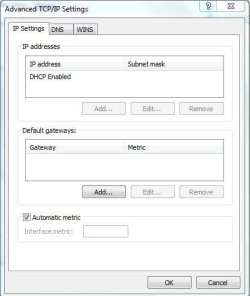
Second came someone from the second company. To install the second internet connection, he used the same "local area connection", and just modified the selections and details on the internet protocol version 4 properties (here the is obtained automatically) and the dns values are different.
How can I switch now back to the first connection? And then if I want to switch back to the second connection? Do I have to modify the internet protocol version 4 properties each time? I am a little worried about doing that each time again, I am not a technical expert and I am not sure if I can do it right...
Is there a way, instead of modifying the internet protocol version 4 properties each time, to create an second local area connection on my computer so it would only need to click on the right connection every time i want to switch a connection?
Thank u!
Let me try to describe my issue in my non-professional way, as I am not very strong with the technical part of connecting to the internet.
I have home 2 internet connections. Sometimes the first is slow and the other is fast, on other times the second is slow but the first is fast, so I need to switch between these 2 connections.
First came someone from the first company. He installed the connection and connected my laptop to the internet. For this connection he used on my computer a "local area connection", which is connected using "Broadcom NetLink (TM) Gigabit Ethernet". On the internet protocol version 4 properties screen he checked the option of "Use the following IP address" and "Use the following IP address", and entered the relevant ip and dns values.
Second came someone from the second company. To install the second internet connection, he used the same "local area connection", and just modified the selections and details on the internet protocol version 4 properties (here the is obtained automatically) and the dns values are different.
How can I switch now back to the first connection? And then if I want to switch back to the second connection? Do I have to modify the internet protocol version 4 properties each time? I am a little worried about doing that each time again, I am not a technical expert and I am not sure if I can do it right...
Is there a way, instead of modifying the internet protocol version 4 properties each time, to create an second local area connection on my computer so it would only need to click on the right connection every time i want to switch a connection?
Thank u!
My Computer
- OS
- Windows 7 Ultimate x64