Help With Pinned iTunes Taskbar Icon Customization

jiggs

New member
Local time
11:19 PM
Messages
2
Hi all,

I'm relatively new to these "new" (I guess not so new anymore!) Windows platforms, I've used Windows XP for close to 10 years now and just recently made the swap to Windows 7 Premium. Needless to say, despite the fact that most of the features and tools are similar, they function very differently from older Windows versions and I haven't quite figured out how to customize some of the new features.

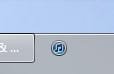
Anyways, my question is relatively simple (I apologize if it belongs in a different forum, please move if necessary). I've attempted to "pin" my iTunes icon to the taskbar, and although it is there, I want Windows to associate that icon with the application when it is actually open. Currently, Windows decides to add an additional icon to my taskbar when I open iTunes, and I would much prefer Windows to simply use the icon I have pinned instead of making another icon. When I pinned Google Chrome to the taskbar, it automatically adjusted this setting, but after quickly searching both Windows Help and google, I can't seem to find a method to do this with iTunes.

I apologize if this is a stupid question, but I've gone through all taskbar and control panel options and can't seem to figure out how to do this. Any help would be greatly appreciated.

Thanks!
 

My Computer

Computer Manufacturer/Model Number
Acer Aspire 5553G Laptop
OS
Windows 7 Ultimate x64
CPU
AMD Phenom II X3 N830
Memory
4GB DDR3
Graphics Card(s)
ATI Mobility Radeon HD5470
Hard Drives
500GB
Welcome to the Seven Forums, jiggs! :)

I had not investigated this until I saw your query so I did a little experimenting.

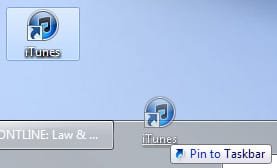
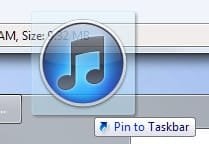
First I dragged the iTunes shortcut to the taskbar and pinned it:
ScreenShot00009.jpg

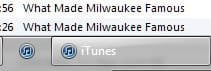
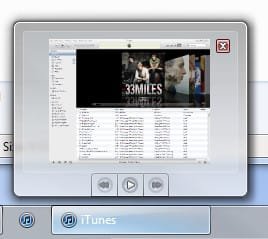
Then I opened iTunes through the pinned icon resulting in the scenario you have presented:
ScreenShot00010.jpg

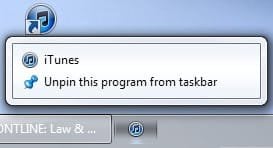
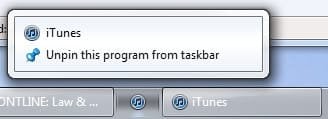
Next, I closed iTunes and unpinned the shortcut:
ScreenShot00011.jpg

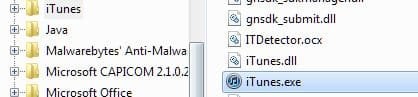
I then sought out the iTunes.exe program in the "Program Files (x86)" folder (this is for Win x64, Win x86 will find the iTunes.exe in the "Program Files" folder):
ScreenShot00012.jpg

Once having located the iTunes.exe, I dragged it to the taskbar and pinned it:
ScreenShot00013.jpg

After opening the pinned iTunes.exe program I still had not found the solution you were seeking:
ScreenShot00014.jpg

So I decided to unpin the iTunes.exe program I had just pinned to the taskbar without closing iTunes (this could have been done earlier with the pinned shortcut as well but, like I said, I was experimenting):
ScreenShot00015.jpg

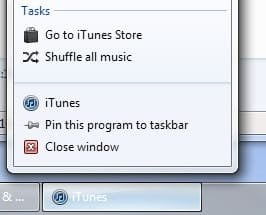
I then pinned the open iTunes still in the taskbar to the taskbar:
ScreenShot00016.jpg

After closing iTunes, I then have this (of course):
ScreenShot00017.jpg


Then, reopening iTunes from the now pinned icon I get...viola!:
ScreenShot00018.jpg

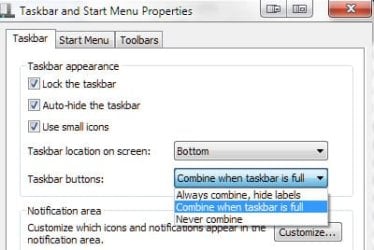
Note: I have my settings in the taskbar set to "Combine when taskbar is full" but the results will be the same if you have it set to any of the other options:
ScreenShot00019.jpg

To make a long story short, launch iTunes with your initially pinned icon, pin the resulting icon to the taskbar and unpin the initial icon. Or, just open iTunes and pin it to the taskbar while you have it open.

That should solve that, no? :D
 

My Computer

Computer Manufacturer/Model Number
Toshiba L355D
OS
Windows 7 Ultimate x64 SP1
CPU
Core2 Duo
Motherboard
Intel
Memory
4 GB
Graphics Card(s)
GM965 on-board
Sound Card
RealTek on-board
Monitor(s) Displays
19"+17"(laptop)
Screen Resolution
1440x900 (x 2)
Hard Drives
500GB Ext. 200GB Internal
PSU
N/A
Case
N/A
Cooling
N/A
Thanks for such a detailed answer, your solution worked perfectly and was very simple to understand! I don't think I would've ever figured that out myself.
 

My Computer

Computer Manufacturer/Model Number
Acer Aspire 5553G Laptop
OS
Windows 7 Ultimate x64
CPU
AMD Phenom II X3 N830
Memory
4GB DDR3
Graphics Card(s)
ATI Mobility Radeon HD5470
Hard Drives
500GB
You are quite welcome. I'm glad it worked for you. I actually had a bit of fun getting it figured out! :)
 

My Computer

Computer Manufacturer/Model Number
Toshiba L355D
OS
Windows 7 Ultimate x64 SP1
CPU
Core2 Duo
Motherboard
Intel
Memory
4 GB
Graphics Card(s)
GM965 on-board
Sound Card
RealTek on-board
Monitor(s) Displays
19"+17"(laptop)
Screen Resolution
1440x900 (x 2)
Hard Drives
500GB Ext. 200GB Internal
PSU
N/A
Case
N/A
Cooling
N/A

My Computer

Computer type
PC/Desktop
Computer Manufacturer/Model Number
Airbot 2.0
OS
Windows 7 Ultimate x64 SP1
CPU
Core i7 920 (D0) @ 4Ghz, *26c idle *65c full load on air
Motherboard
Asus P6X58D Premium - Sata 6Gb/s - USB 3.0
Memory
12GB DDR3 Corsair Dominator -CMD12GX3M6A1600C8 at 1600MHz
Graphics Card(s)
Zotac Geforce GTX 770
Sound Card
ASUS Xonar D2X
Monitor(s) Displays
1 LG 24" Flatron W2453V-PF 1 Samsung 24" P2450H both 2ms RT
Screen Resolution
1920x1080@60hz
Hard Drives
1 Samsung 250GB 840 Evo SSD
1 OCZ Vertex2 180GB SSD
1 TB Samsung Spinpoint F1 7200RPM 32MB cache
2 500GB WD Caviar Blacks 7200RPM 32MB cache (WD5001AALS)

Pioneer DVD Burner DVR-S18M
PSU
Corsair HX1000W
Case
Cooler Master HAF 932
Cooling
Case Fans *3 230mm, *1 140mm/CPU - *Tuniq Tower 120 Extreme
Keyboard
Logitech Wireless MK700
Mouse
Logitech Wireless MK700
Internet Speed
DL 15 Mbps UL 0.98 Mbps
Antivirus
None
Browser
Firefox Nightly
Other Info
Processor-7.7 *RAM- 7.9 *Graphics-7.9 *Gaming Graphics- 7.9 *SSD- 7.8 W.E.I final score= 7.7
*Phone- LG Nexus 5

My Computer

Computer Manufacturer/Model Number
Toshiba L355D
OS
Windows 7 Ultimate x64 SP1
CPU
Core2 Duo
Motherboard
Intel
Memory
4 GB
Graphics Card(s)
GM965 on-board
Sound Card
RealTek on-board
Monitor(s) Displays
19"+17"(laptop)
Screen Resolution
1440x900 (x 2)
Hard Drives
500GB Ext. 200GB Internal
PSU
N/A
Case
N/A
Cooling
N/A
Back
Top