Homegroup - Add Computer or Join

How to Join or Add a Computer to Homegroup in Windows 7


   Information
A homegroup makes it easy to share pictures, music, documents, videos, and printers with other people on your home network. This will show you how to join or add a computer to a Windows 7 homegroup.
   Note


  • Computers must be running Windows 7 or Windows 8 to participate in a homegroup.
  • HomeGroup is available in all editions of Windows 7. In the Windows 7 Starter and Windows 7 Home Basic editions, you can join a homegroup, but you can’t create one.
  • HomeGroup is available in all editions of Windows 8. In the Windows 8 RT edition, you can join a homegroup, but you can’t create one.
  • The computer must be connected to the same network the homegroup is on. Only computers on the same subnet will be able to connect to the homegroup, so if you have a wireless router, it would only be the computers connected to that router. You can check if your computers are on the same network by verifying that the first 3 parts of their IP addresses are the same. (ex: 192.168.0.189)
  • If your computer belongs to a domain network, you can join a homegroup but you can't create one. You can access files and resources on other homegroup computers, but you can't share your own files and resources with the homegroup.
  • When you join a homegroup, all user accounts, except the Guest account, on your computer become members of the homegroup. Each user controls access to his or her own libraries.
  • All computers that will be on the homegroup must have (be on) the same workgroup or domain name.
  • You can create or join a Homegroup with a virtual machine in Windows Virtual PC.
   Warning
You will need to make sure to have these Services set as below. They are by default.
  • DNS Client - Started and Automatic
  • Function Discovery Provider Host - Started and Manual
  • Function Discovery Resource Publication - Started and Automatic
  • HomeGroup Listener - Started and Manual
  • HomeGroup Provider - Started and Manual
  • Network List Service - Started and Manual
  • Peer Networking Grouping - Started and Manual
  • Server - Started and Automatic
  • SSDP Discovery - Started and Manual
  • UPnP Device Host - Started and Manual


Here's How: 1. If you have not already, make sure that all PCs that are already in the homegroup you want to join are turned on and not asleep.

2. Make sure to synchronize the clocks on all computers that will be part of the home network so that they are showing the correct date and time. If the clocks are not synchronized, the HomeGroup feature will not work.


3. Be sure that you have already created a homegroup on another computer on your home network to be able to add this computer to that homegroup.

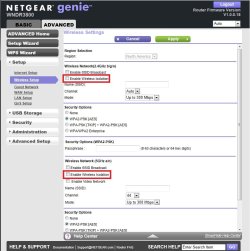
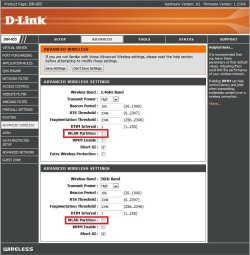
4. If you are using a wireless network through a wireless router, then check to make sure that say for example WLAN Partition (D-Link) or Enable Wireless Isolation (Netgear) are unchecked in the router's wireless settings. When it is enabled (checked), it prevents wireless devices from being able to see and communicate with each other. (see screenshots below)
NOTE: The screenshots below are from a D-Link DIR-855 (left) and Netgear WNDR3800 (right) wireless router. You will need to look at your router's manual for how with it. Wireless_Router.jpg
Netgear.jpg

5. Make sure that the computer is set to have a home network location type.

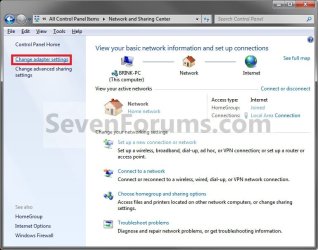
6. Open the Control Panel (icons view), and click on the Network and Sharing Center icon. A) Click on the Change adapter settings link. (see screenshot below) Adapter1.jpg
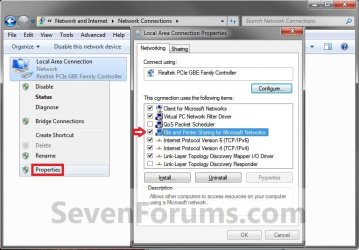
B) Right click on your network connection adapter, and click on Properties. If prompted by UAC, then click on Yes. Make sure that the items below are checked, and click on OK. (see screenshot below)

   Note
Sometimes the registry setting does not get updated even though you enable IPv6 via the GUI interface here. You can check the setting in the registry (regedit) by going to the key location below: HKEY_LOCAL_MACHINE\SYSTEM\CurrentControlSet\Services\Tcpip6\Parameters
In the right pane, right-click on DisabledComponents and select Modify. Make sure the value is set to 0.


  • File and Printer Sharing for Microsoft Networks
  • Internet Protocol Version 6 (TCP/IPv6)
  • Internet Protocol Version 4 (TCP/IPv4)
Adapter2.jpg
C) Click on the back arrow button (left arrow) in Network Connections to return to the Network and Sharing Center. (see screenshot above)

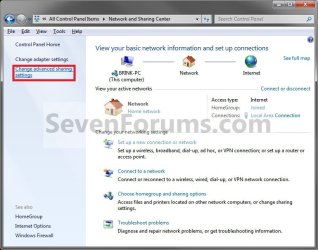
D) Click on the Change advanced sharing settings link. (see screenshot below) Advanced_Sharing_Settings_1.jpg
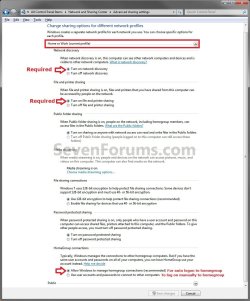
E) Make sure that the Home or Work (current profile) settings for network discovery, file sharing, and homegroup connections are set as they are below for the ones pointed out with the red arrows, then click on Save changes. If prompted by UAC, then click on Yes. (see screenshot below) Advanced_Sharing_Settings.jpg
7. In the Network and Sharing Center, click on the Choose homegroup and sharing options link. (see screenshot below) Step1.jpg
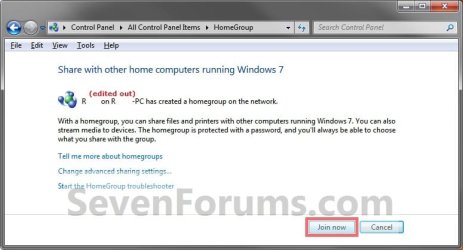
8. Click on the Join now button. (see screenshot below)
NOTE: Sometimes it may take a moment to detect the other computer on the home network. If a homegroup does not already exists (already created) on your home network, then Windows 7 will ask if you would like to Create a homegroup instead of joining a new one. Step2.jpg
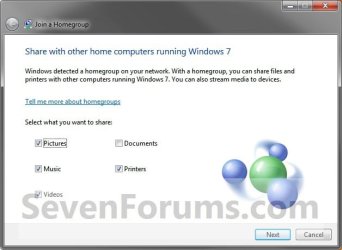
9. Select (check) what libraries and printers that you want to share from this computer with any other computer that joins this homegroup, then click on Next. (see screenshot below) Step3.jpg
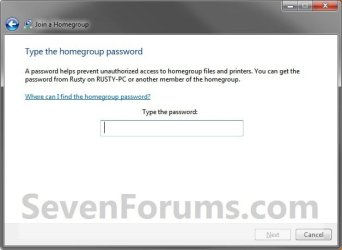
10. Type in the homegroup password of the created homegroup that you want to join or add the computer to, then click on Next. (see screenshot below)
NOTE: The password is case sensitive, so be sure to type it in correctly. Step4.jpg
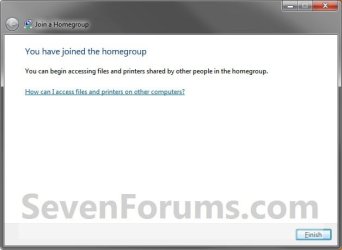
11. After a few seconds, this computer has been joined to the homegroup. Click on Finish. (see screenshot below)
NOTE: If you are having problems joining the homegroup, then double check everything above to make sure it is correct and try the troubleshooting link in the failure notice. Step5.jpg
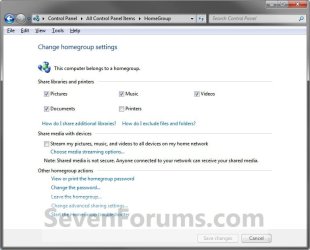
12. Close the HomeGroup window. (see screenshot below) Create5.jpg
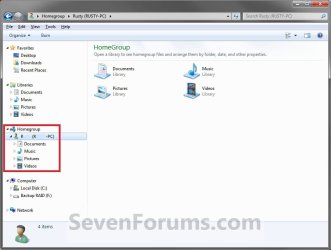
13. If you open Windows Explorer and click on Homegroup in the navigation pane, you will now see the other joined computers that are online listed in your homegroup. (see screenshot below) Step6.jpg
That's it,
Shawn


Last edited:
A friend of mine had a desktop and 2 laptops, all running Windows 7 and all connected to the internet via wifi through a Cisco LinkSys E1000 router. Despite all being in the same Workgroup, none of the PCs could see each other on the network and thus could not share a printer or join a homegroup created on another PC. Each PC insisted on creating their own homegroup.

So I went into the router's setup looking a WLAN Partition setting that was described in the article above. That setting doesn't existing in a LinkSys router but I did noticed that the Wireless Security was set to "WPA2/WPA Mixed Mode". I changed that to "WPA2 Personal" and saved the settings. Once I did that and reconnected the individual wifi connections, the PCs were now showing up in each other's network list. I could then share a printer and join them all into the same homegroup. Just thought I'd pass that along.
 

My Computer

OS
Windows 7 Ultimate x64
Hello Kbriggs, and welcome to Seven Forums.

Thank you for sharing your results. :)
 

My Computer

Computer type
PC/Desktop
Computer Manufacturer/Model Number
Self built custom
OS
64-bit Windows 11 Pro for Workstations
CPU
Intel i7-8700K OC'd to 5 GHz
Motherboard
ASUS ROG Maximus XI Formula Z390
Memory
64 GB (4x16GB) G.SKILL TridentZ RGB DDR4 3600 MHz
Graphics Card(s)
ASUS ROG-STRIX-GTX1080TI-O11G-GAMING
Sound Card
Integrated
Monitor(s) Displays
2 x Samsung Odyssey G7 27"
Screen Resolution
2560x1440
Hard Drives
1TB Samsung 990 PRO M.2,
4TB Samsung 990 PRO PRO M.2,
TerraMaster F8 SSD Plus NAS
PSU
Seasonic Prime Titanium 850W
Case
Thermaltake Core P3
Cooling
Corsair Hydro H115i
Keyboard
Logitech wireless K800
Mouse
Logitech MX Master 4
Internet Speed
2 Gb/s Download and 100 Mb/s Upload
Antivirus
Malwarebyte Anti-Malware Premium
Browser
Google Chrome
Other Info
Logitech Z625 speaker system,
Logitech BRIO 4K Pro webcam,
HP Color LaserJet Pro MFP M477fdn,
APC SMART-UPS RT 1000 XL - SURT1000XLI,
Galaxy S23 Plus phone
I was wondering, to what extent is the homegroup information stored on the computer that was used to firstly create said HG? If I take out the "creator pc" from the network, if it is a laptop, do the other computers still work as a HG?
 

My Computer

Computer type
PC/Desktop
Computer Manufacturer/Model Number
Main WKS/Gaming Sloth
OS
W10 Pro
CPU
AMD Ryzen 5 2600X
Motherboard
Asus TUF B450M-PRO-GAMING
Memory
32 GB DDR4
Graphics Card(s)
AMD Radeon RX 5600 XT
Sound Card
Generic Motherboard
Monitor(s) Displays
2 x Dell 24" LED P2415Q
Screen Resolution
2 x 3840 x 2160
Hard Drives
Samsung NVME
PSU
750 W
Case
Fractal Design
Cooling
Fractal Design
Keyboard
Roccat Horde AIMO
Mouse
Logitech G703
Internet Speed
ADSL 30 MBit
Antivirus
Bitdefender
Browser
Firefox
Hello Coram,

Yes, any computer that joined or added to the Homegroup will still be part of the HG no matter which computer left the HG.

When a computer leaves a HG, it is free to join or create a new HG, but the old HG still exists as long as the other computers didn't leave it as well. :)
 

My Computer

Computer type
PC/Desktop
Computer Manufacturer/Model Number
Self built custom
OS
64-bit Windows 11 Pro for Workstations
CPU
Intel i7-8700K OC'd to 5 GHz
Motherboard
ASUS ROG Maximus XI Formula Z390
Memory
64 GB (4x16GB) G.SKILL TridentZ RGB DDR4 3600 MHz
Graphics Card(s)
ASUS ROG-STRIX-GTX1080TI-O11G-GAMING
Sound Card
Integrated
Monitor(s) Displays
2 x Samsung Odyssey G7 27"
Screen Resolution
2560x1440
Hard Drives
1TB Samsung 990 PRO M.2,
4TB Samsung 990 PRO PRO M.2,
TerraMaster F8 SSD Plus NAS
PSU
Seasonic Prime Titanium 850W
Case
Thermaltake Core P3
Cooling
Corsair Hydro H115i
Keyboard
Logitech wireless K800
Mouse
Logitech MX Master 4
Internet Speed
2 Gb/s Download and 100 Mb/s Upload
Antivirus
Malwarebyte Anti-Malware Premium
Browser
Google Chrome
Other Info
Logitech Z625 speaker system,
Logitech BRIO 4K Pro webcam,
HP Color LaserJet Pro MFP M477fdn,
APC SMART-UPS RT 1000 XL - SURT1000XLI,
Galaxy S23 Plus phone
Thankyou, Sir.
 

My Computer

Computer type
PC/Desktop
Computer Manufacturer/Model Number
Main WKS/Gaming Sloth
OS
W10 Pro
CPU
AMD Ryzen 5 2600X
Motherboard
Asus TUF B450M-PRO-GAMING
Memory
32 GB DDR4
Graphics Card(s)
AMD Radeon RX 5600 XT
Sound Card
Generic Motherboard
Monitor(s) Displays
2 x Dell 24" LED P2415Q
Screen Resolution
2 x 3840 x 2160
Hard Drives
Samsung NVME
PSU
750 W
Case
Fractal Design
Cooling
Fractal Design
Keyboard
Roccat Horde AIMO
Mouse
Logitech G703
Internet Speed
ADSL 30 MBit
Antivirus
Bitdefender
Browser
Firefox
You're most welcome. :)
 

My Computer

Computer type
PC/Desktop
Computer Manufacturer/Model Number
Self built custom
OS
64-bit Windows 11 Pro for Workstations
CPU
Intel i7-8700K OC'd to 5 GHz
Motherboard
ASUS ROG Maximus XI Formula Z390
Memory
64 GB (4x16GB) G.SKILL TridentZ RGB DDR4 3600 MHz
Graphics Card(s)
ASUS ROG-STRIX-GTX1080TI-O11G-GAMING
Sound Card
Integrated
Monitor(s) Displays
2 x Samsung Odyssey G7 27"
Screen Resolution
2560x1440
Hard Drives
1TB Samsung 990 PRO M.2,
4TB Samsung 990 PRO PRO M.2,
TerraMaster F8 SSD Plus NAS
PSU
Seasonic Prime Titanium 850W
Case
Thermaltake Core P3
Cooling
Corsair Hydro H115i
Keyboard
Logitech wireless K800
Mouse
Logitech MX Master 4
Internet Speed
2 Gb/s Download and 100 Mb/s Upload
Antivirus
Malwarebyte Anti-Malware Premium
Browser
Google Chrome
Other Info
Logitech Z625 speaker system,
Logitech BRIO 4K Pro webcam,
HP Color LaserJet Pro MFP M477fdn,
APC SMART-UPS RT 1000 XL - SURT1000XLI,
Galaxy S23 Plus phone
I have tried my best to set up 'join a Homegroup' with my Notebook running Starter 7. I have set up my desktop (Win 7 P) with a Homegroup. The notebook sees the home group, I enter the pass word and it says "Windows cannot set up a home group on this computer". I have followed the instructions exactly having checked them over 4 times but always the same. Now I know it is more than likely something I am doing wrong, but what I don't know any mor help would be appreciated.
Bob
 

My Computer

Computer Manufacturer/Model Number
E machine El1358G
OS
Windows 7 Home Preium 64bit
CPU
AMD Athlon II 2X220 2.8 GHZ
Memory
3.00 GB
Last edited by a moderator:

My Computer

Computer Manufacturer/Model Number
HP Pavilion Elite 495UK
OS
Windows 7 Ultimate SP1 64-Bit
CPU
Intel Core i7 870 @ 2.93GHz
Motherboard
MSI 2A9C (CPU1)
Memory
8Gb Dual-Channel DDR3 @ 664MHz
Graphics Card(s)
nVidia GeForce GTX 460 1024MB dedicated RAM
Sound Card
Realtek HD Audio
Monitor(s) Displays
HP2310i
Screen Resolution
1920 x 1080
Hard Drives
1x1954GB Hitachi HDS22020ALA 330 (RAID), 1x1954GB Hitachi External for backup and storage
PSU
460W
Case
HP Elite
Cooling
Air cooled
Keyboard
Logitech K750 solar-powered keyboard
Mouse
Logitech Wireless M180 mouse
Internet Speed
2Mb
Other Info
Pure Avanti Flow Internet Radio with iPod Dock, 64Gb iPod, HP USB Speakers, Sony MDR-V500 Headphones, Sony Vaio F-Series Laptop
I appreciate your suggestion and I went to Microsoft and trie the fixit but it just ran the trouble shooter to the same answer I have been recieving. Soryy it did not work. Thanks for your time.
Bob
 

My Computer

Computer Manufacturer/Model Number
E machine El1358G
OS
Windows 7 Home Preium 64bit
CPU
AMD Athlon II 2X220 2.8 GHZ
Memory
3.00 GB
Hello Bob,

Did the troubleshooter give you any more details?

You might see if leaving the homegroup on your Windows 7 Home Premium, create a new homegroup on the Home Premium, then see if it may allow you to join the homegroup with your Windows 7 Starter.
 
Last edited:

My Computer

Computer type
PC/Desktop
Computer Manufacturer/Model Number
Self built custom
OS
64-bit Windows 11 Pro for Workstations
CPU
Intel i7-8700K OC'd to 5 GHz
Motherboard
ASUS ROG Maximus XI Formula Z390
Memory
64 GB (4x16GB) G.SKILL TridentZ RGB DDR4 3600 MHz
Graphics Card(s)
ASUS ROG-STRIX-GTX1080TI-O11G-GAMING
Sound Card
Integrated
Monitor(s) Displays
2 x Samsung Odyssey G7 27"
Screen Resolution
2560x1440
Hard Drives
1TB Samsung 990 PRO M.2,
4TB Samsung 990 PRO PRO M.2,
TerraMaster F8 SSD Plus NAS
PSU
Seasonic Prime Titanium 850W
Case
Thermaltake Core P3
Cooling
Corsair Hydro H115i
Keyboard
Logitech wireless K800
Mouse
Logitech MX Master 4
Internet Speed
2 Gb/s Download and 100 Mb/s Upload
Antivirus
Malwarebyte Anti-Malware Premium
Browser
Google Chrome
Other Info
Logitech Z625 speaker system,
Logitech BRIO 4K Pro webcam,
HP Color LaserJet Pro MFP M477fdn,
APC SMART-UPS RT 1000 XL - SURT1000XLI,
Galaxy S23 Plus phone
I'm sorry that did not work either. You all probably have a lot more important things to do than mess with this. I should chalk it up to another thing that Microsoft doesn't care about after they get your money. Thanks for your help.
Bob
 

My Computer

Computer Manufacturer/Model Number
E machine El1358G
OS
Windows 7 Home Preium 64bit
CPU
AMD Athlon II 2X220 2.8 GHZ
Memory
3.00 GB
1. Make sure that all computers that will be on the home network have the date and time in sync.

I can't get past step 1... Can anybody tell my how to sync times between computers? I've never heard of such a thing...
 

My Computer

OS
Windows 7 Professional 64bit
Hello Kyle, and welcome to Seven Forums.

It just means to make sure that they both are set to the same correct time and date. That's all. :)
 

My Computer

Computer type
PC/Desktop
Computer Manufacturer/Model Number
Self built custom
OS
64-bit Windows 11 Pro for Workstations
CPU
Intel i7-8700K OC'd to 5 GHz
Motherboard
ASUS ROG Maximus XI Formula Z390
Memory
64 GB (4x16GB) G.SKILL TridentZ RGB DDR4 3600 MHz
Graphics Card(s)
ASUS ROG-STRIX-GTX1080TI-O11G-GAMING
Sound Card
Integrated
Monitor(s) Displays
2 x Samsung Odyssey G7 27"
Screen Resolution
2560x1440
Hard Drives
1TB Samsung 990 PRO M.2,
4TB Samsung 990 PRO PRO M.2,
TerraMaster F8 SSD Plus NAS
PSU
Seasonic Prime Titanium 850W
Case
Thermaltake Core P3
Cooling
Corsair Hydro H115i
Keyboard
Logitech wireless K800
Mouse
Logitech MX Master 4
Internet Speed
2 Gb/s Download and 100 Mb/s Upload
Antivirus
Malwarebyte Anti-Malware Premium
Browser
Google Chrome
Other Info
Logitech Z625 speaker system,
Logitech BRIO 4K Pro webcam,
HP Color LaserJet Pro MFP M477fdn,
APC SMART-UPS RT 1000 XL - SURT1000XLI,
Galaxy S23 Plus phone
okay now I feel dumb...

I was getting frustrated because I kept following the instructions but when I went to the 2nd computer to "join" the homegroup I'd just created, there was no "join homegroup" button.

Then suddenly, there it was. I guess you just have to wait awhile after creating it before the 2nd computer detects it?

Thanks,
~kyle
 

My Computer

OS
Windows 7 Professional 64bit
No problem mate. Yeah, sometimes it may take a moment to detect it. :)
 

My Computer

Computer type
PC/Desktop
Computer Manufacturer/Model Number
Self built custom
OS
64-bit Windows 11 Pro for Workstations
CPU
Intel i7-8700K OC'd to 5 GHz
Motherboard
ASUS ROG Maximus XI Formula Z390
Memory
64 GB (4x16GB) G.SKILL TridentZ RGB DDR4 3600 MHz
Graphics Card(s)
ASUS ROG-STRIX-GTX1080TI-O11G-GAMING
Sound Card
Integrated
Monitor(s) Displays
2 x Samsung Odyssey G7 27"
Screen Resolution
2560x1440
Hard Drives
1TB Samsung 990 PRO M.2,
4TB Samsung 990 PRO PRO M.2,
TerraMaster F8 SSD Plus NAS
PSU
Seasonic Prime Titanium 850W
Case
Thermaltake Core P3
Cooling
Corsair Hydro H115i
Keyboard
Logitech wireless K800
Mouse
Logitech MX Master 4
Internet Speed
2 Gb/s Download and 100 Mb/s Upload
Antivirus
Malwarebyte Anti-Malware Premium
Browser
Google Chrome
Other Info
Logitech Z625 speaker system,
Logitech BRIO 4K Pro webcam,
HP Color LaserJet Pro MFP M477fdn,
APC SMART-UPS RT 1000 XL - SURT1000XLI,
Galaxy S23 Plus phone
What's stopping this working?

Hi,

I'm new here so please help me if I'm posting this in the wrong place.

Thanks for the tute Brink, it doesn't work for me though. I have been trying to set up a Homegroup for about a year on and off and have just found your site/guide so I thought I'd join you and see what happens.

I have a D-Link DSL-2680
Windows 7 Ultimate x64 PC connected via ethernet with the Homegroup created.
Windows 7 Home Premium laptop connected wirelessly that can see the Homegroup but cannot connect.

The only part of the tute I have not done is part 3, I cannot find 'WLAN Partition' in the advanced set-up, this may be because there is only one wireless machine, and probably does not matter as only one of my machines is wireless, is that right?

I don't know what else to put here, the machine hangs for a bit and then says that is cannot connect, I have been through the troubleshooter but that was no help.

I would appreciate any help from you guys, and hopefully I can recipricate on other issues.
 

My Computer

OS
Windows 7 Ultimate x64
Hello MagicFirend, and welcome to Seven Forums.

That may be the issue if the router is not set to allow the connected devices to see each other. If you open Network Map, do you see the other computer listed when both computers are running Windows 7?

If not, then that is the issue with them not seeing each other. This must be resolved first.

If you do, then triple check through each item in the tutorial including the note and warning boxes at the top above the steps to see if there may be something that you missed. Next, leave the homegroup in both computers, and start over with creating the homegroup on one computer, and joining the homegroup with the other computer.

Hope this helps for now,
Shawn
 

My Computer

Computer type
PC/Desktop
Computer Manufacturer/Model Number
Self built custom
OS
64-bit Windows 11 Pro for Workstations
CPU
Intel i7-8700K OC'd to 5 GHz
Motherboard
ASUS ROG Maximus XI Formula Z390
Memory
64 GB (4x16GB) G.SKILL TridentZ RGB DDR4 3600 MHz
Graphics Card(s)
ASUS ROG-STRIX-GTX1080TI-O11G-GAMING
Sound Card
Integrated
Monitor(s) Displays
2 x Samsung Odyssey G7 27"
Screen Resolution
2560x1440
Hard Drives
1TB Samsung 990 PRO M.2,
4TB Samsung 990 PRO PRO M.2,
TerraMaster F8 SSD Plus NAS
PSU
Seasonic Prime Titanium 850W
Case
Thermaltake Core P3
Cooling
Corsair Hydro H115i
Keyboard
Logitech wireless K800
Mouse
Logitech MX Master 4
Internet Speed
2 Gb/s Download and 100 Mb/s Upload
Antivirus
Malwarebyte Anti-Malware Premium
Browser
Google Chrome
Other Info
Logitech Z625 speaker system,
Logitech BRIO 4K Pro webcam,
HP Color LaserJet Pro MFP M477fdn,
APC SMART-UPS RT 1000 XL - SURT1000XLI,
Galaxy S23 Plus phone
Hi Shawn,

The two machines are NOT on each others Network Maps. When I click full map I just see Machine-Gateway-Internet

I've made them both discoverable, and it's strange as the laptop sees the Homegroup that the PC has created.

Can you help with this?

Thanks,

Paul

EDIT
Forget that, they're there now. All I did was go into properties and suddenly they appear?

Trying again, fingers-crossed :-)
 

My Computer

OS
Windows 7 Ultimate x64
No, still no good. I did also go into the router, while there I noticed that the router clock was one hour and three minutes behind, the hour part is the DST thing, the three minutes I don't know as the option to synch with the net was checked. I made the time the same as the machine as this was an option, and then clicked the synch again, so maybe that is stopping me as it may have gone back. There is an option the enable DST, but then I have to select the dates? I do not have an option for 2am on the 3rd Sunday in October lol

I'll play with that again and get back to you, I may have to set it to GMT +1 on a synch and remember to go back to GMT in October, the three minutes doesn't fill me with faith that it's synching often enough though, it's not like the router has a motherboard with a battery on it.

I'll keep in touch.
 

My Computer

OS
Windows 7 Ultimate x64
Back
Top