homegroup problems...

pjuegos

New member
hi all,


I know there is already a lof of questions, answers and info about win 7 homegroups... However, I can not my homegroup working at all...


I have 2 computers that should be part of the same workgroup:
1 destop PC, wired to the router
1 laptop wirelessly connected to the router

Both computer network locations are set to Home Network. However, one access through the wireless network and the other directly through a wire. Could this make a difference?

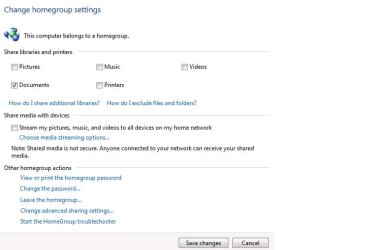
Another problem I am having is that when I go to the desktop PC to "change homegroup settings", and I tick different options for sharing libraries and files, the changes are not saved at all. Any idea of why is that?

I think the rest is fine; both are joined by the same homegroup password

Thanks
 

My Computer

OS
windows 7 professional 64 bits
CPU
Intel Multi Core duo 2.33gHZ
Motherboard
Gigabyte GA-EG41MF-S2H
Memory
DDR2 2x2gb
Graphics Card(s)
onboard MoBo card - Realtek
Sound Card
USB MUSILAND DAC
Monitor(s) Displays
LCD TV Samsumg 32''
Screen Resolution
HD
Hard Drives
1 x 2.5" 1Tb
PSU
mcubed external fanless
Case
mcubed
Cooling
mcubed passive cooling
Hi pjuegos welcome to the forums if noone has said it already :)

Firstly, I think you are confusing Homegroups and Workgroups, they are 2 very different things. Homegroups are for Win 7 only, Workgroups are for older OS's

Secondly to answer your question no being wireless and wired should make no difference at all.

Lastly to actually try and fix your problem a couple of things to check:

1) can both machines be pinged? to find the ip addresses type ipconfig /all into a Command Prompt window you will probably want an IPv4 address starting with 192.168 once you have the IP addresses, again in Command Prompt type Ping 192.168.x.x (again depending on the IP address) once you have done that, if you report back we can get a better idea of where the problems lay

2) do both machines have different names? for instance my Main PC is called Martin-PC my "Server" machine is called Martin-Server if the machines have the same name then this will cause issues. (you can check this in Computer>SYstem Properties)
 

My Computer

Computer type
PC/Desktop
Computer Manufacturer/Model Number
Medion Erazer (note to self: insert model number) - with custom additions
OS
Windows 10 Pro x64
CPU
Intel Core i5 7400 @ 3.00GHz
Motherboard
OEM supllied with PC
Memory
8GB 2133Mhz DDR4 (OEM supplied)
Graphics Card(s)
Gygabyte Windforce GTX 1050Ti (Factory Overclocked)
Sound Card
Realtek
Monitor(s) Displays
Acer Al1980 + HKC
Screen Resolution
1360*768(HKC) / 1280*1024(Acer)
Hard Drives
1TB Toshiba
1TB WD Caviar Green
120GB Samsung Evo 840
PSU
OEM supplied (no power rating on case)
Case
OEM Supplied
Cooling
Stock
Keyboard
Logitech Wireless
Mouse
Logitect Wireless
Internet Speed
40Mb/s Down 10Mb/s Up
Antivirus
Defender
Browser
Firefox
Hi severedsolo,

Thanks for your welcome and prompt reply!

I think I am OK with the difference between work and homegroups. Actually, I have those 2 win7 computers connected in a workgroup. My goal is to stop using the workgroup and move to the homegroup. However, I am not being lucky with the move.

my question about the different ways to access to the workgroup (wired or wireless) is related to one comment I get from win7 when I try to access the homegroup:
"make sure the network location of this computer and the other homegroup computers is set to Home".
But as you said it should not make any difference the accessing method.

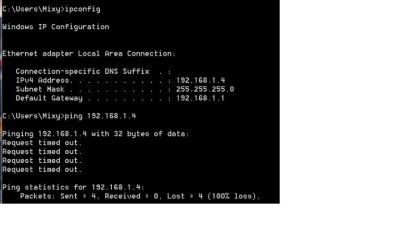
I pinged both computers. The laptop (wireless connection) seems to work OK. However, the desktop (wired to router) seems to have problems to receive data packets. (see pics attached).
If this helps, voth computers connect find with the standard old workgroup method

Thanks for your help
 

Attachments

  • ping desktop.jpg
    ping desktop.jpg
    55.7 KB · Views: 56
  • ping laptop.jpg
    ping laptop.jpg
    137.2 KB · Views: 45

My Computer

OS
windows 7 professional 64 bits
CPU
Intel Multi Core duo 2.33gHZ
Motherboard
Gigabyte GA-EG41MF-S2H
Memory
DDR2 2x2gb
Graphics Card(s)
onboard MoBo card - Realtek
Sound Card
USB MUSILAND DAC
Monitor(s) Displays
LCD TV Samsumg 32''
Screen Resolution
HD
Hard Drives
1 x 2.5" 1Tb
PSU
mcubed external fanless
Case
mcubed
Cooling
mcubed passive cooling
Ok the mistake you have made there (and this is my fault. I didn't really explain it properly) is you are pinging yourself. from 192.168.1.4 you need to ping 192.168.1.3 and vice versa, all you have done there is see if the machine can talk to itself. we need to test whether it can talk to the other machine. Can you please do this while they are both in the Homegroup? I would also suggest changing the Workgroup name on both machine's to different names. just to check there is no confusion there.

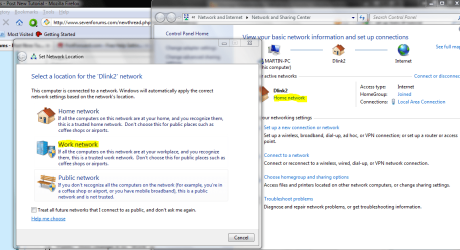
In terms of the "Make sure it is set to Home" thing. Open Network and Sharing Centre. check that it is actually set to home. I will upload a screenshot of what I mean. If it doesn't look like mine, or it doesn't say Home then click on Public or Work (it will say one of those two things) and change it to Home

Please ignore the highlighted area's on the screenshot which say "Work" It was actually made as part of a tutorial on Changing Homegroups to Workgroups (the opposite of what we're trying to achieve here)
 

Attachments

  • Step2.PNG
    Step2.PNG
    218.5 KB · Views: 120

My Computer

Computer type
PC/Desktop
Computer Manufacturer/Model Number
Medion Erazer (note to self: insert model number) - with custom additions
OS
Windows 10 Pro x64
CPU
Intel Core i5 7400 @ 3.00GHz
Motherboard
OEM supllied with PC
Memory
8GB 2133Mhz DDR4 (OEM supplied)
Graphics Card(s)
Gygabyte Windforce GTX 1050Ti (Factory Overclocked)
Sound Card
Realtek
Monitor(s) Displays
Acer Al1980 + HKC
Screen Resolution
1360*768(HKC) / 1280*1024(Acer)
Hard Drives
1TB Toshiba
1TB WD Caviar Green
120GB Samsung Evo 840
PSU
OEM supplied (no power rating on case)
Case
OEM Supplied
Cooling
Stock
Keyboard
Logitech Wireless
Mouse
Logitect Wireless
Internet Speed
40Mb/s Down 10Mb/s Up
Antivirus
Defender
Browser
Firefox
Oh sorry, of course i had to ping the other machine... I did it, and they communicate properly. If they did not communicate well, the workgroup would not work, would it? In the workgroup I can access to the other machine shared folders

NAmes: both machines have different names, and I have changed the workgroup names to avoid any conflict with the homegroup

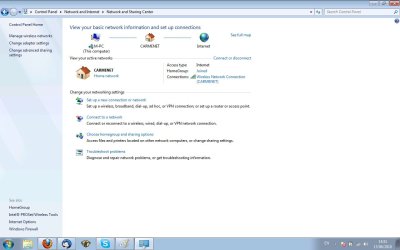
Both machines have the network settings set to HOME network. The only difference is the connection access (wireless and wired)

cheers
 

My Computer

OS
windows 7 professional 64 bits
CPU
Intel Multi Core duo 2.33gHZ
Motherboard
Gigabyte GA-EG41MF-S2H
Memory
DDR2 2x2gb
Graphics Card(s)
onboard MoBo card - Realtek
Sound Card
USB MUSILAND DAC
Monitor(s) Displays
LCD TV Samsumg 32''
Screen Resolution
HD
Hard Drives
1 x 2.5" 1Tb
PSU
mcubed external fanless
Case
mcubed
Cooling
mcubed passive cooling
RE: The pings I suspected as much but it always pays to be thorough. Can you please upload a screenshot of the exact error you get? I have a fairly shrewd idea of what is wrong but need to check
 

My Computer

Computer type
PC/Desktop
Computer Manufacturer/Model Number
Medion Erazer (note to self: insert model number) - with custom additions
OS
Windows 10 Pro x64
CPU
Intel Core i5 7400 @ 3.00GHz
Motherboard
OEM supllied with PC
Memory
8GB 2133Mhz DDR4 (OEM supplied)
Graphics Card(s)
Gygabyte Windforce GTX 1050Ti (Factory Overclocked)
Sound Card
Realtek
Monitor(s) Displays
Acer Al1980 + HKC
Screen Resolution
1360*768(HKC) / 1280*1024(Acer)
Hard Drives
1TB Toshiba
1TB WD Caviar Green
120GB Samsung Evo 840
PSU
OEM supplied (no power rating on case)
Case
OEM Supplied
Cooling
Stock
Keyboard
Logitech Wireless
Mouse
Logitect Wireless
Internet Speed
40Mb/s Down 10Mb/s Up
Antivirus
Defender
Browser
Firefox
Cool

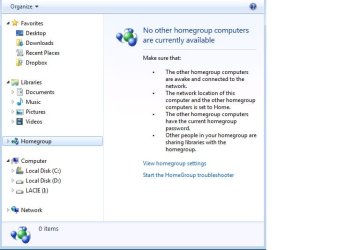
I attach a pic with the error message and another one with the network settings.

Something that still strikes me is what I mentioned in the first post; when I apply changes to the homegroup settings at "change homegroup settings", the changes (ticked fields) are not saved at all in the desktop PC, but yes in the laptop

cheers
 

Attachments

  • homegroup access problem.jpg
    homegroup access problem.jpg
    89.7 KB · Views: 78
  • network settings.jpg
    network settings.jpg
    165.6 KB · Views: 63

My Computer

OS
windows 7 professional 64 bits
CPU
Intel Multi Core duo 2.33gHZ
Motherboard
Gigabyte GA-EG41MF-S2H
Memory
DDR2 2x2gb
Graphics Card(s)
onboard MoBo card - Realtek
Sound Card
USB MUSILAND DAC
Monitor(s) Displays
LCD TV Samsumg 32''
Screen Resolution
HD
Hard Drives
1 x 2.5" 1Tb
PSU
mcubed external fanless
Case
mcubed
Cooling
mcubed passive cooling
ok.. try this: On both Machines open up the Documents Library, then click Share with (at the top) then Homegroup (Read/Write) see if that brings up the options

about the won't save the settings thing. I have a sneaky suspicion that there is something deeply wrong there... but if we can get it working without having tor esort to drastic measures I'd like to try that first
 

My Computer

Computer type
PC/Desktop
Computer Manufacturer/Model Number
Medion Erazer (note to self: insert model number) - with custom additions
OS
Windows 10 Pro x64
CPU
Intel Core i5 7400 @ 3.00GHz
Motherboard
OEM supllied with PC
Memory
8GB 2133Mhz DDR4 (OEM supplied)
Graphics Card(s)
Gygabyte Windforce GTX 1050Ti (Factory Overclocked)
Sound Card
Realtek
Monitor(s) Displays
Acer Al1980 + HKC
Screen Resolution
1360*768(HKC) / 1280*1024(Acer)
Hard Drives
1TB Toshiba
1TB WD Caviar Green
120GB Samsung Evo 840
PSU
OEM supplied (no power rating on case)
Case
OEM Supplied
Cooling
Stock
Keyboard
Logitech Wireless
Mouse
Logitect Wireless
Internet Speed
40Mb/s Down 10Mb/s Up
Antivirus
Defender
Browser
Firefox
I went to the documents librrary and I shared it with the homegroup. Still no luck

Still, the desktop machine cannot save any change done to the homegroup settings.
Once I save the changes and reopen the homegroup settings window, the ticked options of the attached pic are gone
 

Attachments

  • homegroup settings.jpg
    homegroup settings.jpg
    66.7 KB · Views: 43

My Computer

OS
windows 7 professional 64 bits
CPU
Intel Multi Core duo 2.33gHZ
Motherboard
Gigabyte GA-EG41MF-S2H
Memory
DDR2 2x2gb
Graphics Card(s)
onboard MoBo card - Realtek
Sound Card
USB MUSILAND DAC
Monitor(s) Displays
LCD TV Samsumg 32''
Screen Resolution
HD
Hard Drives
1 x 2.5" 1Tb
PSU
mcubed external fanless
Case
mcubed
Cooling
mcubed passive cooling
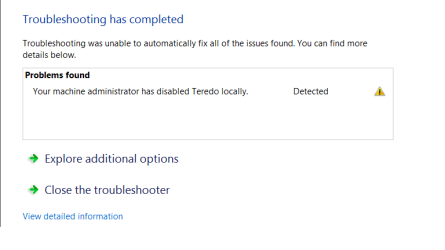
one last thing to try before we resort to drastic measures. Run the Homegroup Trouble shooter from the desktop see if it finds anything
 

My Computer

Computer type
PC/Desktop
Computer Manufacturer/Model Number
Medion Erazer (note to self: insert model number) - with custom additions
OS
Windows 10 Pro x64
CPU
Intel Core i5 7400 @ 3.00GHz
Motherboard
OEM supllied with PC
Memory
8GB 2133Mhz DDR4 (OEM supplied)
Graphics Card(s)
Gygabyte Windforce GTX 1050Ti (Factory Overclocked)
Sound Card
Realtek
Monitor(s) Displays
Acer Al1980 + HKC
Screen Resolution
1360*768(HKC) / 1280*1024(Acer)
Hard Drives
1TB Toshiba
1TB WD Caviar Green
120GB Samsung Evo 840
PSU
OEM supplied (no power rating on case)
Case
OEM Supplied
Cooling
Stock
Keyboard
Logitech Wireless
Mouse
Logitect Wireless
Internet Speed
40Mb/s Down 10Mb/s Up
Antivirus
Defender
Browser
Firefox
I am not too sure of what that means, but a networking error was detected (see pic)
 

Attachments

  • troubleshooting.png
    troubleshooting.png
    17.8 KB · Views: 78

My Computer

OS
windows 7 professional 64 bits
CPU
Intel Multi Core duo 2.33gHZ
Motherboard
Gigabyte GA-EG41MF-S2H
Memory
DDR2 2x2gb
Graphics Card(s)
onboard MoBo card - Realtek
Sound Card
USB MUSILAND DAC
Monitor(s) Displays
LCD TV Samsumg 32''
Screen Resolution
HD
Hard Drives
1 x 2.5" 1Tb
PSU
mcubed external fanless
Case
mcubed
Cooling
mcubed passive cooling
Bugger.... ok do me a favour, I need to look up how to fix this (cant remember off the top of my head) In the mean time, please open up Device Manager (Control Panel>Hardware and Sound>Device Manager) right click Microsoft Tunelling Adapter (or Teredo Tunneling Adapter) it should have a yellow triangle next to it, and upload a screen of the Properties screen

edit: try this to bring Teredo back:
1. Open command prompt with administrator credentials (Find CMD and right-click - Run as Administrator).
2. Enter netsh environment. Type "netsh" and ENTER.
3. "int teredo" and ENTER
4. "set state disabled" and ENTER.
5. Open Device Manager and uninstall "Teredo Tunneling Pseudo-Interface".
6. Open command prompt with administrator credentials once again.
7. netsh + ENTER.
8. "int ipv6" + ENTER
9. "set teredo client" + ENTER
10. Open Device Manager and Scan for new hardware.
11. Select "Show hidden devices" from the View menu. You will now see that it is present without errors with any luck.
 

My Computer

Computer type
PC/Desktop
Computer Manufacturer/Model Number
Medion Erazer (note to self: insert model number) - with custom additions
OS
Windows 10 Pro x64
CPU
Intel Core i5 7400 @ 3.00GHz
Motherboard
OEM supllied with PC
Memory
8GB 2133Mhz DDR4 (OEM supplied)
Graphics Card(s)
Gygabyte Windforce GTX 1050Ti (Factory Overclocked)
Sound Card
Realtek
Monitor(s) Displays
Acer Al1980 + HKC
Screen Resolution
1360*768(HKC) / 1280*1024(Acer)
Hard Drives
1TB Toshiba
1TB WD Caviar Green
120GB Samsung Evo 840
PSU
OEM supplied (no power rating on case)
Case
OEM Supplied
Cooling
Stock
Keyboard
Logitech Wireless
Mouse
Logitect Wireless
Internet Speed
40Mb/s Down 10Mb/s Up
Antivirus
Defender
Browser
Firefox
I followed fine till
5. Open Device Manager and uninstall "Teredo Tunneling Pseudo-Interface".

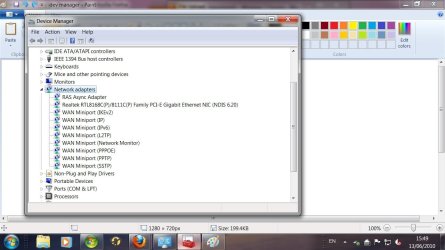
Where in the dev manager is that component located? I cannot find it
 

My Computer

OS
windows 7 professional 64 bits
CPU
Intel Multi Core duo 2.33gHZ
Motherboard
Gigabyte GA-EG41MF-S2H
Memory
DDR2 2x2gb
Graphics Card(s)
onboard MoBo card - Realtek
Sound Card
USB MUSILAND DAC
Monitor(s) Displays
LCD TV Samsumg 32''
Screen Resolution
HD
Hard Drives
1 x 2.5" 1Tb
PSU
mcubed external fanless
Case
mcubed
Cooling
mcubed passive cooling
Its under network Adapters. If you can't see it then try clicking View>Show hidden devices
 

My Computer

Computer type
PC/Desktop
Computer Manufacturer/Model Number
Medion Erazer (note to self: insert model number) - with custom additions
OS
Windows 10 Pro x64
CPU
Intel Core i5 7400 @ 3.00GHz
Motherboard
OEM supllied with PC
Memory
8GB 2133Mhz DDR4 (OEM supplied)
Graphics Card(s)
Gygabyte Windforce GTX 1050Ti (Factory Overclocked)
Sound Card
Realtek
Monitor(s) Displays
Acer Al1980 + HKC
Screen Resolution
1360*768(HKC) / 1280*1024(Acer)
Hard Drives
1TB Toshiba
1TB WD Caviar Green
120GB Samsung Evo 840
PSU
OEM supplied (no power rating on case)
Case
OEM Supplied
Cooling
Stock
Keyboard
Logitech Wireless
Mouse
Logitect Wireless
Internet Speed
40Mb/s Down 10Mb/s Up
Antivirus
Defender
Browser
Firefox
I still cannot see it
 

Attachments

  • dev manager.jpg
    dev manager.jpg
    198.5 KB · Views: 39

My Computer

OS
windows 7 professional 64 bits
CPU
Intel Multi Core duo 2.33gHZ
Motherboard
Gigabyte GA-EG41MF-S2H
Memory
DDR2 2x2gb
Graphics Card(s)
onboard MoBo card - Realtek
Sound Card
USB MUSILAND DAC
Monitor(s) Displays
LCD TV Samsumg 32''
Screen Resolution
HD
Hard Drives
1 x 2.5" 1Tb
PSU
mcubed external fanless
Case
mcubed
Cooling
mcubed passive cooling
Ok im going to warn you now: it is entirely possible that your router and or network card doen't support IPv6 (which is needed for Homegroups) In which case there isn't going to be alot you can do.... However its also possioble that Teredo has become corrupted... so just skip step 5 and carry on. that should bring it back if it's possible

If it is incompatibility, then I would say it is more likely to be the network card, as the laptop seems to be handling it fine. I would recommend filling out your system specs under the User CP at the top so that an updated driver can be found if one is available
 

My Computer

Computer type
PC/Desktop
Computer Manufacturer/Model Number
Medion Erazer (note to self: insert model number) - with custom additions
OS
Windows 10 Pro x64
CPU
Intel Core i5 7400 @ 3.00GHz
Motherboard
OEM supllied with PC
Memory
8GB 2133Mhz DDR4 (OEM supplied)
Graphics Card(s)
Gygabyte Windforce GTX 1050Ti (Factory Overclocked)
Sound Card
Realtek
Monitor(s) Displays
Acer Al1980 + HKC
Screen Resolution
1360*768(HKC) / 1280*1024(Acer)
Hard Drives
1TB Toshiba
1TB WD Caviar Green
120GB Samsung Evo 840
PSU
OEM supplied (no power rating on case)
Case
OEM Supplied
Cooling
Stock
Keyboard
Logitech Wireless
Mouse
Logitect Wireless
Internet Speed
40Mb/s Down 10Mb/s Up
Antivirus
Defender
Browser
Firefox
Nothing changed in the device manager.

I have to go now for a couple of hours. I will keep investigating after that. Will check if the router is ipv6 compatible. (3 years old...)

Let me know if I should check something else in the meantime

thanks for all your help, it is much appreciated
 

My Computer

OS
windows 7 professional 64 bits
CPU
Intel Multi Core duo 2.33gHZ
Motherboard
Gigabyte GA-EG41MF-S2H
Memory
DDR2 2x2gb
Graphics Card(s)
onboard MoBo card - Realtek
Sound Card
USB MUSILAND DAC
Monitor(s) Displays
LCD TV Samsumg 32''
Screen Resolution
HD
Hard Drives
1 x 2.5" 1Tb
PSU
mcubed external fanless
Case
mcubed
Cooling
mcubed passive cooling
I'm only sorry we don't seem to be getting very far... I have updated my previous post. Please read :)
 

My Computer

Computer type
PC/Desktop
Computer Manufacturer/Model Number
Medion Erazer (note to self: insert model number) - with custom additions
OS
Windows 10 Pro x64
CPU
Intel Core i5 7400 @ 3.00GHz
Motherboard
OEM supllied with PC
Memory
8GB 2133Mhz DDR4 (OEM supplied)
Graphics Card(s)
Gygabyte Windforce GTX 1050Ti (Factory Overclocked)
Sound Card
Realtek
Monitor(s) Displays
Acer Al1980 + HKC
Screen Resolution
1360*768(HKC) / 1280*1024(Acer)
Hard Drives
1TB Toshiba
1TB WD Caviar Green
120GB Samsung Evo 840
PSU
OEM supplied (no power rating on case)
Case
OEM Supplied
Cooling
Stock
Keyboard
Logitech Wireless
Mouse
Logitect Wireless
Internet Speed
40Mb/s Down 10Mb/s Up
Antivirus
Defender
Browser
Firefox
Just updated by system specs under my user profile in case that helps

Thanks again
 

My Computer

OS
windows 7 professional 64 bits
CPU
Intel Multi Core duo 2.33gHZ
Motherboard
Gigabyte GA-EG41MF-S2H
Memory
DDR2 2x2gb
Graphics Card(s)
onboard MoBo card - Realtek
Sound Card
USB MUSILAND DAC
Monitor(s) Displays
LCD TV Samsumg 32''
Screen Resolution
HD
Hard Drives
1 x 2.5" 1Tb
PSU
mcubed external fanless
Case
mcubed
Cooling
mcubed passive cooling

My Computer

Computer type
PC/Desktop
Computer Manufacturer/Model Number
Medion Erazer (note to self: insert model number) - with custom additions
OS
Windows 10 Pro x64
CPU
Intel Core i5 7400 @ 3.00GHz
Motherboard
OEM supllied with PC
Memory
8GB 2133Mhz DDR4 (OEM supplied)
Graphics Card(s)
Gygabyte Windforce GTX 1050Ti (Factory Overclocked)
Sound Card
Realtek
Monitor(s) Displays
Acer Al1980 + HKC
Screen Resolution
1360*768(HKC) / 1280*1024(Acer)
Hard Drives
1TB Toshiba
1TB WD Caviar Green
120GB Samsung Evo 840
PSU
OEM supplied (no power rating on case)
Case
OEM Supplied
Cooling
Stock
Keyboard
Logitech Wireless
Mouse
Logitect Wireless
Internet Speed
40Mb/s Down 10Mb/s Up
Antivirus
Defender
Browser
Firefox
Back
Top