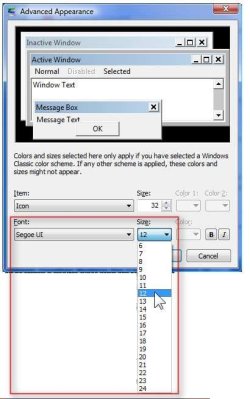
I can change a lot of things using the appearances tabs, but I can't change the Desktop Font Size.
The "normal" way to do this that Win7 provides is to change the DPI from 100% to 125, 150 or custom. HOWEVER, doing that causes some programs to not work correctly. For instance Titan Quest, and I've heard in comments on gaming forums that other games sometimes have the same problem. Changing DPI in Win7 causes the cursors to not work properly in many full-screen games and apps. Changing DPI back to 100% requires a reboot, which is a pain.
SO... Is there any way, some registry tweak, perhaps, that will allow me to change the desktop font to a larger size?
Right now, I'm having to resort to switching back and forth from 800x600 screen resolution when I can't read some things. On a widescreen monitor, that's a shameful waste of monitor space. It seems there should be an easier way to do this.
The "normal" way to do this that Win7 provides is to change the DPI from 100% to 125, 150 or custom. HOWEVER, doing that causes some programs to not work correctly. For instance Titan Quest, and I've heard in comments on gaming forums that other games sometimes have the same problem. Changing DPI in Win7 causes the cursors to not work properly in many full-screen games and apps. Changing DPI back to 100% requires a reboot, which is a pain.
SO... Is there any way, some registry tweak, perhaps, that will allow me to change the desktop font to a larger size?
Right now, I'm having to resort to switching back and forth from 800x600 screen resolution when I can't read some things. On a widescreen monitor, that's a shameful waste of monitor space. It seems there should be an easier way to do this.
My Computer
- OS
- win 7 professional 64