
Icons - Change Using Resource Hacker

   Information
A few days ago I faced a question http://www.sevenforums.com/customization/72719-how-do-i-change-icons-using-restorator.html . I provided the suggestion there; latter thought if there is a tutorial, it may help many guys asking the question.
   Note
Tools required :
1. Resource Hacker : Now supports 64 bit system and .png files. Download it from : Download New Updated “Resource Hacker 3.5.2 Beta” with 64-bit and PNG File Support - Tweaking with Vishal

2. IcoFX : A free application that can be used to get a ready reference of the system icons. Download it from IcoFX - The Free Icon Editor - Download


Download and install the above mentioned programs.


Now it starts :

Suppose we are changing the default games icon with this one chinaz5.png

Though almost all of the system is changeable in this process, it is just an example :D

1. Go to C:\Windows\System32\imageres.dll and take a copy if it in a secured place (i.e. take a backup of it)

2. Now Take Ownership of the imageres.dll

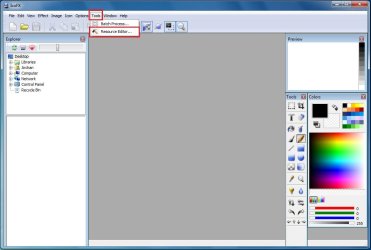
3. Open IcoFX. Click on Tools > Resource Editor.
Pic1.jpg
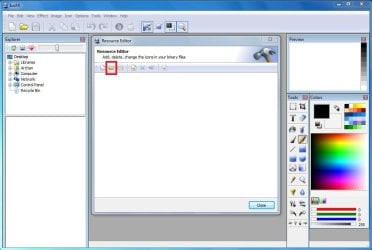
4. In the resource editor window , click on the folder icon. The Open Resources window will appear.
pic2.JPG
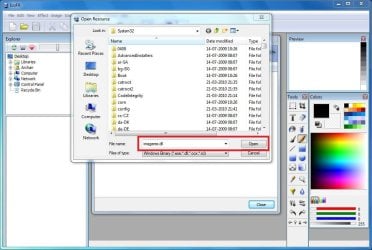
5. In the open resources window, give the filename "imageres.dll" and click open.
pic3.JPG
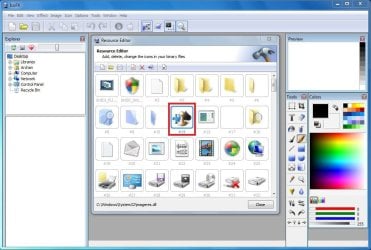
6. So in the resource editor window, The games icon no is #14
pic4.JPG
We are to moderate it using Resource Hacker. Now we may close IcoFX.

7. Open Resource Hacker. Click on File > Open . It will automatically open in System 32.
pic5.jpg
8. In the incoming box, give the file name "imageres.dll" and click "open".
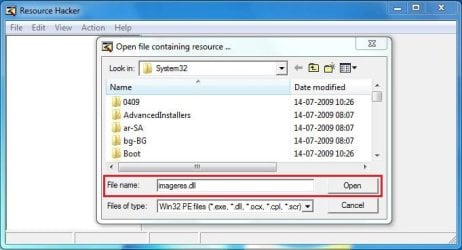
pic6.JPG
9. Now, Click on the "+" sign in front of "Icon Group"
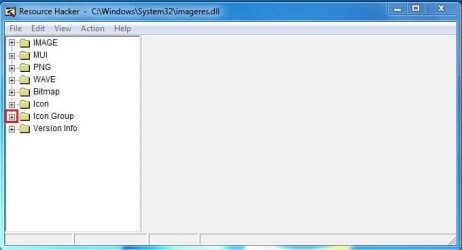
pic7.JPG
10. You will look the Icon group tree expands, and an item "*1033" there. Click on "*1033" and see the games icon revealed in the right side pane of the window.
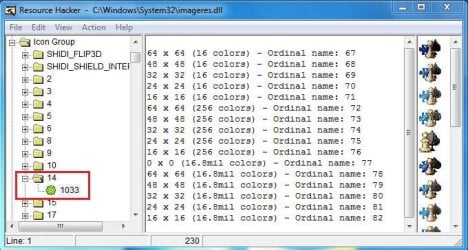
pic8.JPG
11. Now right click on "*1033" and click on "replace resource"
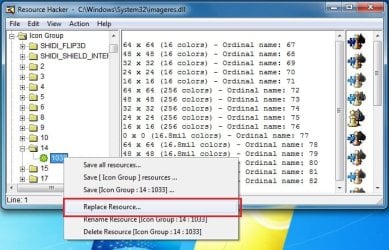
pic9.jpg
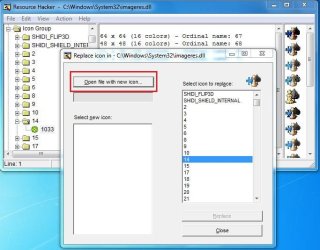
12. In the upcoming box, click on "Open the file with new icon" and browse for it.
pic10.JPG
13. Now, first click on "Select new icon" and then click on "replace"
pic11.JPG
Repeat upto step 13 for the icons you want to change at a time, and when all of your icons are replaced, go to step 14.
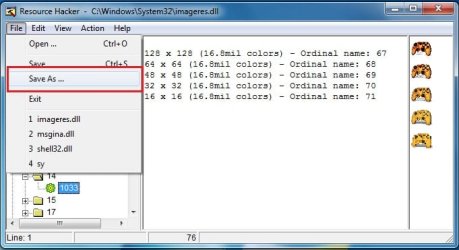
14. We are almost done. We successfully modified the imageres.dll file. Now it is to save it. Cilck on File > Save as, give the filename "imageres,dll". Save it on your desktop.
pic12.jpg
15. Go again to C:\Windows\System32\imageres.dll. Rename it to inageresOLD.dll or something. Now copy the modified imageres.dll in that location. The last thing is to restart ... either you may restart your computer, or you may restart explorer.exe using task manager.

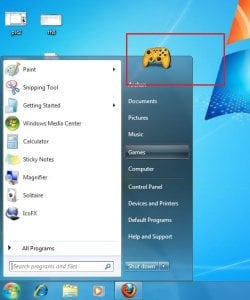
16. After restart, Click on start menu and place your pointer on the games link. you will get it :D
final.jpg
I agree with you that the process is lengthy and labourous :( But it is the free of cost way to change all the system icons.

Enjoy yourself. And again,dont forget to backup your original imageres.dll before starting the process :)


Last edited by a moderator:
Great tutorial! Nice Arc!
I have a question. Will running sfc /scannow replace the modified icon to the default ones?
It did change some of mine back to default. My Pc does screwy things though. :mad:
 

My Computer

Computer type
PC/Desktop
Computer Manufacturer/Model Number
Home Built Desktop By DataTech
OS
Windows 7 Ultimate X64 SP1
CPU
Intel i5-2550K, Differing ~4.4-4.8GHz No built in GPU
Motherboard
ASUS P8Z68-V PRO/GEN3
Memory
16GB G.Skill Sniper 1866MHz @ 2133MHz 2x8GB
Graphics Card(s)
ASUS GTX650TIB-DC2OC-2GD5, (650TI Boost)
Sound Card
Onboard Realtek 5-1
Monitor(s) Displays
Samsung P2570HD
Screen Resolution
1920x1080
Hard Drives
Samsung 840 Pro 256GB SSD for OS, 500GB Seagate Constellation (Enterprise drive) for Data
PSU
Corsair HX650W
Case
Inwin Dragon Rider
Cooling
Hyper 212 EVO w/two Noctua fans, push-pull, @1300 RPM
Keyboard
E-Z Eyes, bright yellow keys with large characters
Mouse
steelseries SENSEI Laser Pro Gaming
Internet Speed
48-51Mbs Mbs down, 11 Mbs up Xfinity Cable
Antivirus
Norton Internet Security 2013
Browser
IE 10, Opera, Pale Moon if needed
Other Info
4 case fans, LG BluRay-RE, ASUS DVD-RW, Mr. Fusion power supply, 1.21 gigawatts.
12. In the upcoming box, click on "Open the file with new icon" and browse for it.
Browse for what !? .ico file !? when i open .ico with Resource Hacker, it says "out of memory".. i want to replace my app icon with this .ico files.. :cry::cry:
I apologise for being the newbie who brings up the ancient thread, but I'm receiving the "out of memory" popup, too, and it fails to add the new icon. I've taken ownership, and tried adding it with resource hacker several times, to no avail. Help, please?

Welcome aboard. :)

If you get the out of memory dialog, ignore it. Save the imageres file on desktop and then replace the system file as drscribed there.

if it is still a problem, let us know.
 

My Computer

Computer type
PC/Desktop
Computer Manufacturer/Model Number
Self Assembled
OS
Microsoft Windows 10 Pro Insider Preview 64-bit
CPU
Intel(R) Core(TM) i3-4130 CPU @ 3.40GHz
Motherboard
Gigabyte Technology Co., Ltd. B85M-D3H
Memory
Corsair Vengence 4GB x2 (8.00GB Dual-Channel DDR3 @ 798MHz)
Graphics Card(s)
2047MB GeForce GTS 450 (ZOTAC International)
Sound Card
Onboard (Realtek High Definition Audio)
Monitor(s) Displays
LG Flatron E2040T
Screen Resolution
1600x900
Hard Drives
Western Digital 1 TB
Seagate 500 GB
PSU
Corsair VS550
Case
Cooler Master K380
Cooling
Cooler Master Seidon 120V Plus
Keyboard
Logitech MK260r
Mouse
Logitech MK260r
Internet Speed
PMPL Broadband
Antivirus
Windows Defender + MBAM
Browser
Firefox
Other Info
Dell Studio 15" Laptop
many thanks for a simple step by step how to you the mannnnnnn
 

My Computer

OS
Windows 7 Home Premium 32bit.
After changing the icon/icons, where are you saving the final result?
 

My Computer

Computer type
PC/Desktop
Computer Manufacturer/Model Number
Self Assembled
OS
Microsoft Windows 10 Pro Insider Preview 64-bit
CPU
Intel(R) Core(TM) i3-4130 CPU @ 3.40GHz
Motherboard
Gigabyte Technology Co., Ltd. B85M-D3H
Memory
Corsair Vengence 4GB x2 (8.00GB Dual-Channel DDR3 @ 798MHz)
Graphics Card(s)
2047MB GeForce GTS 450 (ZOTAC International)
Sound Card
Onboard (Realtek High Definition Audio)
Monitor(s) Displays
LG Flatron E2040T
Screen Resolution
1600x900
Hard Drives
Western Digital 1 TB
Seagate 500 GB
PSU
Corsair VS550
Case
Cooler Master K380
Cooling
Cooler Master Seidon 120V Plus
Keyboard
Logitech MK260r
Mouse
Logitech MK260r
Internet Speed
PMPL Broadband
Antivirus
Windows Defender + MBAM
Browser
Firefox
Other Info
Dell Studio 15" Laptop
I am new to this forum and I didn't want to bump it, but its only a few months and perhaps others are having the same issue.


So I have successfully changed a few of the icons I have tried using Resource Hacker.


Here's my problem. I replaced my Firefox icon with something, and now I am attempting to change it again to something else. The first time I changed it, everything works, I pinned it to the taskbar (Windows 7), it opens up with the correct icon, everything. Now when I change it again I get the newer icon working on the shortcut, pin that to the taskbar, but then when I open it it shows the old icon I changed it to. I have tried multiple times to re-change the icon to no avail.

Any help here would be great!
 

My Computer

Computer type
PC/Desktop
OS
Windows 7 Home Premium 64bit
Hello bcannariato, and welcome to Seven Forums.

Did you change the icon of the shortcut or the actual .exe file for Firefox?

If you did change the icon for the .exe file, then you might see if rebuilding the icon cache may help.

Hope this helps, :)
Shawn
 

My Computer

Computer type
PC/Desktop
Computer Manufacturer/Model Number
Self built custom
OS
64-bit Windows 11 Pro for Workstations
CPU
Intel i7-8700K OC'd to 5 GHz
Motherboard
ASUS ROG Maximus XI Formula Z390
Memory
64 GB (4x16GB) G.SKILL TridentZ RGB DDR4 3600 MHz
Graphics Card(s)
ASUS ROG-STRIX-GTX1080TI-O11G-GAMING
Sound Card
Integrated
Monitor(s) Displays
2 x Samsung Odyssey G7 27"
Screen Resolution
2560x1440
Hard Drives
1TB Samsung 990 PRO M.2,
4TB Samsung 990 PRO PRO M.2,
TerraMaster F8 SSD Plus NAS
PSU
Seasonic Prime Titanium 850W
Case
Thermaltake Core P3
Cooling
Corsair Hydro H115i
Keyboard
Logitech wireless K800
Mouse
Logitech MX Master 4
Internet Speed
2 Gb/s Download and 100 Mb/s Upload
Antivirus
Malwarebyte Anti-Malware Premium
Browser
Google Chrome
Other Info
Logitech Z625 speaker system,
Logitech BRIO 4K Pro webcam,
HP Color LaserJet Pro MFP M477fdn,
APC SMART-UPS RT 1000 XL - SURT1000XLI,
Galaxy S23 Plus phone

My Computer

Computer type
PC/Desktop
Computer Manufacturer/Model Number
Self Assembled
OS
Microsoft Windows 10 Pro Insider Preview 64-bit
CPU
Intel(R) Core(TM) i3-4130 CPU @ 3.40GHz
Motherboard
Gigabyte Technology Co., Ltd. B85M-D3H
Memory
Corsair Vengence 4GB x2 (8.00GB Dual-Channel DDR3 @ 798MHz)
Graphics Card(s)
2047MB GeForce GTS 450 (ZOTAC International)
Sound Card
Onboard (Realtek High Definition Audio)
Monitor(s) Displays
LG Flatron E2040T
Screen Resolution
1600x900
Hard Drives
Western Digital 1 TB
Seagate 500 GB
PSU
Corsair VS550
Case
Cooler Master K380
Cooling
Cooler Master Seidon 120V Plus
Keyboard
Logitech MK260r
Mouse
Logitech MK260r
Internet Speed
PMPL Broadband
Antivirus
Windows Defender + MBAM
Browser
Firefox
Other Info
Dell Studio 15" Laptop
I am adding a little to Brink's suggestion, for most of the third party icons (those are not having a MSI based installer), the best way to change the icons is http://www.sevenforums.com/tutorials/180615-taskbar-pinned-icons-change.html.

It takes the effect system wide.

Hi Archie seems you had me in mind with that link ;)
I was under the impression icons needed to be bmp's ? or is that just start orbs :/
How about sizes ?
@125 dpi screen resolution for an ie10 .exe for taskbar 66x198 for all three states :/
It's a round icon for what it's worth ;)
Cheers.
 

My Computer

Computer type
PC/Desktop
Computer Manufacturer/Model Number
Custom assembled by me :}
OS
Win-7-Pro64bit 7-H-Prem-64bit
CPU
i7-5930K 2nd i9-9940x both water blocked VRM's too
Motherboard
ASUS SABERTOOTH X99 2nd ASUS x299 Apex
Memory
Trident-z 3200C14 2nd Trident-z 3600C16
Graphics Card(s)
EVGA 1080ti ftw3 2nd Titan Xp both water blocked
Sound Card
Built-in Realtek
Monitor(s) Displays
1-AOC G2460PG 24"G-Sync 144Hz/ 2nd 1-ASUS VG248QE 24" 144Hz
Screen Resolution
1920 x 1080 144Hz
Hard Drives
2-Samsung M.2 Evo & Evo Plus
2-Samsung 850 EVO 500GB SSD's/ 3-2.5 W.D. Black 1tb-&3-1tb/3-3.5 WD Black 1tb hdd's
PSU
EVGA SuperNOVA 1000-P2 2nd 1200-P2
Case
2-Corsair Obsidian Series 450D Black ATX Mid Tower
Cooling
Custom water loops
Keyboard
Logitech G710+/ 2nd Logitech G910
Mouse
2-RedDragon M901 Perdition 16400 dpi Gaming mouse = wired
Internet Speed
Comcast Ping 19ms 89.31mbps download speed 6.12mbps upload
Antivirus
Malwarebytes Pro/ Superantispyware Pro
Browser
FireFox & Pale moon
Other Info
2nd ASUS X299 Apex/Intel i9-9940x with Custom water loop/7H-Prem-x64/Corsair 450D case/Ram Trident-z 3600C16 4x8gb / Samsung970Evo plus 500gb SSD/Dual ssd EZ swap evo/PSU EVGA SuperNova 1200w-P2 80+Platinum/GPU Titan Xp /8-ML-140 on push-pull on 2-280GTX rads
Hi Mike.

Icons, when applied as system icons or any other third party program icons, they must be .ico files.

Size doesn't matter. ;) All good icons are multi-sized.

When icons are applied in docks etc, they needed to be .png.

Some other system resources including the start button are .bmp images. And, a start button image is not a single image but a combination of three images. For 100% DPI the three .bmp images are 6801, 6805 and 6809 in explorer.exe.
 

My Computer

Computer type
PC/Desktop
Computer Manufacturer/Model Number
Self Assembled
OS
Microsoft Windows 10 Pro Insider Preview 64-bit
CPU
Intel(R) Core(TM) i3-4130 CPU @ 3.40GHz
Motherboard
Gigabyte Technology Co., Ltd. B85M-D3H
Memory
Corsair Vengence 4GB x2 (8.00GB Dual-Channel DDR3 @ 798MHz)
Graphics Card(s)
2047MB GeForce GTS 450 (ZOTAC International)
Sound Card
Onboard (Realtek High Definition Audio)
Monitor(s) Displays
LG Flatron E2040T
Screen Resolution
1600x900
Hard Drives
Western Digital 1 TB
Seagate 500 GB
PSU
Corsair VS550
Case
Cooler Master K380
Cooling
Cooler Master Seidon 120V Plus
Keyboard
Logitech MK260r
Mouse
Logitech MK260r
Internet Speed
PMPL Broadband
Antivirus
Windows Defender + MBAM
Browser
Firefox
Other Info
Dell Studio 15" Laptop
Thanks Archie,
I made the icons 66x66 but CorelDraw's ico files are not transparent for the round corners but did import the png's to gimp and it's ico options do make them transparent :)
Still thinking of a start button ;)
What are the file locations for 125dpi on 64bit :/
 

My Computer

Computer type
PC/Desktop
Computer Manufacturer/Model Number
Custom assembled by me :}
OS
Win-7-Pro64bit 7-H-Prem-64bit
CPU
i7-5930K 2nd i9-9940x both water blocked VRM's too
Motherboard
ASUS SABERTOOTH X99 2nd ASUS x299 Apex
Memory
Trident-z 3200C14 2nd Trident-z 3600C16
Graphics Card(s)
EVGA 1080ti ftw3 2nd Titan Xp both water blocked
Sound Card
Built-in Realtek
Monitor(s) Displays
1-AOC G2460PG 24"G-Sync 144Hz/ 2nd 1-ASUS VG248QE 24" 144Hz
Screen Resolution
1920 x 1080 144Hz
Hard Drives
2-Samsung M.2 Evo & Evo Plus
2-Samsung 850 EVO 500GB SSD's/ 3-2.5 W.D. Black 1tb-&3-1tb/3-3.5 WD Black 1tb hdd's
PSU
EVGA SuperNOVA 1000-P2 2nd 1200-P2
Case
2-Corsair Obsidian Series 450D Black ATX Mid Tower
Cooling
Custom water loops
Keyboard
Logitech G710+/ 2nd Logitech G910
Mouse
2-RedDragon M901 Perdition 16400 dpi Gaming mouse = wired
Internet Speed
Comcast Ping 19ms 89.31mbps download speed 6.12mbps upload
Antivirus
Malwarebytes Pro/ Superantispyware Pro
Browser
FireFox & Pale moon
Other Info
2nd ASUS X299 Apex/Intel i9-9940x with Custom water loop/7H-Prem-x64/Corsair 450D case/Ram Trident-z 3600C16 4x8gb / Samsung970Evo plus 500gb SSD/Dual ssd EZ swap evo/PSU EVGA SuperNova 1200w-P2 80+Platinum/GPU Titan Xp /8-ML-140 on push-pull on 2-280GTX rads
125 dpi start button images are in C:\Windows\explorer.exe. The image resources are Bitmap 6802, 6806 and 6810.
 

My Computer

Computer type
PC/Desktop
Computer Manufacturer/Model Number
Self Assembled
OS
Microsoft Windows 10 Pro Insider Preview 64-bit
CPU
Intel(R) Core(TM) i3-4130 CPU @ 3.40GHz
Motherboard
Gigabyte Technology Co., Ltd. B85M-D3H
Memory
Corsair Vengence 4GB x2 (8.00GB Dual-Channel DDR3 @ 798MHz)
Graphics Card(s)
2047MB GeForce GTS 450 (ZOTAC International)
Sound Card
Onboard (Realtek High Definition Audio)
Monitor(s) Displays
LG Flatron E2040T
Screen Resolution
1600x900
Hard Drives
Western Digital 1 TB
Seagate 500 GB
PSU
Corsair VS550
Case
Cooler Master K380
Cooling
Cooler Master Seidon 120V Plus
Keyboard
Logitech MK260r
Mouse
Logitech MK260r
Internet Speed
PMPL Broadband
Antivirus
Windows Defender + MBAM
Browser
Firefox
Other Info
Dell Studio 15" Laptop
I follow this tutorial, but when I get to the appropriate step, I find no "Replace Resource" option on the right-click menu (I find "Replace Icon" instead). I tried using "Replace Icon", but it only allows the loading of one icon file at a time, and the resource I am trying to change has many icons within it.

Do I need an older version of Resource Hacker? Are there different steps for the latest version of Resource Hacker?

Thanks for any help.
 

My Computer

Computer type
PC/Desktop
OS
Windows 8.1 64 bit
I'll be in charge of Windows 7 Welcome to the screen of which the .dll was editing the wallpaper
 

My Computer

Computer type
PC/Desktop
Computer Manufacturer/Model Number
Asus
OS
Windows 10 Pro x64
CPU
İntel İ7 2600K
Motherboard
ASUS P8Z77-V DELUXE
Memory
16GB DDR3 1866Mhz
Graphics Card(s)
ASUS 7950 3GB GDDR5 384BİT
Hard Drives
128GB CORSAİR SSD + 4TB 7200 RPM SEAGATA
Antivirus
Kaspersky 2018
Browser
Google Chrome
Back
Top