
Guys,
first of all congratulations to you all for this great forum.
I have searched for a while but didn`t find an answer to my issue and I`m a bit worried about deleting all my data.
Don`t know what`s happened this time but it looks like I messed up with the partitions.
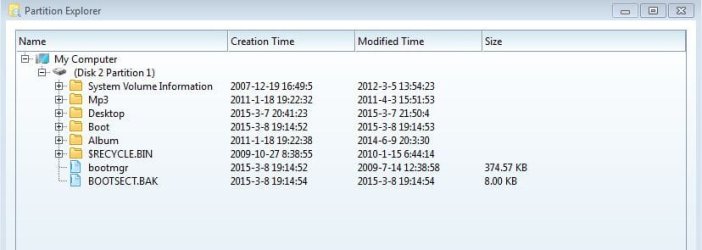
*: cointains data but it looks like also the boot info (I have attached a screenshot to make it easier).
How can I make it visible and change the boot info to c:?
*: and D: are just for storage.
Thank you all,
Luca
first of all congratulations to you all for this great forum.
I have searched for a while but didn`t find an answer to my issue and I`m a bit worried about deleting all my data.
Don`t know what`s happened this time but it looks like I messed up with the partitions.
*: cointains data but it looks like also the boot info (I have attached a screenshot to make it easier).
How can I make it visible and change the boot info to c:?
*: and D: are just for storage.
Thank you all,
Luca
Attachments

My Computer
At a glance
Windows 7 Ultimate x64
- Computer type
- PC/Desktop
- OS
- Windows 7 Ultimate x64

 You can mark the thread Solved at the top.