How to Install or Uninstall Internet Explorer 10 (IE10) in Windows 7
Information
This tutorial will show you how to either install or uninstall Internet Explorer 10 (IE10) to return to Internet Explorer 9 (IE9) for all users in Windows 7.
You must be logged in as an administrator to be able to install or uninstall IE10.
For more information about IE10, see:
You must be logged in as an administrator to be able to install or uninstall IE10.
For more information about IE10, see:
Note
In 32-bit Windows 7, Internet Explorer 10 (IE10) is still only a 32-bit browser.
In 64-bit Windows 7, Internet Explorer 10 (IE10) has 32-bit and 64-bit together in one browser now. The IE10 browser frame process runs 64-bit, but for compatibility with plug-ins, IE10 runs 32-bit tabs by default. If the user turns on “Enhanced Protected Mode”, they will have 64-bit tabs by default for IE10.
For more information about 32-bit and 64-bit IE10, see:
How to Enable 32-bit or 64-bit Internet Explorer 10 (IE10) in Windows 7
In 64-bit Windows 7, Internet Explorer 10 (IE10) has 32-bit and 64-bit together in one browser now. The IE10 browser frame process runs 64-bit, but for compatibility with plug-ins, IE10 runs 32-bit tabs by default. If the user turns on “Enhanced Protected Mode”, they will have 64-bit tabs by default for IE10.
For more information about 32-bit and 64-bit IE10, see:
How to Enable 32-bit or 64-bit Internet Explorer 10 (IE10) in Windows 7
EXAMPLE: About Internet Explorer 10 (IE10)
NOTE: In Internet Explorer, click on Help (Menu bar) and About Internet Explorer to see this. You will notice that the about IE10 is the same whether you open iexplorer.exe from either the "Program Files" or "Program Files (x86)" location.

OPTION ONE
To Install IE10 in Windows 7 through Windows Update
NOTE: If you didn't want to install IE10, then you could hide the "Internet Explorer 10" update to not see it anymore in Windows Update instead. 1. Open the Control Panel (icons view), and click on the Windows Update icon.
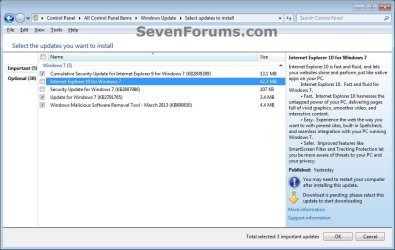
2. Check for new Windows Updates. If not already installed, select (check) Internet Explorer 10 for Windows 7, click on OK and Install updates. (see screenshot below)
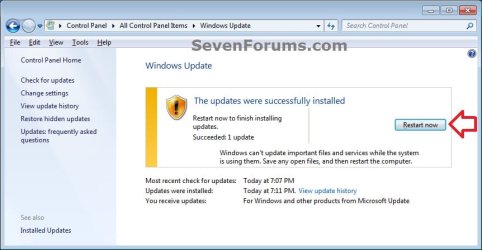
3. When Windows Update is finished, you will need to restart the computer to finish installing IE10. (see screenshot below)
OPTION TWO
To Download a Standalone IE10 .exe File to Install in Windows 7
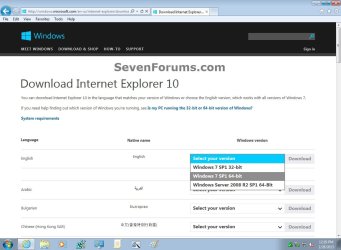
NOTE: You can download Internet Explorer 10 in the language that matches your version of Windows or choose the English version, which works with all versions of Windows 7.
Note
If you have 64-bit Windows 7, then you need to use the Windows 7 SP1 64-bit installer for IE10.
If you have 32-bit Windows 7, then you need to use the Windows 7 SP1 32-bit installer for IE10.
If you have 32-bit Windows 7, then you need to use the Windows 7 SP1 32-bit installer for IE10.
Download
2. If prompted by UAC, click on Yes.
3. Click on Install to start installing IE10. (see screenshot below)

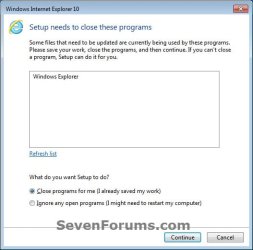
4. If prompted, click on Continue. (see screenshot below)
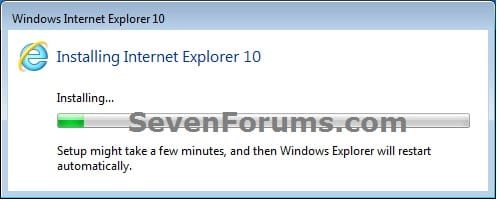
5. When IE10 has finished installing, Explorer will be restarted automatically. (see screenshot below)
OPTION THREE
To Uninstall IE10 in "View installed updates" Windows 7
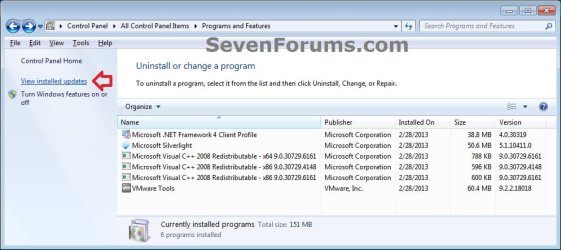
2. In Programs and Features, click on the View installed updates link on the left side. (see screenshot below)
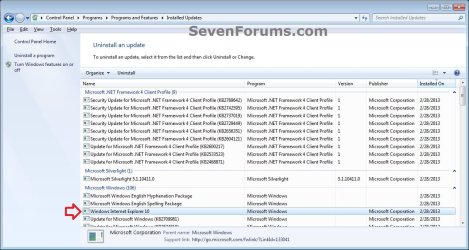
3. In Installed Updates, double click on Windows Internet Explorer 10. (see screenshot below)
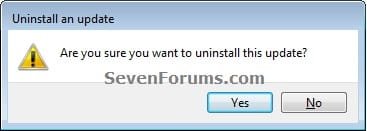
4. Click on Yes. (see screenshot below)
5. If prompted by UAC, click on Yes.
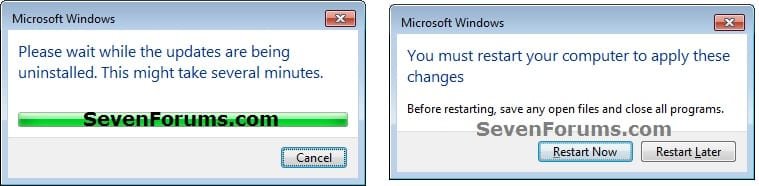
6. When IE10 has finished being uninstalled, click on Restart Now to apply. (see screenshots below)
Tip
You may now also wish to hide the IE10 update to prevent it from being reinstalled.
http://www.sevenforums.com/tutorials/24376-windows-update-hide-restore-hidden-updates.html
http://www.sevenforums.com/tutorials/24376-windows-update-hide-restore-hidden-updates.html
OPTION FOUR
To Uninstall IE10 in an Elevated Command Prompt
2. Copy the command below, and close all instances of IE10.
Code:
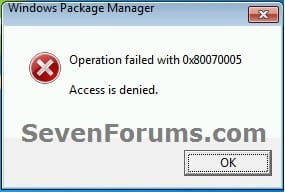
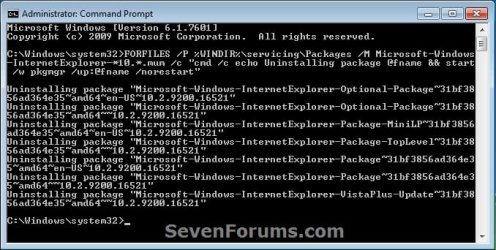
FORFILES /P %WINDIR%\servicing\Packages /M Microsoft-Windows-InternetExplorer-*10.*.mum /c "cmd /c echo Uninstalling package @fname && start /w pkgmgr /up:@fname /norestart"4. If you get any error messages like below, then click on OK to continue. You may get a few. These are fine. (see screenshot below)
5. When finished, restart the computer. (see screenshot below)
Tip
You may now also wish to hide the IE10 update to prevent it from being reinstalled.
http://www.sevenforums.com/tutorials/24376-windows-update-hide-restore-hidden-updates.html
http://www.sevenforums.com/tutorials/24376-windows-update-hide-restore-hidden-updates.html
That's it,
Shawn
Related Tutorials
- How to Enable 32-bit or 64-bit Internet Explorer 10 (IE10) in Windows 7
- How to Uninstall Internet Explorer 9
- How to Uninstall IE11 in Windows 7 to Restore Previous Version of Internet Explorer
- How to Uninstall a Windows Update in Windows 7
- How to Hide or Restore Hidden Windows Updates in Windows 7
- How to Turn Windows 7 Features On or Off
Last edited: