
How to Enable or Disable "Delete Browsing History on Exit" of IE9
Information
This will show you how to enable or disable access to delete browsing history settings in Internet Explorer 9 for all or specific users on the computer.
Note
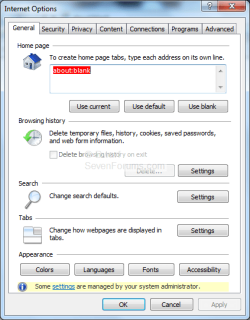
The first image shows the default setting, which allows users to delete the browsing history. The second shows the setting which prevents users from deleting the browser history. Note that in this case the option is grayed out and that the checkbox is clear. 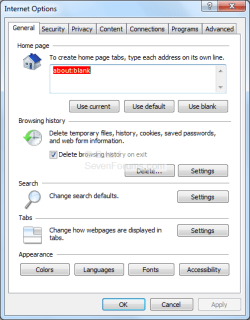
Warning
This can only be done while logged on as an administrator.
These can be overridden by certain system commands, regardless of the settings applied here.
These can be overridden by certain system commands, regardless of the settings applied here.
OPTION ONE
Using a REG File Download
NOTE: This is the default setting. A) Click on the Download button below to download the file below. Allow_Users_Delete_Browsing_History.reg
Download
B) Go to step 3.
2. To Prevent Users from Delete Browsing History A) Click on the Download button below to download the file below. Prevent_Users_Delete_Browsing_History.reg
Download
3. Save the .reg file to the desktop.
4. Right click on the downloaded .reg file and click on Merge.
5. Click on Run, Yes, Yes, and OK when prompted.
6. If open, close and reopen Internet Explorer to fully apply.
7. When done, you can delete the downloaded .reg file if you like.
OPTION TWO
Through the Local Group Policy Editor
2. In the left pane, click on to expand User Configuration, Administrative Templates, Windows Components, Internet Explorer, and Delete Browsing History.
3. In the right pane, right click on Turn off "Delete Browsing History" functionality and click on Edit. (See screenshot below.)
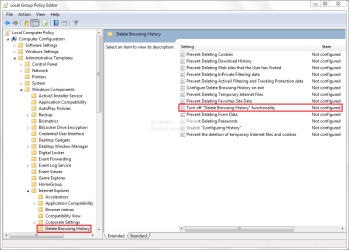
4. To Allow Users to Delete Browsing History A) Select (dot) either Not Configured or Disabled. (See screenshot below step 6.)
NOTE: Not Configured is the default setting.
B) Go to step 6.
5. To Prevent Users from Delete Browsing History A) Select (dot) Enabled. (See screenshot below step 6.)
6. Click on OK. (See screenshot below.)

7. Close the Local Group Policy Editor window.
8. If open, close and reopen Internet Explorer to fully apply.
That's it,
Guy
Related Tutorials
- How to View Internet Explorer History of Visited Websites
- How to Delete and Clear the Download History in IE9 and IE10
- How to Create a Shortcut to Delete Internet Explorer Temporary Files
- How to Create "Delete Browsing History" in Internet Explorer Shortcuts
- How to Delete the Browsing History of Internet Explorer 9 (IE9)
- How to Set Internet Explorer to "Empty Temporary Internet Files folder when browser is closed"
- How to Set IE8 and IE9 to "Delete browsing history on exit"
- How to Browse the "Temporary Internet Files" of Internet Explorer
- How to Change Disk Space to be Used by Internet Explorer "Temporary Internet Files"
Attachments
Last edited by a moderator:


