Internet Explorer Reopen Last Browsing Session - Disable or Enable

How to Enable or Disable "Reopen Last Browsing Session" in Internet Explorer

   Information
This tutorial will show you how to enable or disable the Reopen Last Browsing Session option in IE8, IE9, IE10, or IE11 for all or specific users on the computer.

You must be logged in as an administrator to be able to do the steps in this tutorial.


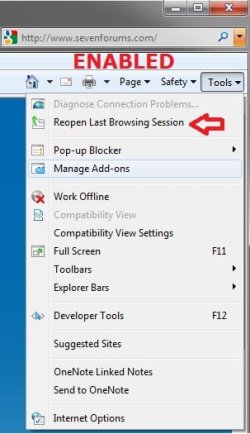
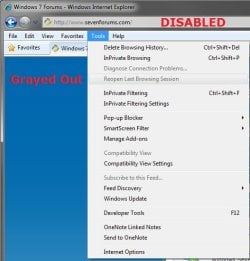
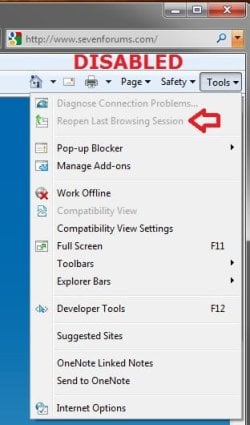
EXAMPLE: Reopen Last Browsing Session
NOTE: This is the Reopen Last Browsing Session feature in IE8, IE9, and IE10 set to be enabled (top screenshots below) and disabled grayed out (bottom screenshots below).
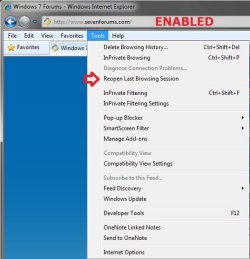
Enabled1.jpgEnabled2.jpg

Disabled1.jpgDisabled2.jpg


OPTION ONE

Using a REG File Download


1. To Enable Reopen Last Browsing Session in IE for Only Current User
NOTE: This is the default setting.
A) Click/tap on the Download button below to download the file below.
Enable_IE_Reopen_Last_Browsing_Session.reg

Download


B) Go to step 3.
2. To Disable Reopen Last Browsing Session in IE For Only Current User
A) Click/tap on the Download button below to download the file below.
Disable_IE_Reopen_Last_Browsing_Session.reg

Download


3. Save the .reg file to the desktop.

4. Double click/tap on the downloaded .reg file to merge it.

5. Click/tap on Run, Yes (UAC-Windows 7/8) or Continue (Vista), Yes, and OK when prompted.

6. When done, you can delete the downloaded .reg file if you like.

7. Close all opened Internet Explorer windows, and reopen to see the change applied.


OPTION TWO

Through the Local Group Policy Editor


1. Open the all users, specific users or groups, or all users except administrators Local Group Policy Editor for how you want this policy applied.

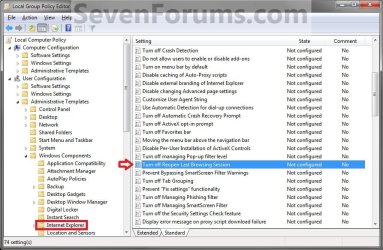
2. In the left pane, click/tap on to expand User Configuration, Administrative Templates, Windows Components, and Internet Explorer. (See screenshot below)
Group_Policy.jpg
3. In the right pane of Internet Explorer, double click/tap on Turn off Reopen Last Browsing Session to edit it. (See screenshot above)

4. To Enable Reopen Last Browsing Session
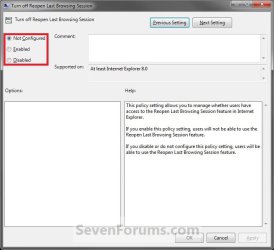
A) Select (dot) either Not Configured or Disabled. (See screenshot below step 6)
NOTE: Not Configured is the default setting.

B) Go to step 6.
5. To Disable Reopen Last Browsing Session
A) Select (dot) Enabled. (See screenshot below step 6)
6. Click/tap on OK. (See screenshot below)
Edit.jpg
7. Close the Local Group Policy Editor window.

8. Close all opened Internet Explorer windows, and reopen to see the change applied.
That's it,
Shawn


Attachments

Last edited:
Each day when opening IE8, the popup appears asking if I want to open my last session or open internet explorer. I downloaded your reg file which did manage to disable this in the tools menu, it is now greyed out there. However, the popup continues to appear when first opening IE8. Since I have Windows 7 Home Premium I am unable to access the local computer policy. Is there anything else I can try? Thanks.
 

My Computer My Computer

Computer Manufacturer/Model Number
Visionman Slim Intel Desktop Computer
OS
Windows 7 Home Premium 32bit
CPU
Intel Pentium Dual Core E2180
Motherboard
Biostar P4M900-M7 SE
Memory
2GB DDR2-667
Graphics Card(s)
NVIDIA 8400GS 256MB
Sound Card
Realtek
Monitor(s) Displays
Viewsonic VX1940w LCD Display
Screen Resolution
1280 x 800
Hard Drives
WD 250GB SATA-2 HDD
Keyboard
Kensington Comfort Type (ergonomic)
Mouse
I have mice.....a collection.
Hello Kitti,

This will only enable or disable the Reopen Last Browsing Session option from being selected.

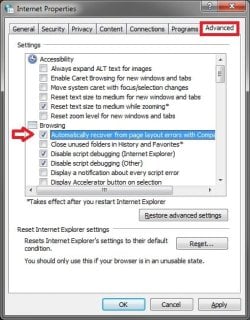
It sounds like you may have the automatic recovery kicking in asking you this instead. If it is, then you can uncheck the option below in Internet Options - Advanced tab to see if it stops afterwards.

Internet_Options.jpg

Hope this helps,
Shawn
 

My Computer My Computer

Computer type
PC/Desktop
Computer Manufacturer/Model Number
Self built custom
OS
64-bit Windows 11 Pro for Workstations
CPU
Intel i7-8700K OC'd to 5 GHz
Motherboard
ASUS ROG Maximus XI Formula Z390
Memory
64 GB (4x16GB) G.SKILL TridentZ RGB DDR4 3600 MHz
Graphics Card(s)
ASUS ROG-STRIX-GTX1080TI-O11G-GAMING
Sound Card
Integrated
Monitor(s) Displays
2 x Samsung Odyssey G7 27"
Screen Resolution
2560x1440
Hard Drives
1TB Samsung 990 PRO M.2,
4TB Samsung 990 PRO PRO M.2,
TerraMaster F8 SSD Plus NAS
PSU
Seasonic Prime Titanium 850W
Case
Thermaltake Core P3
Cooling
Corsair Hydro H115i
Keyboard
Logitech wireless K800
Mouse
Logitech MX Master 4
Internet Speed
2 Gb/s Download and 100 Mb/s Upload
Antivirus
Malwarebyte Anti-Malware Premium
Browser
Google Chrome
Other Info
Logitech Z625 speaker system,
Logitech BRIO 4K Pro webcam,
HP Color LaserJet Pro MFP M477fdn,
APC SMART-UPS RT 1000 XL - SURT1000XLI,
Galaxy S23 Plus phone
Hey, that was it! Thanks again. :D
 

My Computer My Computer

Computer Manufacturer/Model Number
Visionman Slim Intel Desktop Computer
OS
Windows 7 Home Premium 32bit
CPU
Intel Pentium Dual Core E2180
Motherboard
Biostar P4M900-M7 SE
Memory
2GB DDR2-667
Graphics Card(s)
NVIDIA 8400GS 256MB
Sound Card
Realtek
Monitor(s) Displays
Viewsonic VX1940w LCD Display
Screen Resolution
1280 x 800
Hard Drives
WD 250GB SATA-2 HDD
Keyboard
Kensington Comfort Type (ergonomic)
Mouse
I have mice.....a collection.
You're most welcome. :)
 

My Computer My Computer

Computer type
PC/Desktop
Computer Manufacturer/Model Number
Self built custom
OS
64-bit Windows 11 Pro for Workstations
CPU
Intel i7-8700K OC'd to 5 GHz
Motherboard
ASUS ROG Maximus XI Formula Z390
Memory
64 GB (4x16GB) G.SKILL TridentZ RGB DDR4 3600 MHz
Graphics Card(s)
ASUS ROG-STRIX-GTX1080TI-O11G-GAMING
Sound Card
Integrated
Monitor(s) Displays
2 x Samsung Odyssey G7 27"
Screen Resolution
2560x1440
Hard Drives
1TB Samsung 990 PRO M.2,
4TB Samsung 990 PRO PRO M.2,
TerraMaster F8 SSD Plus NAS
PSU
Seasonic Prime Titanium 850W
Case
Thermaltake Core P3
Cooling
Corsair Hydro H115i
Keyboard
Logitech wireless K800
Mouse
Logitech MX Master 4
Internet Speed
2 Gb/s Download and 100 Mb/s Upload
Antivirus
Malwarebyte Anti-Malware Premium
Browser
Google Chrome
Other Info
Logitech Z625 speaker system,
Logitech BRIO 4K Pro webcam,
HP Color LaserJet Pro MFP M477fdn,
APC SMART-UPS RT 1000 XL - SURT1000XLI,
Galaxy S23 Plus phone
Back
Top