

Annotating PDF files is one of the many productivity features that users love in Microsoft Edge. But some of the text annotations like text comments are only available via context menu today which involves multiple steps to invoke. Moreover, it may not be the easiest way for touch users to access these features. We are glad to introduce a new quick menu for PDFs which would make the PDF annotations experience more efficient and make you even more productive in Edge. Here is how this menu works:
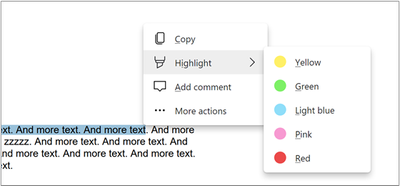
If you select any piece of text on a PDF file, a mini menu will automatically popup. The menu will have Highlight and Add comment options in addition to the regular Copy option to copy text quickly. To invoke the menu with mouse, you can drag and select any text with the mouse and a smaller version of the menu will appear upon completing the selection. You can hover over any of the options in the menu to expand it and click the items to activate as in the regular context menu. To dismiss the menu, you can just click outside of the menu or move pointer away and the menu will fade away.
To invoke the menu with touch, you can select any piece of text with long press or double tap and by adjusting the grippers. The menu will pop up automatically in the expanded state and you can tap on any of the options to activate. To dismiss the menu without selecting any options, you can just tap outside of the menu.
Like the regular context menu, the Highlight option on the menu will also have a sub-menu to pick highlight colors and Add comments option would open a pop up for you to type your comment. Clicking or tapping More actions would open the full context menu with all the options that we have today.
The menu would also work on an existing highlight. Clicking or tapping on any text highlight will open the menu. You can change the color or the highlight or remove it using the Highlight options or add a comment on the highlight using the Add comment option.
Do try out this improved interaction on PDFs let us know what you think! From within Microsoft Edge, you can go to “…” menu > Help and feedback > Send feedback, or simply use the Windows shortcut (Shift+Alt+I) to open the feedback tool.
Source: Introducing quick menu for PDF text annotations - Microsoft Tech Community
My Computer
At a glance
64-bit Windows 11 Pro for WorkstationsIntel i7-8700K OC'd to 5 GHz64 GB (4x16GB) G.SKILL TridentZ RGB DDR4 3600...ASUS ROG-STRIX-GTX1080TI-O11G-GAMING
- Computer type
- PC/Desktop
- Computer Manufacturer/Model Number
- Self built custom
- OS
- 64-bit Windows 11 Pro for Workstations
- CPU
- Intel i7-8700K OC'd to 5 GHz
- Motherboard
- ASUS ROG Maximus XI Formula Z390
- Memory
- 64 GB (4x16GB) G.SKILL TridentZ RGB DDR4 3600 MHz
- Graphics Card(s)
- ASUS ROG-STRIX-GTX1080TI-O11G-GAMING
- Sound Card
- Integrated
- Monitor(s) Displays
- 2 x Samsung Odyssey G7 27"
- Screen Resolution
- 2560x1440
- Hard Drives
- 1TB Samsung 990 PRO M.2,
4TB Samsung 990 PRO PRO M.2,
TerraMaster F8 SSD Plus NAS
- PSU
- Seasonic Prime Titanium 850W
- Case
- Thermaltake Core P3
- Cooling
- Corsair Hydro H115i
- Keyboard
- Logitech wireless K800
- Mouse
- Logitech MX Master 4
- Internet Speed
- 2 Gb/s Download and 100 Mb/s Upload
- Antivirus
- Malwarebyte Anti-Malware Premium
- Browser
- Google Chrome
- Other Info
- Logitech Z625 speaker system,
Logitech BRIO 4K Pro webcam,
HP Color LaserJet Pro MFP M477fdn,
APC SMART-UPS RT 1000 XL - SURT1000XLI,
Galaxy S23 Plus phone
