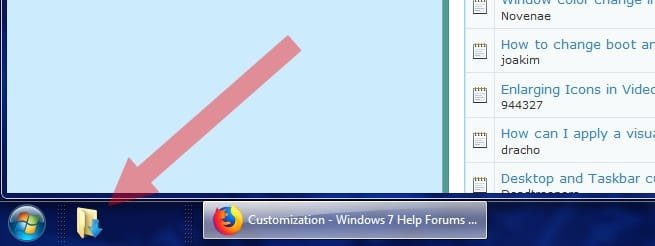
I think that this must be like the quick launch bar, and if so... A
search for the matter reveals that the same question has already been asked with no answer:
change toolbar/quicklaunch icon size other than large/small.
And was then asked again, with an answer given two years later, on the last post:
Quick Launch Icon Size
What Rick means there, is to go to: Control Panel > Appearance and Personalization > Personalization > Window Color (one of four options with icons at the bottom). This has nothing to do with window colors, so it's completely illogical that the setting is located here. Now, continue to the "Advanced appearance settings" link. In some versions of Windows, getting here is a little different, but it should be understandable anyway. The dropdown menu in the dialog that appears allows customizing several aspects of the interface. Some are interconnected, so changing some icon size or text color in one place, may also change the icon size or text color in some other unrelated place: watch out for that. One of the elements that affects the taskbar quick launch area icons, according to Rick, is the "Icon" one, so try changing its size.
Warning: this whole advanced appearance settings dialog does not work well. If you keep applying and trying different settings, it will glitch the display of the interface (temporarily), and the more settings you try, the more glitched it will look. Try changing one setting once, then do something like logging out and back in (or restarting), before trying a different setting again. Every time you restart the system it will clear up the glitching that it accumulates when you try more than one setting in the same session. This doesn't apply to all settings: for example, changing window border or scrollbar sizes multiple times probably doesn't cause any glitching. Hopefully, this will work out for you. I can't try it to verify because it would mess up my personal setup...