
How to Hide or Show the Language Bar in Windows 7
Information
This will show you how to either hide or show the Language bar toolbar when it appears on your taskbar tray automatically when you add text services like input languages, keyboard layouts, handwriting recognition, speech recognition, or input method editors (IMEs). The Language bar provides a quick way to change the input language or keyboard layout from your desktop. You can move the Language bar anywhere on your desktop screen, minimize it to the taskbar, or hide it.
The set of buttons and options on the Language bar changes depending on the text services you have installed and the software program that's currently active.
The set of buttons and options on the Language bar changes depending on the text services you have installed and the software program that's currently active.
OPTION ONE
To Hide or Show Language Bar on Taskbar Notification Area
1. To Display Language Bar on Desktop instead of Taskbar
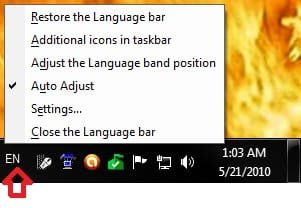
A) Left click on the Language bar icon on the taskbar, and click on Show the Language bar. (see screenshot below)

OR
B) Right click on the Language bar icon on the taskbar, and click on Restore the Language bar. (see screenshot below)
2. To Hide the Language Bar
A) Right click on the Language bar icon on the taskbar, and click on Close the Language bar. (see screenshot above)
NOTE: You can use step 5 in OPTION THREE below to restore the Language bar back to the taskbar.
OPTION TWO
To Hide or Show Language Bar on the Desktop
1. To Display Language Bar on Taskbar instead of Desktop
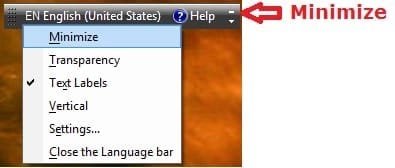
A) Left click on the Minimize button
OR
B) Right click on the Language bar on the desktop, and click on Minimize. (see screenshot below)
2. To Hide the Language Bar
A) Right click on the Language bar on the desktop, and click on Close the Language bar. (see screenshot above)
NOTE: You can use step 6 in OPTION THREE below to restore the Language bar back to the desktop.
OPTION THREE
To Hide or Show Language Bar in the Control Panel
1. Right click on the Language bar icon on the taskbar, and click on Settings. (see screenshot below)
A) Go to step 4.
OR
2. Right click on the Language bar on the desktop, and click on Settings. (see screenshot below)
A) Go to step 4.
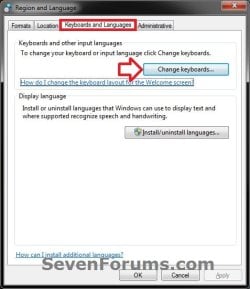
3. Open the Control Panel (icons view), and click on the Region and Language icon.
A) Click on the Keyboards and Languages tab, then click on the Change keyboards button. (see screenshot below)
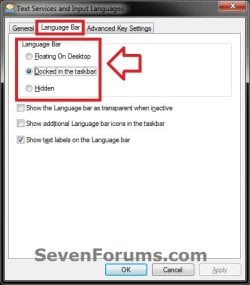
4. Click on the Language Bar tab. (see screenshot below)
5. To Display Language Bar on the Taskbar
A) Select (dot) Docked in the taskbar. (see screenshot below step 4)
B) Go to step 8.
6. To Display Language Bar on the Desktop
A) Select (dot) Floating on Desktop. (see screenshot below step 4)
B) Go to step 8.
7. To Hide the Language Bar
A) Select (dot) Hidden. (see screenshot below step 4)
8. Click on OK. (see screenshot below step 4)
9. If you opened the Language bar settings from the Control Panel (step 3), then click on OK. (see screenshot below step 3A)
OPTION FOUR
Add or Remove Language Bar Completely from UAC Black Screen

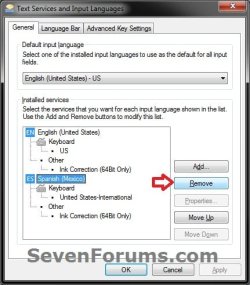
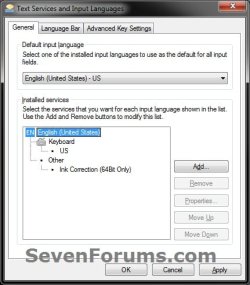
1. To Remove Language Bar
NOTE: This will also remove the Language bar from either the desktop or taskbar as well.
A) Remove all input languages (click on link) except for the current default input language. (see screenshots below)
2. To Add/Restore the Language Bar
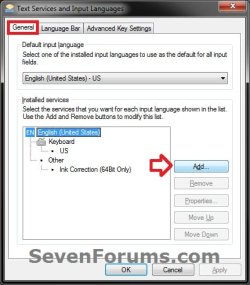
NOTE: This will also restore the Language bar back to either the desktop or taskbar as well.
A) Add a input language (click on link) in addition to the default input language. (see screenshots below)

That's it,
Shawn
Related Tutorials
- How to Add or Remove a Keyboard Input Language in Windows 7
- How to Create a Region and Language Shortcut in Windows 7
- How to Change the Keyboard Layout in Windows 7
- How to See a Keyboard Layout Preview in Windows 7
- How to Change the Display Language in Vista and Windows 7 Ultimate and Enterprise
- How to Install and Uninstall Display Languages in Windows 7 Ultimate and Enterprise
- How to Remove the Extra Language from your Language Bar
- How to Overwrite the Display Language of All Users with the System Display Language
Attachments

Last edited:


