
How to Include a Folder in a Library in Windows 7
Information
This will show you how to add a folder so that it's contents will also be included in the library as well in Windows 7.
Note
Libraries let you access and arrange items from one or more folders quickly without moving them from their original location. Libraries themselves don't store your files or folders. Instead, they point to different locations on a hard disk or external drive attached to your computer. This gives you easy access to a category of files no matter where they are stored. For instance, if you have music files on your hard disk and on an external drive, you can access all of your music files from within the "Music" library.
For more information about Windows 7 Libraries see:
You can include folders from locations that aren't always accessible by your computer (such as removable drives or networks), but you will not be able to access the contents of those folders unless the drive or network is connected. Although network folders can be included in libraries, searches will likely be slow because the contents of those folders can't be indexed. For more information about Windows 7 Libraries see Understanding Windows 7 Libraries - Windows 7 for Developers - The Windows Blog.
For more information about Windows 7 Libraries see:
- Windows 7 Libraries: Frequently Asked Questions
- Understanding Windows 7 Libraries - Windows 7 for Developers - The Windows Blog
- Inside Windows 7:Introducing Libraries
You can include folders from locations that aren't always accessible by your computer (such as removable drives or networks), but you will not be able to access the contents of those folders unless the drive or network is connected. Although network folders can be included in libraries, searches will likely be slow because the contents of those folders can't be indexed. For more information about Windows 7 Libraries see Understanding Windows 7 Libraries - Windows 7 for Developers - The Windows Blog.
Tip
The full path to the hidden Libraries folder is below.
C:\Users\(User-Name)\AppData\Roaming\Microsoft\Windows\Libraries
OR
%AppData%\Microsoft\Windows\Libraries
C:\Users\(User-Name)\AppData\Roaming\Microsoft\Windows\Libraries
OR
%AppData%\Microsoft\Windows\Libraries
Warning
- You will not be able to include a library in another library, or include the Computer folder in a library.
- You can only include up to 50 folders in one library parent folder.
- Included folders from external hard drives or USB flash drives are only accessible in the library when the device is connected.
- To be able to search in libraries, the Windows Search service needs to be Started and set to Automatic. Libraries require it's included folders to also be added to the index to be tracked properly even though they will still open properly.
OPTION ONE
Include Folder in Library from the Folder
1. Open a Windows Explorer window.
2. Navigate to the folder you want to include into a library, and select (highlight) it.
3. Click on the Include in library toolbar button, and click on an available library to include the folder in. (See screenshot below)
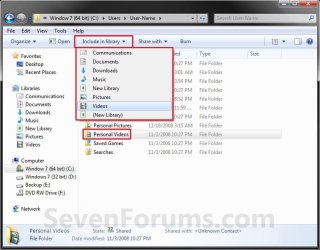
A) Go to step 5.
OR
4. Right click on the folder and click on Include in Library, and click on an available library to include the folder in. (See screeshot below)
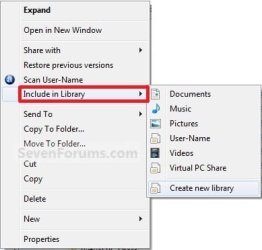
5. The selected folder (step 2) contents will now also be included (linked) in the library (step 3).
6. Close Windows Explorer when done.
OPTION TWO
Include Folder in Library from the Library
1. Open the Start Menu.
2. Right click on the User Name button and click on Open. (See screenshot below)
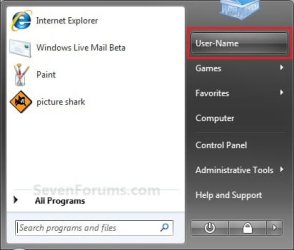
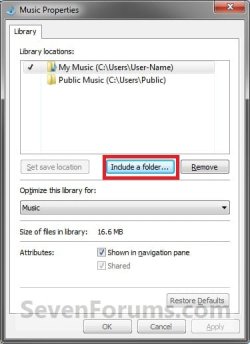
3. Right click on the library (ex: Music) and click on Properties. (See screenshot below)
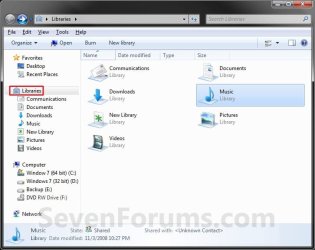
A) Go to step 5. (See right screenshot below step 5)
OR
4. Open the library (ex: Music) that you want to include a folder in. (See screenshot below step 3)
A) Click on the # Library Locations toolbar button. (See left screenshot below)
NOTE: If this is a new or empty library, then you will see the right screenshot below instead. Click on the Include a folder button, and go to step 6.
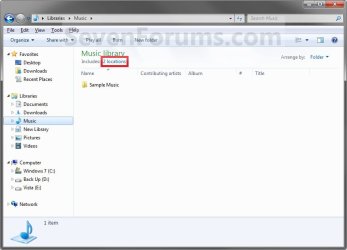
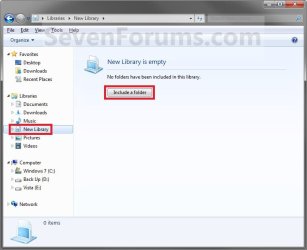
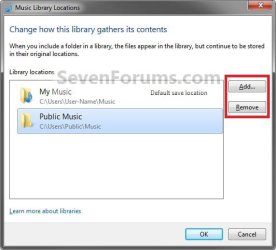
5. Click on the Add button (left screenshot below), or Include a folder button (tight screenshot below).
NOTE: The right screenshot would be from step 3.
6. Navigate to the folder you want to include in the library, then select the folder and click on the Include Folder button. (See screenshot below)
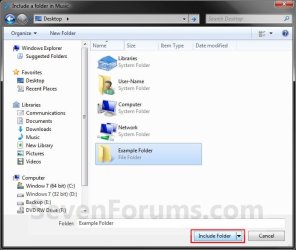
7. Click on OK. (See screenshots below)
NOTE: If this was a new or empty library (note under step 4A), then you will not see this. The folder will automatically be included instead.
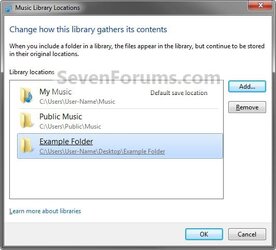
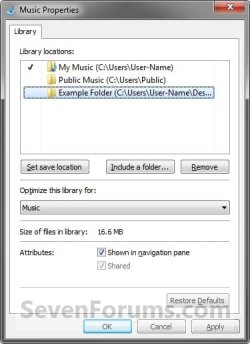
8. The folder (step 6) contents will now be included (linked) in the selected library (step 4).
9. Close the library window when done. (See screenshots below step 4A)
OPTION THREE
Include a Network Folder in Library
1. For how, please see: How to Include a Network Drive or Folder in a Library in Windows 7
That's it,
Shawn
Related Tutorials
- How to Include a Network Drive or Folder in a Library in Windows 7
- User Folders in Windows 7 Libraries
- How to Restore the Default Libraries in Windows 7
- How to Fix Libraries when Hidden and Empty in Windows 7
- How to Hide or Show a Library in the Windows 7 Navigation Pane
- How to Create a New Library in Windows 7
- How to Remove a Included Folder from a Library in Windows 7
- How to Set the Default Save Folder for a Library in Windows 7
- How to Change a Library Icon in Windows 7
- How to Create a Windows 7 Downloads Library with the Correct Icon
- How to Create a Windows 7 Games Library with the Correct Icon
- How to Create a Windows 7 Favorites Library with the Correct Icon
- How to Create a Windows 7 "Searches" Library with the Correct Icon
- How to Create a Windows 7 "Links" Library with the Correct Icon
- How to Turn the Library Pane On or Off in Windows 7
- How to Add or Remove "Include in library" in Windows 7 Context Menu
- How to Arrange Folders Included in a Library in Any Order in Windows 7 and Windows 8
- How to Clear Changes made to Library View in Windows 7 and Windows 8
Last edited:


