Lost Access Permissions to C:\Users\All Users\Application Data Folder

A1955Harley

New member
Local time
10:59 AM
Messages
7
Can anyone help me regain Security Permissions to C:\Users\All Users\Application Data Folder which I lost while looking at the access rights. I mistakenly closed the box while playing with the access rights and lost any access to the file.
I pulled the access rights to the file using icacls they are below.

application data
D:PAI(D;OICI;FA;;;WD)(A;;0x1200a9;;;WD)(A;OICI;FA;;;SY)(A;OICI;FA;;;BA)S:AI

I am thinking I can change the information in the file and restore it. Not sure exactly what to change?

I was also thinking I could pull the info from another computer running with the same operating system and reapply them to this file? Would this work?

I looked at Previous Versions of the upper level folder. Can I restore a previous version of this whole folder? Will it restore the Application Data folder with the prior permissions?
 

My Computer

Computer type
PC/Desktop
OS
Windows 7 Professional
CPU
AMD Phenom
Motherboard
Biostar
Memory
4 gig
Are you asking about the Application Data or Appdata folder?

If Application Data, this is not a real folder but a junction used to allow interface with legacy programs. No access is necessary since it is pointing to the Appdata folder.
 

My Computer

Computer type
PC/Desktop
Computer Manufacturer/Model Number
Custom Built
OS
Windows 10 Pro x64, Windows 8.1 Pro x64, Windows 7 Ultimate x64 SP1,
CPU
INTEL i9-7920X LGA 2066
Motherboard
Gigabyte X299-WU8 F3
Memory
64 GB (4 X 16 GB) G-Skill V Series DDR4 3200 Quad Channel
Graphics Card(s)
EVGA GTX 1060 SC 3 GB
Sound Card
Realtek Onboard ALC1220
Monitor(s) Displays
2 x Samsung S27E310
Screen Resolution
1920x1080
Hard Drives
Samsung 2 x 970 EVO Plus 500 GB NVMe
1 x 6TB WD 6003FZBX SATA
1 x 6TB WD 60EFRX SATA
12 x 3TB WD 30EFRX SATA
PSU
Seasonic X-1050
Case
Thermaltake Armor+
Cooling
Corsair H80i V2 Liquid AOI Cooler
Keyboard
Logitech G510s
Mouse
Logitech MX Master 2S
Internet Speed
200 Mb/s
Antivirus
ESET NOD32 13.1
Browser
EDGE (Dev, Canary, Beta), Chrome
Other Info
ASUS RT-AC68U router
Malwarebytes 4.0.4
I was referring to the "Application Data" folder. It was previously owned by "System" and the administrators had full access to the folder. The administrators access was removed thus no one with admin rights has access to the folder to make changes. I was concerned without the "System" as owner with full rights any read writes or traversses thru that folder would not be allowed to the system?
I have another computer with almost the same programs on it.
I pulled the Security Permissions from that folder. They are below.
Can I copy and paste these rights into the file I saved the rights in on the other PC and use icacls to restore the rights to the folder or will it fail due to not having the correct rights to make changes to the folder?
Not sure if running an elevated command prompt trumps the rights to make changes without having those rights in Windows?

application data
D:PAI(D;;CC;;;WD)(A;;0x1200a9;;;WD)(A;;FA;;;SY)(A;;FA;;;BA)

I can ultimately use TakeOwnership to take control of that file but would like to learn something along the way here on how to get out of a situation like this using icacls.
 

My Computer

Computer type
PC/Desktop
OS
Windows 7 Professional
CPU
AMD Phenom
Motherboard
Biostar
Memory
4 gig
Application Data Folder

I don't think that you're supposed to take ownership of that folder by design. If you want to access files try the following paths:

http://www.sevenforums.com/general-...lder-replicating-post2831313.html#post2831313

Or if you really want to take ownership be aware that you might end up with a self replicating Application Data folder that uses a huge amount of hard drive space. See the full thread here:

http://www.sevenforums.com/general-discussion/115149-stop-application-data-folder-replicating.html

Just my thoughts on the subject! :)
 

My Computer

Computer type
Laptop
Computer Manufacturer/Model Number
ASUS
OS
Microsoft Windows 7 Home Premium 64-bit 7601 Multiprocessor Free Service Pack 1
CPU
AMD C-60 APU with Radeon(tm) HD Graphics
Motherboard
ASUSTeK COMPUTER INC. X501U
Memory
4.00 GB
Graphics Card(s)
AMD Radeon HD 6290 Graphics
Sound Card
(1) AMD High Definition Audio Device (2) Realtek High Defi
Screen Resolution
1366 x 768 x 32 bits (4294967296 colors) @ 60 Hz
Hard Drives
Hitachi HTS545050A7E380 SATA Disk Device
Antivirus
Comodo CIS & FW, SecureAplus App Whitelisting, Threatfire
Browser
Cyberfox 64bit, Opera 64bit, Airfox
Other Info
Spy-The-Spy, HitmanPro.Alert, Norton Connect Safe, MJRegWatcher, BitDefender TrafficLight, Voodoo Shield, Zemana AntiMalware
Thanks for those thoughts. I did realize the replication thing would occur but I will only own that folder for just enough time to reset the owner of of to SYSTEM then get out of it. I will not open the folder I will only reset the rights to it.
Hence the take ownership thing was not my preferred way to make this change. I wanted to use icacls to change the owner back to SYSTEM and add back the Administrators. I looked at the link you put in your note above http://www.sevenforums.com/general-discussion/115149-stop-application-data-folder-replicating.html
From there I went to the Sound Forge site to get a copy of Junction Box. The copy that downloaded had a tr\agent in it.
I did manage to find a good copy of it by searching the net............but I am hesitant to use it.
 

My Computer

Computer type
PC/Desktop
OS
Windows 7 Professional
CPU
AMD Phenom
Motherboard
Biostar
Memory
4 gig
Can anyone answer this question
If I use this command
icacls c:\users\all users\application data\* /save permissions.txt /T
Then grab the permissions from the same folder on another Windows 7 Computer saving them with the same name permissions.txt
Then using Notepad copy the permissions from the computer with the correct rights and paste them into the into the file from the problem computer
use the restore command
icacls c:\users\all users\application data\* /restores permissions.txt

Will this reset the permissions in the affected folder?
 

My Computer

Computer type
PC/Desktop
OS
Windows 7 Professional
CPU
AMD Phenom
Motherboard
Biostar
Memory
4 gig
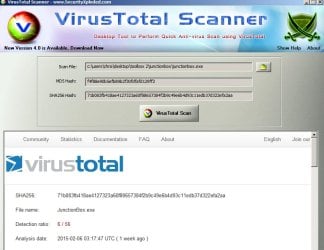
Anything that makes changes to your system at a deep level could be flagged up as a trojan by AV's. In this case it's a false psitive detection.

I see:

VoodooShield Alert.jpg

VirusTotal Scan 1.jpg

These AV's flag it up. MBAM and everything else says it's clean.

VirusTotal Scan 2.jpg

All it does is to reset the following (text taken from DefaultJunctions.ntj file in JunctionBox)

Code:
A list of the standard set of junctions in Vista and Windows 7, for repair purposes.
;
; Notation is as follows:
;  Section headers refer to userprofile-folders unless otherwise indicated by a full path.
;  Paths beginning with a \ indicate a fully-qualified path from the systemroot. (Typically C:\)
;  Paths beginning with @ are relative to the profile container. (Typically C:\users)
;  Junction location and target paths are relative to the section-header [value] unless qualified.
; The Default profile settings will be applied to all generic users when profiles are repaired.
; You may add custom sections for specific users, though this is not normally necessary.
; Wildcards or macros other than those stated above are not permitted.
; Junctions will be created using full target-paths, irrespective of relative or full values here.
; Note: Non-English users will need to create their own file, sorry.

[General]

; Displays warning if incompatible OS or system-language is found.
OSVersions=WIN_VISTA,WIN_7,WIN_2008,WIN_2008R2,WIN_LONGHORN
OSLanguages=0409,0809

; Force the creation of junctions in system or user folders, or both.
; =1 recreates (parts of) profile folder-structure if missing. Relatively safe to use.
; =2 forcibly deletes any file, folder or junction occupying the target location. 
; -valuable when dealing with corrupt junctions, but use with care as may delete data.
; Default is to leave existing junctions alone and only add missing ones, but set correct permissions on all.
SystemForceCreation=0
UserForceCreation=0

; The following sections refer to disk folders and the required junctions in each, as JunctionName=JunctionTarget.

[\]
Documents and Settings=@

[\ProgramData]
Application Data=\ProgramData
Desktop=@\Public\Desktop
Documents=@\Public\Documents
Favorites=@\Public\Favorites
Start Menu=Microsoft\Windows\Start Menu
Templates=Microsoft\Windows\Templates

[@]
Default User=Default

[All Users]
Application Data=\ProgramData
Desktop=@\Public\Desktop
Documents=@\Public\Documents
Favorites=@\Public\Favorites
Start Menu=\ProgramData\Microsoft\Windows\Start Menu
Templates=\ProgramData\Microsoft\Windows\Templates

[Public]
Documents\My Music=Music
Documents\My Pictures=Pictures
Documents\My Videos=Videos

[Default User]
; (intentionally blank)

[Default]
Application Data=AppData\Roaming
Cookies=AppData\Roaming\Microsoft\Windows\Cookies
Local Settings=AppData\Local
My Documents=Documents
NetHood=AppData\Roaming\Microsoft\Windows\Network Shortcuts
PrintHood=AppData\Roaming\Microsoft\Windows\Printer Shortcuts
Recent=AppData\Roaming\Microsoft\Windows\Recent
SendTo=AppData\Roaming\Microsoft\Windows\SendTo
Start Menu=AppData\Roaming\Microsoft\Windows\Start Menu
Templates=AppData\Roaming\Microsoft\Windows\Templates
AppData\Local\Application Data=AppData\Local
AppData\Local\History=AppData\Local\Microsoft\Windows\History
AppData\Local\Temporary Internet Files=AppData\Local\Microsoft\Windows\Temporary Internet Files
Documents\My Music=Music
Documents\My Pictures=Pictures
Documents\My Videos=Videos
 
Last edited:

My Computer

Computer type
Laptop
Computer Manufacturer/Model Number
ASUS
OS
Microsoft Windows 7 Home Premium 64-bit 7601 Multiprocessor Free Service Pack 1
CPU
AMD C-60 APU with Radeon(tm) HD Graphics
Motherboard
ASUSTeK COMPUTER INC. X501U
Memory
4.00 GB
Graphics Card(s)
AMD Radeon HD 6290 Graphics
Sound Card
(1) AMD High Definition Audio Device (2) Realtek High Defi
Screen Resolution
1366 x 768 x 32 bits (4294967296 colors) @ 60 Hz
Hard Drives
Hitachi HTS545050A7E380 SATA Disk Device
Antivirus
Comodo CIS & FW, SecureAplus App Whitelisting, Threatfire
Browser
Cyberfox 64bit, Opera 64bit, Airfox
Other Info
Spy-The-Spy, HitmanPro.Alert, Norton Connect Safe, MJRegWatcher, BitDefender TrafficLight, Voodoo Shield, Zemana AntiMalware
Or if you really want to take ownership be aware that you might end up with a self replicating Application Data folder that uses a huge amount of hard drive space.

Un-true. Opening the Application Data "folder" will definitely not increase disk space usage.

The Application Data and All Users folders are both symbolic links. They are not real folders; they are lightweight pointers. C:\Users\All Users\Application Data is a symbolic link that points to C:\Users\All Users. The recursion or "replicating" behaviour you mention, Callendar, is expected...

With one having enough access rights, starting at C:\Users\All Users and opening the Application Data symbolic link brings you right back to the All Users symbolic link folder (as I've mentioned: that's where it points to). There, back inside the All Users symbolic link, you can click on Application Data again. This can be repeated infinitely. Observing the Explorer address bar, it would appear that you are digging deeper into the file system, but in reality, each time you click into Application Data, what you are always actually seeing is the contents of C:\Program Data, because C:\Users\All Users\Application Data points to C:\Users\All Users, and C:\Users\All Users points to C:\ProgramData (a real directory).

Also, taking ownership alone does not effect ones access rights to an object in any way. Taking ownership of some thing will not cause another thing to dis-function or change how it accesses the object. It's the permissions that count.


If I [...]
Will this reset the permissions in the affected folder?

The method you describe word by word, Harley, would not work (excluding the fact that some of the mentioned commands' have incorrect syntax) because of the recursion problem. By using the /T switch in Icacls, you are asking the command to recurse into subfolders. Application Data is a subfolder of All Users, and All Users is a subfolder of Application Data. See the problem? (This can be avoided by using the /L switch though. This will direct Icacls to work on the actual symbolic link rather than the target it points to.)

Why recurse into the contents of the Application Data folder anyway when it's only the folder itself that needs saving?

(On another computer)
Code:
icacls "c:\users\all users\application data" /save permissions.txt
and
(On the computer that needs fixing)
Code:
icacls "c:\users\all users" /restore permissions.txt
are the commands you are after; which don't iterate subfolders. Performing these commands will fix your problem perfectly. You might need to take ownership of Application Data first, however.


The following batch script is my fix for setting the Application Data symbolic link permissions right.
Code:
REM Batch to be run as administrator
@echo off
net session >NUL 2>&1|| exit /b 1
set "target=C:\Users\All Users\Application Data"
takeown /f "%TARGET%"
icacls "%TARGET%" /inheritance:r
for /f "delims=" %%I in (' 
	powershell "((Get-Acl '%TARGET%').access | foreach {$_.identityreference.value})" 
') do icacls "%TARGET%" /remove "%%I"
icacls "%TARGET%" /grant "NT AUTHORITY\SYSTEM:(F)" "BUILTIN\Administrators:(F)" "Everyone:(RX)" /deny "Everyone:(S,RD)"
icacls "%TARGET%" /setowner "NT AUTHORITY\SYSTEM"


Harley, if you like to continue with the method you had going there (i.e. to learn how to fix such situation manually), and would like help with the commands, I'd be glad to provide step by step guidance.
 

My Computer

Computer type
PC/Desktop
OS
Windows 10, Windows 8.1 Pro, Windows 7 Professional, OS X El Capitan
Disk space usage

Or if you really want to take ownership be aware that you might end up with a self replicating Application Data folder that uses a huge amount of hard drive space.

Un-true. Opening the Application Data "folder" will definitely not increase disk space usage.

Thanks for pointing this out. :o
 

My Computer

Computer type
Laptop
Computer Manufacturer/Model Number
ASUS
OS
Microsoft Windows 7 Home Premium 64-bit 7601 Multiprocessor Free Service Pack 1
CPU
AMD C-60 APU with Radeon(tm) HD Graphics
Motherboard
ASUSTeK COMPUTER INC. X501U
Memory
4.00 GB
Graphics Card(s)
AMD Radeon HD 6290 Graphics
Sound Card
(1) AMD High Definition Audio Device (2) Realtek High Defi
Screen Resolution
1366 x 768 x 32 bits (4294967296 colors) @ 60 Hz
Hard Drives
Hitachi HTS545050A7E380 SATA Disk Device
Antivirus
Comodo CIS & FW, SecureAplus App Whitelisting, Threatfire
Browser
Cyberfox 64bit, Opera 64bit, Airfox
Other Info
Spy-The-Spy, HitmanPro.Alert, Norton Connect Safe, MJRegWatcher, BitDefender TrafficLight, Voodoo Shield, Zemana AntiMalware
Pyprohly,
Thanks for your help.........................and yes I would like you to provide step by step instructions so I don't make a miscue.
That's how this all started. I was not paying enough attention when I mistakenly messed up the access rights.
Will look for your steps later
Harley
 

My Computer

Computer type
PC/Desktop
OS
Windows 7 Professional
CPU
AMD Phenom
Motherboard
Biostar
Memory
4 gig
Okay.

You are going to restore the C:\Users\All Users\Application Data junction's permissions to what they where originally, by using Icacls' save command on the exact identical file/folder on another computer B, import the ACL txt file (that Icacls genorates) from computer B to computer A, then, with the ACL txt file, run Icacls restore on the item that needs fixing.

It's a simple two step procedure. All commands mentioned here should ideally be run in an elevated Command Prompt.


Step 1.
Option A.
Execute the Icacls /save command on the exact same Application Data folder that lives on another computer B. E.g.
Code:
icacls "C:\Users\All Users\Application Data" /save "C:\Users\%username%\aclsave.txt"

Import this C:\Users\%username%\aclsave.txt file to computer A (which holds the file/folder that needs fixing) by any means possible. I.e. You can copy paste the contents of the ACL file, that Icacls generates, from computer B to A.

OR

Option B.
Step a.
If you know that another file/folder on computer A holds the correct permissions, you can save and restore those permissions instead. No second computer needed.

In this case, because other junctions in the All Users (symbolic link) directory have the correct, unmodified, original permission set up as the Application Data junction, you can just take the permissions of one of those junctions, and replace them with Application Data's.

E.g. the C:\Users\All Users\Desktop "folder" has the correct permission layout as C:\Users\All Users\Application Data. So we can save and restore Desktop's permissions onto Application Data and achieve the same effect as importing Application Data's permission information from another computer.

Code:
icacls "C:\Users\All Users\Desktop" /save "C:\Users\%username%\aclsave.txt"

Step b.
If you choose this option, you need to perform the additional step of cracking open the ACL file in a text editor and changing the very first line of the file to the name of the file/folder that is going to be fixed. This first line is obviously how Icacls should know what file to look for when restoring.

In this case, Application Data is the folder (junction) that needs fixing, so swap "Desktop" to "Application Data" on the first line (file names are case insensitive). Close the text editor.


Step 2.
Now that the ACL data file is somewhere on computer A, (let's say it's in the users home directory of computer A right now: C:\Users\%username%\aclsave.txt), we can get to restoring permissions onto Application Data. The following command will use the aclsave.txt file created in Step 1 to restore the permissions of Application Data in C:\Users\All Users,
Code:
icacls "C:\Users\All Users" /restore "C:\Users\%username%\aclsave.txt"


What to do if Step 2 produces an 'Access is denied' message
If an "Access is denied" message displays when restoring C:\Users\All Users\Appliction Data with Icacls, it means that the current access control permissions set on the item denies your user from both reading and write permissions to the object. If this occurs, make a note of the current owner of the file/folder, then take ownership of the item using the command,
Code:
takeown /f "C:\Users\All Users\Appliction Data"

Run the Icacls /restore command once again.

Then change the owner back to what it should be. The correct owner for Appliction Data is "System". So the command for giving ownership would be
Code:
icacls "C:\Users\All Users\Appliction Data" /setowner "SYSTEM"


Note that Icacls save and restore does not correct ownership. Ownership does not affect ones access to a file/folder, so giving ownership back to the correct user is completely optional.

 

My Computer

Computer type
PC/Desktop
OS
Windows 10, Windows 8.1 Pro, Windows 7 Professional, OS X El Capitan
Pyprohly,
Used your commands and things are all set to the correct settings.
Thanks for the help
 

My Computer

Computer type
PC/Desktop
OS
Windows 7 Professional
CPU
AMD Phenom
Motherboard
Biostar
Memory
4 gig
Back
Top