
You are using an out of date browser. It may not display this or other websites correctly.
You should upgrade or use an alternative browser.
You should upgrade or use an alternative browser.
Major omission with "Save As"
- Thread starter rsarma
- Start date

7echno7im
Super Windows
Backspace still works though as a workaround, even if you have never been to that Dir, it then uses "up one level"
Not really sure what you are talking about as far as the shortcuts. What app are you using? Can you show a screen shot? Are you referring to the old menu that some old apps use? I know that I get this menu with some apps, but not with others. Seems application specific and not the OS.
The new open/save menu, I am sure you may know, but just right-click>New Folder and as for as up a level, just click on the path, it now supports breadcrumbs.
Not really sure what you are talking about as far as the shortcuts. What app are you using? Can you show a screen shot? Are you referring to the old menu that some old apps use? I know that I get this menu with some apps, but not with others. Seems application specific and not the OS.
The new open/save menu, I am sure you may know, but just right-click>New Folder and as for as up a level, just click on the path, it now supports breadcrumbs.
My Computer
- Computer Manufacturer/Model Number
- Built Myself
- OS
- Windows 7 7600.16384 x64
- CPU
- Intel Core i7 OC'd to 3.20 GHz
- Motherboard
- Gigabyte
- Memory
- 6GB GSkillz Triple Channel DDR3 OC'd to 1600 MHz
- Graphics Card(s)
- Nvidia GTX 280
- Sound Card
- X-Fi Platinum
- Monitor(s) Displays
- Dual 2001FWP
- Screen Resolution
- 1680x1050 x 2
- Hard Drives
- System - Dual 150GB Raptors Raid0
Doc Storage - 1TB SATA 32MB cache Samsung
TV Recordings - 1TB SATA 32MB cache Samsung
- PSU
- Gigawatt Antec
- Case
- Antec 900
- Keyboard
- Saitek
- Mouse
- logitech MX 10000
- Internet Speed
- 30 mb/s
Thanks for your reply.
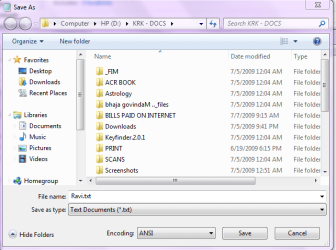
I am talking about - any file that I open, make a few changes, and want to save with another name in a different directory.
When I click on Save As, and want to go one directory up; the forward, backward buttons on the top are greyed out. Only way I can do that is search for Computer in the left margin, start with C or D and go down step by step till I reach the desired place. It was not so in XP, I never used Vista. Kindly see the screenshot attached..
I am talking about - any file that I open, make a few changes, and want to save with another name in a different directory.
When I click on Save As, and want to go one directory up; the forward, backward buttons on the top are greyed out. Only way I can do that is search for Computer in the left margin, start with C or D and go down step by step till I reach the desired place. It was not so in XP, I never used Vista. Kindly see the screenshot attached..
Attachments
My Computer
- Computer Manufacturer/Model Number
- HP-CQ45-144TU
- OS
- Windows 7

Generator
- Reboot Initiated -
The back button wont work if you havn't been anywhere, just like Internet Explorer and Firefox.
That's what the new 'breadcrumb' is for. (the address bar).
You can click the little arrows next to each crumb (where your screenshot shows "> Computer > HP(D: ) > KRK - DOCS >")
EDIT: To go up one level from your screenie, click on the text at top that says "HP (D : )"...
That's what the new 'breadcrumb' is for. (the address bar).
You can click the little arrows next to each crumb (where your screenshot shows "> Computer > HP(D: ) > KRK - DOCS >")
EDIT: To go up one level from your screenie, click on the text at top that says "HP (D : )"...
My Computer
- Computer Manufacturer/Model Number
- Self Built
- OS
- XP Pro SP3 x86/Vista SP2 x64/Win7 x64 Triple-boot
- CPU
- AMD64 X2 AM2 5000+
- Motherboard
- Asus MSN-X Plus
- Memory
- Corsair TWX 2Gb (2x1Gb) DDR2 800Mhz
- Graphics Card(s)
- PCI-X 2.0 Inno3D (NVidia) 9500GT 1Gb DDR2
- Sound Card
- Onboard Realtec ALC662-GR
- Monitor(s) Displays
- Relisys 17' CRT (model unknown)
- Screen Resolution
- 1024x768
- Hard Drives
- 750Gb Samsung 7200-3Gb/s 32Mb Cache SATA
- PSU
- 500W
- Cooling
- Standard AMD CPU Fan, One side, front and rear case fan.
- Keyboard
- Microsoft Multimedia Keyboard
- Mouse
- Samsung Optical
- Internet Speed
- 10M
7echno7im
Super Windows
Thanks for your reply.
I am talking about - any file that I open, make a few changes, and want to save with another name in a different directory.
When I click on Save As, and want to go one directory up; the forward, backward buttons on the top are greyed out. Only way I can do that is search for Computer in the left margin, start with C or D and go down step by step till I reach the desired place. It was not so in XP, I never used Vista. Kindly see the screenshot attached..
You can hit backspace anywhere and even if there isn't a "back" it will go up one level. A lot of people confuse back and up one level. Some times back can even be in a lower folder depending on your history. When you start browsing with an Open/Save you have no history, so back will not work. Backspace should though, to go up one level.
I would just use breadcrumbs and backspace. I usually fall back on backspace since I am so use to using it for browsing.
My Computer
- Computer Manufacturer/Model Number
- Built Myself
- OS
- Windows 7 7600.16384 x64
- CPU
- Intel Core i7 OC'd to 3.20 GHz
- Motherboard
- Gigabyte
- Memory
- 6GB GSkillz Triple Channel DDR3 OC'd to 1600 MHz
- Graphics Card(s)
- Nvidia GTX 280
- Sound Card
- X-Fi Platinum
- Monitor(s) Displays
- Dual 2001FWP
- Screen Resolution
- 1680x1050 x 2
- Hard Drives
- System - Dual 150GB Raptors Raid0
Doc Storage - 1TB SATA 32MB cache Samsung
TV Recordings - 1TB SATA 32MB cache Samsung
- PSU
- Gigawatt Antec
- Case
- Antec 900
- Keyboard
- Saitek
- Mouse
- logitech MX 10000
- Internet Speed
- 30 mb/s
7echno7im
Super Windows
PS to test my theory about the browsing history, use notepad, and browse around, then back and fwd will light up.
My Computer
- Computer Manufacturer/Model Number
- Built Myself
- OS
- Windows 7 7600.16384 x64
- CPU
- Intel Core i7 OC'd to 3.20 GHz
- Motherboard
- Gigabyte
- Memory
- 6GB GSkillz Triple Channel DDR3 OC'd to 1600 MHz
- Graphics Card(s)
- Nvidia GTX 280
- Sound Card
- X-Fi Platinum
- Monitor(s) Displays
- Dual 2001FWP
- Screen Resolution
- 1680x1050 x 2
- Hard Drives
- System - Dual 150GB Raptors Raid0
Doc Storage - 1TB SATA 32MB cache Samsung
TV Recordings - 1TB SATA 32MB cache Samsung
- PSU
- Gigawatt Antec
- Case
- Antec 900
- Keyboard
- Saitek
- Mouse
- logitech MX 10000
- Internet Speed
- 30 mb/s
7echno7im
Super Windows
Touche! and Thanks. I stand corrected. I guess I was looking for my good old XP icons and did not notice the crumbs.
Glad it's fixed

My Computer
- Computer Manufacturer/Model Number
- Built Myself
- OS
- Windows 7 7600.16384 x64
- CPU
- Intel Core i7 OC'd to 3.20 GHz
- Motherboard
- Gigabyte
- Memory
- 6GB GSkillz Triple Channel DDR3 OC'd to 1600 MHz
- Graphics Card(s)
- Nvidia GTX 280
- Sound Card
- X-Fi Platinum
- Monitor(s) Displays
- Dual 2001FWP
- Screen Resolution
- 1680x1050 x 2
- Hard Drives
- System - Dual 150GB Raptors Raid0
Doc Storage - 1TB SATA 32MB cache Samsung
TV Recordings - 1TB SATA 32MB cache Samsung
- PSU
- Gigawatt Antec
- Case
- Antec 900
- Keyboard
- Saitek
- Mouse
- logitech MX 10000
- Internet Speed
- 30 mb/s
PS to test my theory about the browsing history, use notepad, and browse around, then back and fwd will light up.
This is another neat one! Thanks.
My Computer
- Computer Manufacturer/Model Number
- HP-CQ45-144TU
- OS
- Windows 7
Also, you can create a new folder by right clicking in the window (as long as you're not over a folder) and choosing "New->Folder"
My Computer
- Computer Manufacturer/Model Number
- Self-Built
- OS
- Windows 7 64 bit SP1
- CPU
- Core i7 920
- Motherboard
- Gigabyte GA-X58A-UD3R
- Memory
- 12 GB (6x2GB Corsair)
- Graphics Card(s)
- nVidia 250GTS
- Sound Card
- Built-in
- Monitor(s) Displays
- 2x Samsung SyncMaster 2343 (23" Widescreen)
- Keyboard
- Microsoft Natural Keyboard
- Mouse
- Logitech Laser