MBR Partition issue during CCE scan operation... how to recover MBR

UPDATE: Followed recommendation made by someone on another forum, and I have to agree wholeheartedly: Active Partition Recovery is an amazing program - if you ever have the misfortune of finding a partition is now showing as 'free space', or even 'unallocated' or 'raw', Run this program.

It quickly scanned (and found) a 50g partition full of data. I created a 44gig .dim (which I was able to explore, and recover individual files and folders from, before [just] deleting) and recovered all data (exploring the .DIM using Active Disk Image Freeware).
The 280 gig (problem) native VHD, that will no longer boot? I shrank and resized it, and copied to an external (the original and the re-sized copy both attach ok, just won't boot...)


So I'm ready to follow the clean steps! I have an MBR Backup tool!

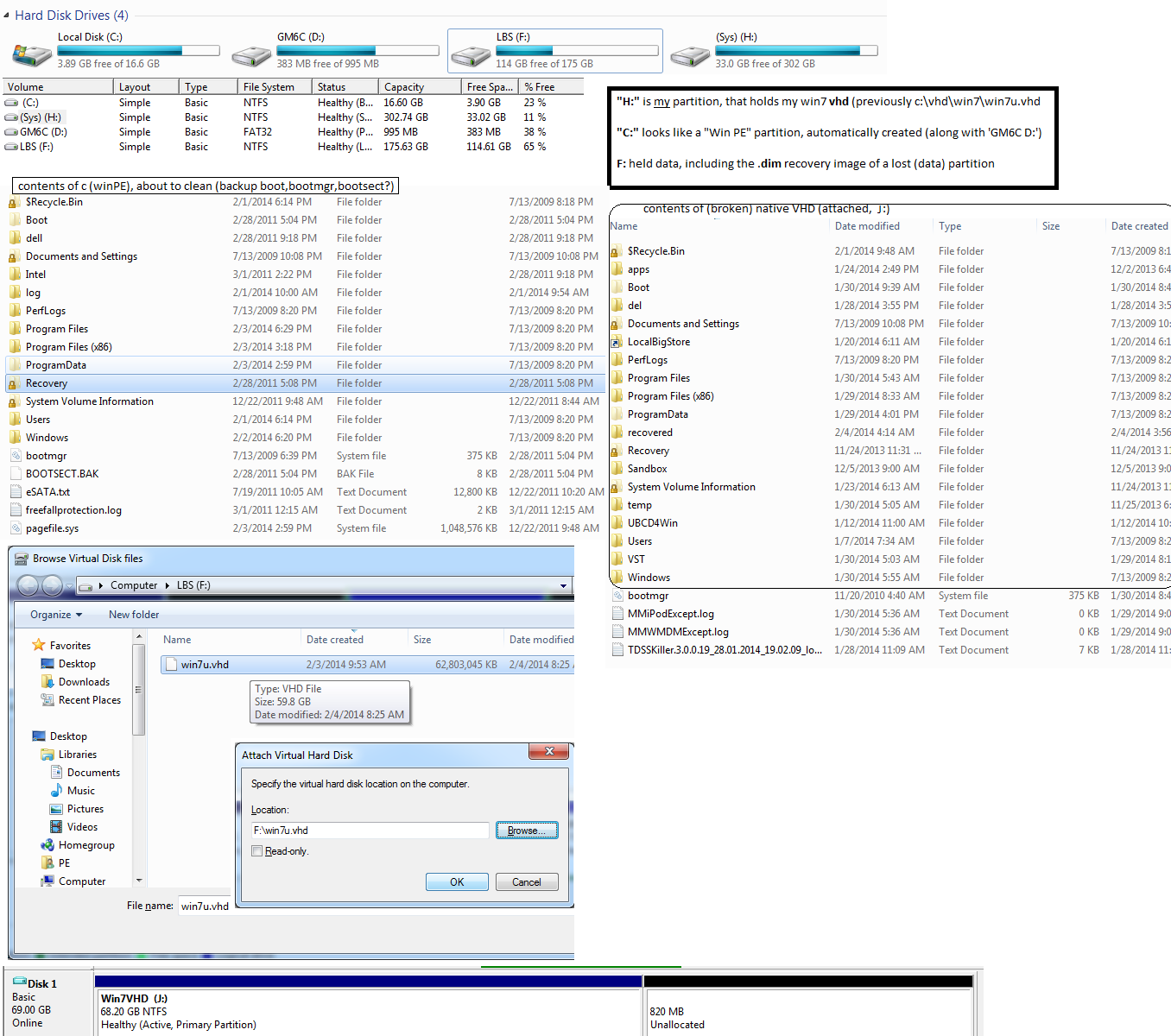
Here's a before (clean HD) shot, and evidence that the VHD is still salvageable...
eP9bNTf.png


OLv3R3H.png


Into the breach...
 

My Computer My Computer

At a glance

Windows 7 Ultimate 64bit2.28GbNVIDIA
Computer type
Laptop
Computer Manufacturer/Model Number
Dell
OS
Windows 7 Ultimate 64bit
CPU
2.2
Memory
8Gb
Graphics Card(s)
NVIDIA
Screen Resolution
1280/762
Mouse
built in pad || iphone || MS wireless
Internet Speed
100MB
Antivirus
Avast
Browser
Chrome, Chrome portable
bootsect

I forgot to ask, re Win PE and bootsect,

"To restore the MBR's code portion, you can use Bootsect (bootsect.exe), a repair tool that Windows provides only in Windows PE and not in Windows 7/R2. Bootsect’s syntax looks like"

Does anyone know if the Recovery Console / installation media is the same as WinPE (with bootsect)?

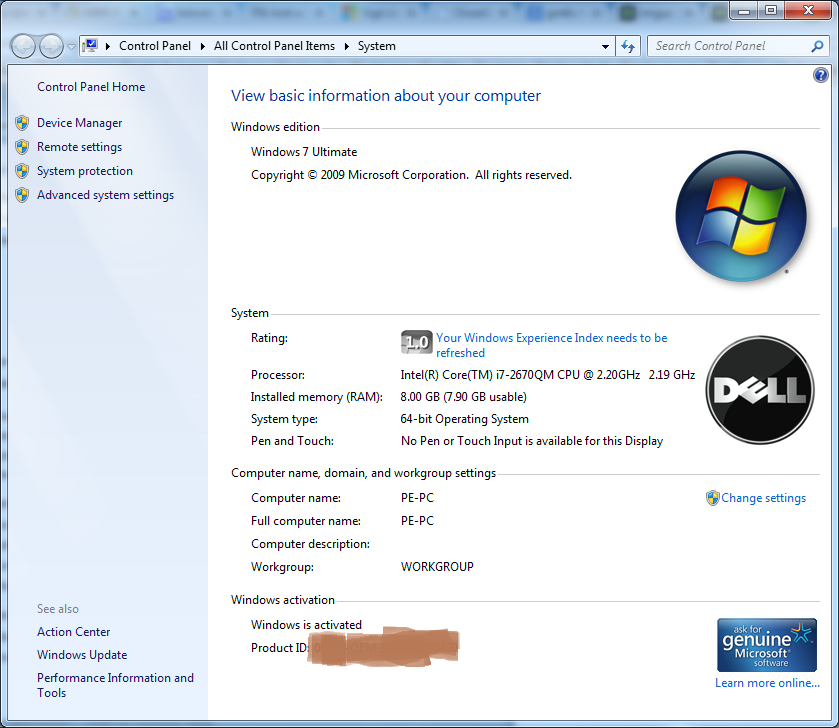
I just checked (about to search, using Everything, for bootsect on local C, thought I'd check the win version)

L2RS0dV.png


(The experience index tells me this isn't a virtual install)
HVryy94.png
 

My Computer My Computer

At a glance

Windows 7 Ultimate 64bit2.28GbNVIDIA
Computer type
Laptop
Computer Manufacturer/Model Number
Dell
OS
Windows 7 Ultimate 64bit
CPU
2.2
Memory
8Gb
Graphics Card(s)
NVIDIA
Screen Resolution
1280/762
Mouse
built in pad || iphone || MS wireless
Internet Speed
100MB
Antivirus
Avast
Browser
Chrome, Chrome portable
Did you say you are ready to do the Clean Reinstall?

After doing all the backup steps specified in Clean Reinstall - Factory OEM Windows 7 I would wipe the HD of all code first using Diskpart Clean Command from the booted Win7 installation media's System Recovery Options Command Line.

Then during the actual illustrated install steps at Clean Install Windows 7 create and format your new partition(s) as desired at Steps 7/8 using the Drive Options pictured there.

This should leave you with a very neat 100mb System REserved boot partition, your C install partition, and a storage partition if desired. To add any more than those you should wait til after install to create a Logical extended partition to which you can add as many contiguous sub-partitions as desired: Partition / Extended : Logical Drives - Windows 7 Forums
 
I didn't know you could change a primary (windows system) partition into a 'logical drive'. Crazy.

Thanks for the tips. I'm gonna try one more stab at less virtual before admitting defeat (and reinstalling a fresh virtual vhd).

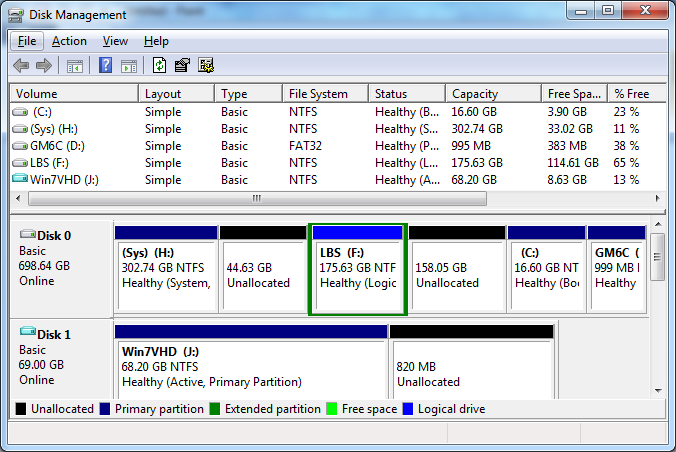
(This shot makes me think, re native VHDs, that you don't need a 100mb system partition, and then primary partitions for each bootoption... Just a system partition, which happens to contain a vhd. Or several :)
Disk%20Management%20(2)_thumb.png
 

My Computer My Computer

At a glance

Windows 7 Ultimate 64bit2.28GbNVIDIA
Computer type
Laptop
Computer Manufacturer/Model Number
Dell
OS
Windows 7 Ultimate 64bit
CPU
2.2
Memory
8Gb
Graphics Card(s)
NVIDIA
Screen Resolution
1280/762
Mouse
built in pad || iphone || MS wireless
Internet Speed
100MB
Antivirus
Avast
Browser
Chrome, Chrome portable
Back
Top