
Hello,
I'm asking on behalf of a friend who bought a new Lenovo TC M91p 2 months ago. Since then she is not able to work with Photoshop. First she had a Photoshop CS2, then installed a Photoshop CS4.
This is what she writes about the problem (first she tells me how she did things on her broken Acer running XP to show me how things should work, then she describes the problems with the Lenovo running Win7 x64:
"With the Acer I do this:
I open PS and then click 'open'.
I browse to the folder I need (I have most files on a 2 Terra external HDD)
The Acer starts loading the thumbnails, but I can go straight to the file, click on it and in about 10 seconds, it shows me the thumbnail (where other files surrounding it are not yet showing and the files are still loading) If it's what I need, I just click on it and it starts to open.
With the Lenovo, however, it starts loading the thumbnails, but from there on, I can't do anything at all. If I accidently click an image (since I'm used to that) the system freezes competely and it never unfreezes. Also, during the loading, it often does not have enough memory and then the program also freezes. I can only quit using control alt delete, but it takes at least 10 minutes before the program closes (but otherwise it won't close at all, not will it open)
The only workaround is to copy the file I need to an empty folder and open it from there. The problem, however, is that I will first need to get to the file, using the same technique as described above (unless I know the name of the file, which hardly ever happens as I leave them numbered as they come out of the camera)
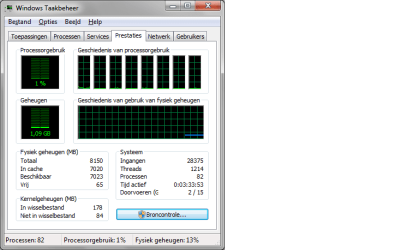
And even when I'm able to get a file opened, I can't work on it, as I have no memory left. It caches everything and never empties the cache. I had not used the PC at all, just opened photoshop and had it load. Then twenty minutes later, we looked again and it had 24 folders loaded (and still 53 to go plus about 75 single tiff files). I had not done anything, only wanted to open a file. This was two hours ago and now my memory is still only 65 and I have not even touched the PC, other then the emails to you."
She wrote something more about how a friend tried to fix the problem but was not able to resolve the issue:
"He changed the way the PC responds (to either programs or processes) It had a focus on programs before, but now it's on processes. It does not make a difference though."
She has 8 GB of RAM, so that is plenty for working with Photoshop. But it seems the PC loads everything in its cache but is not able to work. Any help would be very welcome.
I'm asking on behalf of a friend who bought a new Lenovo TC M91p 2 months ago. Since then she is not able to work with Photoshop. First she had a Photoshop CS2, then installed a Photoshop CS4.
This is what she writes about the problem (first she tells me how she did things on her broken Acer running XP to show me how things should work, then she describes the problems with the Lenovo running Win7 x64:
"With the Acer I do this:
I open PS and then click 'open'.
I browse to the folder I need (I have most files on a 2 Terra external HDD)
The Acer starts loading the thumbnails, but I can go straight to the file, click on it and in about 10 seconds, it shows me the thumbnail (where other files surrounding it are not yet showing and the files are still loading) If it's what I need, I just click on it and it starts to open.
With the Lenovo, however, it starts loading the thumbnails, but from there on, I can't do anything at all. If I accidently click an image (since I'm used to that) the system freezes competely and it never unfreezes. Also, during the loading, it often does not have enough memory and then the program also freezes. I can only quit using control alt delete, but it takes at least 10 minutes before the program closes (but otherwise it won't close at all, not will it open)
The only workaround is to copy the file I need to an empty folder and open it from there. The problem, however, is that I will first need to get to the file, using the same technique as described above (unless I know the name of the file, which hardly ever happens as I leave them numbered as they come out of the camera)
And even when I'm able to get a file opened, I can't work on it, as I have no memory left. It caches everything and never empties the cache. I had not used the PC at all, just opened photoshop and had it load. Then twenty minutes later, we looked again and it had 24 folders loaded (and still 53 to go plus about 75 single tiff files). I had not done anything, only wanted to open a file. This was two hours ago and now my memory is still only 65 and I have not even touched the PC, other then the emails to you."
She wrote something more about how a friend tried to fix the problem but was not able to resolve the issue:
"He changed the way the PC responds (to either programs or processes) It had a focus on programs before, but now it's on processes. It does not make a difference though."
She has 8 GB of RAM, so that is plenty for working with Photoshop. But it seems the PC loads everything in its cache but is not able to work. Any help would be very welcome.
Attachments
My Computer
- OS
- Windows 7 x64


 ). You can ruin it if you don't have some experience in fixing computers.