modify folder view "kacheln" ...

cska133

New member
hello,

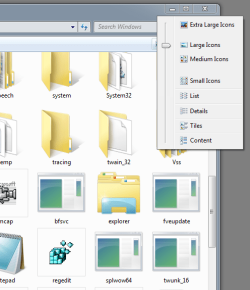
I am using the "Kacheln" View (in German) , in English I dont know how it is named. It is the second last view option in the dropdown menu when you click on the button to change the folder view.
Here is a screenshot:

kachelnansicht.png


This is the only one folder view I like in windows7, so I dont what to move away from it. I just would like to modify it. As seen on the screenshot under the file names there are other attrubutes shown just like type, developer ect, or "Dateiordner= file folder" under the name of the folders.
I would like to remove this attributes so that only the file/folder name is shown. That is how it looks in WinXP, it is so simple.

Hope you understand what I mean. If not, dont hesitate to ask.
I hope there is a help.
 
Last edited by a moderator:

My Computer

OS
Windows7
guten abend, cska133, and welcome to sevenforums,

i think you are talking about 'tiles' view.

why don't you try the second view - large icons.

this only shows the name of the file/folder - is that what you want?

you can easily change the size of the icons too.
 

Attachments

  • icons.png
    icons.png
    72 KB · Views: 7

My Computer

Computer Manufacturer/Model Number
mickey megabyte 1234
OS
ultimate 64 sp1
CPU
i5 2500K [email protected]
Motherboard
MSI P67A-GD53
Memory
8 gigs GSkill Ripjaws 1600
Graphics Card(s)
amd hd6950
Sound Card
creative x-fi gamer
Monitor(s) Displays
samsung 24"
Screen Resolution
1920x1080
Hard Drives
ocz vertex 2e 60 gig, samsung f3 1tb, buffalo 2tb ext
PSU
antec 550
Case
antec three hundred
Cooling
i'm a cooling fan
Keyboard
saitek eclipse ii
Mouse
logitech g3
Internet Speed
about 4 Mbps
Other Info
i love win7
the size of the icons in LargeView is too big. I dont like this. Therefore I prefer Kacheln=Tiles view, because the size is normal and everything is clearly-presented.
 

My Computer

OS
Windows7
just make the icons smaller by using the slider?
 

My Computer

Computer Manufacturer/Model Number
mickey megabyte 1234
OS
ultimate 64 sp1
CPU
i5 2500K [email protected]
Motherboard
MSI P67A-GD53
Memory
8 gigs GSkill Ripjaws 1600
Graphics Card(s)
amd hd6950
Sound Card
creative x-fi gamer
Monitor(s) Displays
samsung 24"
Screen Resolution
1920x1080
Hard Drives
ocz vertex 2e 60 gig, samsung f3 1tb, buffalo 2tb ext
PSU
antec 550
Case
antec three hundred
Cooling
i'm a cooling fan
Keyboard
saitek eclipse ii
Mouse
logitech g3
Internet Speed
about 4 Mbps
Other Info
i love win7
You can also "scan" through all the settings by clicking on the folder, hold down control and spin the mouse wheel at the same time, then, well you had XP, you know the rest...... If you just want the folder/file name it's called list.
 

My Computer

OS
Windows 7 Ultimatum
just make the icons smaller by using the slider?
you mean to switch from large to middle size?

if yes, well...the problem there is that the spaces between the symbols are so narrow, everything is squoshed together. Can I change this?
 

My Computer

OS
Windows7
Germany_orb_small.png

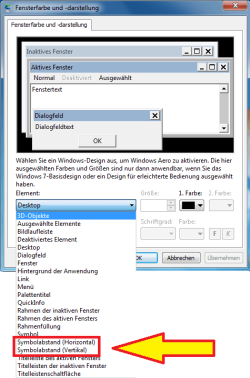
Kacheln = Mittelgroße Symbole, mit zusätzlichen Datei / Ordner Informationen

Du kannst der Symbolabstand in Systemsteuerung > Darstellung und Anpassung > Anpassung > Fensterfarbe und -darstellung > Erweiterte Darstellungeinstellungen ändern:

IconSpacing_German.png


US-UK.png

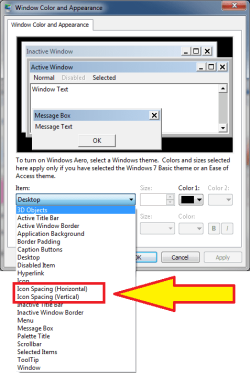
Tiles = Medium Icons, with additional file / folder information.

You can change the icon spacing in Control Panel > All Control Panel Items > Personalization > Window Color and Appearance > Advanced Appearance settings:

IconSpacing_English.png

Kari
 

My Computer

Computer type
Laptop
Computer Manufacturer/Model Number
HP ENVY 17-1150eg
OS
Windows 10 Pro x64 EN-GB
CPU
1.6 GHz Intel Core i7-720QM Processor
Memory
6 GB
Graphics Card(s)
ATI Mobility Radeon HD 5850 Graphics
Sound Card
Beats sound system with integrated subwoofer
Monitor(s) Displays
17" laptop display, 22" LED and 32" Full HD TV through HDMI
Screen Resolution
1600*900 (1), 1920*1080 (2&3)
Hard Drives
Internal: 2 x 500 GB SATA Hard Disk Drive 7200 rpm
External: 2TB for backups, 3TB USB3 network drive for media
Cooling
As Envy runs a bit warm, I have it on a Cooler Master pad
Keyboard
Logitech diNovo Media Desktop Laser (bluetooth)
Mouse
Logitech Performance Mouse MX
Internet Speed
50/10 Mbps VDSL
Antivirus
Windows Defender 4.3.9431.0
Browser
Maxthon 3.5.2., IE11
hello Kari,

You can change the icon spacing in Control Panel > All Control Panel Items > Personalization > Window Color and Appearance > Advanced Appearance settings
I know about this and it is already modified by me earlier... so, the symbols on desktop AND Tiles folder view have normal icon spacing. But still by changing to Medium Icons view the icon spaces are very nerrow.
What value do I have to set for icon spacing???? When I set it more, the icon spacing in Windows Explorer is better, but the icon spaces on desktop are toooo big:rolleyes:
 

My Computer

OS
Windows7
hello Kari,

You can change the icon spacing in Control Panel > All Control Panel Items > Personalization > Window Color and Appearance > Advanced Appearance settings
I know about this and it is already modified by me earlier... so, the symbols on desktop AND Tiles folder view have normal icon spacing. But still by changing to Medium Icons view the icon spaces are very nerrow.
What value do I have to set for icon spacing???? When I set it more, the icon spacing in Windows Explorer is better, but the icon spaces on desktop are toooo big:rolleyes:

That's it, mate. Nothing much what you can do :(

The best you can do is to write Microsoft to take this in consideration when designing Windows 8, or to search for a modified theme.

Sorry.

Kari
 

My Computer

Computer type
Laptop
Computer Manufacturer/Model Number
HP ENVY 17-1150eg
OS
Windows 10 Pro x64 EN-GB
CPU
1.6 GHz Intel Core i7-720QM Processor
Memory
6 GB
Graphics Card(s)
ATI Mobility Radeon HD 5850 Graphics
Sound Card
Beats sound system with integrated subwoofer
Monitor(s) Displays
17" laptop display, 22" LED and 32" Full HD TV through HDMI
Screen Resolution
1600*900 (1), 1920*1080 (2&3)
Hard Drives
Internal: 2 x 500 GB SATA Hard Disk Drive 7200 rpm
External: 2TB for backups, 3TB USB3 network drive for media
Cooling
As Envy runs a bit warm, I have it on a Cooler Master pad
Keyboard
Logitech diNovo Media Desktop Laser (bluetooth)
Mouse
Logitech Performance Mouse MX
Internet Speed
50/10 Mbps VDSL
Antivirus
Windows Defender 4.3.9431.0
Browser
Maxthon 3.5.2., IE11
 

My Computer

Computer Manufacturer/Model Number
mickey megabyte 1234
OS
ultimate 64 sp1
CPU
i5 2500K [email protected]
Motherboard
MSI P67A-GD53
Memory
8 gigs GSkill Ripjaws 1600
Graphics Card(s)
amd hd6950
Sound Card
creative x-fi gamer
Monitor(s) Displays
samsung 24"
Screen Resolution
1920x1080
Hard Drives
ocz vertex 2e 60 gig, samsung f3 1tb, buffalo 2tb ext
PSU
antec 550
Case
antec three hundred
Cooling
i'm a cooling fan
Keyboard
saitek eclipse ii
Mouse
logitech g3
Internet Speed
about 4 Mbps
Other Info
i love win7
hello,

I was able to get some help from someone in relation to topic discussed here. Unfortunately he doesnt have more opportunity to test this on his machine, so I hope the the information I will give here can help someone till we find somethink positive.

So I will discribe shortly what I did till now.

After I asked it in the forum here (german) Forum von Windowspage - Thumbnail-View in Windows7 ähnlich wie in WinXP möglich? I was told that to modify the Thumbnail-View it is nessesery to replace the default folder symbol of Windows7 with this from Windows XP. For this purpose we should create a new StringValue in the registry unter "HKEY_LOCAL_MACHINE\ Software\ Microsoft\ Windows\ CurrentVersion\ Explorer\ Shell Icons". If unter "HKEY_LOCAL_MACHINE\ Software\ Microsoft\ Windows\ CurrentVersion\ Explorer\ there is no "shell icons" we cabn create new kay with that name and inside of it we create the new String Value. We gave this string value name "3" (just like the number 3), as value data we write the path to the file containing such symbols. They can be downloaded from BeeIcons.com - XP and NonXP Icon Themes for example. I find this icon set very nice BeeIcons.com - Theme Preview and choosed it. It downloads a EXE file which is archive file and after executing it, it contains 2 or 3 files, the important there is the file with extension "icl". We safe this files somewhere on the machine and note the path. This path to the ICL file should be used as value data of the new created String value with name "3". I was told that it is important to add the Index of this file to the path. This index should be "3" (no idea why, the guy said it is to comlpicated to explain it). So the example of out new string value should be:
Code:
D:\Test\xyz.icl,3
xyz.icl is our file which we download earlier, and after the comma there is NO space.

RESULT:
Well, I did all this but unfortunately there is something what is wrong bacause I dont get the Thumbnail-View. There are some changes in some folder icons but not what it should be.
My helper is not able any more to test it on hs machine.
I hope that the information I provided will help someone to go ahead and to get a positive result. I will cooperate of couse :-)

I any quistions or somethink is not clear, dont hastitate to ask me. Sorry for my poor English.

I hope to read you soon.

Thanks
 

My Computer

OS
Windows7
Hallo cska133
Du kannst noch eine Sache versuchen: wenn Dir die Icon-Darstellung im Explorer zu groß ist, scrolle mit dem Mausrad bei gedrückter STRG-Taste. (Das verändert die Größe der Icons, Ich weiß aber nicht, ob das permanent ist, oder immer wieder neu gemacht werden muß.


There is one more thing you could try: If in explorer the icons are too big, press CTRL key and adjust the size with the mouse wheel. (Only thing I'm not sure if that change will be permanent or if it has to be applied every time again.)

-DG

Lol @mickey....good one....but you can get what you need ;)

Edit: For your Folder icon problem look here if that is what you want
http://www.sevenforums.com/customization/37230-viewing-folder-thumbnails-like-xp.html
 

My Computer

Computer Manufacturer/Model Number
HP m8000n
OS
Windows 7 Ultimate x86
CPU
DualCore AMD Athlon 64 X2, 2600 MHz 5200+
Motherboard
Asus M2N68-LA (Narra)
Memory
Samsung 2GB DDR2
Graphics Card(s)
Onboard NVIDIA GeForce 6150SE nForce 430
Sound Card
Onboard nVIDIA nForce 6100-430 (MCP61P)
Monitor(s) Displays
Westinghouse 19" LED
Screen Resolution
1280x1024
Hard Drives
SATA II Seagate Barracuda 500GB
USB II WD Elements 500GB
USB II WD My Book 1TB
USB II WD My Book 2TB
PSU
Stock (HP)
Case
Stock (HP)
Cooling
Stock
Keyboard
Logitech Classic KB 200
Mouse
Standard HP opticle USB mouse
Very old post but info will be useful to those who come across this thread in their search results.

I too was surprised that changing vertical icon spacing inside personalization/change color and appearance/ . . . etc only affected the spacing on the desktop; or at least, did NOT affect spacing inside personal folders.

What works has been mentioned twice in this thread. The first time it went ignored by everyone, apparently. The second time was just above my post here, and the OP replied he tried it and it isn't what he wants.

While I understand the procedure doesn't replicate exactly the same thing as in Vista, it is as close as you can get. In Vista, you could move the icons further apart, which increased the number of characters that fit on each line of the icon labels, *without* increasing the size of the icons themselves. This is what the OP was looking for. In this thread, the Ctrl procedure mentioned doesn't do exactly this but something close: it not only increases the available space per line for the icon labels, it increases the size of the icons themselves along with their labels.

Still, I have always found that it very much improves the appearance and *does* seem to increase the space between the icons themselves somewhat – either that or it's an illusion – but either way, if I was satisfied with it chances are others will be too (albeit not everyone, apparently :)).

So for those that want to try it, here's a more detailed rundown:

- Have the folder in question open in front of you
- Press *and hold* the [ Ctrl ] key
- Float the mouse pointer over any icon in the folder ( don't click anything )

Now simply ROLL THE MOUSE WHEEL, up and down, and observe the results. When you get close to the spacing you want, start rolling it only one click at a time, pausing between each click, again observing the effect, both on the icons and their *labels*.

Stop when you're happy ... or happy enough :)
 

My Computer

OS
Windows® 7 (64-bit)
CPU
intel® Core™ i5-4690 @ 3.50 GHz
Motherboard
GIGABYTE™ H97-D3H
Memory
8 GB DDR3
Back
Top