
My D:\ partition has disappeared twice this week. Why/how to fix?

desert2som

New member
Local time
6:31 PM
Messages
2
My D:\ partition (which I used to store downloads and data) completely disappeared a week ago on Friday, then I was able to recreate it and reload my data from an external backup, and then this Friday (one week later), the D:\ partition completely disappeared again. My first question: WHY is this happening . . . twice? And this time, can someone instruct me if there's any way to recover my D:\ partition and all it's data without having to create the D:\ drive from scratch and then reload it from an online backup service (which takes 3-4 days to fully redownload).

Here's a screenshot of my Disk Management information: (My D:\ partition is the 300.10 GB "free" space)
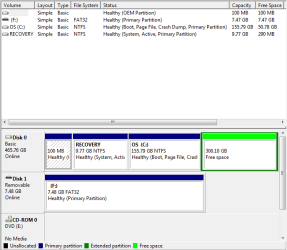
dell - screen 2.png

So, to recap, I want to see if I can recover the D:\ partition and all the data on it. (If not, I know how to recreate the D:\ partition from scratch, and I can redownload the data from my external source.) The BIGGER question is: WHY is this happening (twice now in just one week) and how can I be assured that once it is fixed, it won't be happening again to me?

Thanks!
Mike
 

My Computer My Computer

At a glance

Windows 7 Home Premium 64-bit
Computer type
Laptop
Computer Manufacturer/Model Number
Dell Inspiron 1764
OS
Windows 7 Home Premium 64-bit
Antivirus
Webroot Secure Anywhere
Browser
Windows Explorer
Also, based on someone's suggestion, I did run a successful "Diagnostics" program on my full system, and it found no errors. Just wanted to let you know I had just completed that step too.
Mike
 

My Computer My Computer

At a glance

Windows 7 Home Premium 64-bit
Computer type
Laptop
Computer Manufacturer/Model Number
Dell Inspiron 1764
OS
Windows 7 Home Premium 64-bit
Antivirus
Webroot Secure Anywhere
Browser
Windows Explorer
There are programs like AOMEI partition manager that should be able to recover lost partitions like that. (in the wizard menu, "recovery partition wizard"). Then doing a full "disk check" of the partition (and the rest of the disk for that matter) is a good idea. THis tutorial.

I would also download and run the hard drive's manufacturer diagnostic tool. It is specific for a few model of hard drives, not a generic one. You need to search in google with the model number of your hard drive, open Start menu and type "device manager", select the entry with this name and look in the section about hard drives, it should list the drives by their model name.
 

My Computer My Computer

At a glance

Win 7 Pro 64-bit 7601AMD Phenom 9650 QuadCore, revision DR-B35 GB yes I run 2x 2GB and 1x 1GB, different b...NVIDIA GeForce 9800 GT 512 Mb, unknown manufa...
Computer type
PC/Desktop
Computer Manufacturer/Model Number
custom built
OS
Win 7 Pro 64-bit 7601
CPU
AMD Phenom 9650 QuadCore, revision DR-B3
Motherboard
ASUS M4A78
Memory
5 GB yes I run 2x 2GB and 1x 1GB, different brand, spank me.
Graphics Card(s)
NVIDIA GeForce 9800 GT 512 Mb, unknown manufacturer.
Sound Card
Crappy Realtek Integrated Audio
Monitor(s) Displays
Fujitsu Siemens P19-3P
Screen Resolution
1280 x 1024 x 32 bits @ 60 Hz Oh yeah, 4:3 rocks!
Hard Drives
(1) MAXTOR S TM3320613AS SATA Disk Device (2) STM35004 18AS SATA Disk Device (3) TOSHIBA USB 2.5"-HDD
PSU
whatever, around 450w
Case
Scavenged from old company PC, 10+ years old
Cooling
CPU fan, GPU fan, case fan, nothing fancy
Keyboard
Microsoft, PS/2, white.
Mouse
Optical, logitec.
Internet Speed
effective max speeds: 70-ish kB/s down 30-ish kB/s up
Antivirus
Avira, free edition.
Browser
Firefox with FXChrome to make it look like Google Chrome :P
Other Info
Was discarded by previous owner due to "horrible performance".
Was running Win Xp from a IDE drive. Yeah. Was a pain.
SATA II drive and Win7 and it zips away! Yay!
Back
Top