Need to expand C drive using W7 utilities no room for add software

drcwks

New member
Local time
6:34 AM
Messages
6
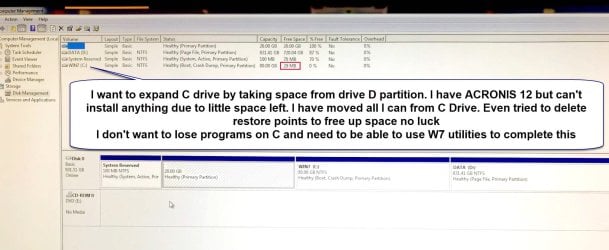
I have an old all in one ASUS PC with Windows 7. I have no idea why the manf partitioned the hard drive as they did. I only have 29 Mb of space left so I can't load Acronis Disk Management software.

I would like to shrink my D drive and then use that space to expand my C drive. Can I do that with W7 tools?


See uploaded pic.
Thanks for your help.
Dean
 

Attachments
  • W7_disk_manage1.jpg
    W7_disk_manage1.jpg
    145.1 KB · Views: 6

My Computer My Computer

At a glance

windows 7 64 bit home premium
Computer type
PC/Desktop
Computer Manufacturer/Model Number
asus
OS
windows 7 64 bit home premium
If you right click C drive below, do you have an option to expand?
 

My Computer My Computer

At a glance

Windows 7 Ultimate x64
Computer type
PC/Desktop
OS
Windows 7 Ultimate x64
You need to have Unallocated Disk Space to the right of the C: volume, in order to be able Expand the volume.

This means that you cannot immediately Expand the C: volume because the disk space to the right of this volume is occupied by the D: volume. If you shrink the D: volume, then Disk Management will automatically shrink from the right of D:. This means that Shrinking D: is not a solution.

Instead, what you can do is Shrink then Backup D: volume, then Delete D:. Doing this will create the Unallocated Space to the right of C:, which you can then use to Expand C:. Once you have Expanded in this way, you can recreate D: volume, and restore your Backup onto it.
 

My Computer My Computer

At a glance

Windows 7 x64, Vista x64, 8.1 smartphoneIntel E8400 65W 64-bitDDR2 2 x 2GB, 1GB x 2XFX Radeon HD5750
Computer type
PC/Desktop
OS
Windows 7 x64, Vista x64, 8.1 smartphone
CPU
Intel E8400 65W 64-bit
Motherboard
Gigabyte EP45-UD3LR
Memory
DDR2 2 x 2GB, 1GB x 2
Graphics Card(s)
XFX Radeon HD5750
Sound Card
AMD High Definition Audio; Realtek High Definition Audio
Monitor(s) Displays
iiyama prolite X2377HDS
Screen Resolution
1920 x 1080
Hard Drives
500GB 7200 rpm Seagate ST3500413AS 16MB, 500GB 5400 rpm Toshiba MQ02ABF050H 32MB, 200GB 7200 rpm Seagate ST3200820AS 8MB, 2TB 7200 rpm Western Digital WD20EZRX 64MB
PSU
Enermax Liberty Modular
Case
Antec P193 Midi Tower
Keyboard
Mionix ZIBAL 60
Mouse
Razer USB 2.0 Diamondback Mouse or Huion Graphics Tablet
Browser
Internet Explorer, Lunascape, Firefox, Opera, Avast Safezone

My Computers My Computers

  • At a glance

    7 X64i5 84002x8gb 3200mhz
    Computer type
    PC/Desktop
    OS
    7 X64
    CPU
    i5 8400
    Motherboard
    gigabyte b365m ds3h
    Memory
    2x8gb 3200mhz
    Hard Drives
    various
    PSU
    pure power 11 400w cm
    Case
    Coolermaster
    Cooling
    cryorig m9i
  • At a glance

    7x64g54008gb ddr4 2400
    Computer type
    PC/Desktop
    OS
    7x64
    CPU
    g5400
    Motherboard
    ga b365m ds3h
    Memory
    8gb ddr4 2400
    PSU
    xfx pro 450w

My Computer My Computer

At a glance

windows 7 64 bit home premium
Computer type
PC/Desktop
Computer Manufacturer/Model Number
asus
OS
windows 7 64 bit home premium
You need to have Unallocated Disk Space to the right of the C: volume, in order to be able Expand the volume.

This means that you cannot immediately Expand the C: volume because the disk space to the right of this volume is occupied by the D: volume. If you shrink the D: volume, then Disk Management will automatically shrink from the right of D:. This means that Shrinking D: is not a solution.

Instead, what you can do is Shrink then Backup D: volume, then Delete D:. Doing this will create the Unallocated Space to the right of C:, which you can then use to Expand C:. Once you have Expanded in this way, you can recreate D: volume, and restore your Backup onto it.

I was assuming I had system backups on D drive and also possible program files on D drive. Let's say I shrink D drive as much as possible. Then should I save a restore point for D drive? I'm a little mixed up on restore points. I thought restore points restored all partitions on the drive. Or are you saying once I delete D drive and I'm able to expand C drive. Then when I create D drive partition it will remember files I had on that partion.

What about an option to just merge or combine D partition with C partition and just get back to basically one large partition for C drive? Thanks for your help.
 

My Computer My Computer

At a glance

windows 7 64 bit home premium
Computer type
PC/Desktop
Computer Manufacturer/Model Number
asus
OS
windows 7 64 bit home premium

My Computer My Computer

At a glance

windows 7 64 bit home premium
Computer type
PC/Desktop
Computer Manufacturer/Model Number
asus
OS
windows 7 64 bit home premium
I was assuming I had system backups on D drive and also possible program files on D drive. Let's say I shrink D drive as much as possible. Then should I save a restore point for D drive? I'm a little mixed up on restore points. I thought restore points restored all partitions on the drive. Or are you saying once I delete D drive and I'm able to expand C drive. Then when I create D drive partition it will remember files I had on that partion.

What about an option to just merge or combine D partition with C partition and just get back to basically one large partition for C drive? Thanks for your help.

Unfortunately there is no MERGE command in Disk Management, so the OS wont allow you to create one large portion for C: that way.

Woh! Hold on! I think you might be confusing 'Restore Points' with 'Restoring your Backup'. That could be an expensive mistake, so I'd advise to forget about 'Restore Points', for the moment.

Follow this:

If you could shrink D: as much as possible, then that would make way for a smaller Backup.

After shrinking D: then Backup that drive using Windows Backup and Restore.

Once you have Backed Up D:, then you are safe to Delete D: using Disk Management.

Then, use Disk Management again to Expand C: into the newly created unallocated space.

And Create a new D: volume using the remaining Unallocated Space.

Use Backup and Restore to Restore the Backup of D: into the new D: volume.

Note:- D: would have to be the same size as the backup or larger for this to work.
 

My Computer My Computer

At a glance

Windows 7 x64, Vista x64, 8.1 smartphoneIntel E8400 65W 64-bitDDR2 2 x 2GB, 1GB x 2XFX Radeon HD5750
Computer type
PC/Desktop
OS
Windows 7 x64, Vista x64, 8.1 smartphone
CPU
Intel E8400 65W 64-bit
Motherboard
Gigabyte EP45-UD3LR
Memory
DDR2 2 x 2GB, 1GB x 2
Graphics Card(s)
XFX Radeon HD5750
Sound Card
AMD High Definition Audio; Realtek High Definition Audio
Monitor(s) Displays
iiyama prolite X2377HDS
Screen Resolution
1920 x 1080
Hard Drives
500GB 7200 rpm Seagate ST3500413AS 16MB, 500GB 5400 rpm Toshiba MQ02ABF050H 32MB, 200GB 7200 rpm Seagate ST3200820AS 8MB, 2TB 7200 rpm Western Digital WD20EZRX 64MB
PSU
Enermax Liberty Modular
Case
Antec P193 Midi Tower
Keyboard
Mionix ZIBAL 60
Mouse
Razer USB 2.0 Diamondback Mouse or Huion Graphics Tablet
Browser
Internet Explorer, Lunascape, Firefox, Opera, Avast Safezone
Not enough space to do back up or even delete programs on C

Unfortunately there is no MERGE command in Disk Management, so the OS wont allow you to create one large portion for C: that way.

Woh! Hold on! I think you might be confusing 'Restore Points' with 'Restoring your Backup'. That could be an expensive mistake, so I'd advise to forget about 'Restore Points', for the moment.

Follow this:

If you could shrink D: as much as possible, then that would make way for a smaller Backup.

After shrinking D: then Backup that drive using Windows Backup and Restore.

Once you have Backed Up D:, then you are safe to Delete D: using Disk Management.

Then, use Disk Management again to Expand C: into the newly created unallocated space.

And Create a new D: volume using the remaining Unallocated Space.

Use Backup and Restore to Restore the Backup of D: into the new D: volume.

Note:- D: would have to be the same size as the backup or larger for this to work.

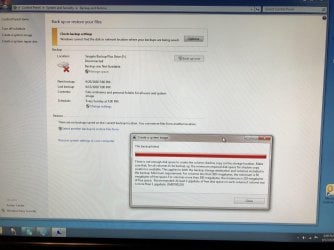
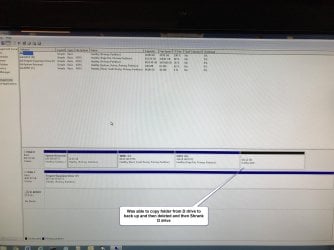
I've been trying to free up space on C drive. I was able to copy folder over to backup drive and then delete and shrink D but I cannot do a back up just on D drive with system image. I can't uncheck C and System volumes.
ALso tried to uninstall programs but not enough space on C to even do that. I made a mistake of connecting to internet and windows update took even more space. I was down to Kb on C but did gain a little back.

Now in a catch-22. Not sure what do do. I guess I could go ahead and delete D drive without back up.

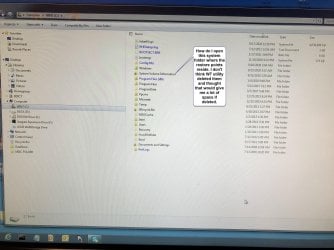
I was trying to get into the System Volume folder where I believe the large restore point files are at and wanted to delete them but access denied.

Main reason I'm trying to get this PC going again is I want W7 to use on a scanner. Long story...

Any ideas on how to free up more space on C drive so I can keep deleting programs?

Can I do this with the shell cmd window to uninstall programs or maybe in safe mode?

Thanks in advance. I will upload 4 pics with text.
 

Attachments

  • NotEnoughtDiskSpace to do backup.jpg
    NotEnoughtDiskSpace to do backup.jpg
    423.1 KB · Views: 1
  • W7_systemVOLUMEaccessDENIED.jpg
    W7_systemVOLUMEaccessDENIED.jpg
    418.5 KB · Views: 3
  • w7BACKUPCANTuncheckCdrive.jpg
    w7BACKUPCANTuncheckCdrive.jpg
    703.5 KB · Views: 1
  • w7SHRANKDdrive.jpg
    w7SHRANKDdrive.jpg
    356.9 KB · Views: 1

My Computer My Computer

At a glance

windows 7 64 bit home premium
Computer type
PC/Desktop
Computer Manufacturer/Model Number
asus
OS
windows 7 64 bit home premium
I was trying to get into the System Volume folder where I believe the large restore point files are at and wanted to delete them but access denied.

open an administrator command prompt and type:
vssadmin delete shadows /all
then press enter

with system image. I can't uncheck C and System volumes

If you are trying to make an image backup of your D partition, you need somewhere to store the backup image.
For Example:
To backup partition D and store the backup image on partition F, open an administrator command prompt and type
WBADMIN START BACKUP -backupTarget:f: -include:d:
then press enter


It seems you only have about 8gb of data on D.
Instead of making an image, you could just copy it into a folder on F.
Command prompt:
Code:
[B]xcopy "d:\" "F:\from-D" /cheriky[/B]
then press enter
 
Last edited:

My Computers My Computers

  • At a glance

    7 X64i5 84002x8gb 3200mhz
    Computer type
    PC/Desktop
    OS
    7 X64
    CPU
    i5 8400
    Motherboard
    gigabyte b365m ds3h
    Memory
    2x8gb 3200mhz
    Hard Drives
    various
    PSU
    pure power 11 400w cm
    Case
    Coolermaster
    Cooling
    cryorig m9i
  • At a glance

    7x64g54008gb ddr4 2400
    Computer type
    PC/Desktop
    OS
    7x64
    CPU
    g5400
    Motherboard
    ga b365m ds3h
    Memory
    8gb ddr4 2400
    PSU
    xfx pro 450w
I've been trying to free up space on C drive. I was able to copy folder over to backup drive and then delete and shrink D but I cannot do a back up just on D drive with system image. I can't uncheck C and System volumes.
...

Any ideas on how to free up more space on C drive so I can keep deleting programs?

Can I do this with the shell cmd window to uninstall programs or maybe in safe mode?

Thanks in advance. I will upload 4 pics with text.

If the data on D: is unimportant to you, then you can just go ahead and delete the volume without backing up.

Otherwise, if the data on D: is valuable then you will want to create a backup. To create a backup, follow the instructions :ar: Backup User and System Files .
When you reach step 9 (of that tutorial), unckeck Include a System Image of drives, and uncheck any tick under Data Files. Then, add a tick to the checkbox for drive D:, and everything should be good to go.

If you still wish to free up more space on C:, then use Windows Disk Cleanup utility :ar: Disk Cleanup - Open and Use .
 

My Computer My Computer

At a glance

Windows 7 x64, Vista x64, 8.1 smartphoneIntel E8400 65W 64-bitDDR2 2 x 2GB, 1GB x 2XFX Radeon HD5750
Computer type
PC/Desktop
OS
Windows 7 x64, Vista x64, 8.1 smartphone
CPU
Intel E8400 65W 64-bit
Motherboard
Gigabyte EP45-UD3LR
Memory
DDR2 2 x 2GB, 1GB x 2
Graphics Card(s)
XFX Radeon HD5750
Sound Card
AMD High Definition Audio; Realtek High Definition Audio
Monitor(s) Displays
iiyama prolite X2377HDS
Screen Resolution
1920 x 1080
Hard Drives
500GB 7200 rpm Seagate ST3500413AS 16MB, 500GB 5400 rpm Toshiba MQ02ABF050H 32MB, 200GB 7200 rpm Seagate ST3200820AS 8MB, 2TB 7200 rpm Western Digital WD20EZRX 64MB
PSU
Enermax Liberty Modular
Case
Antec P193 Midi Tower
Keyboard
Mionix ZIBAL 60
Mouse
Razer USB 2.0 Diamondback Mouse or Huion Graphics Tablet
Browser
Internet Explorer, Lunascape, Firefox, Opera, Avast Safezone
Partition D Drive unable to delete

If the data on D: is unimportant to you, then you can just go ahead and delete the volume without backing up.

Otherwise, if the data on D: is valuable then you will want to create a backup. To create a backup, follow the instructions :ar: Backup User and System Files .
When you reach step 9 (of that tutorial), unckeck Include a System Image of drives, and uncheck any tick under Data Files. Then, add a tick to the checkbox for drive D:, and everything should be good to go.

If you still wish to free up more space on C:, then use Windows Disk Cleanup utility :ar: Disk Cleanup - Open and Use .

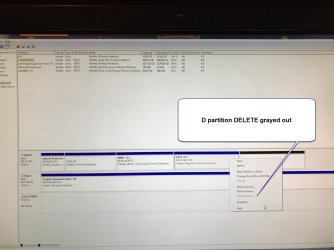
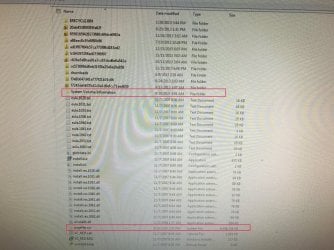
I decided to just delete D drive partition but just found out I guess since there shows system info the DELETE function is grayed out. I have no idea if these system files folders were original to the PC.

I just tried to copy the system files over and page file says I can't copy because file is open and sys volume says I can't copy because of permissions. So I guess I'm stuck again.

If I were to gain permission to delete volume file would that keep me from booting back up? I thought sys files were usually on C drive.
 

Attachments

  • D partition cant delete grayedOUT.jpg
    D partition cant delete grayedOUT.jpg
    242.8 KB · Views: 3
  • D partition system files so cant delete.jpg
    D partition system files so cant delete.jpg
    775.4 KB · Views: 0

My Computer My Computer

At a glance

windows 7 64 bit home premium
Computer type
PC/Desktop
Computer Manufacturer/Model Number
asus
OS
windows 7 64 bit home premium
You could switch the pagefile to your windows partition and set a small size temporaraily.

You need to free up more space before you do that.

It is showing almost 80gb used on your windows partition. There must be stuff in your user folders you can move elsewhere e.g. to F for the time being.

Alternatively use boot media to delete disk0 partition4. You could do that with diskpart from booted media.
 

My Computers My Computers

  • At a glance

    7 X64i5 84002x8gb 3200mhz
    Computer type
    PC/Desktop
    OS
    7 X64
    CPU
    i5 8400
    Motherboard
    gigabyte b365m ds3h
    Memory
    2x8gb 3200mhz
    Hard Drives
    various
    PSU
    pure power 11 400w cm
    Case
    Coolermaster
    Cooling
    cryorig m9i
  • At a glance

    7x64g54008gb ddr4 2400
    Computer type
    PC/Desktop
    OS
    7x64
    CPU
    g5400
    Motherboard
    ga b365m ds3h
    Memory
    8gb ddr4 2400
    PSU
    xfx pro 450w
Back
Top