Solved New Win7 Install

huffman

New member
Pro User
Local time
10:24 AM
Messages
715
To make long story short, my PC with Win 7 (SP1) crashed because of a virus. I could find no way to repair or restore it without that same virus showing up.

As a last resort, I did a clean install of Win7 using an install disk that had SP1 slipstreamed on it. All seemed to go well. The first thing I did after the install was to delete the old.win folder so as not to have it influence anything else I would do.

When I started to install my software I noticed that ALL the programs that I had installed before the crash were still showing in Program Files. They did NOT work but the files were still there. The reason I think they would not work is because they were not showing the registry.

I don't think it is a real big deal since most of the programs will be reinstalled and those files should be replaced or deleted.

I was just wanting to know how could this happen and why so that I can prevent it from happening in the future.

Any suggestions would be appreciated. Thank you.
 

My Computer My Computer

At a glance

Windows 7 ProIntel(R) Pentium(R) Duel CPU E2200 2.20 Ghz4 gb 2.96 UsableOnboard
OS
Windows 7 Pro
CPU
Intel(R) Pentium(R) Duel CPU E2200 2.20 Ghz
Motherboard
GA-G41M-ES2L
Memory
4 gb 2.96 Usable
Graphics Card(s)
Onboard
Sound Card
Onboard
Hard Drives
2 - 1TB WD Sata Drives
My best guess as to why it happened is that for some reason the partition with windows 7 on it wasn't formatted during the last install. One way around it is to delete the partition and then create a new blank one. It will be formated during the install. I partitioned my drive so all my data, documents, pictures, etc is on a separate partition. I can then nuke the windows partition during a clean install and not loose anything.
 

My Computer My Computer

At a glance

Windows 10 Education 64 bitAMD Phenom II X4 980 Black Edition Deneb 3.7GHz8GB 4GBx2 Kingston PC10600 DDR3 1333 MemoryZotac NVIDIA Geforce GT640 2 Gig DDR3 PCIe
Computer type
PC/Desktop
Computer Manufacturer/Model Number
Home Built
OS
Windows 10 Education 64 bit
CPU
AMD Phenom II X4 980 Black Edition Deneb 3.7GHz
Motherboard
Asus M4N68T-M V2 µATX Motherboard
Memory
8GB 4GBx2 Kingston PC10600 DDR3 1333 Memory
Graphics Card(s)
Zotac NVIDIA Geforce GT640 2 Gig DDR3 PCIe
Sound Card
VIA VT1708s High Definition Audio 8-channel Onboard
Monitor(s) Displays
22" LG E2242 1080p and 2 19" I-INC AG191D
Screen Resolution
1280x1024 - 1920x1080 - 1280x1024
Hard Drives
Crucial M100 256 GB SSD and 500 GB WD Blue SATA
PSU
Thermaltake TR 620
Case
Power Up Black ATX Mid-Tower Case
Cooling
Stock heatsink and fan
Keyboard
Logitech Wireless K350 Wave
Mouse
Logitech Wireless M570 Trackman Wheel
Internet Speed
80 Mbps Down 30 Mbps Up
Antivirus
Windows Defender
Browser
Internet Explorer 11
Other Info
HP DVD1040e Lightscribe - External USB2
What you did is a custom install not a clean install- a custom install does leave behind a windows.old folder which contains files from the previous install and can be recovered. If one has no use for windows.old, it makes sense to format the OS partition, then install- this can be done in various ways E.g. by clicking on Drive options during the install and choosing Format (this would be a clean install).

But I've never heard of Programfiles being left behind separately, hard to explain. If you havent invested too much time and effort till now, suggest you do a clean install the proper way after backing up any data.

http://www.sevenforums.com/tutorials/1649-clean-install-windows-7-a.html
 

My Computer My Computer

At a glance

Windows 7 x64 pro/ Windows 7 x86 Pro/ XP SP3 x86
Computer Manufacturer/Model Number
Too many to describe...
OS
Windows 7 x64 pro/ Windows 7 x86 Pro/ XP SP3 x86
After any infection which causes one to reinstall, you should wipe the HD first of all code using Diskpart Clean All command. Use the tutorial theog posted above to do this.

Then close the Command Box, choose Install Now, use Custom>Drive Options to create New partition(s) as you wish, Format before install - pictures are in the tutorial Bill2 posted.

Allow the 100mb boot partition created by the installer on a clean HD, as this places the Repair console conveniently on the F8 Advanced Boot Tools menu.

Here are other tips for getting a purrfect install based on hundreds done here - use the ones which apply to your situation: Clean Reinstall steps
 
Hello huffman.


Here's more relevant information on the complete wipe and clean install process.


After you have copied out or made back-ups of the data you need to save to external media, use Step One of this tutorial at the link below to do a wipe (secure erase) to the entire Hard Disk Drive / Solid State Drive.
  • Then if you do not want to create the new Windows 7 "System Reserved" partition use the outline in Step Two #2 to create, format and mark Active a single 100GB partition to do the installation to.
  • If you do want to create the "System Reserved" partition use the outline in Step Two #3 to create, format and mark Active the System Reserved partition and then create and format the 100GB partition to do the installation to.
Either way, running the "clean all" then creating and formatting the partition(s) using diskpart will get you the best possible space to do a clean install of Windows 7 to; you can always extend the Windows partition to include the remaining unallocated space on the HDD / SSD or create additional Primary partitions or an Extended partition after the installation completes if you choose.

SSD / HDD : Optimize for Windows Reinstallation

DISKPART : At PC Startup

Do a Clean Install with a Upgrade Windows 7 Version
 

My Computer My Computer

At a glance

W 7 64-bit UltimateIntel Q9550 Yorkfield8GB Dominator 8500C5DATI : XFX 5870
Computer Manufacturer/Model Number
* BFK Customs *
OS
W 7 64-bit Ultimate
CPU
Intel Q9550 Yorkfield
Motherboard
ASUS P5Q Pro
Memory
8GB Dominator 8500C5D
Graphics Card(s)
ATI : XFX 5870
Sound Card
Realtek HD Audio 7-1
Monitor(s) Displays
1x 47" LCD HDMI & 3x 26" LCD HDMI
Screen Resolution
1920x1080P & 1920x1200
Hard Drives
1x 80GB Intel X25-M G2 SSD : 1x 500GB & 1x 640GB WD Caviar Black(s)
PSU
Corsair 620HX
Case
Cooler Master RC-690
Cooling
Tuniq Tower 120, 2x 140mm and 3x 120mm case fans
Keyboard
Microsoft 500
Mouse
Razer Diamondback 3G
Internet Speed
14 Mb/s
Other Info
1x Koutech 3Gb/s SATA HDD Hot Swap Rack
OK I tried to digest all that information. Since I have time I decide to play around with installing.

My install disk was purchase through the student program and I have used it to do Custom Installs on this same PC before without any issues.

My PC is setup this way:
Two Hard Drives with Win 7 Pro on one drive and Win XP on the other. I booted up into XP with both hard drives connected (XP as primary). This allowed me to format the drive I wanted to install Win 7.

I then disconnected the drive with Win XP and started the install process (Custom) on the partition that I had just formatted. I will say it to what I thought was an inordinate amount time but finally it said Win installed and the setup started. When entered the Product Code I got this error message:

The following failure occurred trying to use this Product Key:
Code 0xC004F061

Description:
The software Licensing Service determined that this specified Product Key can only be used for upgrading, not for clean installs.

I tried reentering the Product Key several times but that did not help.

This buffaloes me since I have done the custom install before on this partition before without any issues.

I guess I can install Win XP on that partition and then try reinstalling Win 7 again and see what happens.

This is begining to be a PITA.

One more question:
How reliable are system images that are saved on DVD(s)?

Any suggestions are appreciated. Thank You
 

My Computer My Computer

At a glance

Windows 7 ProIntel(R) Pentium(R) Duel CPU E2200 2.20 Ghz4 gb 2.96 UsableOnboard
OS
Windows 7 Pro
CPU
Intel(R) Pentium(R) Duel CPU E2200 2.20 Ghz
Motherboard
GA-G41M-ES2L
Memory
4 gb 2.96 Usable
Graphics Card(s)
Onboard
Sound Card
Onboard
Hard Drives
2 - 1TB WD Sata Drives
At least three times we posted the steps to wipe your HD with Diskpart Clean All command, yet you only formatted which erases nothing and leaves infected code on the HD. You need to unplug the XP HD and wipe the HD using the steps in the tutorial which I will post again: http://www.sevenforums.com/tutorials/91339-ssd-hdd-optimize-windows-reinstallation.html

Since we now know you have an Upgrade version, you'll need to leave the Product Key blank during install then afterwards do the quick registry workaround given here to activate an Upgrade version key installed on a wiped HD, as a HD should be after infection: http://www.sevenforums.com/tutorials/31402-clean-install-upgrade-windows-7-version.html
 
Thanks gregrocker.

I guess I have done this install so many times and never had an issue before like I am having now.

When I did the last install I did the Custom Install but the only thing I may have done wrong (that I can see anyway), I checked the Automatically activate Windows when I'm online box. I also put in the Product Key and I don't think I should have done that (appreciate a comment on that).

Next time I try the install I will follow the tutorial:
Clean Install with a Upgrade Windows 7 Version
I will use OPTION ONE and see how it goes.

Thanks for the patience


My Computer My Computer

At a glance

Windows 7 ProIntel(R) Pentium(R) Duel CPU E2200 2.20 Ghz4 gb 2.96 UsableOnboard
OS
Windows 7 Pro
CPU
Intel(R) Pentium(R) Duel CPU E2200 2.20 Ghz
Motherboard
GA-G41M-ES2L
Memory
4 gb 2.96 Usable
Graphics Card(s)
Onboard
Sound Card
Onboard
Hard Drives
2 - 1TB WD Sata Drives
I did NOT wipe the whole HDD which has 3 partitions. I did format C-drive by running Win XP from the second HDD which allows me to format the partition where I want to install Win 7. That should have got rid of any virus on that partition.

I then disconnected the second HDD and installed Win 7 on the partition that was formatted. After the install (and could not activate), there was no sign of the virus.

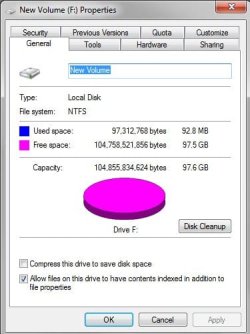
I have since formatted that partition again in preparation to try another install of Win 7. Here is what the properties for that partition show:

par properties.jpg

With only that HDD connected, I cannot see why Win 7 should not install normally.
 

My Computer My Computer

At a glance

Windows 7 ProIntel(R) Pentium(R) Duel CPU E2200 2.20 Ghz4 gb 2.96 UsableOnboard
OS
Windows 7 Pro
CPU
Intel(R) Pentium(R) Duel CPU E2200 2.20 Ghz
Motherboard
GA-G41M-ES2L
Memory
4 gb 2.96 Usable
Graphics Card(s)
Onboard
Sound Card
Onboard
Hard Drives
2 - 1TB WD Sata Drives

My Computer My Computer

At a glance

W 7 64-bit UltimateIntel Q9550 Yorkfield8GB Dominator 8500C5DATI : XFX 5870
Computer Manufacturer/Model Number
* BFK Customs *
OS
W 7 64-bit Ultimate
CPU
Intel Q9550 Yorkfield
Motherboard
ASUS P5Q Pro
Memory
8GB Dominator 8500C5D
Graphics Card(s)
ATI : XFX 5870
Sound Card
Realtek HD Audio 7-1
Monitor(s) Displays
1x 47" LCD HDMI & 3x 26" LCD HDMI
Screen Resolution
1920x1080P & 1920x1200
Hard Drives
1x 80GB Intel X25-M G2 SSD : 1x 500GB & 1x 640GB WD Caviar Black(s)
PSU
Corsair 620HX
Case
Cooler Master RC-690
Cooling
Tuniq Tower 120, 2x 140mm and 3x 120mm case fans
Keyboard
Microsoft 500
Mouse
Razer Diamondback 3G
Internet Speed
14 Mb/s
Other Info
1x Koutech 3Gb/s SATA HDD Hot Swap Rack
OK I have used Partition Wizard to Wipe the partition where I intend to install Win7. It is NOT formatted.

Should I format it now or when I install Win 7 will it automatically format during the install?
 

My Computer My Computer

At a glance

Windows 7 ProIntel(R) Pentium(R) Duel CPU E2200 2.20 Ghz4 gb 2.96 UsableOnboard
OS
Windows 7 Pro
CPU
Intel(R) Pentium(R) Duel CPU E2200 2.20 Ghz
Motherboard
GA-G41M-ES2L
Memory
4 gb 2.96 Usable
Graphics Card(s)
Onboard
Sound Card
Onboard
Hard Drives
2 - 1TB WD Sata Drives
Yes PW leaves it as "Raw" after a wipe, use the Windows installer to format it.
 

My Computer My Computer

At a glance

W 7 64-bit UltimateIntel Q9550 Yorkfield8GB Dominator 8500C5DATI : XFX 5870
Computer Manufacturer/Model Number
* BFK Customs *
OS
W 7 64-bit Ultimate
CPU
Intel Q9550 Yorkfield
Motherboard
ASUS P5Q Pro
Memory
8GB Dominator 8500C5D
Graphics Card(s)
ATI : XFX 5870
Sound Card
Realtek HD Audio 7-1
Monitor(s) Displays
1x 47" LCD HDMI & 3x 26" LCD HDMI
Screen Resolution
1920x1080P & 1920x1200
Hard Drives
1x 80GB Intel X25-M G2 SSD : 1x 500GB & 1x 640GB WD Caviar Black(s)
PSU
Corsair 620HX
Case
Cooler Master RC-690
Cooling
Tuniq Tower 120, 2x 140mm and 3x 120mm case fans
Keyboard
Microsoft 500
Mouse
Razer Diamondback 3G
Internet Speed
14 Mb/s
Other Info
1x Koutech 3Gb/s SATA HDD Hot Swap Rack
YEAHHHHHHHHhhh !!!

I got it finally installed and activated. I had to use the workaround to activate but it did work.

I will say that using an install disc with SP1 streamed is a waste of time. It took 2.5 hours from start of install until it was activated. With my install disc (without SP) takes half that time and can install SP1 in about 10 minutes using my SP1 download.

Any thanks for all the help. I greatly appreciate it.
 

My Computer My Computer

At a glance

Windows 7 ProIntel(R) Pentium(R) Duel CPU E2200 2.20 Ghz4 gb 2.96 UsableOnboard
OS
Windows 7 Pro
CPU
Intel(R) Pentium(R) Duel CPU E2200 2.20 Ghz
Motherboard
GA-G41M-ES2L
Memory
4 gb 2.96 Usable
Graphics Card(s)
Onboard
Sound Card
Onboard
Hard Drives
2 - 1TB WD Sata Drives
Good to see you got it running and thanks for the update.
 

My Computer My Computer

At a glance

W 7 64-bit UltimateIntel Q9550 Yorkfield8GB Dominator 8500C5DATI : XFX 5870
Computer Manufacturer/Model Number
* BFK Customs *
OS
W 7 64-bit Ultimate
CPU
Intel Q9550 Yorkfield
Motherboard
ASUS P5Q Pro
Memory
8GB Dominator 8500C5D
Graphics Card(s)
ATI : XFX 5870
Sound Card
Realtek HD Audio 7-1
Monitor(s) Displays
1x 47" LCD HDMI & 3x 26" LCD HDMI
Screen Resolution
1920x1080P & 1920x1200
Hard Drives
1x 80GB Intel X25-M G2 SSD : 1x 500GB & 1x 640GB WD Caviar Black(s)
PSU
Corsair 620HX
Case
Cooler Master RC-690
Cooling
Tuniq Tower 120, 2x 140mm and 3x 120mm case fans
Keyboard
Microsoft 500
Mouse
Razer Diamondback 3G
Internet Speed
14 Mb/s
Other Info
1x Koutech 3Gb/s SATA HDD Hot Swap Rack
Back
Top