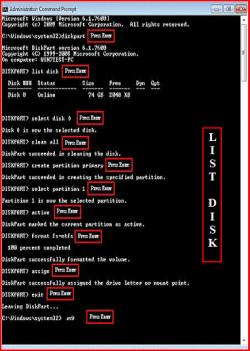
I am trying to set up an external USB drive as a bootable installer for Windows 7 Pro (x64). The drive is a Western Digital My Passport 300GB USB drive. I am attempting to partition the drive into a 10GB partition that runs the Windows 7 installer, and a second partition containing the rest of the drive that will store other files. This is the process I’ve been using:
1. Create 10GB Partition
2. Set Partition to Active
3. Format Partition to NTFS with and allocation unit size of 64KB. (The first three steps I’ve done using both command line and Disk Management)
4. Assign a letter to the drive
5. Set USB as bootable using bootsect (bootsect /nt60)
6. Copy installation files (tried both copy/paste and command line copy of files)
All of the steps have completed without error each time that I have tried them.
I’ve run through multiple guides online with slight variations. I’ve run the formatting, partitioning, cleaning, and copy from both the Disk Management and command prompt. I’ve tried by mounting the ISO files and copying them and by burning the files to a DVD (that successfully boots) then copying the DVD files. And the result is always the same. When I choose the boot option from an external USB drive, the screen tells me “No boot sector found on USB device.” The drive is good, I’ve run Checkdisk successfully, and it also recognized under “Computer” and in Disk Management. I’ve also tried a different brand HDD (don’t remember what type), running it through the same process, and the same result. My computer BIOS (Dell XPS 1710M) is up to date and set for USB boot first, and I am getting the same result on other machines.
Anyone have any ideas? Am I leaving out a step? Is it a compatibility issue with the hard drives? Has anyone encountered this problem before? I am aware that there are utilities out there with GUI's, but I much prefer handling this through command prompt if possible.
Any help you could provide would be greatly appreciated.
Below are some of the links that I followed.
Kevin’s Blog
Maximum PC | How To: Install Windows 7 from a USB Key!
1. Create 10GB Partition
2. Set Partition to Active
3. Format Partition to NTFS with and allocation unit size of 64KB. (The first three steps I’ve done using both command line and Disk Management)
4. Assign a letter to the drive
5. Set USB as bootable using bootsect (bootsect /nt60)
6. Copy installation files (tried both copy/paste and command line copy of files)
All of the steps have completed without error each time that I have tried them.
I’ve run through multiple guides online with slight variations. I’ve run the formatting, partitioning, cleaning, and copy from both the Disk Management and command prompt. I’ve tried by mounting the ISO files and copying them and by burning the files to a DVD (that successfully boots) then copying the DVD files. And the result is always the same. When I choose the boot option from an external USB drive, the screen tells me “No boot sector found on USB device.” The drive is good, I’ve run Checkdisk successfully, and it also recognized under “Computer” and in Disk Management. I’ve also tried a different brand HDD (don’t remember what type), running it through the same process, and the same result. My computer BIOS (Dell XPS 1710M) is up to date and set for USB boot first, and I am getting the same result on other machines.
Anyone have any ideas? Am I leaving out a step? Is it a compatibility issue with the hard drives? Has anyone encountered this problem before? I am aware that there are utilities out there with GUI's, but I much prefer handling this through command prompt if possible.
Any help you could provide would be greatly appreciated.
Below are some of the links that I followed.
Kevin’s Blog
Maximum PC | How To: Install Windows 7 from a USB Key!
My Computer
At a glance
Windows 7 Home Premium 64
- OS
- Windows 7 Home Premium 64