Outlook 2010 Filters and other settings issues

agbenny

New member
Local time
11:42 PM
Messages
9
Hi,

When i upgraded to my Outlook 2010, though it looks good, I am unable to find certain very convenient features which I enjoyed before in 2007 and earlier.

1. Last 7 days views.
In the Email filers to view the Emails compactly, we had a last 7 days views. Now I only see This week, Last week, This month etc. Is there a way to create a "Last 7 Days" view? I get over 100 mails a day, and its difficult to move back to last week and this week. Also "This Month" setting makes me to scroll a lot.

2. Expand/collapse:
Most of the times, I see all the emails which grouped became collapsed. This is really annoying. I want all the mails in Collapsed state unless I expand it.

Any support is highly appreciated.

Thanks
Benny
 

My Computer My Computer

At a glance

Win 7 64 bit
OS
Win 7 64 bit
Hi, agbenny, welcome to the Seven Forums! :D

Try this to see if it's what you are looking for.

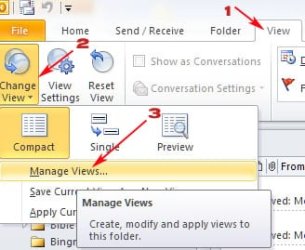
Go to the "View" tab (1) then click "Change View" (2) then click "Manage Views" (3):

ScreenShot00198.jpg

In the next dialog box, click "New..." (indicated by arrow):

ScreenShot00199.jpg

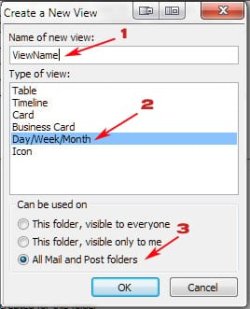
Then, give your view a name (1), select the "Day/Week/Month" option (2) and be sure the radio button indicated in (3) is selected. Click "OK":

ScreenShot00201.jpg

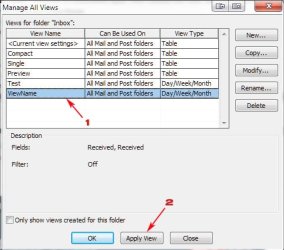
After clicking "OK" above, select your new view (whatever you might have named it) (1) and then click "Apply View" (2) then click "OK":

ScreenShot00204.jpg

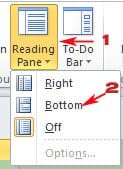
After doing that, I like to have my reading pane on the bottom so I select "Reading Pane" (1) from the "View" tab and then select "Bottom" (2):

ScreenShot00202.jpg

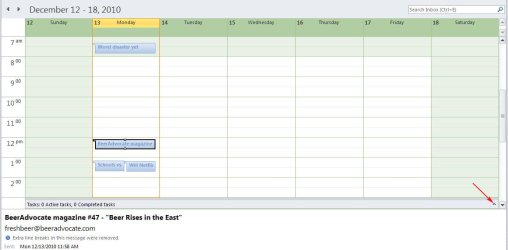
After collapsing the "Tasks" section (arrow), this is what you'll get:

ScreenShot00203.jpg

I hope that helps. From there you can play with various settings and other groupings to fine tune the view you desire. Have fun! :)
 

My Computer My Computer

At a glance

Windows 7 Ultimate x64 SP1Core2 Duo4 GBGM965 on-board
Computer Manufacturer/Model Number
Toshiba L355D
OS
Windows 7 Ultimate x64 SP1
CPU
Core2 Duo
Motherboard
Intel
Memory
4 GB
Graphics Card(s)
GM965 on-board
Sound Card
RealTek on-board
Monitor(s) Displays
19"+17"(laptop)
Screen Resolution
1440x900 (x 2)
Hard Drives
500GB Ext. 200GB Internal
PSU
N/A
Case
N/A
Cooling
N/A
THANKS a TON!

mikedl,

Smart!

Thanks a lot. You saved me. :-)

Regards,
 

My Computer My Computer

At a glance

Win 7 64 bit
OS
Win 7 64 bit
Fantastic, agbenny! :D
 

My Computer My Computer

At a glance

Windows 7 Ultimate x64 SP1Core2 Duo4 GBGM965 on-board
Computer Manufacturer/Model Number
Toshiba L355D
OS
Windows 7 Ultimate x64 SP1
CPU
Core2 Duo
Motherboard
Intel
Memory
4 GB
Graphics Card(s)
GM965 on-board
Sound Card
RealTek on-board
Monitor(s) Displays
19"+17"(laptop)
Screen Resolution
1440x900 (x 2)
Hard Drives
500GB Ext. 200GB Internal
PSU
N/A
Case
N/A
Cooling
N/A
Better View

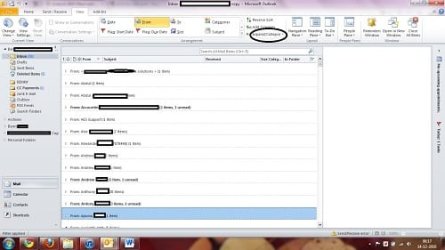
I like to bring this view (calender based view is complex to navigate), is this possible? I only need to show last 7 days of Emails. (This was damn simple in OL 2007 and earlier).
 

Attachments

  • Email2.jpg
    Email2.jpg
    20.5 KB · Views: 108

My Computer My Computer

At a glance

Win 7 64 bit
OS
Win 7 64 bit
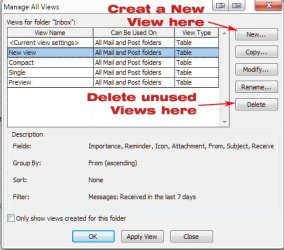
Hi, agbenny. It's pretty simple in 2010, as well. I see you have a different view type you prefer over the "Day/Week/Month" view I presented earlier. Let's start once again by creating a new view - select "Manage Views" as demonstrated earlier. You can also delete any view you no longer use, if you like.:

ScreenShot00212.jpg

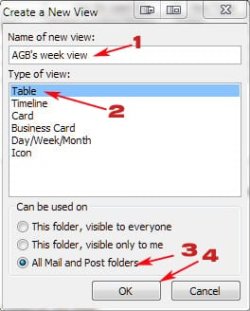
You'll want to give it a name (I'll call it "AGB's week view") (1), select "Table" type view (2) this time, be sure the proper radio button is selected (3) then click OK (4):

ScreenShot00213.jpg

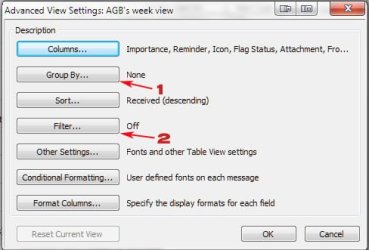
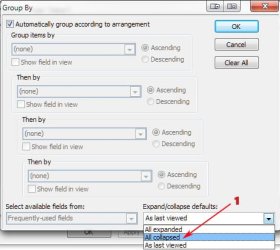
In the next dialog, select "Group By..." (1), then, in that following dialog, go to the bottom and select "All collapsed" from the drop down menu (1). Click "OK" out of the second dialog and you'll be back at the first:

ScreenShot00215.jpg ScreenShot00214.jpg

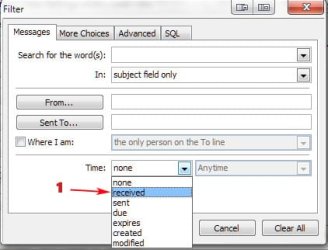
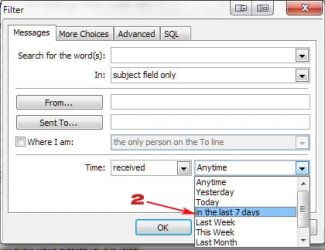
Once back at the first dialog again, click the "Filter..." (2, above) button. At the lower part of the resultant dialog, in the "Time:" field select "received" (1) and then "in the last 7 days" (2).

ScreenShot00217.jpg ScreenShot00218.jpg

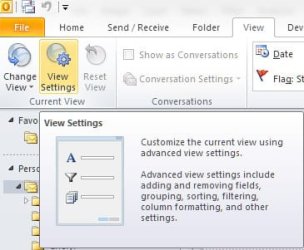
Apply the view and click "OK" out of the dialogs. You can also modify the current chosen view by clicking directly on "View Settings" in the "View" tab:

ScreenShot00219.jpg

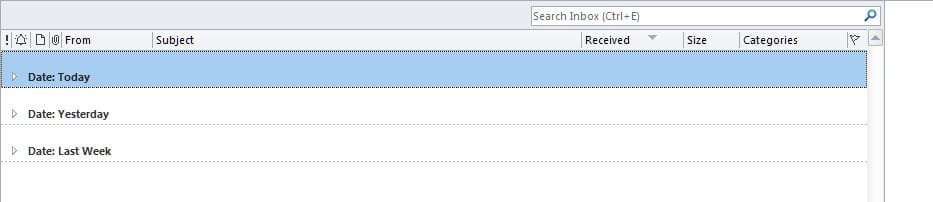
The view I get from the above exercise shows the last 7 days:

ScreenShot00220.jpg

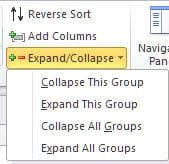
Use the "Expand/Collapse" options to adjust the depth of your view:

ScreenShot00221.jpg

Personally, I prefer the calendar view ("Day/Week/Month" view type) for this purpose but I hope the last two exercises have given you a bit of insight into the various ways views can be manipulated in Outlook 2010. It's different than 2007, to be sure. Have fun, agbenny. I hope you find the right view style to suit your needs. :)
 

My Computer My Computer

At a glance

Windows 7 Ultimate x64 SP1Core2 Duo4 GBGM965 on-board
Computer Manufacturer/Model Number
Toshiba L355D
OS
Windows 7 Ultimate x64 SP1
CPU
Core2 Duo
Motherboard
Intel
Memory
4 GB
Graphics Card(s)
GM965 on-board
Sound Card
RealTek on-board
Monitor(s) Displays
19"+17"(laptop)
Screen Resolution
1440x900 (x 2)
Hard Drives
500GB Ext. 200GB Internal
PSU
N/A
Case
N/A
Cooling
N/A
This worked perfectly, thanks a ton.
However, I have one last issue: While searching the results come only within the filtered mail boxes (last 7 days). Is it possible to widen the search result to all the mail boxes without time limit?
 

My Computer My Computer

At a glance

Win 7 64 bit
OS
Win 7 64 bit
This worked perfectly, thanks a ton.
However, I have one last issue: While searching the results come only within the filtered mail boxes (last 7 days). Is it possible to widen the search result to all the mail boxes without time limit?
Hi, agbenny! :) I'm happy you are finding things more to your liking in Outlook 2010.

As far as serching outside the 7 day "window", try changing this setting:

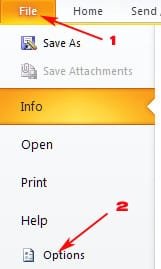
Go to "File" (1) then "Options" (2):

ScreenShot00243.jpg

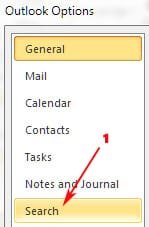
Then, select "Search" (1) and select the radio button for "All folders" (2):

ScreenShot00244.jpg ScreenShot00245.jpg

I hope that helps a bit more, agbenny. I have to admit, I haven't really used this, in practice, the way you are doing but I have used it in other situations.
 

My Computer My Computer

At a glance

Windows 7 Ultimate x64 SP1Core2 Duo4 GBGM965 on-board
Computer Manufacturer/Model Number
Toshiba L355D
OS
Windows 7 Ultimate x64 SP1
CPU
Core2 Duo
Motherboard
Intel
Memory
4 GB
Graphics Card(s)
GM965 on-board
Sound Card
RealTek on-board
Monitor(s) Displays
19"+17"(laptop)
Screen Resolution
1440x900 (x 2)
Hard Drives
500GB Ext. 200GB Internal
PSU
N/A
Case
N/A
Cooling
N/A
Thanks Mike, But I see the option is already enabled as All folders. But still the search brings only within the last 7 days. I hope somewhere there is an issue in my settings.
 

My Computer My Computer

At a glance

Win 7 64 bit
OS
Win 7 64 bit
Thanks Mike, But I see the option is already enabled as All folders. But still the search brings only within the last 7 days. I hope somewhere there is an issue in my settings.
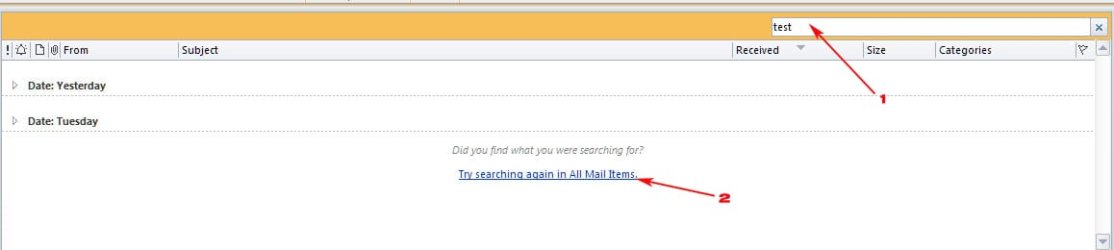
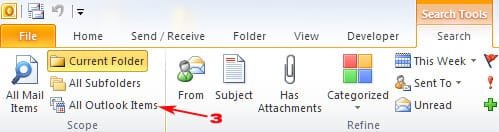
Hi, agbenny, one more thing, when you click in the "Search" box (1) your Ribbon should change. If your results are not what you thought you might see, you can then choose the link (2) or select the option in (3):

ScreenShot00246.jpg

ScreenShot00247.jpg

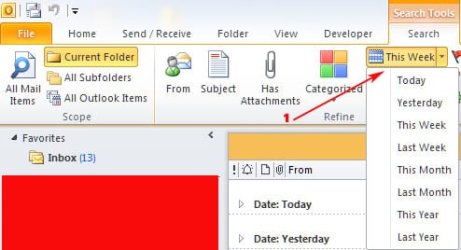
Even further options lie in the drop down shown in (1):

ScreenShot00248.jpg
 
Last edited:

My Computer My Computer

At a glance

Windows 7 Ultimate x64 SP1Core2 Duo4 GBGM965 on-board
Computer Manufacturer/Model Number
Toshiba L355D
OS
Windows 7 Ultimate x64 SP1
CPU
Core2 Duo
Motherboard
Intel
Memory
4 GB
Graphics Card(s)
GM965 on-board
Sound Card
RealTek on-board
Monitor(s) Displays
19"+17"(laptop)
Screen Resolution
1440x900 (x 2)
Hard Drives
500GB Ext. 200GB Internal
PSU
N/A
Case
N/A
Cooling
N/A
My whole upper half of Outlook 2010 is in Italics. Is there a way to put back to regular type font?
Also, I tried to do a repair on Outlook 2010 but nothing happens, and I don't have a MiscroSoft Office program to look at in the "Start" menu.
Thanks for any help,
Joe
 

My Computer My Computer

At a glance

Windows 7 64 bit6G
Computer Manufacturer/Model Number
HP Desktop
OS
Windows 7 64 bit
Memory
6G
Hard Drives
1-1Tb
Back
Top