Partition / Extended : Logical Drives

How to Create Extended Partition / Logical Drives Where Needed

The Windows Master Boot Record (MBR) partition structure supports a total of only four (4) partitions per Hard Disk Drive / Solid State Drive, they can be either 4 Primary partitions or three (3) Primary partitions and a single (1) Extended partition.
This shows the different methods to create an Extended partition wherever you need one so you can create as many Logical drives as there are available drive letters that can be used to install a Windows Operating System or for data storage.
   Warning

As with anything that makes changes to the Windows structure there is always the chance for an error to occur, it would be advisable to make reliable backups to the external media of your choice of any important data, i.e. pictures, music or documents, that you would not want to lose before you make any changes to your system, it is always better to be safe than sorry.

Let's get started!
If there are 3 existing Primary partitions on the HDD / SSD already, the fourth partition created using Windows disk management will be an Extended partition by default.

To view the relevant information on the partition structure, type diskmgmt.msc in the Windows start menu search box, then right click the entry and click "Run as Administrator" if you should get a User Account Control (UAC) prompt enter your user credentials and click Yes.


Method One

This is what I'll be starting with.
click any image to enlarge
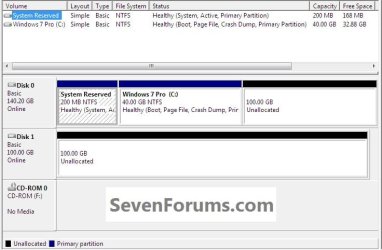
Start.jpg
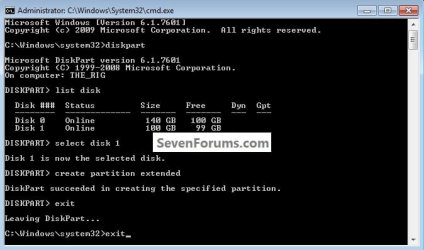
1) Open an elevated command prompt, in the command window that opens type diskpart and hit the <enter> key, all commands are followed by <enter>.

Here are the commands, click the images below to see how they are implemented.
list disk

select disk # (# = target disk number)

create partition extended

exit (2 times to close the command window)
If you need to create a specific size Extended partition, use this command.
create partition extended size=61440 <- 60GB
It has to be entered as MB and 1024MB = 1GB so 1024x60 = 61440

You can create any size you need using the formula above.
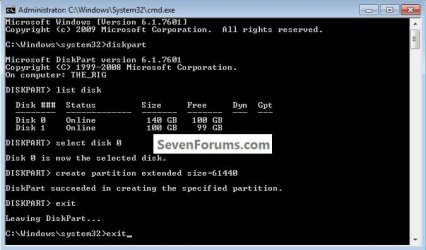
disko_size.jpg
disk1.jpg
disk0_size_2.jpg
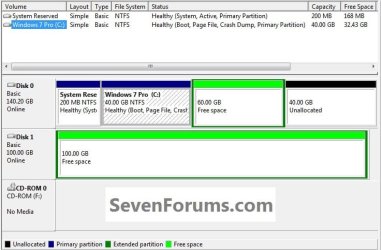
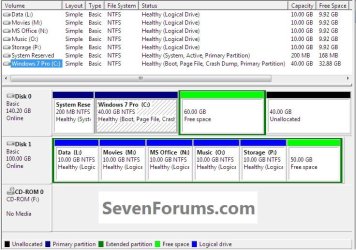
2) Now in Windows disk management right click the Extended partition Free Space to create Logical drive(s) as needed, anything created within an Extended will be a Logical drive by default.

You can create as many Logical drives within an Extended partition as there are available drive letters; you can create and name the drives in any way you like, this is just an example.
Logical.jpg


Method Two

Here's the situation a lot of people are finding themselves in when purchasing a factory built PC these days, a single HDD and all the partitions taken by the manufacturer, leaving no chance of creating any additional partitions.
The fortunate side of a layout like this is the use of the new Windows 7 System Reserved partition and it being the System Volume, where the Windows boot files are stored.

If this is the situation you're in, after you have made back-ups of the data you need to save to external media and created the set of factory recovery disks or better still, created a complete image of the entire HDD to external media that can be restored if the need ever arises, have a look at the information below.
click image to enlarge
2.1.jpg
   Warning

If you do not have the Windows System Reserved or a System Primary partition completely separate from the Windows 7 partition present that is marked as the "System" partition in disk management do not attempt this, if you do Windows will not boot as Windows will not/is not able to boot / start independently from an Extended partition Logical drive, the system boot files must be stored on a Primary partition to execute.

Windows XP users, do not do this or XP will not boot at all.

Start by downloading the Partition Wizard Bootable ISO file from either link below then use the Windows 7 USB/DVD Download Tool to create a bootable DVD or USB flash drive.

Partition Wizard Free Bootable CD

OR

Partition Wizard Bootable Flash Drive
To boot the disk, in the BIOS set the PC boot order to boot first from the CD/DVD or USB drive, insert the PWBD and restart the PC, it'll take a few minutes for it to setup with no input at all from the user needed.
Once the program has started you can remove the CD/DVD or USB if you like.

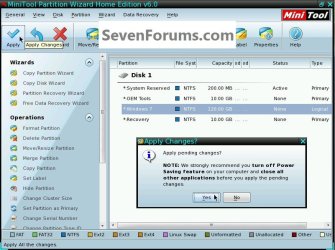
1) In the Partition Wizard program, right click the Windows 7 partition and click Modify then Set as Logical; then at the top left Action bar click Apply; then click Yes for the conformation dialog box.
click any image to enlarge
2.2.jpg
2.3.jpg
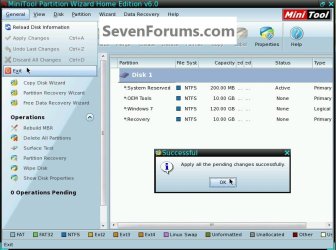
2) You will get a Pending window but that just takes seconds to complete and then click OK for the Successful dialog box.

Then remove the PWBD from the CD/DVD or USB drive and at the upper left corner click General then Exit to close the Partition Wizard program and restart Windows 7.
2.8.1.jpg
Restart Windows a couple times before you proceed to make sure all is well.

In the Windows 7 start menu search box type diskmgmt.msc then right click the entry and click "Run as Administrator" if you get a User Account Control (UAC) prompt enter your user credentials and click Yes.

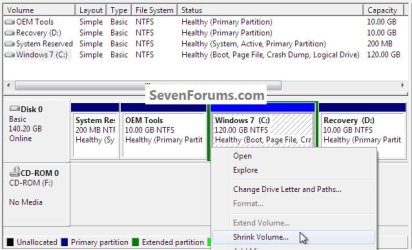
3) In disk management right click the Windows 7 partition and click Shrink Volume you can accept the offered size or you can create a specific size, don't make Windows 7 too small so installed programs/apps have the needed room.
click any image to enlarge
2.5.jpg
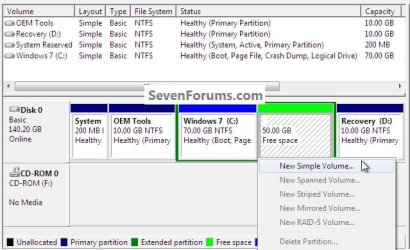
4) Now right click the new Extended partition Free Space and click New Volume to create the Logical drive(s) one at a time as needed.
2.6.jpg
It is suggested to restart Windows every time you make a change to let Windows 7 accept the changes to the system without issue.
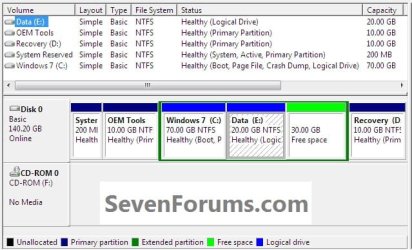
2.7.jpg
Enjoy! :)


Last edited by a moderator:
Right!! :D

But isn't it much easier than making CD! :)

Anyway...Thanks again to you all and the forum! :)
 

My Computer

OS
Windows 7 Home Premium(SP-1) 64bit.
It would be easier. But how do you change a tire on a car that is going at 60 MpH on the highway.
 

My Computer

Computer Manufacturer/Model Number
HP, Dell, Gateway, Toshiba - 4 laptops and 2 desktops
OS
Vista, Windows7, Mint Mate, Zorin, Windows 8
CPU
from 1.6GHz Duo to i7
Monitor(s) Displays
2x HP w2207
Hard Drives
5x HDD, 7x SSD, 12x Externals
Keyboard
with trackball - no mices
Mouse
Trackball mice
Internet Speed
DSL 6000
I will write a program to be used with a microcontroller linked with car so that while driving I can give command to change the tire!..

...Anyway, the program will first stop the car, change teh tire and again restart the car!! That's so simple! :P

Just kidding :)
 

My Computer

OS
Windows 7 Home Premium(SP-1) 64bit.
How to use unallocated hard drive space?

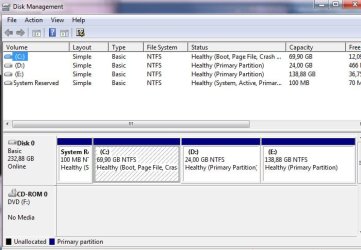
Got a new HP EliteBook 8560p and checking through Disk Management I see there's 167GB of unallocated disk space but I already have 4 partitions so it won't let me make another.

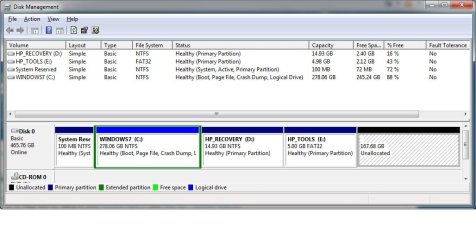
Here's my current disk configuration:

HD-config.jpg

I did method 2 mentioned on the first page and changed the Window7 C:\ drive partition from Primary to Logial but I don't see how shrinking C:\ drive will allow me to then make use of the 167GB of unallocated space?

Sorry if I'm just being dumb, please advise on the best way to now make use the unallocated space.

Thanks.
 

My Computer

Computer Manufacturer/Model Number
HP/EliteBook 8560p
OS
Windows 7 Professional 32 bit
Hello Jreedar!

I guess you don't need to shrink C: if you are just concerned about the unallocated 167 GB space. As you have already made C: logical, you can now make more than 4 partitions with new partions being logical...so now simply make one/more partition in that 167 GB space.
Right button clicking in the mouse on that unallocated space will give you option to make new partition.

Does it work?

Mithu
 

My Computer

OS
Windows 7 Home Premium(SP-1) 64bit.
Hello Jreedar!

I guess you don't need to shrink C: if you are just concerned about the unallocated 167 GB space. As you have already made C: logical, you can now make more than 4 partitions with new partions being logical...so now simply make one/more partition in that 167 GB space.
Right button clicking in the mouse on that unallocated space will give you option to make new partition.

Does it work?

Mithu

Thanks for the reply, when I right click on the 167 GB unallocated area and select 'New Simple Volume' and take all the defaults:

SimpleVol.jpg

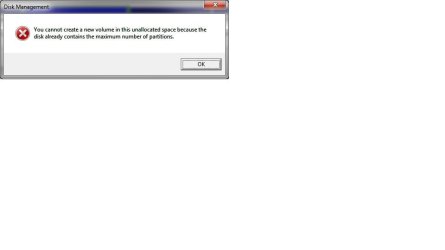
When I click finish I get this error:

error-disk.jpg
 

My Computer

Computer Manufacturer/Model Number
HP/EliteBook 8560p
OS
Windows 7 Professional 32 bit
SUCCESS!!

OK so I decided to install and use EASEUS Partition Master 9.1.0 Home Edition which was free, and used it to change my D:\ HP_RECOVERY partition from Primary to Logical, applied the change and rebooted. After that it then allowed me to access through the normal windows 7 Disk Management utility the unallocated 167GB area and then create a new partition(G:\) and format it! So this is exactly what I was wanting!

Hope this helps someone else with the same issue.

Here's what my new disk layout looks like now with 5 partitions, a new G:\ drive made up of the previously unallocated 167 GB:

SuccessDisk.jpg
 

My Computer

Computer Manufacturer/Model Number
HP/EliteBook 8560p
OS
Windows 7 Professional 32 bit
That was a smart move. Disk Management was iffy before because you unallocated space was a primary unallocated space (dark blue). It should not make any difference, but Disk Management apparently treats it differently.
 

My Computer

Computer Manufacturer/Model Number
HP, Dell, Gateway, Toshiba - 4 laptops and 2 desktops
OS
Vista, Windows7, Mint Mate, Zorin, Windows 8
CPU
from 1.6GHz Duo to i7
Monitor(s) Displays
2x HP w2207
Hard Drives
5x HDD, 7x SSD, 12x Externals
Keyboard
with trackball - no mices
Mouse
Trackball mice
Internet Speed
DSL 6000
That was a smart move. Disk Management was iffy before because you unallocated space was a primary unallocated space (dark blue). It should not make any difference, but Disk Management apparently treats it differently.

Thanks, I was surprised and relieved when it worked, not that difficult you just have to know the right steps. Great forum! Thanks for getting me going!
 

My Computer

Computer Manufacturer/Model Number
HP/EliteBook 8560p
OS
Windows 7 Professional 32 bit
Diskpart-any chance of scripting the commands?

I hope someone here can help or point us in the right direction.

We have W7 Pro client on an AD domain [Server 2008 R2]. We have a large amount of computers we need to extend Volume 2 from 20 GB to the end of the partition [the rest is unallocated].

Manually typing in the commands works flawlessly, but would require logging into each one. Is there a way to script all the commands in a batch or vbs or a group policy?

*update: diskpart /s scriptname.txt

where scriptname is the name of the text file that contains your script.

using this works as a script if elevated:
select volume 2
extend
exit
 
Last edited:

My Computer

OS
Windows 7 Pro
This is a really useful tutorial and thread, and having read through it I'm about ready to go ahead and convert my C: drive to an extended partition so I can have logical ones for my personal data (after I've done some backups !).

There's one thing I find potentially confusing though. I've got an HP laptop running W7 Home Premium 64bit, which came with 4 primary partitions, like several other people's laptops in this thread. As it has a separate 200Mb System partition (active, primary) I assume all the necessary boot files are on there, rather than on C: as they used to be. But what seems ambiguous is that the C: drive is labelled Boot, Page File, Crash Dump, Primary Partition. That almost implies that this drive also contains boot files, or am I just misinterpreting it ?
 

My Computer

Computer Manufacturer/Model Number
HP Pavilion G6
OS
Windows 7 Home Premium 64bit
CPU
i3
Memory
6Gb
Hard Drives
Samsung HM641JI 640GB
Hello Bare Foot Kid! Thank you for your tutorial. I have a question. Here is my situation.
Untitled.jpg
Can i use all your tutorial steps for disk E:?

Sincerely yours, Ravil.
 

My Computer

OS
Windows 7 Professional 32bit
Hello Ravil, welcome to Seven Foruns!


Are you are asking if E: could be converted to an Extended partition?

If there is no data on E: that you need to save and you don't have any Linux products installed anywhere ... the answer is yes.

The easiest way in that case would be to use Windows disk management to do a simple delete of E: then using disk management to create the Extended, which it will do by default.

Be sure to post back with any other questions you may have and to keep me updated.
 

My Computer

Computer Manufacturer/Model Number
* BFK Customs *
OS
W 7 64-bit Ultimate
CPU
Intel Q9550 Yorkfield
Motherboard
ASUS P5Q Pro
Memory
8GB Dominator 8500C5D
Graphics Card(s)
ATI : XFX 5870
Sound Card
Realtek HD Audio 7-1
Monitor(s) Displays
1x 47" LCD HDMI & 3x 26" LCD HDMI
Screen Resolution
1920x1080P & 1920x1200
Hard Drives
1x 80GB Intel X25-M G2 SSD : 1x 500GB & 1x 640GB WD Caviar Black(s)
PSU
Corsair 620HX
Case
Cooler Master RC-690
Cooling
Tuniq Tower 120, 2x 140mm and 3x 120mm case fans
Keyboard
Microsoft 500
Mouse
Razer Diamondback 3G
Internet Speed
14 Mb/s
Other Info
1x Koutech 3Gb/s SATA HDD Hot Swap Rack
Thank you! I have data on it. My portable hdd was borrowed. As soon as I get it I'll save all data from disk E: on it, and will do exactly what you advise. I will necessarily keep you in touch. Thank you again for quick and full answer!

Sincerely yours, Ravil.
 

My Computer

OS
Windows 7 Professional 32bit
You could use Partition Wizard to convert E: to an Extended, then shrink that and create other Logical drives from that; I'm just always concerned about data loss so back-ups are always a good idea.


Have a look at Option One of this tutorial linked below for some ideas.


Partition Wizard : Use the Bootable CD


My Computer

Computer Manufacturer/Model Number
* BFK Customs *
OS
W 7 64-bit Ultimate
CPU
Intel Q9550 Yorkfield
Motherboard
ASUS P5Q Pro
Memory
8GB Dominator 8500C5D
Graphics Card(s)
ATI : XFX 5870
Sound Card
Realtek HD Audio 7-1
Monitor(s) Displays
1x 47" LCD HDMI & 3x 26" LCD HDMI
Screen Resolution
1920x1080P & 1920x1200
Hard Drives
1x 80GB Intel X25-M G2 SSD : 1x 500GB & 1x 640GB WD Caviar Black(s)
PSU
Corsair 620HX
Case
Cooler Master RC-690
Cooling
Tuniq Tower 120, 2x 140mm and 3x 120mm case fans
Keyboard
Microsoft 500
Mouse
Razer Diamondback 3G
Internet Speed
14 Mb/s
Other Info
1x Koutech 3Gb/s SATA HDD Hot Swap Rack

My Computer

Computer Manufacturer/Model Number
* BFK Customs *
OS
W 7 64-bit Ultimate
CPU
Intel Q9550 Yorkfield
Motherboard
ASUS P5Q Pro
Memory
8GB Dominator 8500C5D
Graphics Card(s)
ATI : XFX 5870
Sound Card
Realtek HD Audio 7-1
Monitor(s) Displays
1x 47" LCD HDMI & 3x 26" LCD HDMI
Screen Resolution
1920x1080P & 1920x1200
Hard Drives
1x 80GB Intel X25-M G2 SSD : 1x 500GB & 1x 640GB WD Caviar Black(s)
PSU
Corsair 620HX
Case
Cooler Master RC-690
Cooling
Tuniq Tower 120, 2x 140mm and 3x 120mm case fans
Keyboard
Microsoft 500
Mouse
Razer Diamondback 3G
Internet Speed
14 Mb/s
Other Info
1x Koutech 3Gb/s SATA HDD Hot Swap Rack
@Bare Foot Kid

Hi there sir, I followed your tutorial properly and I have been able to make extended partitions of my C drive thanks to you. I have an HP G6 2005AX which also gave me four partitions by default.
Anyway. I have a few quesions:

I hope nothing is different, now that my C drive is not a primary drive but a logical one. Does it make my computer a little slower? Because I am feeling a very slight lag.

Secondly will I be able to install windows 8 if I make another extension or partition of my C drive. Will windows 8 be installed in it? I mean I want a dual booting system, with windows 7 and 8 as well.
If not then what should I do to be able to install another OS with these current main 4 partitions.
Thanks
 

My Computer

OS
Windows 7 Home Basic 64 bit
Hello Sam.


You can install Windows 8 to an Extended partition / Logical drive, just boot the W_8 installer as normal,do NOT attempt to install from the W_7 desktop.

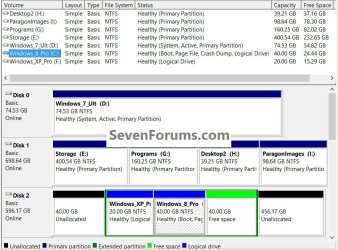
This is a snip of my actual, current HDD set-up. ;)

click to enlarge
DM.jpg
 

My Computer

Computer Manufacturer/Model Number
* BFK Customs *
OS
W 7 64-bit Ultimate
CPU
Intel Q9550 Yorkfield
Motherboard
ASUS P5Q Pro
Memory
8GB Dominator 8500C5D
Graphics Card(s)
ATI : XFX 5870
Sound Card
Realtek HD Audio 7-1
Monitor(s) Displays
1x 47" LCD HDMI & 3x 26" LCD HDMI
Screen Resolution
1920x1080P & 1920x1200
Hard Drives
1x 80GB Intel X25-M G2 SSD : 1x 500GB & 1x 640GB WD Caviar Black(s)
PSU
Corsair 620HX
Case
Cooler Master RC-690
Cooling
Tuniq Tower 120, 2x 140mm and 3x 120mm case fans
Keyboard
Microsoft 500
Mouse
Razer Diamondback 3G
Internet Speed
14 Mb/s
Other Info
1x Koutech 3Gb/s SATA HDD Hot Swap Rack
So this means that I can install windows 8 even on an extended partition right?
Secondly I did not understand what you mean by "Don't install using your windows 7 desktop"?
Plus can you guide me to some good tutorial where I can learn how to install a second OS?
 

My Computer

OS
Windows 7 Home Basic 64 bit
Back
Top