Partition or Volume - Extend

How to Extend a Partition or Volume in Windows 7

   Information
This will show you how to extend a hard disk partition or volume into a empty unallocated space on the same hard disk to make it larger using Disk Management or Diskpart in Windows 7.
   Warning
You must be logged on in an administrator account to do this tutorial.

If you disable the Disk Defragmenter service, then you will get the error below when you try to do anything in Disk Management. If you get this error, then make sure that the Disk Defragmenter service is set to only Manual.
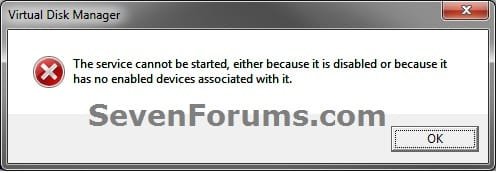
Error.jpg


OPTION ONE

Using Disk Management


1. If you have not already, you will first need to delete the partition or volume that you want to extend into to make it unallocated space.

2. Open the Control Panel (icons view), and click on the Administrative Tools icon. then close the Control Panel window.

3. Click on Computer Management in Administrative Tools, then close the Administrative Tools window.

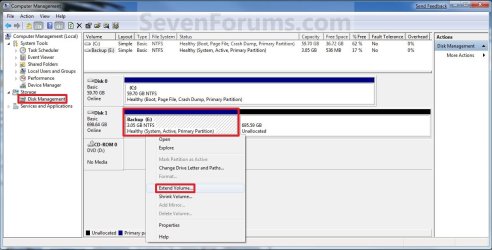
4. In the left pane under Storage, click on Disk Management. (See screenshot below)
Extend_Step1.jpg
5. In the middle pane, right click on the partition or volume directly adjacent (left) of the unallocated space that you want to extend into, and click on Extend Volume. (See screenshot above)

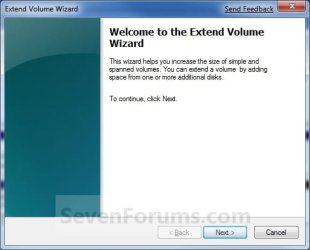
6. Click on the Next button. (See screenshot below)
Extend_Step2.jpg
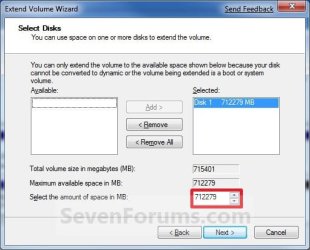
7. Type in how many MB (1 GB = 1024 MB) you want to use from the unallocated space to extend the selected partition (step 5) into, then click on the Next button. (See screenshot below)
NOTE: If you want to use all of the unallocated space to extend into, then type in the maximum available space shown for the unallocated space.
Extend_Step3.jpg
8. Click on the Finish button. (See screenshot below)
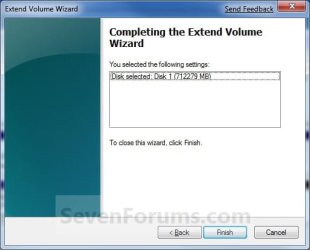
Extend_Step4.jpg
9. The partition or volume has now been extended into the assigned unallocted space (step 7). (See screenshot below)
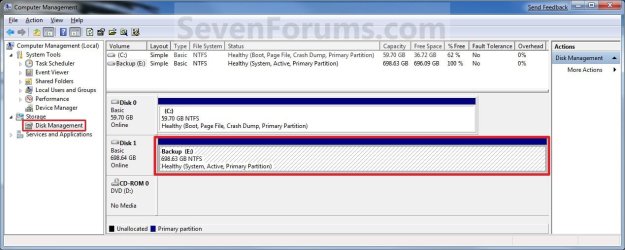
Extend_Step5.jpg
10. Close the Computer Management window. (See screenshot above)


OPTION TWO

Using Diskpart in a Elevated Command Prompt


1. If you have not already, you will first need to delete the partition or volume that you want to extend into to make it unallocated space.

2. Open a elevated command prompt, or a command prompt at boot.

3. In the elevated command prompt, type diskpart and press Enter. (See screenshot below)
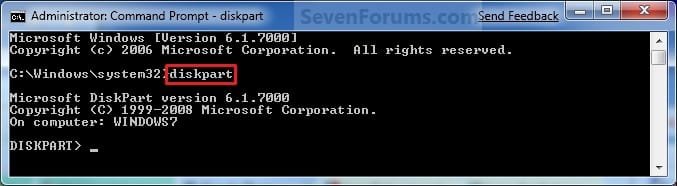
CMD_Extend_Step1.jpg
4. In the elevated command prompt, type list disk and press Enter. (See screenshot below)
NOTE: This is to help you ID the disk that has Free space that you want to extend into, and to see the disk size to make it easier to ID it's volume number in step 5. For example, Disk 1.
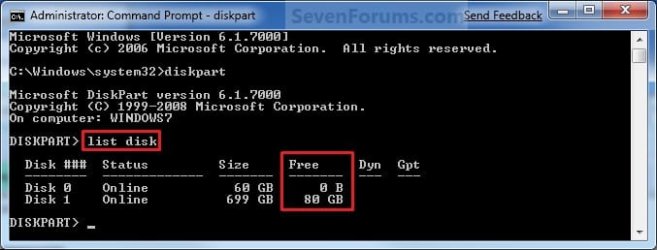
CMD_Extend_Step2.jpg
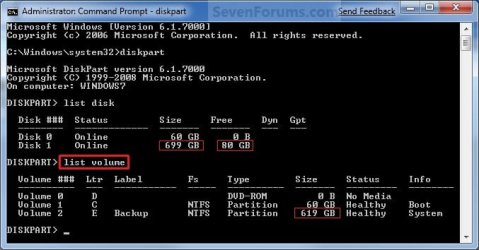
5. In the elevated command prompt, type list volume and press Enter. (See screenshot below)
NOTE: Look for the volume number that has the same Size as from the size in step 4 minus the Free space. For example, Volume 2.
CMD_Extend_Step3.jpg
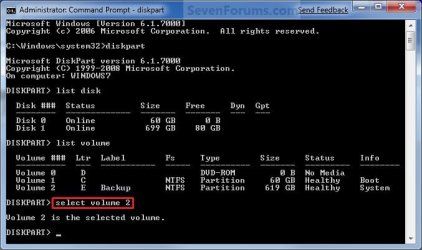
6. In the elevated command prompt, type select volume # and press Enter. (See screenshot below)
NOTE: You would substitute # for the volume number listed that you want to extend. For example, I want to extend the listed volume 2 since, so I would type select volume 2 and press Enter.
CMD_Extend_Step4.jpg
7. To Extend into All of the Unallocated Space
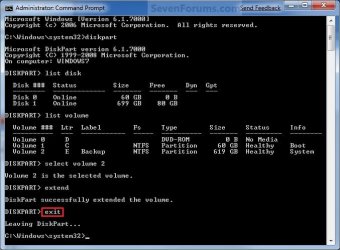
A) In the elevated command prompt, type extend and press Enter. (See screenshot below)
NOTE: The unallocated space will be removed and added completely to the selected partiton or volume (step 6).
CMD_Extend_Step5.jpg
B) Go to step 9.
8. To Extend into the Unallocated Space by a Specified Size
A) In the elevated command prompt, type extend size=(# in MB) and press Enter.
NOTE: You would substitute (# in MB) for how many MB (1 GB = 1024 MB) you want to use of the unallocated space (free space shown in step 4) to be extended into. For example, if I only wanted to extend into 5 GB of the unallocated space, then I would type extend size=5120 and press Enter.
9. In the elevated command prompt, type exit and press Enter. (See screenshot below)
CMD_Extend_Step6.jpg
10. Close the elevated command prompt.

11. The selected partition or volume (step 6) has now been extended into the unallocated space to make it larger.
NOTE: If you did step 8 instead of 7, then you can use the rest of the unallocated space to create a new partition with if you like.
That's it,
Shawn


Last edited:
Ok, I'm kind of confused. I'm trying to extend a partition (which is C:. I want to make the partition C larger) From what i'm looking at here I would select the volume of C and extend it. But, will this erase and data?

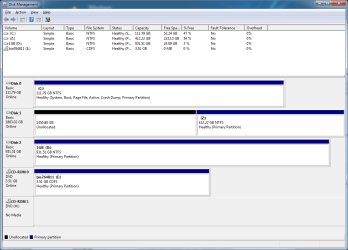
There is my hard draive stuff. I want to make the unallocated space part of C

So then end result would be one partition on that one harddrive

Will the diskpart do that? Will it erase any data?

unledzfs.png
 
Last edited by a moderator:

My Computer

OS
Windows 7 Home Premium 64bit
Hello Oreos, and welcome to Seven Forums.

You could use Method One in the tutorial to extend the C: drive into the 27.83 GB of unallocated space to have it as part of the available space on the C: drive now. :)

Hope this helps,
Shawn
 

My Computer

Computer type
PC/Desktop
Computer Manufacturer/Model Number
Self built custom
OS
64-bit Windows 11 Pro for Workstations
CPU
Intel i7-8700K OC'd to 5 GHz
Motherboard
ASUS ROG Maximus XI Formula Z390
Memory
64 GB (4x16GB) G.SKILL TridentZ RGB DDR4 3600 MHz
Graphics Card(s)
ASUS ROG-STRIX-GTX1080TI-O11G-GAMING
Sound Card
Integrated
Monitor(s) Displays
2 x Samsung Odyssey G7 27"
Screen Resolution
2560x1440
Hard Drives
1TB Samsung 990 PRO M.2,
4TB Samsung 990 PRO PRO M.2,
TerraMaster F8 SSD Plus NAS
PSU
Seasonic Prime Titanium 850W
Case
Thermaltake Core P3
Cooling
Corsair Hydro H115i
Keyboard
Logitech wireless K800
Mouse
Logitech MX Master 4
Internet Speed
2 Gb/s Download and 100 Mb/s Upload
Antivirus
Malwarebyte Anti-Malware Premium
Browser
Google Chrome
Other Info
Logitech Z625 speaker system,
Logitech BRIO 4K Pro webcam,
HP Color LaserJet Pro MFP M477fdn,
APC SMART-UPS RT 1000 XL - SURT1000XLI,
Galaxy S23 Plus phone
When I shrink more than one drive....there is different free spaces.....and I cannot merge them.....and When I right click on a drive...the extend option is unavailable...plz help......
 

My Computer

OS
Windows 7 Ultimate x32
Hello TShahrear, and welcome to Seven Forums.

Please post a screenshot of your Disk Management window showing all of your drive's layout. This way we can make sure that we give the proper advice. :)
 

My Computer

Computer type
PC/Desktop
Computer Manufacturer/Model Number
Self built custom
OS
64-bit Windows 11 Pro for Workstations
CPU
Intel i7-8700K OC'd to 5 GHz
Motherboard
ASUS ROG Maximus XI Formula Z390
Memory
64 GB (4x16GB) G.SKILL TridentZ RGB DDR4 3600 MHz
Graphics Card(s)
ASUS ROG-STRIX-GTX1080TI-O11G-GAMING
Sound Card
Integrated
Monitor(s) Displays
2 x Samsung Odyssey G7 27"
Screen Resolution
2560x1440
Hard Drives
1TB Samsung 990 PRO M.2,
4TB Samsung 990 PRO PRO M.2,
TerraMaster F8 SSD Plus NAS
PSU
Seasonic Prime Titanium 850W
Case
Thermaltake Core P3
Cooling
Corsair Hydro H115i
Keyboard
Logitech wireless K800
Mouse
Logitech MX Master 4
Internet Speed
2 Gb/s Download and 100 Mb/s Upload
Antivirus
Malwarebyte Anti-Malware Premium
Browser
Google Chrome
Other Info
Logitech Z625 speaker system,
Logitech BRIO 4K Pro webcam,
HP Color LaserJet Pro MFP M477fdn,
APC SMART-UPS RT 1000 XL - SURT1000XLI,
Galaxy S23 Plus phone
Hi, I want to extend my Z drive on disk 1:

dm.png
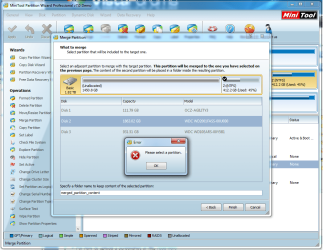
However, it is to the left, so I downloaded MiniTool Partition Wizard Professional Edition Demo as per suggested and got this:

MT.png

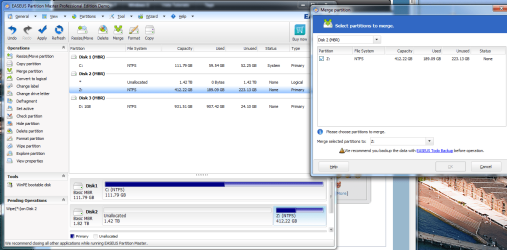
So then I thought I'll download EASEUS Partition Manager Professional Edition Demo as per suggested and got this:

EP.png

Any ideas fellas?
 

My Computer

OS
Windows 7 Enterprise x64
CPU
Intel Core 2 Quad Q6600
Motherboard
X38
Memory
4x1GB DDR3 1066mhz
Graphics Card(s)
GTX460 1GB
Hard Drives
OCZ Agility 3 128GB
Western Digital Caviar Green 1TB
Western Digital Caviar Black 2TB
I think you want the "Resize" option. Select partition z: the resize to take in the unallocated to the left.
Caution:
1) This type of operation can go wrong so make sure your Z: data is backed up. I believe data will be physically so it may take a little while.
2) I recommend using the Bootable version of the tool rather than the installed miniTool for this type of operation. The miniTool should work but with a bit more risk.

Merge is used to combine 2 allocated partitions and certainly wasn't available in earlier free versions anyway.
 

My Computer

Computer type
PC/Desktop
Computer Manufacturer/Model Number
Own build
OS
Windows 7x64 Home Premium SP1
CPU
Intel i7 2600k
Motherboard
ASUS P8Z68 Deluxe
Memory
G.Skill Ripjaws (DDR3-1600) 2x4GB
Graphics Card(s)
Nvidia GeForce GTS 450; Intel HD Graphics 3000(GT2+)
Monitor(s) Displays
Dell Ultrasharp IPS panel U2311H, Samsung SyncMaster P2350
Screen Resolution
1920x1080
Hard Drives
Samsung 850 Pro SSD 256GB, Samsung SSD 840 120GB, Seagates 1TB Barracuda ST31000528AS x2
PSU
Seasonic M12II 520W
Case
Lian Li Lancool PC-K60
Cooling
Case: 1x120mm, 3x140mm CPU: Hyper 212+
Keyboard
Logitech MK520 (wireless)
Mouse
Logitech MK520
Internet Speed
6-7 Mbps
Antivirus
Norton Security Premium, Malwarebytes on 2 (MSE on 3rd PC)
Browser
FireFox
Other Info
Audio: Logitech Z523 2.1
I agree with mjf, in Partition Wizard select Resize, then drag the left side of the Z partition to the unallocated space.

Backup your Z partition before starting the resize procedure.
Best to use the CD or USB bootable version.
 

My Computer

Computer type
PC/Desktop
Computer Manufacturer/Model Number
76~2.0
OS
Windows 7 Ult x64 - SP1/ Windows 8 Pro x64
CPU
Intel Core i5-3570K 4.6GHz
Motherboard
Gigabyte GA-Z77X UD3H, f18
Memory
8GB (2X4GB) DDR3 1600 Corsair Vengeance CL8 1.5v
Graphics Card(s)
Sapphire HD 7770 Vapor-X OC 1GB DDR5
Sound Card
Onboard VIA VT2021
Monitor(s) Displays
22" LCD Dell
Screen Resolution
1680x1050
Hard Drives
Samsung 840Pro 128GB SSD,
Seagate Barracuda 500GB SATA2 7200rpm 32MB cache, Seagate Barracuda 1TB SATA2 7200rpm 32MB cache,
PSU
Corsair HX650W
Case
Cooler Master Storm Scout
Cooling
Corsair H80 2x12cm Noctua NF P12 , 2x14cm case fans
Keyboard
Logitech Wave
Mouse
CM Sentinel
Internet Speed
Dismal
Antivirus
Avast
Browser
Opera Next
Other Info
Haswell laptop: HP Envy 17t-j, i7-4700MQ, GeForce 740M 2GB DDR3, 17.3" Full HD 1920x1080, 16GB RAM, Samsung 840 Pro 128GB, 1TB Hitachi 7200 HDD,
Desktop: eSATA ports,
External eSATA Seagate 500GB SATA2 7200rpm,
External WD USB 500GB
Hello MzTearyuz,

If the above doesn't work, then your could also temporarily copy everything from Z: into a New Folder on your D: drive, delete Z: , create new one big partition on Disk 1, then copy everything back to it.

Hope this helps,
Shawn
 

My Computer

Computer type
PC/Desktop
Computer Manufacturer/Model Number
Self built custom
OS
64-bit Windows 11 Pro for Workstations
CPU
Intel i7-8700K OC'd to 5 GHz
Motherboard
ASUS ROG Maximus XI Formula Z390
Memory
64 GB (4x16GB) G.SKILL TridentZ RGB DDR4 3600 MHz
Graphics Card(s)
ASUS ROG-STRIX-GTX1080TI-O11G-GAMING
Sound Card
Integrated
Monitor(s) Displays
2 x Samsung Odyssey G7 27"
Screen Resolution
2560x1440
Hard Drives
1TB Samsung 990 PRO M.2,
4TB Samsung 990 PRO PRO M.2,
TerraMaster F8 SSD Plus NAS
PSU
Seasonic Prime Titanium 850W
Case
Thermaltake Core P3
Cooling
Corsair Hydro H115i
Keyboard
Logitech wireless K800
Mouse
Logitech MX Master 4
Internet Speed
2 Gb/s Download and 100 Mb/s Upload
Antivirus
Malwarebyte Anti-Malware Premium
Browser
Google Chrome
Other Info
Logitech Z625 speaker system,
Logitech BRIO 4K Pro webcam,
HP Color LaserJet Pro MFP M477fdn,
APC SMART-UPS RT 1000 XL - SURT1000XLI,
Galaxy S23 Plus phone
Hi, resize doenst work in either program because its a demo only.

And i cant use the other drive because it is full.
 

My Computer

OS
Windows 7 Enterprise x64
CPU
Intel Core 2 Quad Q6600
Motherboard
X38
Memory
4x1GB DDR3 1066mhz
Graphics Card(s)
GTX460 1GB
Hard Drives
OCZ Agility 3 128GB
Western Digital Caviar Green 1TB
Western Digital Caviar Black 2TB
MzTearyuz,

In that case, this workaround should be able to work for you:
  • On Disk 1, create a new partition with the 1450.80 GB of unallocated space.
  • Copy the contents from Z: to the new partition just created.
  • Delete the Z: partition until it shows as unallocated space.
  • Extend the new partition into the now unallocated space to have it all in the new partition now.
 

My Computer

Computer type
PC/Desktop
Computer Manufacturer/Model Number
Self built custom
OS
64-bit Windows 11 Pro for Workstations
CPU
Intel i7-8700K OC'd to 5 GHz
Motherboard
ASUS ROG Maximus XI Formula Z390
Memory
64 GB (4x16GB) G.SKILL TridentZ RGB DDR4 3600 MHz
Graphics Card(s)
ASUS ROG-STRIX-GTX1080TI-O11G-GAMING
Sound Card
Integrated
Monitor(s) Displays
2 x Samsung Odyssey G7 27"
Screen Resolution
2560x1440
Hard Drives
1TB Samsung 990 PRO M.2,
4TB Samsung 990 PRO PRO M.2,
TerraMaster F8 SSD Plus NAS
PSU
Seasonic Prime Titanium 850W
Case
Thermaltake Core P3
Cooling
Corsair Hydro H115i
Keyboard
Logitech wireless K800
Mouse
Logitech MX Master 4
Internet Speed
2 Gb/s Download and 100 Mb/s Upload
Antivirus
Malwarebyte Anti-Malware Premium
Browser
Google Chrome
Other Info
Logitech Z625 speaker system,
Logitech BRIO 4K Pro webcam,
HP Color LaserJet Pro MFP M477fdn,
APC SMART-UPS RT 1000 XL - SURT1000XLI,
Galaxy S23 Plus phone
MzTearyuz,

In that case, this workaround should be able to work for you:
  • On Disk 1, create a new partition with the 1450.80 GB of unallocated space.
  • Copy the contents from Z: to the new partition just created.
  • Delete the Z: partition until it shows as unallocated space.
  • Extend the new partition into the now unallocated space to have it all in the new partition now.


I like your style Brink, I shall report shortly with my findings, btw the transfer of files for me is pretty slow from partition to partition, last time it maxed out at like 32mbs, is that normal?
 

My Computer

OS
Windows 7 Enterprise x64
CPU
Intel Core 2 Quad Q6600
Motherboard
X38
Memory
4x1GB DDR3 1066mhz
Graphics Card(s)
GTX460 1GB
Hard Drives
OCZ Agility 3 128GB
Western Digital Caviar Green 1TB
Western Digital Caviar Black 2TB
MzTearyuz,

That's a bit slow from a internal SATA HDD to another internal SATA HDD. Check in your BIOS to see if you have AHCI enabled or not instead of IDE, but do not change this setting. If not, then create a new thread on this, and we'll be happy to help. :)
 

My Computer

Computer type
PC/Desktop
Computer Manufacturer/Model Number
Self built custom
OS
64-bit Windows 11 Pro for Workstations
CPU
Intel i7-8700K OC'd to 5 GHz
Motherboard
ASUS ROG Maximus XI Formula Z390
Memory
64 GB (4x16GB) G.SKILL TridentZ RGB DDR4 3600 MHz
Graphics Card(s)
ASUS ROG-STRIX-GTX1080TI-O11G-GAMING
Sound Card
Integrated
Monitor(s) Displays
2 x Samsung Odyssey G7 27"
Screen Resolution
2560x1440
Hard Drives
1TB Samsung 990 PRO M.2,
4TB Samsung 990 PRO PRO M.2,
TerraMaster F8 SSD Plus NAS
PSU
Seasonic Prime Titanium 850W
Case
Thermaltake Core P3
Cooling
Corsair Hydro H115i
Keyboard
Logitech wireless K800
Mouse
Logitech MX Master 4
Internet Speed
2 Gb/s Download and 100 Mb/s Upload
Antivirus
Malwarebyte Anti-Malware Premium
Browser
Google Chrome
Other Info
Logitech Z625 speaker system,
Logitech BRIO 4K Pro webcam,
HP Color LaserJet Pro MFP M477fdn,
APC SMART-UPS RT 1000 XL - SURT1000XLI,
Galaxy S23 Plus phone
Hi, resize doenst work in either program because its a demo only.

And i cant use the other drive because it is full.
The free version of PW certainly does support resize. I and others use it. The free version lacks some of the features of the paid version but it is not a demo.
Maybe there is something different about your problem we don't understand.
However, if an alternate method does the job that's the main thing.
 

My Computer

Computer type
PC/Desktop
Computer Manufacturer/Model Number
Own build
OS
Windows 7x64 Home Premium SP1
CPU
Intel i7 2600k
Motherboard
ASUS P8Z68 Deluxe
Memory
G.Skill Ripjaws (DDR3-1600) 2x4GB
Graphics Card(s)
Nvidia GeForce GTS 450; Intel HD Graphics 3000(GT2+)
Monitor(s) Displays
Dell Ultrasharp IPS panel U2311H, Samsung SyncMaster P2350
Screen Resolution
1920x1080
Hard Drives
Samsung 850 Pro SSD 256GB, Samsung SSD 840 120GB, Seagates 1TB Barracuda ST31000528AS x2
PSU
Seasonic M12II 520W
Case
Lian Li Lancool PC-K60
Cooling
Case: 1x120mm, 3x140mm CPU: Hyper 212+
Keyboard
Logitech MK520 (wireless)
Mouse
Logitech MK520
Internet Speed
6-7 Mbps
Antivirus
Norton Security Premium, Malwarebytes on 2 (MSE on 3rd PC)
Browser
FireFox
Other Info
Audio: Logitech Z523 2.1
It worked, thanks!
 

My Computer

OS
Windows 7 Enterprise x64
CPU
Intel Core 2 Quad Q6600
Motherboard
X38
Memory
4x1GB DDR3 1066mhz
Graphics Card(s)
GTX460 1GB
Hard Drives
OCZ Agility 3 128GB
Western Digital Caviar Green 1TB
Western Digital Caviar Black 2TB
MzTearyuz,

That's a bit slow from a internal SATA HDD to another internal SATA HDD. Check in your BIOS to see if you have AHCI enabled or not instead of IDE, but do not change this setting. If not, then create a new thread on this, and we'll be happy to help. :)

It wasn't from internal SATA HDD to another internal SATA HDD it was from one partition of a SATA HDD to another partition on the same HDD, I am now transferring HDD to HDD and am getting 80mbs, I think that is normal right? Maybe when its partition to partition on the same HDD its half the speed.
 

My Computer

OS
Windows 7 Enterprise x64
CPU
Intel Core 2 Quad Q6600
Motherboard
X38
Memory
4x1GB DDR3 1066mhz
Graphics Card(s)
GTX460 1GB
Hard Drives
OCZ Agility 3 128GB
Western Digital Caviar Green 1TB
Western Digital Caviar Black 2TB
Hi, resize doenst work in either program because its a demo only.

And i cant use the other drive because it is full.
The free version of PW certainly does support resize. I and others use it. The free version lacks some of the features of the paid version but it is not a demo.
Maybe there is something different about your problem we don't understand.
However, if an alternate method does the job that's the main thing.

Agree with mjf, again, the free version of Partition Wizard will do this easily, remember to hit the "Apply" button in the upper left corner when you get it all set up.

There is no Demo version of PW.


Anyway, glad you got it moved and setup how you want it.

All HDDs need at least 10-15% free space to function correctly, your 'D' drive has 3% free space and will run very slowly until you move/copy/delete files from it.
 

My Computer

Computer type
PC/Desktop
Computer Manufacturer/Model Number
76~2.0
OS
Windows 7 Ult x64 - SP1/ Windows 8 Pro x64
CPU
Intel Core i5-3570K 4.6GHz
Motherboard
Gigabyte GA-Z77X UD3H, f18
Memory
8GB (2X4GB) DDR3 1600 Corsair Vengeance CL8 1.5v
Graphics Card(s)
Sapphire HD 7770 Vapor-X OC 1GB DDR5
Sound Card
Onboard VIA VT2021
Monitor(s) Displays
22" LCD Dell
Screen Resolution
1680x1050
Hard Drives
Samsung 840Pro 128GB SSD,
Seagate Barracuda 500GB SATA2 7200rpm 32MB cache, Seagate Barracuda 1TB SATA2 7200rpm 32MB cache,
PSU
Corsair HX650W
Case
Cooler Master Storm Scout
Cooling
Corsair H80 2x12cm Noctua NF P12 , 2x14cm case fans
Keyboard
Logitech Wave
Mouse
CM Sentinel
Internet Speed
Dismal
Antivirus
Avast
Browser
Opera Next
Other Info
Haswell laptop: HP Envy 17t-j, i7-4700MQ, GeForce 740M 2GB DDR3, 17.3" Full HD 1920x1080, 16GB RAM, Samsung 840 Pro 128GB, 1TB Hitachi 7200 HDD,
Desktop: eSATA ports,
External eSATA Seagate 500GB SATA2 7200rpm,
External WD USB 500GB

My Computer

Computer type
PC/Desktop
Computer Manufacturer/Model Number
Self built custom
OS
64-bit Windows 11 Pro for Workstations
CPU
Intel i7-8700K OC'd to 5 GHz
Motherboard
ASUS ROG Maximus XI Formula Z390
Memory
64 GB (4x16GB) G.SKILL TridentZ RGB DDR4 3600 MHz
Graphics Card(s)
ASUS ROG-STRIX-GTX1080TI-O11G-GAMING
Sound Card
Integrated
Monitor(s) Displays
2 x Samsung Odyssey G7 27"
Screen Resolution
2560x1440
Hard Drives
1TB Samsung 990 PRO M.2,
4TB Samsung 990 PRO PRO M.2,
TerraMaster F8 SSD Plus NAS
PSU
Seasonic Prime Titanium 850W
Case
Thermaltake Core P3
Cooling
Corsair Hydro H115i
Keyboard
Logitech wireless K800
Mouse
Logitech MX Master 4
Internet Speed
2 Gb/s Download and 100 Mb/s Upload
Antivirus
Malwarebyte Anti-Malware Premium
Browser
Google Chrome
Other Info
Logitech Z625 speaker system,
Logitech BRIO 4K Pro webcam,
HP Color LaserJet Pro MFP M477fdn,
APC SMART-UPS RT 1000 XL - SURT1000XLI,
Galaxy S23 Plus phone
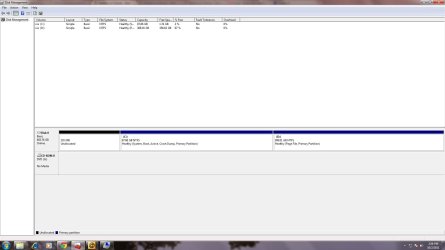
Hello Brick, I have tried everything but nothing worked, I had 4 partitions, I had deleted the 2 partitions, I want to increase the size of the C drive, I have attached the image of disk management.
Thanks
 

Attachments

  • disk management.jpg
    disk management.jpg
    184.3 KB · Views: 185

My Computer

OS
Windows 7 Ultimate 32bit
You cannot extend your C: partition as long as another partition (in this case D:) is in the way...it's that simple. You must somehow remove or shrink D: first (and move it to the right, i.e. shrinking it from right to left won't help).
 

My Computer

Computer type
PC/Desktop
Computer Manufacturer/Model Number
Custom-built
OS
Windows 7 Professional SP1 32-bit
CPU
Intel Core 2 Duo E6600 2.4GHz
Motherboard
Asus PL5D2
Memory
4GB DDR2-667 (4x1GB in dual-channel config)
Graphics Card(s)
nVidia GeForce 9800 GT
Sound Card
Creative X-Fi XtremeMusic
Monitor(s) Displays
Acer P236H
Screen Resolution
1920x1200 (DVI)
Hard Drives
OCZ SSD Vertex Plus 60GB SATA (Firmware 3.55), 64MB cache
Hitachi HD321KJ SATA, 320GB, 7200rpm, 16MB cache
PSU
Antec TruePower 2.0
Case
Cooler Master Centurion
Cooling
Too many fans
Keyboard
Standard
Mouse
Microsoft wireless optical mouse
Internet Speed
AT&T U-verse (18mbit/sec)
Antivirus
Microsoft Security Essentials
Browser
Firefox
Other Info
Other devices:
Compaq CQ-60 laptop
Google Nexus 7 (2012) tablet
Nvidia SHIELD tablet (US/LTE)
Hardkernel ODROID-XU single-board computer (Samsung Exynos 5420)
Hi. I want to extend my D volume. I have shrank 20 gb from my C volume on which Windows 7 is installed. It is listed as unallocated space.

Now it looks like this;

C, unallocated space (20 gb), D

I have tried "method 2" from the tutorial but it gave an error. It said something like "virtual disk device doesn't have enough memory to perform this operation."

Then I tried two different software (Minitool Partition Wizard, both free home and professional demo, and Paragon Partition Manager 11 Free) extend D with aforementioned unallocated space. With Paragon I can't select the unallocated space when I try to resize D. Minitool can't merge because the volumes to be merged needs to be in NTFS format. In my case unallocated space isn't formatted. I can't format it in anyway since there are already 3 partitions and 1 extended partition in my HDD. D volume is part of the extended drive.

Is it even possible to add this unallocated space to D?

Btw, I'm doing this on my Windows 7 Home Premium netbook.
 

My Computer

OS
Windows 7 Ultimate 32bit
Back
Top