Partition or Volume - Extend

How to Extend a Partition or Volume in Windows 7

   Information
This will show you how to extend a hard disk partition or volume into a empty unallocated space on the same hard disk to make it larger using Disk Management or Diskpart in Windows 7.
   Warning
You must be logged on in an administrator account to do this tutorial.

If you disable the Disk Defragmenter service, then you will get the error below when you try to do anything in Disk Management. If you get this error, then make sure that the Disk Defragmenter service is set to only Manual.
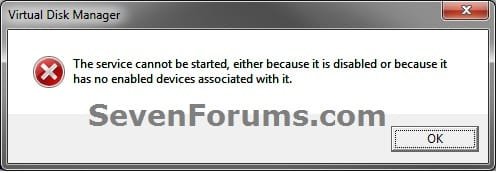
Error.jpg


OPTION ONE

Using Disk Management


1. If you have not already, you will first need to delete the partition or volume that you want to extend into to make it unallocated space.

2. Open the Control Panel (icons view), and click on the Administrative Tools icon. then close the Control Panel window.

3. Click on Computer Management in Administrative Tools, then close the Administrative Tools window.

4. In the left pane under Storage, click on Disk Management. (See screenshot below)
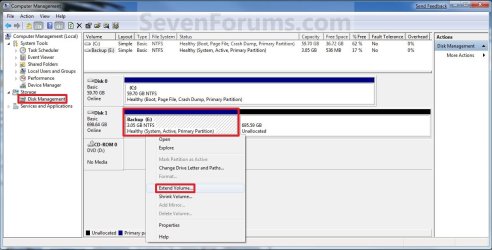
Extend_Step1.jpg
5. In the middle pane, right click on the partition or volume directly adjacent (left) of the unallocated space that you want to extend into, and click on Extend Volume. (See screenshot above)

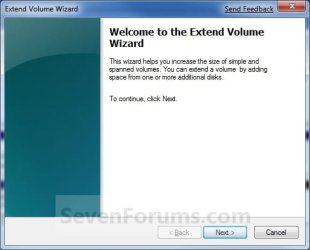
6. Click on the Next button. (See screenshot below)
Extend_Step2.jpg
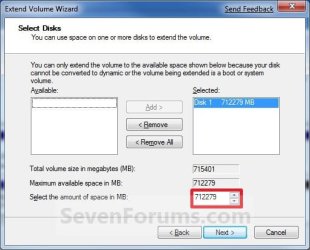
7. Type in how many MB (1 GB = 1024 MB) you want to use from the unallocated space to extend the selected partition (step 5) into, then click on the Next button. (See screenshot below)
NOTE: If you want to use all of the unallocated space to extend into, then type in the maximum available space shown for the unallocated space.
Extend_Step3.jpg
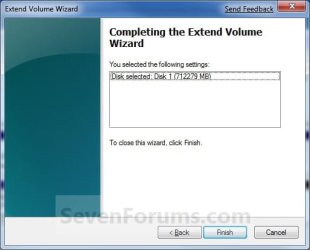
8. Click on the Finish button. (See screenshot below)
Extend_Step4.jpg
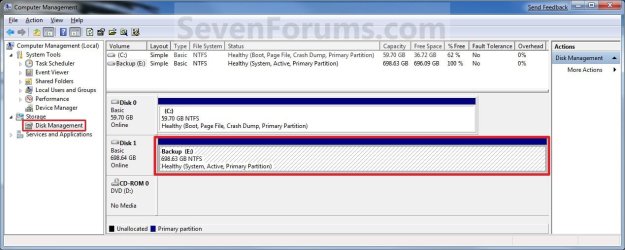
9. The partition or volume has now been extended into the assigned unallocted space (step 7). (See screenshot below)
Extend_Step5.jpg
10. Close the Computer Management window. (See screenshot above)


OPTION TWO

Using Diskpart in a Elevated Command Prompt


1. If you have not already, you will first need to delete the partition or volume that you want to extend into to make it unallocated space.

2. Open a elevated command prompt, or a command prompt at boot.

3. In the elevated command prompt, type diskpart and press Enter. (See screenshot below)
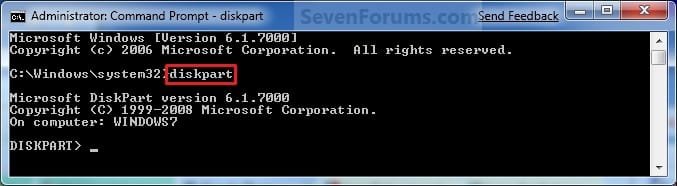
CMD_Extend_Step1.jpg
4. In the elevated command prompt, type list disk and press Enter. (See screenshot below)
NOTE: This is to help you ID the disk that has Free space that you want to extend into, and to see the disk size to make it easier to ID it's volume number in step 5. For example, Disk 1.
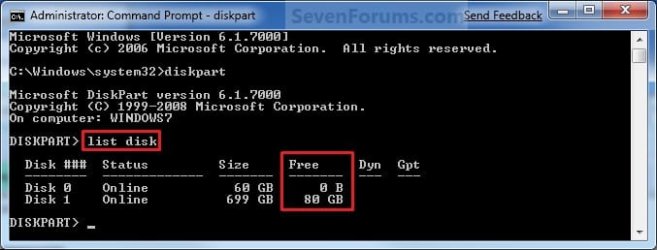
CMD_Extend_Step2.jpg
5. In the elevated command prompt, type list volume and press Enter. (See screenshot below)
NOTE: Look for the volume number that has the same Size as from the size in step 4 minus the Free space. For example, Volume 2.
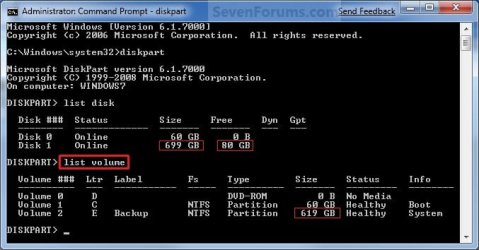
CMD_Extend_Step3.jpg
6. In the elevated command prompt, type select volume # and press Enter. (See screenshot below)
NOTE: You would substitute # for the volume number listed that you want to extend. For example, I want to extend the listed volume 2 since, so I would type select volume 2 and press Enter.
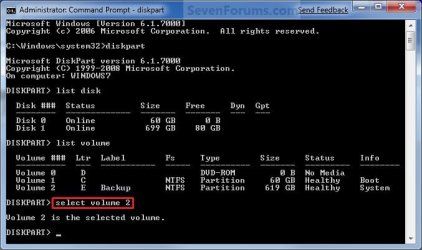
CMD_Extend_Step4.jpg
7. To Extend into All of the Unallocated Space
A) In the elevated command prompt, type extend and press Enter. (See screenshot below)
NOTE: The unallocated space will be removed and added completely to the selected partiton or volume (step 6).
CMD_Extend_Step5.jpg
B) Go to step 9.
8. To Extend into the Unallocated Space by a Specified Size
A) In the elevated command prompt, type extend size=(# in MB) and press Enter.
NOTE: You would substitute (# in MB) for how many MB (1 GB = 1024 MB) you want to use of the unallocated space (free space shown in step 4) to be extended into. For example, if I only wanted to extend into 5 GB of the unallocated space, then I would type extend size=5120 and press Enter.
9. In the elevated command prompt, type exit and press Enter. (See screenshot below)
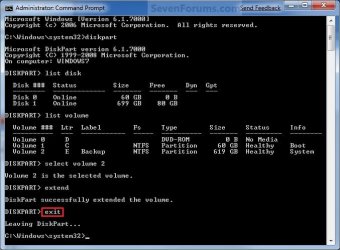
CMD_Extend_Step6.jpg
10. Close the elevated command prompt.

11. The selected partition or volume (step 6) has now been extended into the unallocated space to make it larger.
NOTE: If you did step 8 instead of 7, then you can use the rest of the unallocated space to create a new partition with if you like.
That's it,
Shawn


Last edited:
Gloteron,

You most likely could fix this by running the clean command in a command prompt at boot like in the tutorial below, but this would wipe everything out on your HDD and mean a clean reinstall of Windows 7 as well. If you want to do this, then after you run the clean command, it will leave the HDD as unallocated space. From here, you would boot from your Windows 7 installation disc to select and install Windows 7 to the unallocated space. Windows 7 would then format the HDD and start installing.

http://www.sevenforums.com/tutorials/52129-disk-clean-clean-all-diskpart-command.html

Be sure that you backup anything that you do not want to lose to a separate location first.

I assumed that installing from scratch would fix it but I don't want to do it right now, so I guess I will stick with the current situation if no other solution is found.

Thx again,
 
Last edited by a moderator:

My Computer

OS
Win 7 32 pro
Hopefullly someone may know of another way that will not involve wiping the drive. Unfortunately using the Clean command is the only way that I know of that will restore a HDD like this. It's just to bad the command wipes the HDD clear to do it. :(

It's not going to hurt anything to run as you are until you are for now other than not having all of your available HDD space. I would recommend to keep a backup of anything that you do not want to lose at a diferent location than this HDD until you get it sorted just to be safe though.
 

My Computer

Computer type
PC/Desktop
Computer Manufacturer/Model Number
Self built custom
OS
64-bit Windows 11 Pro for Workstations
CPU
Intel i7-8700K OC'd to 5 GHz
Motherboard
ASUS ROG Maximus XI Formula Z390
Memory
64 GB (4x16GB) G.SKILL TridentZ RGB DDR4 3600 MHz
Graphics Card(s)
ASUS ROG-STRIX-GTX1080TI-O11G-GAMING
Sound Card
Integrated
Monitor(s) Displays
2 x Samsung Odyssey G7 27"
Screen Resolution
2560x1440
Hard Drives
1TB Samsung 990 PRO M.2,
4TB Samsung 990 PRO PRO M.2,
TerraMaster F8 SSD Plus NAS
PSU
Seasonic Prime Titanium 850W
Case
Thermaltake Core P3
Cooling
Corsair Hydro H115i
Keyboard
Logitech wireless K800
Mouse
Logitech MX Master 4
Internet Speed
2 Gb/s Download and 100 Mb/s Upload
Antivirus
Malwarebyte Anti-Malware Premium
Browser
Google Chrome
Other Info
Logitech Z625 speaker system,
Logitech BRIO 4K Pro webcam,
HP Color LaserJet Pro MFP M477fdn,
APC SMART-UPS RT 1000 XL - SURT1000XLI,
Galaxy S23 Plus phone
Good evening,

What a fantastic forum with a wealth of knowledge this is.
I wonder if anyone could help me please?
I have a Hewlett-Packard laptop running Windows Vista Home Basic SP2 32 Bit.
I am running low on HDD space and have deleted several unwanted programs so far to reclaim some HDD space.
I have noticed that I have unallocated space of 32.52GB.
I also notice from my "Programs and Features" a file called "HP Backup & Recovery Manager Installer" which is using a massive 19.5GB of HDD.
(1) Can I delete the unallocated space, therefore increasing my HDD space?
(2) Can I delete the "HP Backup & Recovery Manager Installer", increasing my HDD space even further?
Here is a screenshot of my "Disk Management" screen.

Computer Management.jpg

I noticed from one of the posts on this forum that "Paragon" is a good "Image Backup Utility" so I have downloaded that so I can take an image of my complete HDD at some stage soon when I have my laptop running sweetly.

Thanks in advance,
Paul
 

My Computer

Computer type
Laptop
Computer Manufacturer/Model Number
Fujitsu LIFEBOOK
OS
Win 7 HP SP1 64-bit Vista HB SP2 32-bit Linux Mint 18.3
CPU
Intel(R) Pentium(R) CPU P6200 @ 2.13GHz
Motherboard
FUJITSU FJNBB06
Memory
4.00 GB
Graphics Card(s)
Intel(R) Graphics Media Accelerator HD
Sound Card
[1] Realtek High Definition Audio [2] Intel(R) Display Audio
Screen Resolution
1366 x 768 x 32 bits (4294967296 colors) @ 59 Hz
Hard Drives
TOSHIBA MK5076GSX
Antivirus
AVG FREE
Hello Paul, and welcome to Seven Forums.

When a partition or disk has been deleted, it shows as unallocted. Your 32.5 GB unallocated partition has already been deleted and is just blank unallocated space now. If you like, you could use the tutorial on the first page of this thread to extend the C: partition into all of the 32.5 GB unallocated partition to have all of it added back to the C: partition. :)

I would strongly recommend to NOT delete the "HP Backup & Recovery Manager Installer" file. This is what is used to be able to install Windows 7 back to factory conditions on your computer.

Hope this helps,
Shawn
 

My Computer

Computer type
PC/Desktop
Computer Manufacturer/Model Number
Self built custom
OS
64-bit Windows 11 Pro for Workstations
CPU
Intel i7-8700K OC'd to 5 GHz
Motherboard
ASUS ROG Maximus XI Formula Z390
Memory
64 GB (4x16GB) G.SKILL TridentZ RGB DDR4 3600 MHz
Graphics Card(s)
ASUS ROG-STRIX-GTX1080TI-O11G-GAMING
Sound Card
Integrated
Monitor(s) Displays
2 x Samsung Odyssey G7 27"
Screen Resolution
2560x1440
Hard Drives
1TB Samsung 990 PRO M.2,
4TB Samsung 990 PRO PRO M.2,
TerraMaster F8 SSD Plus NAS
PSU
Seasonic Prime Titanium 850W
Case
Thermaltake Core P3
Cooling
Corsair Hydro H115i
Keyboard
Logitech wireless K800
Mouse
Logitech MX Master 4
Internet Speed
2 Gb/s Download and 100 Mb/s Upload
Antivirus
Malwarebyte Anti-Malware Premium
Browser
Google Chrome
Other Info
Logitech Z625 speaker system,
Logitech BRIO 4K Pro webcam,
HP Color LaserJet Pro MFP M477fdn,
APC SMART-UPS RT 1000 XL - SURT1000XLI,
Galaxy S23 Plus phone
Thanks for the lightening response Shawn.

I was only thinking of deleting the "HP Backup & Recovery Manager Installer" because I would like to take an image of my HDD using "Paragon" as of now with ALL the extra programs that I have installed, that way I would not have to reinstall them ALL again if I reset my computer back to factory reset for example. Is my thinking wrong here please, and if so could you please advise me what I should do?
Thanks again for your time.

Regards,
Paul
 

My Computer

Computer type
Laptop
Computer Manufacturer/Model Number
Fujitsu LIFEBOOK
OS
Win 7 HP SP1 64-bit Vista HB SP2 32-bit Linux Mint 18.3
CPU
Intel(R) Pentium(R) CPU P6200 @ 2.13GHz
Motherboard
FUJITSU FJNBB06
Memory
4.00 GB
Graphics Card(s)
Intel(R) Graphics Media Accelerator HD
Sound Card
[1] Realtek High Definition Audio [2] Intel(R) Display Audio
Screen Resolution
1366 x 768 x 32 bits (4294967296 colors) @ 59 Hz
Hard Drives
TOSHIBA MK5076GSX
Antivirus
AVG FREE
Paul,

That would work, but unless you are just real tight on HDD space, I would recommend to still keep the "HP Backup & Recovery Manager Installer" file to have as another option to reinstall Windows 7 with incase a image fails and not able to be restored for whatever reason.
 

My Computer

Computer type
PC/Desktop
Computer Manufacturer/Model Number
Self built custom
OS
64-bit Windows 11 Pro for Workstations
CPU
Intel i7-8700K OC'd to 5 GHz
Motherboard
ASUS ROG Maximus XI Formula Z390
Memory
64 GB (4x16GB) G.SKILL TridentZ RGB DDR4 3600 MHz
Graphics Card(s)
ASUS ROG-STRIX-GTX1080TI-O11G-GAMING
Sound Card
Integrated
Monitor(s) Displays
2 x Samsung Odyssey G7 27"
Screen Resolution
2560x1440
Hard Drives
1TB Samsung 990 PRO M.2,
4TB Samsung 990 PRO PRO M.2,
TerraMaster F8 SSD Plus NAS
PSU
Seasonic Prime Titanium 850W
Case
Thermaltake Core P3
Cooling
Corsair Hydro H115i
Keyboard
Logitech wireless K800
Mouse
Logitech MX Master 4
Internet Speed
2 Gb/s Download and 100 Mb/s Upload
Antivirus
Malwarebyte Anti-Malware Premium
Browser
Google Chrome
Other Info
Logitech Z625 speaker system,
Logitech BRIO 4K Pro webcam,
HP Color LaserJet Pro MFP M477fdn,
APC SMART-UPS RT 1000 XL - SURT1000XLI,
Galaxy S23 Plus phone
I have a problem

I am running windows 7 utimate x32 on a macbook pro. I also have a osx partition. I have 30 gb of unallocated space, yet nothing seems to work. What should I do? I really want to extend my storge for windows on to the unallocated space.
 
Last edited:

My Computer

OS
Windows Ultimate x32
I am running windows 7 utimate x32 on a macbook pro. I also have a osx partition. I have 30 gb of unallocated space, yet nothing seems to work. What should I do? I really want to extend my storge for windows on to the unallocated space.
Please post a full picture of Disk Management, then we'll see.
 

My Computer

Computer Manufacturer/Model Number
HP, Dell, Gateway, Toshiba - 4 laptops and 2 desktops
OS
Vista, Windows7, Mint Mate, Zorin, Windows 8
CPU
from 1.6GHz Duo to i7
Monitor(s) Displays
2x HP w2207
Hard Drives
5x HDD, 7x SSD, 12x Externals
Keyboard
with trackball - no mices
Mouse
Trackball mice
Internet Speed
DSL 6000
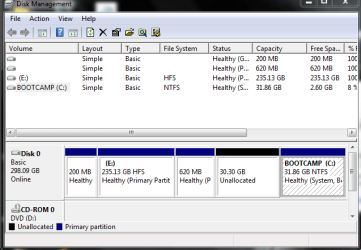
Right click on c drive

When I right clicked on the bootcamp/C drive extend volume was grey and I was unable to use that option, however shrink was not.
 

My Computer

OS
Windows Ultimate x32
And I tried using console using the instructions above. (I do use it a lot and I am used to it)
 

My Computer

OS
Windows Ultimate x32
Right, with Disk Management you can only extend a partition if the unallocated space is to the right of that partition. But there is help.

Download and burn the bootable CD of Partition Wizard (last box on the webpage). With PW you can extend C: to the left.
 

My Computer

Computer Manufacturer/Model Number
HP, Dell, Gateway, Toshiba - 4 laptops and 2 desktops
OS
Vista, Windows7, Mint Mate, Zorin, Windows 8
CPU
from 1.6GHz Duo to i7
Monitor(s) Displays
2x HP w2207
Hard Drives
5x HDD, 7x SSD, 12x Externals
Keyboard
with trackball - no mices
Mouse
Trackball mice
Internet Speed
DSL 6000
Hi Brink,

Snipped quote of my original post below.

Good evening,

I have a Hewlett-Packard laptop running Windows Vista Home Basic SP2 32 Bit.
I have noticed that I have unallocated space of 32.52GB.

(1) Can I delete the unallocated space, therefore increasing my HDD space?

Here is a screenshot of my "Disk Management" screen.

Attachment 199594

Thanks in advance,
Paul

I have only just got around to doing his.
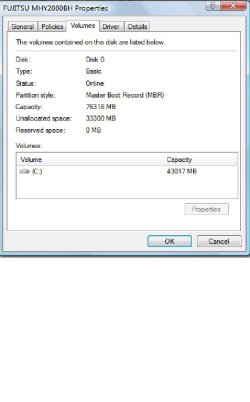
I checked the “Unallocated” partition and it says that it has the “MBR” on it. Does this have an impact on what I want to do please?
If not then I will continue by using your EXCELLENT tutorial.
Thanks for your time.


Just to add, here is the screenshot of the properties of the "Unallocated" drive.

JPEG - Unallocated 2.jpg

Thanks in advance.

Kind regards,
Paul
 
Last edited by a moderator:

My Computer

Computer type
Laptop
Computer Manufacturer/Model Number
Fujitsu LIFEBOOK
OS
Win 7 HP SP1 64-bit Vista HB SP2 32-bit Linux Mint 18.3
CPU
Intel(R) Pentium(R) CPU P6200 @ 2.13GHz
Motherboard
FUJITSU FJNBB06
Memory
4.00 GB
Graphics Card(s)
Intel(R) Graphics Media Accelerator HD
Sound Card
[1] Realtek High Definition Audio [2] Intel(R) Display Audio
Screen Resolution
1366 x 768 x 32 bits (4294967296 colors) @ 59 Hz
Hard Drives
TOSHIBA MK5076GSX
Antivirus
AVG FREE
Paul,

It's fine. That just means that Disk 0 (C: and unallocated) has the MBR on it.

You should be able to extend C: into all of the unallocated space to add all of the unallocated space back to C: without issue. :)
 

My Computer

Computer type
PC/Desktop
Computer Manufacturer/Model Number
Self built custom
OS
64-bit Windows 11 Pro for Workstations
CPU
Intel i7-8700K OC'd to 5 GHz
Motherboard
ASUS ROG Maximus XI Formula Z390
Memory
64 GB (4x16GB) G.SKILL TridentZ RGB DDR4 3600 MHz
Graphics Card(s)
ASUS ROG-STRIX-GTX1080TI-O11G-GAMING
Sound Card
Integrated
Monitor(s) Displays
2 x Samsung Odyssey G7 27"
Screen Resolution
2560x1440
Hard Drives
1TB Samsung 990 PRO M.2,
4TB Samsung 990 PRO PRO M.2,
TerraMaster F8 SSD Plus NAS
PSU
Seasonic Prime Titanium 850W
Case
Thermaltake Core P3
Cooling
Corsair Hydro H115i
Keyboard
Logitech wireless K800
Mouse
Logitech MX Master 4
Internet Speed
2 Gb/s Download and 100 Mb/s Upload
Antivirus
Malwarebyte Anti-Malware Premium
Browser
Google Chrome
Other Info
Logitech Z625 speaker system,
Logitech BRIO 4K Pro webcam,
HP Color LaserJet Pro MFP M477fdn,
APC SMART-UPS RT 1000 XL - SURT1000XLI,
Galaxy S23 Plus phone
Thanks Brink, I appreciate it.

I will create a "System Restore" point and backup my files first.
If anything goes wrong would the "System Restore" put everything back?
Have a good evening.

Kind regards,
Paul
 

My Computer

Computer type
Laptop
Computer Manufacturer/Model Number
Fujitsu LIFEBOOK
OS
Win 7 HP SP1 64-bit Vista HB SP2 32-bit Linux Mint 18.3
CPU
Intel(R) Pentium(R) CPU P6200 @ 2.13GHz
Motherboard
FUJITSU FJNBB06
Memory
4.00 GB
Graphics Card(s)
Intel(R) Graphics Media Accelerator HD
Sound Card
[1] Realtek High Definition Audio [2] Intel(R) Display Audio
Screen Resolution
1366 x 768 x 32 bits (4294967296 colors) @ 59 Hz
Hard Drives
TOSHIBA MK5076GSX
Antivirus
AVG FREE
Paul,

A system restore will not affect how you have the HDD laid out as for partitions, or restore it back to how it was. It will only affect system files, installed programs, and the registry in only Windows 7 itself.

However, you shouldn't have any issues with just extending C: into the unallocated space though.
 

My Computer

Computer type
PC/Desktop
Computer Manufacturer/Model Number
Self built custom
OS
64-bit Windows 11 Pro for Workstations
CPU
Intel i7-8700K OC'd to 5 GHz
Motherboard
ASUS ROG Maximus XI Formula Z390
Memory
64 GB (4x16GB) G.SKILL TridentZ RGB DDR4 3600 MHz
Graphics Card(s)
ASUS ROG-STRIX-GTX1080TI-O11G-GAMING
Sound Card
Integrated
Monitor(s) Displays
2 x Samsung Odyssey G7 27"
Screen Resolution
2560x1440
Hard Drives
1TB Samsung 990 PRO M.2,
4TB Samsung 990 PRO PRO M.2,
TerraMaster F8 SSD Plus NAS
PSU
Seasonic Prime Titanium 850W
Case
Thermaltake Core P3
Cooling
Corsair Hydro H115i
Keyboard
Logitech wireless K800
Mouse
Logitech MX Master 4
Internet Speed
2 Gb/s Download and 100 Mb/s Upload
Antivirus
Malwarebyte Anti-Malware Premium
Browser
Google Chrome
Other Info
Logitech Z625 speaker system,
Logitech BRIO 4K Pro webcam,
HP Color LaserJet Pro MFP M477fdn,
APC SMART-UPS RT 1000 XL - SURT1000XLI,
Galaxy S23 Plus phone
Hi Brink,

That went like a dream, and my computer seems to be a lot faster for some reason.
Anyway, thanks for your help and time on this, it is appreciated.

Kind regards,
Paul
 

My Computer

Computer type
Laptop
Computer Manufacturer/Model Number
Fujitsu LIFEBOOK
OS
Win 7 HP SP1 64-bit Vista HB SP2 32-bit Linux Mint 18.3
CPU
Intel(R) Pentium(R) CPU P6200 @ 2.13GHz
Motherboard
FUJITSU FJNBB06
Memory
4.00 GB
Graphics Card(s)
Intel(R) Graphics Media Accelerator HD
Sound Card
[1] Realtek High Definition Audio [2] Intel(R) Display Audio
Screen Resolution
1366 x 768 x 32 bits (4294967296 colors) @ 59 Hz
Hard Drives
TOSHIBA MK5076GSX
Antivirus
AVG FREE
You're most welcome Paul. :)
 

My Computer

Computer type
PC/Desktop
Computer Manufacturer/Model Number
Self built custom
OS
64-bit Windows 11 Pro for Workstations
CPU
Intel i7-8700K OC'd to 5 GHz
Motherboard
ASUS ROG Maximus XI Formula Z390
Memory
64 GB (4x16GB) G.SKILL TridentZ RGB DDR4 3600 MHz
Graphics Card(s)
ASUS ROG-STRIX-GTX1080TI-O11G-GAMING
Sound Card
Integrated
Monitor(s) Displays
2 x Samsung Odyssey G7 27"
Screen Resolution
2560x1440
Hard Drives
1TB Samsung 990 PRO M.2,
4TB Samsung 990 PRO PRO M.2,
TerraMaster F8 SSD Plus NAS
PSU
Seasonic Prime Titanium 850W
Case
Thermaltake Core P3
Cooling
Corsair Hydro H115i
Keyboard
Logitech wireless K800
Mouse
Logitech MX Master 4
Internet Speed
2 Gb/s Download and 100 Mb/s Upload
Antivirus
Malwarebyte Anti-Malware Premium
Browser
Google Chrome
Other Info
Logitech Z625 speaker system,
Logitech BRIO 4K Pro webcam,
HP Color LaserJet Pro MFP M477fdn,
APC SMART-UPS RT 1000 XL - SURT1000XLI,
Galaxy S23 Plus phone
Thanks, Brink--I've been scratching my head for the past 3 weeks trying to figure out how to extend a partition. It was simple after you described how to do it.:)
 

My Computer

Computer type
Laptop
Computer Manufacturer/Model Number
HP Pavilion g7-1260us Notebook
OS
Desk Top with Win 7 Home Premium 64 bit and Lap Top with Windows 8.1 Pro 64 bit
Memory
8Gig
Screen Resolution
1600x900
You're most welcome Frank. I'm happy to hear it was able to help. :)
 

My Computer

Computer type
PC/Desktop
Computer Manufacturer/Model Number
Self built custom
OS
64-bit Windows 11 Pro for Workstations
CPU
Intel i7-8700K OC'd to 5 GHz
Motherboard
ASUS ROG Maximus XI Formula Z390
Memory
64 GB (4x16GB) G.SKILL TridentZ RGB DDR4 3600 MHz
Graphics Card(s)
ASUS ROG-STRIX-GTX1080TI-O11G-GAMING
Sound Card
Integrated
Monitor(s) Displays
2 x Samsung Odyssey G7 27"
Screen Resolution
2560x1440
Hard Drives
1TB Samsung 990 PRO M.2,
4TB Samsung 990 PRO PRO M.2,
TerraMaster F8 SSD Plus NAS
PSU
Seasonic Prime Titanium 850W
Case
Thermaltake Core P3
Cooling
Corsair Hydro H115i
Keyboard
Logitech wireless K800
Mouse
Logitech MX Master 4
Internet Speed
2 Gb/s Download and 100 Mb/s Upload
Antivirus
Malwarebyte Anti-Malware Premium
Browser
Google Chrome
Other Info
Logitech Z625 speaker system,
Logitech BRIO 4K Pro webcam,
HP Color LaserJet Pro MFP M477fdn,
APC SMART-UPS RT 1000 XL - SURT1000XLI,
Galaxy S23 Plus phone
Back
Top