Partition or Volume - Extend

How to Extend a Partition or Volume in Windows 7

   Information
This will show you how to extend a hard disk partition or volume into a empty unallocated space on the same hard disk to make it larger using Disk Management or Diskpart in Windows 7.
   Warning
You must be logged on in an administrator account to do this tutorial.

If you disable the Disk Defragmenter service, then you will get the error below when you try to do anything in Disk Management. If you get this error, then make sure that the Disk Defragmenter service is set to only Manual.
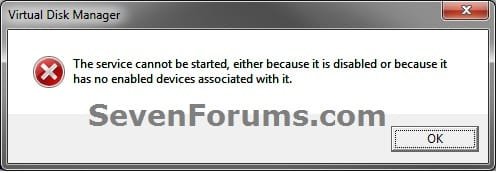
Error.jpg


OPTION ONE

Using Disk Management


1. If you have not already, you will first need to delete the partition or volume that you want to extend into to make it unallocated space.

2. Open the Control Panel (icons view), and click on the Administrative Tools icon. then close the Control Panel window.

3. Click on Computer Management in Administrative Tools, then close the Administrative Tools window.

4. In the left pane under Storage, click on Disk Management. (See screenshot below)
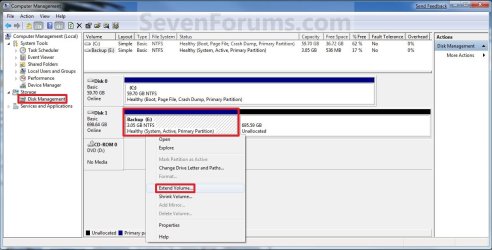
Extend_Step1.jpg
5. In the middle pane, right click on the partition or volume directly adjacent (left) of the unallocated space that you want to extend into, and click on Extend Volume. (See screenshot above)

6. Click on the Next button. (See screenshot below)
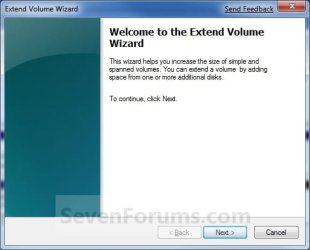
Extend_Step2.jpg
7. Type in how many MB (1 GB = 1024 MB) you want to use from the unallocated space to extend the selected partition (step 5) into, then click on the Next button. (See screenshot below)
NOTE: If you want to use all of the unallocated space to extend into, then type in the maximum available space shown for the unallocated space.
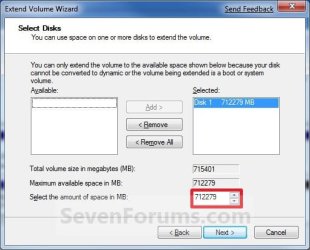
Extend_Step3.jpg
8. Click on the Finish button. (See screenshot below)
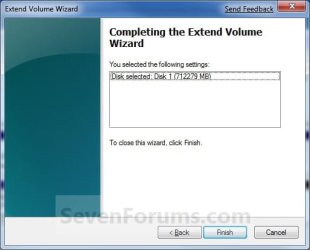
Extend_Step4.jpg
9. The partition or volume has now been extended into the assigned unallocted space (step 7). (See screenshot below)
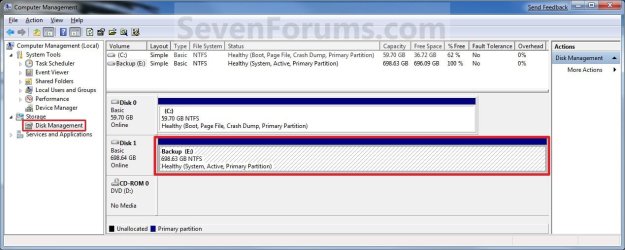
Extend_Step5.jpg
10. Close the Computer Management window. (See screenshot above)


OPTION TWO

Using Diskpart in a Elevated Command Prompt


1. If you have not already, you will first need to delete the partition or volume that you want to extend into to make it unallocated space.

2. Open a elevated command prompt, or a command prompt at boot.

3. In the elevated command prompt, type diskpart and press Enter. (See screenshot below)
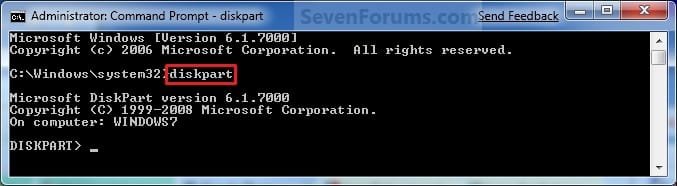
CMD_Extend_Step1.jpg
4. In the elevated command prompt, type list disk and press Enter. (See screenshot below)
NOTE: This is to help you ID the disk that has Free space that you want to extend into, and to see the disk size to make it easier to ID it's volume number in step 5. For example, Disk 1.
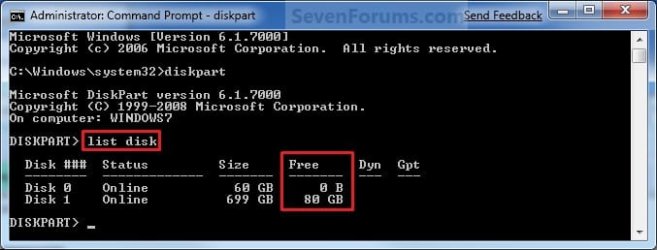
CMD_Extend_Step2.jpg
5. In the elevated command prompt, type list volume and press Enter. (See screenshot below)
NOTE: Look for the volume number that has the same Size as from the size in step 4 minus the Free space. For example, Volume 2.
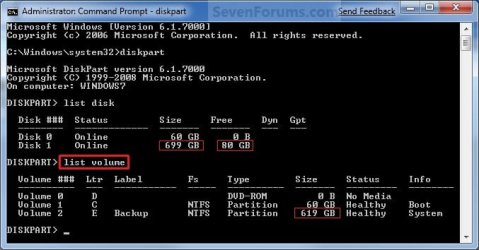
CMD_Extend_Step3.jpg
6. In the elevated command prompt, type select volume # and press Enter. (See screenshot below)
NOTE: You would substitute # for the volume number listed that you want to extend. For example, I want to extend the listed volume 2 since, so I would type select volume 2 and press Enter.
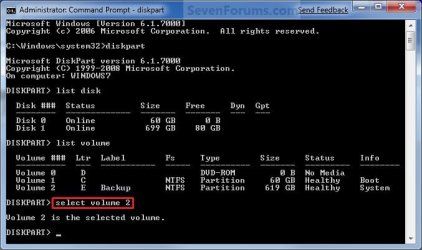
CMD_Extend_Step4.jpg
7. To Extend into All of the Unallocated Space
A) In the elevated command prompt, type extend and press Enter. (See screenshot below)
NOTE: The unallocated space will be removed and added completely to the selected partiton or volume (step 6).
CMD_Extend_Step5.jpg
B) Go to step 9.
8. To Extend into the Unallocated Space by a Specified Size
A) In the elevated command prompt, type extend size=(# in MB) and press Enter.
NOTE: You would substitute (# in MB) for how many MB (1 GB = 1024 MB) you want to use of the unallocated space (free space shown in step 4) to be extended into. For example, if I only wanted to extend into 5 GB of the unallocated space, then I would type extend size=5120 and press Enter.
9. In the elevated command prompt, type exit and press Enter. (See screenshot below)
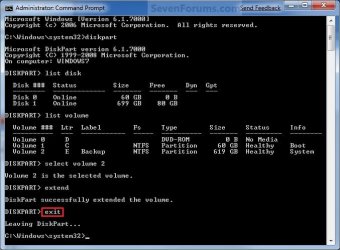
CMD_Extend_Step6.jpg
10. Close the elevated command prompt.

11. The selected partition or volume (step 6) has now been extended into the unallocated space to make it larger.
NOTE: If you did step 8 instead of 7, then you can use the rest of the unallocated space to create a new partition with if you like.
That's it,
Shawn


Last edited:
Will i lose data if i extend system partition ?
No, unless you make a mistake. It is always prudent to image a partition that you are about to manipulate.
 

My Computer

Computer Manufacturer/Model Number
HP, Dell, Gateway, Toshiba - 4 laptops and 2 desktops
OS
Vista, Windows7, Mint Mate, Zorin, Windows 8
CPU
from 1.6GHz Duo to i7
Monitor(s) Displays
2x HP w2207
Hard Drives
5x HDD, 7x SSD, 12x Externals
Keyboard
with trackball - no mices
Mouse
Trackball mice
Internet Speed
DSL 6000
In a word, no.

Hoiwever, it is always prudent to back up anything you don't want to lose whenever you are undertaking any form of disk management.
 

My Computer

Computer Manufacturer/Model Number
HP Pavilion Elite 495UK
OS
Windows 7 Ultimate SP1 64-Bit
CPU
Intel Core i7 870 @ 2.93GHz
Motherboard
MSI 2A9C (CPU1)
Memory
8Gb Dual-Channel DDR3 @ 664MHz
Graphics Card(s)
nVidia GeForce GTX 460 1024MB dedicated RAM
Sound Card
Realtek HD Audio
Monitor(s) Displays
HP2310i
Screen Resolution
1920 x 1080
Hard Drives
1x1954GB Hitachi HDS22020ALA 330 (RAID), 1x1954GB Hitachi External for backup and storage
PSU
460W
Case
HP Elite
Cooling
Air cooled
Keyboard
Logitech K750 solar-powered keyboard
Mouse
Logitech Wireless M180 mouse
Internet Speed
2Mb
Other Info
Pure Avanti Flow Internet Radio with iPod Dock, 64Gb iPod, HP USB Speakers, Sony MDR-V500 Headphones, Sony Vaio F-Series Laptop
LOL Andrew - we used nearly the same wording and at the same time. Something must be right.
 

My Computer

Computer Manufacturer/Model Number
HP, Dell, Gateway, Toshiba - 4 laptops and 2 desktops
OS
Vista, Windows7, Mint Mate, Zorin, Windows 8
CPU
from 1.6GHz Duo to i7
Monitor(s) Displays
2x HP w2207
Hard Drives
5x HDD, 7x SSD, 12x Externals
Keyboard
with trackball - no mices
Mouse
Trackball mice
Internet Speed
DSL 6000
Great minds......................:)
 

My Computer

Computer Manufacturer/Model Number
HP Pavilion Elite 495UK
OS
Windows 7 Ultimate SP1 64-Bit
CPU
Intel Core i7 870 @ 2.93GHz
Motherboard
MSI 2A9C (CPU1)
Memory
8Gb Dual-Channel DDR3 @ 664MHz
Graphics Card(s)
nVidia GeForce GTX 460 1024MB dedicated RAM
Sound Card
Realtek HD Audio
Monitor(s) Displays
HP2310i
Screen Resolution
1920 x 1080
Hard Drives
1x1954GB Hitachi HDS22020ALA 330 (RAID), 1x1954GB Hitachi External for backup and storage
PSU
460W
Case
HP Elite
Cooling
Air cooled
Keyboard
Logitech K750 solar-powered keyboard
Mouse
Logitech Wireless M180 mouse
Internet Speed
2Mb
Other Info
Pure Avanti Flow Internet Radio with iPod Dock, 64Gb iPod, HP USB Speakers, Sony MDR-V500 Headphones, Sony Vaio F-Series Laptop
exapanding into unallocated space on left of volume

I followed your tutorial using method 2 and get the following error message
"There is not enough usable space for this operation"
Attached is a snip of the disk management screen.
What am I doing wrong??
Any help very much appreciated
 

Attachments

  • Disk Management.JPG
    Disk Management.JPG
    64.4 KB · Views: 188

My Computer

Computer Manufacturer/Model Number
Dell Inspiron 530 X86 Based PC
OS
32 bit Windows7 professional 6.1.7601 SP1
CPU
Intel Core2 Duo R4500 2.2GHz
Memory
3GB
Monitor(s) Displays
Samsung
I followed your tutorial using method 2 and get the following error message
"There is not enough usable space for this operation"
Attached is a snip of the disk management screen.
What am I doing wrong??
Any help very much appreciated
Problem is that you have no unallocated space - only 'freespace'. The partition in which the freespace is you have to delete. Then you can extend the partition (new volume) that is immediately to the left of it.
 

My Computer

Computer Manufacturer/Model Number
HP, Dell, Gateway, Toshiba - 4 laptops and 2 desktops
OS
Vista, Windows7, Mint Mate, Zorin, Windows 8
CPU
from 1.6GHz Duo to i7
Monitor(s) Displays
2x HP w2207
Hard Drives
5x HDD, 7x SSD, 12x Externals
Keyboard
with trackball - no mices
Mouse
Trackball mice
Internet Speed
DSL 6000
Extend volume

I'm tring to do this on Disk 1 which has 40 gb of unallocated space, black colour above indicating unallocated space.
 

My Computer

Computer Manufacturer/Model Number
Dell Inspiron 530 X86 Based PC
OS
32 bit Windows7 professional 6.1.7601 SP1
CPU
Intel Core2 Duo R4500 2.2GHz
Memory
3GB
Monitor(s) Displays
Samsung

My Computer

Computer Manufacturer/Model Number
HP, Dell, Gateway, Toshiba - 4 laptops and 2 desktops
OS
Vista, Windows7, Mint Mate, Zorin, Windows 8
CPU
from 1.6GHz Duo to i7
Monitor(s) Displays
2x HP w2207
Hard Drives
5x HDD, 7x SSD, 12x Externals
Keyboard
with trackball - no mices
Mouse
Trackball mice
Internet Speed
DSL 6000
Thanks, Partition Wizard worked fine:)
 

My Computer

Computer Manufacturer/Model Number
Dell Inspiron 530 X86 Based PC
OS
32 bit Windows7 professional 6.1.7601 SP1
CPU
Intel Core2 Duo R4500 2.2GHz
Memory
3GB
Monitor(s) Displays
Samsung
You are welcome.
 

My Computer

Computer Manufacturer/Model Number
HP, Dell, Gateway, Toshiba - 4 laptops and 2 desktops
OS
Vista, Windows7, Mint Mate, Zorin, Windows 8
CPU
from 1.6GHz Duo to i7
Monitor(s) Displays
2x HP w2207
Hard Drives
5x HDD, 7x SSD, 12x Externals
Keyboard
with trackball - no mices
Mouse
Trackball mice
Internet Speed
DSL 6000
A little Different Not Sure

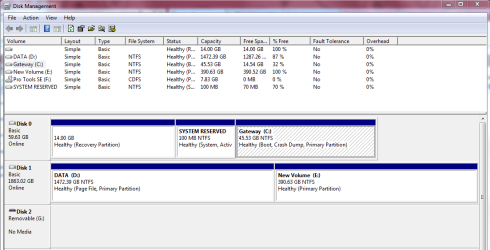
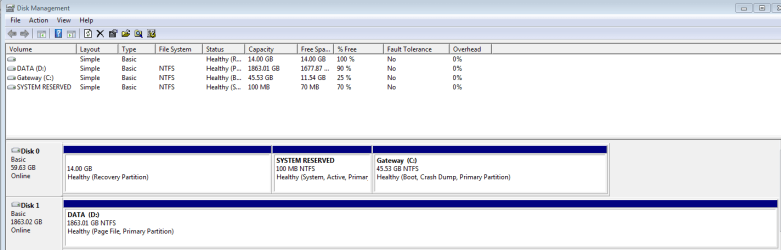
In Disk 0 I have a Healthy recovery partition which I do not want to touch. I suspect that is my factory restore partition. I'm not sure what System Reserved is? What I need to do is increase the size of Gateway C.

I suspect I wll need to take space from Disk 1 Data D. I'm just not sure how. I need C to be a bit larger then 45b closer to 300. Screen added.
 

Attachments

  • HelpIncreaseC.PNG
    HelpIncreaseC.PNG
    108.2 KB · Views: 182

My Computer

OS
Windows 7 64
There is no way to extend C. The whole Disk0 is only about 60GB. If you need such a large C partition (I really wonder why), you have to install the OS on Disk1.

Btw. Do not touch the System Reserved partition. That contains your bootmgr. If you corrupt it, your system will not boot any more.
 

My Computer

Computer Manufacturer/Model Number
HP, Dell, Gateway, Toshiba - 4 laptops and 2 desktops
OS
Vista, Windows7, Mint Mate, Zorin, Windows 8
CPU
from 1.6GHz Duo to i7
Monitor(s) Displays
2x HP w2207
Hard Drives
5x HDD, 7x SSD, 12x Externals
Keyboard
with trackball - no mices
Mouse
Trackball mice
Internet Speed
DSL 6000
Thank you WHS....Why can't you increase it out of curiosity, to maybe even 100G? I have an application issue, that's why I'm looking for some support.

The application is called Pro Tools SE. During the install it wants to write to C only (there is no way to pick a directory) and at 7 gigs in size, it is taking up more of C then I want.

Why is it so "strict" on this option? Is there another solution like having C and D link with the use of changing drive letter paths?
 

My Computer

OS
Windows 7 64
....Why can't you increase it out of curiosity, to maybe even 100G
Look at your disk0 in Disk Management. The whole thing has less than 60GB. How are you going to fit 100GB onto it? Try to put 3 gallons of water into a 1 gallon jug.
 

My Computer

Computer Manufacturer/Model Number
HP, Dell, Gateway, Toshiba - 4 laptops and 2 desktops
OS
Vista, Windows7, Mint Mate, Zorin, Windows 8
CPU
from 1.6GHz Duo to i7
Monitor(s) Displays
2x HP w2207
Hard Drives
5x HDD, 7x SSD, 12x Externals
Keyboard
with trackball - no mices
Mouse
Trackball mice
Internet Speed
DSL 6000
I understand the current limitation of Drive 0, so there is no way to increase Disk 0 as a whole. I wonder Gateways recovery is done this way. Thank you for the response. I'm sorry, just a little frustrated.

Thank you.
 

My Computer

OS
Windows 7 64
You have 2 possible options:

1. Create a big partition on your Disk1 (where you have plenty of space) and transfer the OS to that.

2. Buy a larger disk to replace the Disk0 and transfer the OS to that new disk.

If you want to persue one of those options, post back and we'll help you with the OS transfer.
 

My Computer

Computer Manufacturer/Model Number
HP, Dell, Gateway, Toshiba - 4 laptops and 2 desktops
OS
Vista, Windows7, Mint Mate, Zorin, Windows 8
CPU
from 1.6GHz Duo to i7
Monitor(s) Displays
2x HP w2207
Hard Drives
5x HDD, 7x SSD, 12x Externals
Keyboard
with trackball - no mices
Mouse
Trackball mice
Internet Speed
DSL 6000
You have 2 possible options:

1. Create a big partition on your Disk1 (where you have plenty of space) and transfer the OS to that.

2. Buy a larger disk to replace the Disk0 and transfer the OS to that new disk.

If you want to persue one of those options, post back and we'll help you with the OS transfer.


This is a fresh factory restore, and all on one large hard drive, so can you please provide me the information needed to perform step one.


I have a side question, every time Windows7 perform an update isn't that C:Gateway Partition just going to keep getting bigger and bigger. This is why I feel that during the initial setup the size should be closer to 100 and not 50. I will post a screen so I have a better understanding of what needs to be done. Sorry for the trouble.

If I have to make additional partitions in drive D now. I would be happy to do that also. Thank you for your support. I don't know if I should be mad at Gateway or Pro Tools :-)
 

Attachments

  • Capture.PNG
    Capture.PNG
    43.1 KB · Views: 162

My Computer

OS
Windows 7 64
I think you worry too much. I have 6 systems and none are over 30GB. If you want to reduce the size of the OS and data in C, you can do 3 easy steps:

1. You can delete the hiberfile because you most likely do not use hibernation. The command is

powercfg -h off

This will save you as much disk space as you have RAM.

2. You can reduce the pagefile to 1 or 2GB

3. Move all your user data to the big drive.

As far as updates are concerned, there is hardly any growth in the system because the updates usually only replace existing code.

Some growth can come if you often install and uninstall programs. Each program comes with a certain amount of .dlls and they stay in the system even after you uninstalled the program. That makes your winsxs folder grow. But it rarely goes over 10GB.

Before you move your OS, take the above points into consideration. Moving the OS is not a big deal but the 45GB of space on your C partition should be ample. Problem is that it will run slower from the big disk. If I were you I would leave things as they are and make the adjustments I suggested above.
 

My Computer

Computer Manufacturer/Model Number
HP, Dell, Gateway, Toshiba - 4 laptops and 2 desktops
OS
Vista, Windows7, Mint Mate, Zorin, Windows 8
CPU
from 1.6GHz Duo to i7
Monitor(s) Displays
2x HP w2207
Hard Drives
5x HDD, 7x SSD, 12x Externals
Keyboard
with trackball - no mices
Mouse
Trackball mice
Internet Speed
DSL 6000
In addition to the whs advice. Is your 2nd HDD (Disk 1) a 2TB external. If so I wouldn't put any system files on it including pagefile. Any Windows image will want to include your 2 TB HDD as well !!!

You can put all your non installed/"portable" programs on the external as well as large data.

For this PC I'd just live within the 60GB constraint and follow the whs advice.
 

My Computer

Computer type
PC/Desktop
Computer Manufacturer/Model Number
Own build
OS
Windows 7x64 Home Premium SP1
CPU
Intel i7 2600k
Motherboard
ASUS P8Z68 Deluxe
Memory
G.Skill Ripjaws (DDR3-1600) 2x4GB
Graphics Card(s)
Nvidia GeForce GTS 450; Intel HD Graphics 3000(GT2+)
Monitor(s) Displays
Dell Ultrasharp IPS panel U2311H, Samsung SyncMaster P2350
Screen Resolution
1920x1080
Hard Drives
Samsung 850 Pro SSD 256GB, Samsung SSD 840 120GB, Seagates 1TB Barracuda ST31000528AS x2
PSU
Seasonic M12II 520W
Case
Lian Li Lancool PC-K60
Cooling
Case: 1x120mm, 3x140mm CPU: Hyper 212+
Keyboard
Logitech MK520 (wireless)
Mouse
Logitech MK520
Internet Speed
6-7 Mbps
Antivirus
Norton Security Premium, Malwarebytes on 2 (MSE on 3rd PC)
Browser
FireFox
Other Info
Audio: Logitech Z523 2.1
Thank you all. It looks like I have a 64gig SSD drive on this system. It would have helped if I looked at the specs early on.
This works sometimes powercfg -h off. Sometimes if I look at my drive I see up to 16gigs of free space available. Now I only see about 1.8gigs. Not sure what to do to keep that permanent.
 

My Computer

OS
Windows 7 64
Back
Top