Greetings All -
I normally use Linux nowadays, but at the moment I'm trying to work on an old Windows 7 laptop and would appreciate some expert help.
I am trying to move the Windows 7 installation on an old S710 "lifebook" (laptop) from the original SATA 2.5" HDD (160GB), onto a new SSD (250GB).
So far I have taken the following steps:
1. Used the existing Windows 7 installation to create a Repair Disk (DVD);
2. Verified that I can boot the machine OK from the Repair Disk - yes, it works.
The SSD started off zero-filled; I prepared it as follows using Gparted:
3. Created a partition table MBR style (not GPT);
4. Copied the 105MB "System Reserved" partiton from old HDD to the SSD;
5. Copied the main Windows partition from old HDD to the SSD;
6. Set the boot flag on the 105MB SSD partition (corresponding to the setting on the original HDD);
I then took the old HDD out of the laptop, and replaced it with the SSD.
Booting from the Repair Disk I was offered the option to mend the Win7 installation and accepted it. After this had finished I rebooted, again from the Repair Disk.
Once again, I chose the option to mend the installation. However this time it came back saying that it couldn't find anything that needed fixing. "Great" (I thought), and shutdown getting ready to boot from the SSD...
Unfortunately the machine would boot into Windows. It got through the BIOS screens to the point where Windows should start loading, but I was then left with a black screen.
I tried hitting F8 to see whether I could get into Safe Mode, but F8 didn't do anything and repeated presses after a while just caused a beep for each key press
I tried booting from the Repair Disk again, this time going for the command prompt option. I can see the files which would normally be on drive C: and they look OK, although within the repair environment are they showing up on drive D:
I tried to do chkdsk /f D: which seemed to run OK, but made no change to the overall situation.
Any suggestions, please?
(PS before anybody gets worried, this Win7 machine is not for connecting to the internet; it performs several very useful functions on my local network)
best wishes, Peter.
I normally use Linux nowadays, but at the moment I'm trying to work on an old Windows 7 laptop and would appreciate some expert help.
I am trying to move the Windows 7 installation on an old S710 "lifebook" (laptop) from the original SATA 2.5" HDD (160GB), onto a new SSD (250GB).
So far I have taken the following steps:
1. Used the existing Windows 7 installation to create a Repair Disk (DVD);
2. Verified that I can boot the machine OK from the Repair Disk - yes, it works.
The SSD started off zero-filled; I prepared it as follows using Gparted:
3. Created a partition table MBR style (not GPT);
4. Copied the 105MB "System Reserved" partiton from old HDD to the SSD;
5. Copied the main Windows partition from old HDD to the SSD;
6. Set the boot flag on the 105MB SSD partition (corresponding to the setting on the original HDD);
I then took the old HDD out of the laptop, and replaced it with the SSD.
Booting from the Repair Disk I was offered the option to mend the Win7 installation and accepted it. After this had finished I rebooted, again from the Repair Disk.
Once again, I chose the option to mend the installation. However this time it came back saying that it couldn't find anything that needed fixing. "Great" (I thought), and shutdown getting ready to boot from the SSD...
Unfortunately the machine would boot into Windows. It got through the BIOS screens to the point where Windows should start loading, but I was then left with a black screen.
I tried hitting F8 to see whether I could get into Safe Mode, but F8 didn't do anything and repeated presses after a while just caused a beep for each key press
I tried booting from the Repair Disk again, this time going for the command prompt option. I can see the files which would normally be on drive C: and they look OK, although within the repair environment are they showing up on drive D:
I tried to do chkdsk /f D: which seemed to run OK, but made no change to the overall situation.
Any suggestions, please?
(PS before anybody gets worried, this Win7 machine is not for connecting to the internet; it performs several very useful functions on my local network)
best wishes, Peter.
My Computers
-
At a glance
Windows 7 Professional 64bitIntel Core i5 CPU M 520 @ 2.40GHz4GBonboard 1366x768- Computer type
- Laptop
- Computer Manufacturer/Model Number
- Fujitsu Lifebook S710
- OS
- Windows 7 Professional 64bit
- CPU
- Intel Core i5 CPU M 520 @ 2.40GHz
- Memory
- 4GB
- Graphics Card(s)
- onboard 1366x768
- Hard Drives
- ATA Hitachi HTS54501 160GB
-
- Computer type
- PC/Desktop

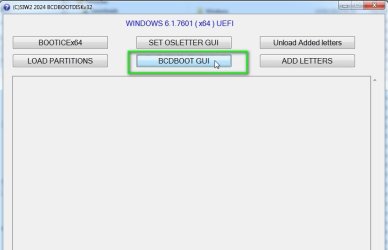
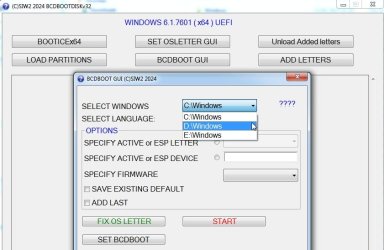
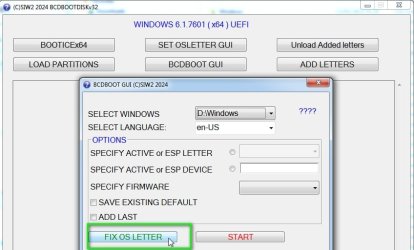
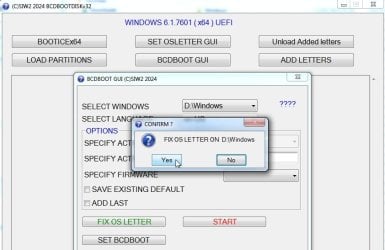
 so now I have a lot of tidying up to do...
 Yay!
Yay!