removing start button and notification area icon shadow

oneillseanm

New member
Local time
5:47 AM
Messages
4
Hi everyone. This is my first time creating a thread in this forum, though I've gotten plenty of good information from it already since I picked up Windows 7. I'm hoping you all can help me with one thing I haven't been able to find the answer to.

On the taskbar there is a shadow behind the start button and the notification area icons. In the image I've attached I have made all the icons visible to show that the shadow stretches to fit behind all of the visible icons. I would like to remove the shadow. Does anyone know how?

Thanks for reading and for your help.
 

Attachments

  • dirty taskbar.png
    dirty taskbar.png
    6.9 KB · Views: 45

My Computer My Computer

OS
Windows 7 Professional 64bit.
If you just want to remove the start button, use this;

Tordex - Start Killer

The "shadow" is part of the theme I believe, and you would have to modify the theme to remove it.

Regards....Mike Connor
 

My Computer My Computer

OS
Several, including Windows 7 x64 Ultimate
Thanks for commenting, Mike. Do you know how I would make that modification?
 

My Computer My Computer

OS
Windows 7 Professional 64bit.
Thanks for commenting, Mike. Do you know how I would make that modification?

Sorry, no I don't. I don't bother much with themes and such, only insofar as I need to for certain customisations I use, and don't really know much about modifying them. Somebody on here will know though, and doubtless chime in with a solution.

Regards....Mike Connor
 

My Computer My Computer

OS
Several, including Windows 7 x64 Ultimate
Ok, cool. Thanks again for your help. I appreciate it.
 

My Computer My Computer

OS
Windows 7 Professional 64bit.
My pleasure. Sorry I couldn't help you any more comprehensively.

Regards....Mike Connor
 

My Computer My Computer

OS
Several, including Windows 7 x64 Ultimate
Hi everyone. This is my first time creating a thread in this forum, though I've gotten plenty of good information from it already since I picked up Windows 7. I'm hoping you all can help me with one thing I haven't been able to find the answer to.

On the taskbar there is a shadow behind the start button and the notification area icons. In the image I've attached I have made all the icons visible to show that the shadow stretches to fit behind all of the visible icons. I would like to remove the shadow. Does anyone know how?

Thanks for reading and for your help.

Welcome to the Seven Forums
Are you using Windows 7 Basic theme or default Aero?
How did you make the icons visible to show that the shadow stretches so I can try to do it. Then I may be able help.
Jerry
 

My Computer My Computer

Computer type
Laptop
Computer Manufacturer/Model Number
Sager NP9170
OS
Win 7 Pro x64 / Win 10 Pro
CPU
Intel(R) Core(TM) i7-3630QM CPU @ 2.40GHz
Motherboard
CLEVO P170EM
Memory
12 GB
Graphics Card(s)
(1) Intel(R) HD Graphics 4000 (2) NVIDIA GeForce GTX 675M
Sound Card
(1) Realtek High Definition Audio (2) Intel(R) Display Aud
Monitor(s) Displays
17.3
Screen Resolution
1920x1080
Hard Drives
(1) Samsung 860 EVO 500GB(OS) (1) Samsung 860 EVO 500GB(Data)
Keyboard
Backlite
Antivirus
MSE, Malwarebytes Pro
Browser
Firefox
Other Info
DESKTOP: Custom-built.
OS: Win 10 Pro x64.
CASE: Rosewill R5.
CPU: Intel I5 4670K CPU @ 3.40GHz.
CPU COOLER: Cool Master Hyper 212 EVO.
MOTHERBOARD: Asus Z87-A.
MEMORY: Kingston HyperX 2x4 GB.
GPU: Nvidia Geforce 650 TI.
PSU: Corsair TX750.
DRIVES: (1) Samsung 840 120 GB SSD (2) Western Digital blue 500 GB 7200 RPM.
Hey Jerry. Thanks for the help.

I'm using default aero with modifications. I've turned transparency off and I've used regedit to remove the diagonal glassy gradients in the taskbar and window frames.

To make the icons visible I did a right click on the taskbar > properties > notification area customize button > clicked the checkbox for always show all icons.
 

My Computer My Computer

OS
Windows 7 Professional 64bit.
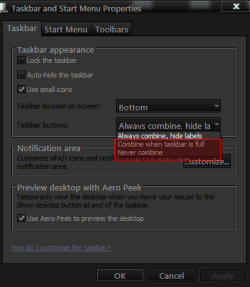
If you change the Taskbar Properties to Combine when taskbar is full or Never combine it will all be the color of the ends.
sp.png
If you are using the default aero theme I can change that for you by editing the aero.msstyle. I can make it & post it in a zip. Here you can see the ends are the same they have to be it's 1 image
tbc.PNG
&
You will need to do 1 of these 2 ways of Enabling custom themes for it to work.
http://www.sevenforums.com/tutorials/34579-enabling-custom-themes-windows-7-a.html
Or
http://www.sevenforums.com/tutorials/28377-theme-how-apply-custom-themes.html?filter
Let me know
Jerry
 

My Computer My Computer

Computer type
Laptop
Computer Manufacturer/Model Number
Sager NP9170
OS
Win 7 Pro x64 / Win 10 Pro
CPU
Intel(R) Core(TM) i7-3630QM CPU @ 2.40GHz
Motherboard
CLEVO P170EM
Memory
12 GB
Graphics Card(s)
(1) Intel(R) HD Graphics 4000 (2) NVIDIA GeForce GTX 675M
Sound Card
(1) Realtek High Definition Audio (2) Intel(R) Display Aud
Monitor(s) Displays
17.3
Screen Resolution
1920x1080
Hard Drives
(1) Samsung 860 EVO 500GB(OS) (1) Samsung 860 EVO 500GB(Data)
Keyboard
Backlite
Antivirus
MSE, Malwarebytes Pro
Browser
Firefox
Other Info
DESKTOP: Custom-built.
OS: Win 10 Pro x64.
CASE: Rosewill R5.
CPU: Intel I5 4670K CPU @ 3.40GHz.
CPU COOLER: Cool Master Hyper 212 EVO.
MOTHERBOARD: Asus Z87-A.
MEMORY: Kingston HyperX 2x4 GB.
GPU: Nvidia Geforce 650 TI.
PSU: Corsair TX750.
DRIVES: (1) Samsung 840 120 GB SSD (2) Western Digital blue 500 GB 7200 RPM.
Hi, sorry to bump such an old thread, but I've been searching around google for an answer to this very question and have come out with nothing. I'm looking to modify those shadows behind both the clock area and the start button but I'm not certain what resource file within the msstyles are the shadows.

It would be GREAT if Bongo or anyone else could help me out, please.
 

My Computer My Computer

OS
Windows 7 Ultimate 64bit
Hi, sorry to bump such an old thread, but I've been searching around google for an answer to this very question and have come out with nothing. I'm looking to modify those shadows behind both the clock area and the start button but I'm not certain what resource file within the msstyles are the shadows.

It would be GREAT if Bongo or anyone else could help me out, please.

Welcome to the Seven Forums
1st Are you using Windows 7 Basic theme or default Aero?
Jerry
 

My Computer My Computer

Computer type
Laptop
Computer Manufacturer/Model Number
Sager NP9170
OS
Win 7 Pro x64 / Win 10 Pro
CPU
Intel(R) Core(TM) i7-3630QM CPU @ 2.40GHz
Motherboard
CLEVO P170EM
Memory
12 GB
Graphics Card(s)
(1) Intel(R) HD Graphics 4000 (2) NVIDIA GeForce GTX 675M
Sound Card
(1) Realtek High Definition Audio (2) Intel(R) Display Aud
Monitor(s) Displays
17.3
Screen Resolution
1920x1080
Hard Drives
(1) Samsung 860 EVO 500GB(OS) (1) Samsung 860 EVO 500GB(Data)
Keyboard
Backlite
Antivirus
MSE, Malwarebytes Pro
Browser
Firefox
Other Info
DESKTOP: Custom-built.
OS: Win 10 Pro x64.
CASE: Rosewill R5.
CPU: Intel I5 4670K CPU @ 3.40GHz.
CPU COOLER: Cool Master Hyper 212 EVO.
MOTHERBOARD: Asus Z87-A.
MEMORY: Kingston HyperX 2x4 GB.
GPU: Nvidia Geforce 650 TI.
PSU: Corsair TX750.
DRIVES: (1) Samsung 840 120 GB SSD (2) Western Digital blue 500 GB 7200 RPM.
Hi, thanks for the welcome :D

Default Aero is what I'd like to change.
 

My Computer My Computer

OS
Windows 7 Ultimate 64bit
Hi, thanks for the welcome :D

Default Aero is what I'd like to change.
In the image folder in aero.msstyles
these are the numbers

Bottom
Aero 845 - 1028
Basic 841 - 1010
Top
Aero 848 - 1029
Basic 844 - 1011
Left
Aero 846 - 1030
Basic 842 - 1012
Right
Aero 847 - 1031
Basic 843 - 1013

800#s 3x1 pixels and 1x3 pixels these are the outsides
1000#s 79x3 pixels and 3x79 pixels these are the inside
all the images of the same size have been flipped or turned
bottom to top or left to right so you really only have to
edit 2 images one of each size and then flip them or turn them

You should use a copy of the default Aero theme rename it so you do not corrupt the default Aero theme look at post #38 in this thread and it will tell you how to start a new theme http://www.sevenforums.com/customization/135985-start-menu-color-change-4.html#post1358071
Then you will need to do 1 of these 2 ways of Enabling custom themes for it to work.
http://www.sevenforums.com/tutorials/34579-enabling-custom-themes-windows-7-a.html
Or
http://www.sevenforums.com/tutorials/28377-theme-how-apply-custom-themes.html?filter
If you need more help or you would like me to make the changes for you let me know.

Jerry
 

My Computer My Computer

Computer type
Laptop
Computer Manufacturer/Model Number
Sager NP9170
OS
Win 7 Pro x64 / Win 10 Pro
CPU
Intel(R) Core(TM) i7-3630QM CPU @ 2.40GHz
Motherboard
CLEVO P170EM
Memory
12 GB
Graphics Card(s)
(1) Intel(R) HD Graphics 4000 (2) NVIDIA GeForce GTX 675M
Sound Card
(1) Realtek High Definition Audio (2) Intel(R) Display Aud
Monitor(s) Displays
17.3
Screen Resolution
1920x1080
Hard Drives
(1) Samsung 860 EVO 500GB(OS) (1) Samsung 860 EVO 500GB(Data)
Keyboard
Backlite
Antivirus
MSE, Malwarebytes Pro
Browser
Firefox
Other Info
DESKTOP: Custom-built.
OS: Win 10 Pro x64.
CASE: Rosewill R5.
CPU: Intel I5 4670K CPU @ 3.40GHz.
CPU COOLER: Cool Master Hyper 212 EVO.
MOTHERBOARD: Asus Z87-A.
MEMORY: Kingston HyperX 2x4 GB.
GPU: Nvidia Geforce 650 TI.
PSU: Corsair TX750.
DRIVES: (1) Samsung 840 120 GB SSD (2) Western Digital blue 500 GB 7200 RPM.
Back
Top