
Note
As Shawn once said to me, the best tutorials are those that address a problem which a member has posted. This tutorial was triggered by a problem that a member posted on the eightforums and also by a member on another forum.
1. The Problem
We all know that the internet is not a safe place especially when you operate from a Windows system. There are thousands of new pieces of malware each day and the Firewalls and AV programs can protect us only to a certain point. But despite all those tools there is no 100% guarantee that you may not get a malware infection.
You are especially exposed if you work on an open access point like in an airport, a hotel, at McDonald, Starbucks or alike. In those situations you do not want to expose the system which you use for normal operation and which contains all your data.
I propose two different solutions for the problem which can easily be implemented with few resources.
2. Two possible Solutions
Note: There are other solutions than the ones I suggest such as Sandboxie and alike. But those are not as elegant and flexible as these proposed solutions and are not subject of this discussion.
Both proposed solutions use a Linux distro as the operating system because Linux is a lot less exposed to malware than Windows. I suggest Mint Mate as the OS of choice. It is easy to understand for a Windows user. But if you are more familiar with another Linux distro, you can choose a great variety of other Linux distros.
For both solutions we will use Mint Mate 14 which is the latest version. It can be downloaded from here. The download will take some time because it is a 968MB .iso file.
Information
I have noticed that not all available download sites from the link above give you the exact same edition. In fact the .isos from some sites do not work as described. I suggest you use the James Madison Univerity site because that one I know works correctly
2.1. The safest and most expedient solution
This solution is the safest because your main Operating System does not even come into play. It is an expedient solution because it can be set up in 20 minutes plus some download time. It consists of a persistent Linux system on a USB stick.
2.1.1. Additional Requirements
In addition to the Mint Mate .iso, we will also need the Universal USB Installer from here. With this program we can create the persistent Mint Mate flash drive very easily.
As last component we need an empty flash drive formatted in Fat32 of at least 2GB but bigger is better. I use a 16GB USB2 flash drive which works very well. A USB3 flash drive would be even better. My USB2 flash drive has a data transfer rate of 30MB/sec and an access time of 0.8ms as measured with HD Tune.
2.1.2. Installation on the flash drive
I will explain the installation process of Mint Mate with the Universal USB Installer in a short video. Depending on the speed of your USB flash drive, that should take between 10 and 20 minutes. When this is done, you can boot your system with this flash drive. You will have to temporarily change the boot sequence in the BIOS and set the flash drive as Nr.1 in the boot order.
===================================================================
2.2. The elegant solution
This solution works with Mint Mate in a virtual partition under VMware Player. It is a bit more work for the setup but with the instructions below you should not have any problems.
I will explain how to make the setup in VMware Player and how to install the VMware Tools (video).
2.2.1. Install Mint Mate in VMware Player
Download the VMware Player from the Filehippo sitebecause the VMware site is very confusing. Install the VMware Player on your system. Then start the VMware Player and you will see this window.
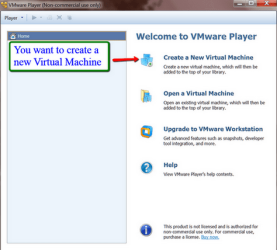
Here you just click on 'Create a new virtual machine' and you get to this window
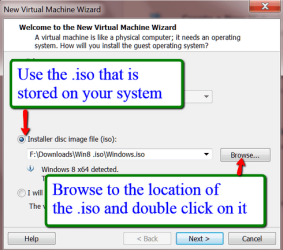
Here you select to install from the .iso image and navigate to the Mint Mate .iso file that you have downloaded. Then Next.
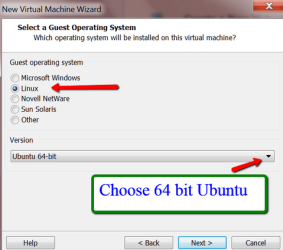
Mark Linux and choose the Ubuntu 64bit. Then Next.
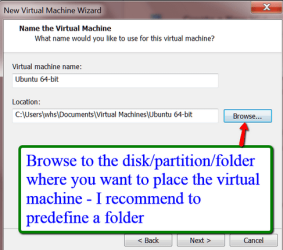
Browse to the disk/partition and folder where you want to install the virtual partition files. Default is Documents. I recommend predefining a folder in Documents for the VMware installation so that all VMware files are in one place. When you are done with the installation, there will be over 25 files and subfolders. Having those mixed with other folders would be messy.
In the same window you can also change the name of the virtual machine (on the top). I suggest you call it Mint Mate 64bit.
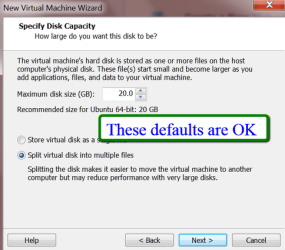
In this window you can take the defaults. Mint Mate will start out with less than 6GB of disk space usage so a maximum of 20GB for the dynamic virtual disk should suffice. Then Next
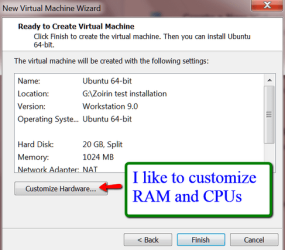
The default allocation is 1GB of RAM and 1 processor. I always assign 2GB of RAM and 2 processors. But you should take what is suitable for your PC.
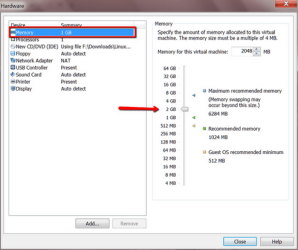
This would be the setting for an allocation of 2GB of RAM
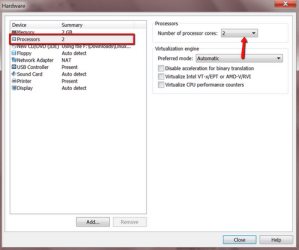
This setting gives the virtual machine 2 cores. Any more cores would probably not be used by Mint. If you are done with that, click on Close and then on Finish. Then you get the VMware start screen were you highlight your new system (top left) and click on ' Play virtual Machine (bottom right). Then VMware Player will install the bootstrap system of Mint Mate.
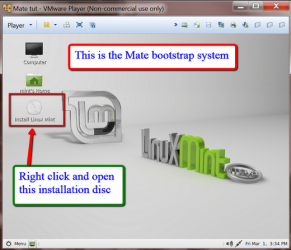
This bootstrap system you have right now is NOT a fully operational system. You need to right click on the "Install DVD" as shown in the picture and Open that. This will start the full installation of Mint Mate.

The Mint Mate installation process is very similar to the Windows installation process. You set the language, keyboard layout, time zone, and give the system a name.
You must define a password - I always use 1234 because Linux distros ask many times for authentication with the password. A complicated password will make the operation more cumbersome.
There is one big difference to a Windows installation - you do not need a product key. Mint Mate is freeware.
Once your installation is completed, restart Mint Mate - click on the Mint Menu button (bottom left) and then on the power symbol (bottom right in the start menu). That will bring up the various options (restart, shutdown, etc.)
2.2.2. Installing the VMware Tools in Mint Mate
The VMware tools are needed for communicating between the host system and Mint Mate. It allows you to drag and drop files from one system to the other.
The Terminal commands used in this video for the installation of the VMware Tools are:
cd Desktop/vmware-tools-distrib
sudo ./vmware-install.pl -d
Information
In the meantime I have found out that the shared clipboard works to copy URLs and text from the host to Mint and vice versa. But it still does not work for copying files and folders. There you need to use the drag and drop method.
3. Operating Mint Mate
The following video will show you the easy steps for surfing the web and for a security check of downloaded files. The video was recorded from my virtual partition, but Mint Mate from the flash drive would look exactly the same.
If you care to make all the nice settings in Mint Mate, refer to the Settings Chapter 4 below.
4. Mint Mate Settings
Here is a set of my video tutorials that explain how to setup Mint Mate.
Basic setup after installation - Duration 12 minutes
· Set the screen resolution
· Choose an initial Theme
· Desktop background
· Application sections in the Start Menu
· Notification area
· Home Folder
Refining the Theme and Skin - Duration 7 minutes
· Themes
· Skins
· Fonts
Start Menu and Taskbar settings - Duration 17 minutes
· Set sizes and colors
· Favorites
· Pin to Taskbar
· Notification area
Terminal window setup
· A really fancy Command Prompt setup - you will be stunned
Installing and uninstalling Programs - Duration 9 minutes
Two methods are shown
· The Windows way
· the Linux way
5. What if there is a problem
It is always good to be prepared for any disaster even if there is only a minimal chance of that happening.
For the flash drive, it is easiest to reformat the drive and reinstall Mint Mate.
For the virtual partition it is even easier. After the initial installation of Mint Mate in the virtual partition, make a copy of the VMware folder (which is per default in Documents) to a safe place, e.g. an external disk. As you evolve the virtual system, you may want to make up-to-date copies from time to time. Should anything happen to the virtual system, delete the VMware folder in Documents and replace it with one of the copies from your backup.
6. The Bottom Line
So next time you are at the airport or use some other open WiFi, boot your PC from your Linux flash drive or start your virtual VMware Player partition and do your internet browsing from there.
Make sure you have scanned any downloads where you are not 100% sure of the origin with Virus Total before you transfer them to your main Operating System.
I also recommend you browse the internet from the virtual partition when you are at home. It is so much safer and so easy to repair should you encounter a problem - which is very unlikely though when operating in Linux.
Last edited:


 I was with a PC with 1.5Gb of RAM when all were 4Gb. Now I have 8Gb I want to keep that big leap
