
Shortcut Arrow - Change, Remove, or Restore

How to Change, Remove, or Restore the Shortcut Arrow Overlay Icon in Windows


   Information
This tutorial will show you how to change, remove, or restore the default shortcut arrow overlay on all shortcut icons in Vista, Windows 7, and Windows 8.

You must be logged in as an administrator to be able to do the steps in this tutorial.

   Warning
Removing the shortcut arrow will make it harder to tell which files are shortcuts or not.

You can still tell by right clicking or press and hold on the file, and click/tap on Properties to see if you have a Shortcut tab or not.


OPTION ONE

Change Shortcut Arrow using "Vista Shortcut Overlay Remover"


1. If you have not already, click/tap on the Download button below to download the Vista Shortcut Overlay Remover (Vista Shortcut Overlay Manager) program below for the 32-bit or 64-bit Windows you have installed. Save the .msi file to your desktop, and install it.
32-bit (x86) Windows

Download


64-bit (x64) Windows

Download


2. Double click/tap on the program's shortcut to run the program.

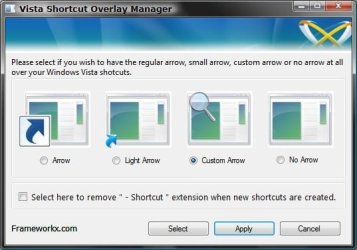
3. To Change, Restore, or Remove the Arrow for All Shortcuts
A) Select (dot) the arrow option you want for the shortcut arrow. (See screenshot below)
NOTE: If you selected Custom Arrow to change the shortcut arrow, then click on Select and navigate to and choose a ICO (icon) file you have downloaded to use as the shortcut arrow.
4. To Remove the "Shortcut" Name from All Shortcuts
NOTE: See also: http://www.sevenforums.com/tutorials/804-shortcut-extension-remove-restore.html
A) Check the box to also remove the - Shortcut name extension for new shortcuts that are created.
5. Click/tap on Apply.
Frameworkx.jpg
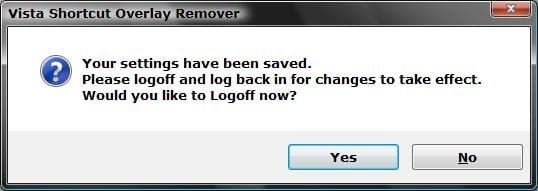
6. Click/tap on Yes to log off to apply the changes. (See screenshot below)
NOTE: If you like, you could also just restart explorer instead to apply your changes.
Logoff_Confirmation.jpg
7. Log back on and your done.


   Warning
If you used the Light Arrow or No Arrow option and uninstall "Vista Shortcut Overlay Remover", then they will be undone the next time you log off/on or restart the computer/explorer.

The Arrow (default) and Custom Arrow options will not be undone if you uninstall "Vista Shortcut Overlay Remover".


OPTION TWO

To Change Shortcut Arrow Overlay Icon in Registry Editor


1. Press the Windows + R keys to open the Run dialog, type regedit, and press Enter.

2. In regedit, navigate to the location below:
NOTE: If Shell Icons it is not in the left pane under Explorer, right click on Explorer, and click on New and Key. Type Shell Icons for the new keys's name, and press Enter.

Code:
HKEY_LOCAL_MACHINE\SOFTWARE\Microsoft\Windows\CurrentVersion\Explorer\Shell Icons

3. In the right pane of Shell Icons, right click on an empty area, and click/tap on New and String Value, and name it 29.

4. Double click/tap on the 29 sting value to modify it.

5. Type in the full path of your custom .ico file within quotes, OR copy and paste the path below for what overlay icon you would like to use, and click/tap on OK.
   Tip
If you like, you can download a transparent.ico file here to use instead.


(No arrow - Transparent) %windir%\System32\shell32.dll,-50

XP_Arrow.png (Classic) %windir%\System32\shell32.dll,-30

Arrow.png (Default) %windir%\System32\shell32.dll,-16769
6. Log off and on, or restart the computer to apply.


OPTION THREE

To Change Shortcut Arrow Overlay Icon using a REG File


NOTE: This option does the same thing as OPTION TWO above, but automatically for you using a .reg file.
1. Do step 2, 3, or 4 below for what you would like to do.

2. To Restore Default Shortcut Arrow Overlay Icon
NOTE: This is the default setting.
A) Click/tap on the Download button below to download the .reg file below, and go to step 5 below.

Arrow.png Default_Shortcut_Arrow.reg


Download


3. To Use Classic Shortcut Arrow Overlay Icon
A) Click/tap on the Download button below to download the .reg file below, and go to step 5 below.

XP_Arrow.png Classic_Shortcut_Arrow.reg


Download


4. To Have No Shortcut Arrow Overlay Icon
A) Click/tap on the Download button below to download the .reg file below, and go to step 5 below.

No_Shortcut_Arrow.reg


Download


5. Log off and log on, or restart the computer to apply.

6. You can now delete the downloaded .reg file if you like.
That's it,
Shawn


Attachments

Last edited:
I made use of option 3, the reg file download,

applied the alteration, the alterations works, but every time I shut down & boot up the op/sys the desktop icons are black, the script is there but the icon has disappeared. In my case I have to boot up the program for the very uppermost icon (on my desktop) to get ALL of the icons to reappear. After doing so I have to shut down the program I started. I'm sure that this is not was intended with the registry change.

What's the fix?
 

My Computer

Computer type
PC/Desktop
Computer Manufacturer/Model Number
Asus
OS
Win7 32bit
CPU
Intel
Motherboard
Asus
Memory
4gig
Graphics Card(s)
ATI radeon
Hello 55trucker, :)

Does refreshing (F5) the desktop help fix the icons?
 

My Computer

Computer type
PC/Desktop
Computer Manufacturer/Model Number
Self built custom
OS
64-bit Windows 11 Pro for Workstations
CPU
Intel i7-8700K OC'd to 5 GHz
Motherboard
ASUS ROG Maximus XI Formula Z390
Memory
64 GB (4x16GB) G.SKILL TridentZ RGB DDR4 3600 MHz
Graphics Card(s)
ASUS ROG-STRIX-GTX1080TI-O11G-GAMING
Sound Card
Integrated
Monitor(s) Displays
2 x Samsung Odyssey G7 27"
Screen Resolution
2560x1440
Hard Drives
1TB Samsung 990 PRO M.2,
4TB Samsung 990 PRO PRO M.2,
TerraMaster F8 SSD Plus NAS
PSU
Seasonic Prime Titanium 850W
Case
Thermaltake Core P3
Cooling
Corsair Hydro H115i
Keyboard
Logitech wireless K800
Mouse
Logitech MX Master 4
Internet Speed
2 Gb/s Download and 100 Mb/s Upload
Antivirus
Malwarebyte Anti-Malware Premium
Browser
Google Chrome
Other Info
Logitech Z625 speaker system,
Logitech BRIO 4K Pro webcam,
HP Color LaserJet Pro MFP M477fdn,
APC SMART-UPS RT 1000 XL - SURT1000XLI,
Galaxy S23 Plus phone
*refreshing* the desktop causes the icons to momentarily appear for just a split second & then they disappear.....

oddly enough...if I make use of the *classic* small shortcut there's no issue at all with the registry change & the desktop icons do not disappear

for some reason the *-50* is not liked at all but the *-30* causes no issues
 

My Computer

Computer type
PC/Desktop
Computer Manufacturer/Model Number
Asus
OS
Win7 32bit
CPU
Intel
Motherboard
Asus
Memory
4gig
Graphics Card(s)
ATI radeon
If you like, you might see how using the transparent.ico file from Option 2 may work for you.
 

My Computer

Computer type
PC/Desktop
Computer Manufacturer/Model Number
Self built custom
OS
64-bit Windows 11 Pro for Workstations
CPU
Intel i7-8700K OC'd to 5 GHz
Motherboard
ASUS ROG Maximus XI Formula Z390
Memory
64 GB (4x16GB) G.SKILL TridentZ RGB DDR4 3600 MHz
Graphics Card(s)
ASUS ROG-STRIX-GTX1080TI-O11G-GAMING
Sound Card
Integrated
Monitor(s) Displays
2 x Samsung Odyssey G7 27"
Screen Resolution
2560x1440
Hard Drives
1TB Samsung 990 PRO M.2,
4TB Samsung 990 PRO PRO M.2,
TerraMaster F8 SSD Plus NAS
PSU
Seasonic Prime Titanium 850W
Case
Thermaltake Core P3
Cooling
Corsair Hydro H115i
Keyboard
Logitech wireless K800
Mouse
Logitech MX Master 4
Internet Speed
2 Gb/s Download and 100 Mb/s Upload
Antivirus
Malwarebyte Anti-Malware Premium
Browser
Google Chrome
Other Info
Logitech Z625 speaker system,
Logitech BRIO 4K Pro webcam,
HP Color LaserJet Pro MFP M477fdn,
APC SMART-UPS RT 1000 XL - SURT1000XLI,
Galaxy S23 Plus phone
That too has been tried as well,
the -50 is where the problem occurs, but the -30 runs fine,

is there an alternative DWORD value to be entered which is not -50 to decrease the size of the arrow to a size smaller than the -30?
 

My Computer

Computer type
PC/Desktop
Computer Manufacturer/Model Number
Asus
OS
Win7 32bit
CPU
Intel
Motherboard
Asus
Memory
4gig
Graphics Card(s)
ATI radeon
-30 is the smallest arrow icon available in the Shell32.dll file.

If you like, you can use Option 1 to remove the shortcut arrow. You don't need to keep the program installed to keep your changes.
 

My Computer

Computer type
PC/Desktop
Computer Manufacturer/Model Number
Self built custom
OS
64-bit Windows 11 Pro for Workstations
CPU
Intel i7-8700K OC'd to 5 GHz
Motherboard
ASUS ROG Maximus XI Formula Z390
Memory
64 GB (4x16GB) G.SKILL TridentZ RGB DDR4 3600 MHz
Graphics Card(s)
ASUS ROG-STRIX-GTX1080TI-O11G-GAMING
Sound Card
Integrated
Monitor(s) Displays
2 x Samsung Odyssey G7 27"
Screen Resolution
2560x1440
Hard Drives
1TB Samsung 990 PRO M.2,
4TB Samsung 990 PRO PRO M.2,
TerraMaster F8 SSD Plus NAS
PSU
Seasonic Prime Titanium 850W
Case
Thermaltake Core P3
Cooling
Corsair Hydro H115i
Keyboard
Logitech wireless K800
Mouse
Logitech MX Master 4
Internet Speed
2 Gb/s Download and 100 Mb/s Upload
Antivirus
Malwarebyte Anti-Malware Premium
Browser
Google Chrome
Other Info
Logitech Z625 speaker system,
Logitech BRIO 4K Pro webcam,
HP Color LaserJet Pro MFP M477fdn,
APC SMART-UPS RT 1000 XL - SURT1000XLI,
Galaxy S23 Plus phone
   Note
The shortcut icon arrows in Win 7 are actually overlaid icons. These icons live in the shell32.dll file. As it happens, the old winxp shortcut arrow also lives in this file.
   Warning
Please only attempt this if you are comfortable making changes to the registry. Usual disclaimer etc,etc.


1. Open the Start Menu, and type regedit in the search line and pres Enter.

2. In regedit, navigate to the location below:
NOTE: If Shell Icons it is not in the left pane under Explorer, then right click on Explorer and click on New and Key. Type Shell Icons for the new keys's name and press Enter.

Code:
HKEY_LOCAL_MACHINE\SOFTWARE\Microsoft\Windows\CurrentVersion\Explorer\Shell Icons
3. In the right pane of Shell Icons, right click on a empty area and click on New and String Value, and name it 29.

4. Right click on 29 and click on Modify.

5. Type in C:\Windows\System32\shell32.dll,29 and click on OK.
NOTE: The 29 is the XP standard shortcut arrow number. Substitute a different ‘number’ in the data value field for other overlays or set the path to an ico file somewhere else on the hard drive.

6. Restart the computer to apply the small XP arrow, or the one you have selected, will show on all your shortcut icons.

A big THANK YOU ! to Nosmo !
I have no idea as to why, but all of my desktop shortcut icons got their arrows replaced with white rectangles with some sort of symbol within the rectangles.
When I navigated the registry path, I found that I already had a 29; I right-clicked it > Modify > and replaced whatever was there with the text you supplied, restarted, and now I have the neat little XP arrows instead of the huge ugly Win 7 arrows.
I have one stubborn task-bar icon that has been completely replaced with a similar white rectangle.
This particular icon had went to white several days prior to all of the desktop icons losing their arrows.
Thanks again.
 

My Computer

Computer type
PC/Desktop
Computer Manufacturer/Model Number
Dell Optiplex 780m "mini-tower"
OS
Windows 7 Pro x64
CPU
Intel Core Two Duo E8600 3.33 ghz
Motherboard
Whatever DELL put in it
Memory
8GB
Graphics Card(s)
Gigabyte Radeon R7 240
Monitor(s) Displays
HP 2159m
PSU
750 Watt Corsair CX750
Keyboard
Logitech Wireless
Mouse
Logitech Wireless
Browser
Chrome, Firefox, IE
amazing

Brink you are amazing my friend :-),
thank you so much for everything you do

Frantheman777
 

My Computer

Computer type
Laptop
Computer Manufacturer/Model Number
dell
OS
Windows 7 Ultimate x64
CPU
2 duo cpu p8700 @2.53hz
Motherboard
?
Memory
8.00gb
Graphics Card(s)
?
Hard Drives
6 ex and 1 2tb in
Antivirus
avg
Browser
ie11
:thumbsup:
 

My Computer

Computer type
PC/Desktop
Computer Manufacturer/Model Number
Self built custom
OS
64-bit Windows 11 Pro for Workstations
CPU
Intel i7-8700K OC'd to 5 GHz
Motherboard
ASUS ROG Maximus XI Formula Z390
Memory
64 GB (4x16GB) G.SKILL TridentZ RGB DDR4 3600 MHz
Graphics Card(s)
ASUS ROG-STRIX-GTX1080TI-O11G-GAMING
Sound Card
Integrated
Monitor(s) Displays
2 x Samsung Odyssey G7 27"
Screen Resolution
2560x1440
Hard Drives
1TB Samsung 990 PRO M.2,
4TB Samsung 990 PRO PRO M.2,
TerraMaster F8 SSD Plus NAS
PSU
Seasonic Prime Titanium 850W
Case
Thermaltake Core P3
Cooling
Corsair Hydro H115i
Keyboard
Logitech wireless K800
Mouse
Logitech MX Master 4
Internet Speed
2 Gb/s Download and 100 Mb/s Upload
Antivirus
Malwarebyte Anti-Malware Premium
Browser
Google Chrome
Other Info
Logitech Z625 speaker system,
Logitech BRIO 4K Pro webcam,
HP Color LaserJet Pro MFP M477fdn,
APC SMART-UPS RT 1000 XL - SURT1000XLI,
Galaxy S23 Plus phone
Thanks Brink!
With the same way we can add a shortcut arrow .ico file that we made in our own (or downloaded).
Just go to registry key "Computer\HKEY_LOCAL_MACHINE\SOFTWARE\Microsoft\Windows\CurrentVersion\Explorer\Shell Icons" --> (REG_EXPAND_SZ) Value name"29" and change the "Value data" to your C:\Path\to\ShortcutArrow.ico (change the Drive:\, Path\, and File's Name.ico according to yours).

For example, I've made a smaller with different color (which don't hides the 1/4 of icons).
Capture111.PNGCapture222.PNG
This is my icon file: (system_shortcut_1793(V)[16-24-32-48].ico)
Feel free to extract it and use it.
View attachment system_shortcut_1793(V)[16-24-32-48].rar
It's 'multi size' 16 to 72 px x32BPP
 
Last edited:

My Computers

System One System Two

  • Computer type
    PC/Desktop
    OS
    W7U x64
    CPU
    AMD A4-6300 APU with Radeon(tm) HD Graphics 3.70 GHz
    Motherboard
    ASRock FM2A78M-DG3+
    Memory
    2x8GB
    Graphics Card(s)
    NVidia GT710 2GB DDR3
    Sound Card
    Tascam US-122L
    Monitor(s) Displays
    3
    Screen Resolution
    1920x1080 + (1280x1024 x2)
    Hard Drives
    HDDs
  • Computer type
    PC/Desktop
Thanks Brink!
With the same way we can add a shortcut arrow .ico file that we made in our own (or downloaded).
Just go to registry key "Computer\HKEY_LOCAL_MACHINE\SOFTWARE\Microsoft\Windows\CurrentVersion\Explorer\Shell Icons" --> (REG_EXPAND_SZ) Value name"29" and change the "Value data" to your C:\Path\to\ShortcutArrow.ico (change the Drive:\, Path\, and File's Name.ico according to yours).

For example, I've made a smaller with different color (which don't hides the 1/4 of icons).
View attachment 425082View attachment 425083
I would like to add my icon file here but... it's not allowed ? (error: Invalid File)
1864307506.ico Processing...x

Hello, :-)

You should be able to ZIP the ICO file, and upload and attach the ZIP here.
 

My Computer

Computer type
PC/Desktop
Computer Manufacturer/Model Number
Self built custom
OS
64-bit Windows 11 Pro for Workstations
CPU
Intel i7-8700K OC'd to 5 GHz
Motherboard
ASUS ROG Maximus XI Formula Z390
Memory
64 GB (4x16GB) G.SKILL TridentZ RGB DDR4 3600 MHz
Graphics Card(s)
ASUS ROG-STRIX-GTX1080TI-O11G-GAMING
Sound Card
Integrated
Monitor(s) Displays
2 x Samsung Odyssey G7 27"
Screen Resolution
2560x1440
Hard Drives
1TB Samsung 990 PRO M.2,
4TB Samsung 990 PRO PRO M.2,
TerraMaster F8 SSD Plus NAS
PSU
Seasonic Prime Titanium 850W
Case
Thermaltake Core P3
Cooling
Corsair Hydro H115i
Keyboard
Logitech wireless K800
Mouse
Logitech MX Master 4
Internet Speed
2 Gb/s Download and 100 Mb/s Upload
Antivirus
Malwarebyte Anti-Malware Premium
Browser
Google Chrome
Other Info
Logitech Z625 speaker system,
Logitech BRIO 4K Pro webcam,
HP Color LaserJet Pro MFP M477fdn,
APC SMART-UPS RT 1000 XL - SURT1000XLI,
Galaxy S23 Plus phone
Back
Top