'Sleep' Task Prevents Shutdown

compupix

New member
Local time
4:41 AM
Messages
14
When I try to shut down (or reboot) my computer, I get an error that two tasks are running that won't shut down. They are both called "Sleep."
The error that is difficult to read underneath the 'force shut down or cancel' message says something like:
Unhandled exception has occurred in your application. Unable to cast object of type "System diagnostics Process Thread" to type "System threading thread."

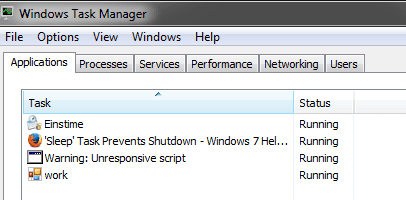
Right now, as I look at Task Manager, I see a single Application Task called 'Sleep.' I am unable to end the task. I don't know what started it.

How do I identify the cause of the 'Sleep' program/task and how do I kill it so I can re-boot my computer normally?

Thanks,
Drew
 

My Computer

Computer Manufacturer/Model Number
Dell XPS-9000
OS
windows 7
CPU
Intel Core i7 920 2.67GHz
Graphics Card(s)
Nvidea
Sound Card
SoundBlaster
Monitor(s) Displays
Dell 23"

My Computer

Computer type
PC/Desktop
Computer Manufacturer/Model Number
Custom
OS
10 Pro x64
CPU
Ryzen 9 3900X
Motherboard
Asrock x370 Tachi
Memory
64GB(4x16GB) DDR4
Graphics Card(s)
EVGA 1080ti FTW3
Sound Card
ASUS Xonar Essence STX (V4 Bursons), ODAC rev B, NFB-11, O2
Monitor(s) Displays
3xASUS PB278Q/R, Optoma HD142X
Screen Resolution
3x1440p, 1080p
Hard Drives
512GB 850 EVO(OS, Programs)
4TB (Movies)
3TB (Downloads)
3TB (Programs)
1TB HDD (Games)
2x6TB R1 (videos)
PSU
AX760
Case
Fractal Define R5
Cooling
NH-D15S
Keyboard
Massdrop Ctrl with Box Navy's
Mouse
G903, Alioth XXL Mat
Internet Speed
280/40
Antivirus
MBAM, ESET
Browser
Canary 64 Bit
Other Info
I also own a Thinkpad P50 Xeon 4K, X220T, X1C5
Thanks rvcjew.
I ran autoruns.
Using Find, there were no results for 'sleep.'
Using Filter, there were tons of results for 'sleep.' The vast majority of which were HK... items. Other than the HK... items, there were:
Two Startup folders. When I 'jumped to' the Startup folders, there were no signs of anything like 'sleep.' Just my normal autorun programs.
The Task Scheduler folder shows up in the filtered list. When I 'jump to' it, I see nothing named 'sleep.'
'WMI Database Entries' also shows up in the filtered list. As does, 'C:\Users\Drew\AppData\Local\Microsoft\Windows Sidebar.' Jumping to those items didn't shed any light on the problem either.
When I started this response, 'sleep' was running in Task Manager. As of this moment, it is not. But, something called 'work' is with the same icon. And just before I did the screen grab for the attachment to this message, 'Warning: unresponsive script' showed up.
End Task did not work on either the 'Warning...' or the 'work' applications.

Thanks,
Drew
 

Attachments

  • temp work.PNG
    temp work.PNG
    6.8 KB · Views: 18

My Computer

Computer Manufacturer/Model Number
Dell XPS-9000
OS
windows 7
CPU
Intel Core i7 920 2.67GHz
Graphics Card(s)
Nvidea
Sound Card
SoundBlaster
Monitor(s) Displays
Dell 23"
When those are showing up can you run autobus and find it? I'm on my phone at the moment but I suggest you use the links for adwcleaner first and see if it finds any thing it thinks is Rouge just to be safe. Download AdwCleaner - MajorGeeks I suggest you post picks of what it wants before deleting anything from that program. Make sure you check all tabs.
 

My Computer

Computer type
PC/Desktop
Computer Manufacturer/Model Number
Custom
OS
10 Pro x64
CPU
Ryzen 9 3900X
Motherboard
Asrock x370 Tachi
Memory
64GB(4x16GB) DDR4
Graphics Card(s)
EVGA 1080ti FTW3
Sound Card
ASUS Xonar Essence STX (V4 Bursons), ODAC rev B, NFB-11, O2
Monitor(s) Displays
3xASUS PB278Q/R, Optoma HD142X
Screen Resolution
3x1440p, 1080p
Hard Drives
512GB 850 EVO(OS, Programs)
4TB (Movies)
3TB (Downloads)
3TB (Programs)
1TB HDD (Games)
2x6TB R1 (videos)
PSU
AX760
Case
Fractal Define R5
Cooling
NH-D15S
Keyboard
Massdrop Ctrl with Box Navy's
Mouse
G903, Alioth XXL Mat
Internet Speed
280/40
Antivirus
MBAM, ESET
Browser
Canary 64 Bit
Other Info
I also own a Thinkpad P50 Xeon 4K, X220T, X1C5
Another good tool to have from SysInternals is Process Explorer.
https://technet.microsoft.com/en-us/sysinternals/bb896653.aspx

It's like Task Manager on steroids.
Start it with "Run as administrator", that gives more info.

Right click on a process in Process Explorer and click Properties.
It has info including "Autostart Location" that might help you.

My example is for the Image properties of Process Explorer, shows it's running from my [E] drive, and has the autostart location that I chose, and shows the parent process.

See if this helps find your tasks/processes.

ProcessExplorer_01.png
 

My Computer

Computer type
PC/Desktop
Computer Manufacturer/Model Number
home built
OS
Multi-Boot W7_Pro_x64 W8.1_Pro_x64 W10_Pro_x64 +Linux_VMs +Chromium_VM
CPU
AMD Athlon II x4 620
Motherboard
Gigabyte GA-MA785G-UD3H
Memory
6GB GSkill DDR2 800
Graphics Card(s)
AMD 4670 GPU + AMD 4200 IGP
Sound Card
on board Realtek ALC889A
Monitor(s) Displays
RCA 40" LCD TV, Insignia 32" LCD TV, HP 15" LCD monitor
Screen Resolution
1680 x 1050
Hard Drives
OCZ Vertex 3 120GB,
Samsung F3 1TB (3),
Several others - WD, Seagate, Hitachi, ...
PSU
Corsair 500 W
Case
Rosewill mid tower
Cooling
CM 90mm rifle
Keyboard
Gyration wireless, Logitech wireless, Dell USB wired
Mouse
Gyration wireless, Logitech wireless, V7 USB wired
Internet Speed
Spectrum - 100Mbps D / 10Mbps U
Antivirus
Avast, MBAM3, EMET, WinPatrol
Browser
Pale Moon, Firefox, IE
Other Info
2 multi-boot PC's
Mainly HTPC/Office/Gen purpose (no gaming).
Trendnet USB KVM.
LG DVD burner/Blue Ray Player.
Tray system for removable SATA backup drives.

Not currently OCd, under-volted.
I use Hybrid sleep, rarely re-boot or shutdown.

Hauppauge HD-PVR, Avermedia PCIe TV Tuner, Hauppauge PCI TV Tuner.
Another good tool to have from SysInternals is Process Explorer.
https://technet.microsoft.com/en-us/sysinternals/bb896653.aspx

It's like Task Manager on steroids.
Start it with "Run as administrator", that gives more info.

Right click on a process in Process Explorer and click Properties.
It has info including "Autostart Location" that might help you.

My example is for the Image properties of Process Explorer, shows it's running from my [E] drive, and has the autostart location that I chose, and shows the parent process.

See if this helps find your tasks/processes.

View attachment 351380

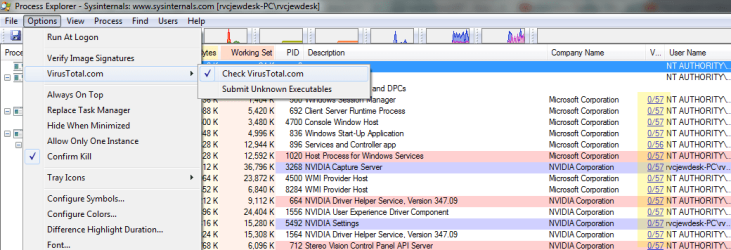
Ah, thanks David I did not show that one cause It doesn't have those columns by default showing and did not want to confuse them. When looking at the properties that window is very clear and concise though. They can also have it look for any rouge ones against virustotal. Thanks for the suggestion.
 

Attachments

  • virustotal.png
    virustotal.png
    34.7 KB · Views: 2

My Computer

Computer type
PC/Desktop
Computer Manufacturer/Model Number
Custom
OS
10 Pro x64
CPU
Ryzen 9 3900X
Motherboard
Asrock x370 Tachi
Memory
64GB(4x16GB) DDR4
Graphics Card(s)
EVGA 1080ti FTW3
Sound Card
ASUS Xonar Essence STX (V4 Bursons), ODAC rev B, NFB-11, O2
Monitor(s) Displays
3xASUS PB278Q/R, Optoma HD142X
Screen Resolution
3x1440p, 1080p
Hard Drives
512GB 850 EVO(OS, Programs)
4TB (Movies)
3TB (Downloads)
3TB (Programs)
1TB HDD (Games)
2x6TB R1 (videos)
PSU
AX760
Case
Fractal Define R5
Cooling
NH-D15S
Keyboard
Massdrop Ctrl with Box Navy's
Mouse
G903, Alioth XXL Mat
Internet Speed
280/40
Antivirus
MBAM, ESET
Browser
Canary 64 Bit
Other Info
I also own a Thinkpad P50 Xeon 4K, X220T, X1C5
I took the following actions before seeing the responses from DavidE on.

Adwcleaner_4.111 stopped responding when it got to 'Scanning web browsers...'
Adwcleaner-4-111-multi-win also stopped at the same spot.
(All browser windows were closed at the time.)
I then tried YAC (yet another cleaner.)
It didn't remove the "working" item from Task Manager.
I ran Malwarebytes. It found 4 items, which I quarantined.
I then uninstalled all the new software and made sure nothing new was showing up in the Add/Remove programs list. That's when I saw something called "SSN." Finding removal tools for it was easier than finding out what it was.
Add/Remove programs removed it. It remained removed after a reboot.
No more Sleep/working items in the list of tasks.
Thanks,
Drew
 

My Computer

Computer Manufacturer/Model Number
Dell XPS-9000
OS
windows 7
CPU
Intel Core i7 920 2.67GHz
Graphics Card(s)
Nvidea
Sound Card
SoundBlaster
Monitor(s) Displays
Dell 23"
Glad to hear you got it sorted, it can shutdown cleanly now?
 

My Computer

Computer type
PC/Desktop
Computer Manufacturer/Model Number
Custom
OS
10 Pro x64
CPU
Ryzen 9 3900X
Motherboard
Asrock x370 Tachi
Memory
64GB(4x16GB) DDR4
Graphics Card(s)
EVGA 1080ti FTW3
Sound Card
ASUS Xonar Essence STX (V4 Bursons), ODAC rev B, NFB-11, O2
Monitor(s) Displays
3xASUS PB278Q/R, Optoma HD142X
Screen Resolution
3x1440p, 1080p
Hard Drives
512GB 850 EVO(OS, Programs)
4TB (Movies)
3TB (Downloads)
3TB (Programs)
1TB HDD (Games)
2x6TB R1 (videos)
PSU
AX760
Case
Fractal Define R5
Cooling
NH-D15S
Keyboard
Massdrop Ctrl with Box Navy's
Mouse
G903, Alioth XXL Mat
Internet Speed
280/40
Antivirus
MBAM, ESET
Browser
Canary 64 Bit
Other Info
I also own a Thinkpad P50 Xeon 4K, X220T, X1C5
Yes. It shuts down and reboots without any problem.

Thanks,
Drew
 

My Computer

Computer Manufacturer/Model Number
Dell XPS-9000
OS
windows 7
CPU
Intel Core i7 920 2.67GHz
Graphics Card(s)
Nvidea
Sound Card
SoundBlaster
Monitor(s) Displays
Dell 23"
Im glad this thread was here. Originally for me the program was listed as 'work' in my task manager. I tried cleaners and even malwarebytes and avast couldnt get at it. Until about half an hour ago when i was shutting down to go to sleep the name of the program changed to 'sleep'. With this new name I was able to find this thread.

SSN was indeed in my programs list and uninstalling it got rid of the entire problem. No more 'work' or 'sleep' in my task manager window! :D Looking at the details of the program 'SSN' its name is 'Save Serp Now'. Hopefully this helps someone in the future. Thanks again!
 

My Computer

Computer type
PC/Desktop
OS
Windows 7 Home Premium 64bit
Back
Top