Swapping OS to ssd drive

stacey252

New member
Local time
2:51 PM
Messages
7
Hello, new here first post.
I fancy one of these SSD drives now that the price has become more reasonable, but I need some advice.
When I upgraded from XP, I had trouble with the disc I was trying to load it onto, it wasn't a system drive or something (it was a while back). Eventually I resorted to fitting an old XP hard drive and making my Win 7 dual boot. Actually I somehow ended up with one XP and two Win 7s!
Can I transfer my Win 7 to the SSD and have it as the main and only OS easily?
If not, can I do a fresh install on the SSD and use a back up of my existing system somehow.
I'm a bit loathe to start completely afresh.
Any advice gratefully received
Stacey
 

My Computer My Computer

At a glance

Windows 7 Home Premium 64bit.
OS
Windows 7 Home Premium 64bit.
First run a Windows Easy Transfer and backup what it does. Then make a fresh install on the SSD, and after that import the backup from Windows Easy Transfer.
It is not a good idea to use an image of Windows 7 from a HDD on a SSD as some settings in Windows 7 are different.
 

My Computer My Computer

At a glance

Windows 7 Ultimate x64 retailCore i5 3570K @ 4,4Ghz16Gbyte Corsair C9 1866mhzMSI Lightning GTX 770
Computer type
PC/Desktop
Computer Manufacturer/Model Number
homebrewed
OS
Windows 7 Ultimate x64 retail
CPU
Core i5 3570K @ 4,4Ghz
Motherboard
MSI Z77A GD65
Memory
16Gbyte Corsair C9 1866mhz
Graphics Card(s)
MSI Lightning GTX 770
Sound Card
Auzentech
Monitor(s) Displays
BenQ 24"
Screen Resolution
1920x1200
Hard Drives
Samsung 840 EVO SSD, Samsung SSD 830 256Gbyte, Seagate 3Tbyte HDD, WD 4 Tbyte HDD.
PSU
Zahlmann 850HP
Case
Corsair Carbide 500R
Keyboard
G15 logitech
Mouse
Logitech Laser MX1000
Internet Speed
60/60
Antivirus
Bitdefender
Browser
Chrome
Unplug all other HD's, plug in the SSD, boot the Win7 installer to do a perfect Clean Reinstall - Factory OEM Windows 7 - the steps are the same for retail.

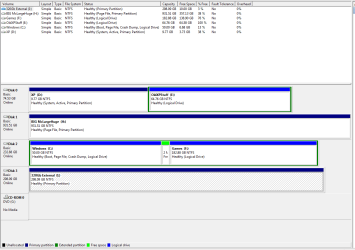
If you're intent upon transferring the install you have, post back a screenshot of your maximized Disk Mgmt drive map and listings, using the Snipping Tool in Start Menu. We'll show you how to make the Win7 HD independent so that you can transfer the Win7 install as shown in SSD - Install and transfer the Operating System
 
Thanks for the replies, I'll get onto that tomorrow
 

My Computer My Computer

At a glance

Windows 7 Home Premium 64bit.
OS
Windows 7 Home Premium 64bit.

My Computer My Computer

At a glance

Vista, Windows7, Mint Mate, Zorin, Windows 8from 1.6GHz Duo to i7
Computer Manufacturer/Model Number
HP, Dell, Gateway, Toshiba - 4 laptops and 2 desktops
OS
Vista, Windows7, Mint Mate, Zorin, Windows 8
CPU
from 1.6GHz Duo to i7
Monitor(s) Displays
2x HP w2207
Hard Drives
5x HDD, 7x SSD, 12x Externals
Keyboard
with trackball - no mices
Mouse
Trackball mice
Internet Speed
DSL 6000
Capture.PNG

Well I'm learning here! Never heard of the snipping tool.
 

My Computer My Computer

At a glance

Windows 7 Home Premium 64bit.
OS
Windows 7 Home Premium 64bit.
As is often the case, Win7 placed it's System boot files on XP which is signified by the System active label there. In this case there is really no choice since Win7 was installed to a Logical partition which cannot host System boot files until it is converted to Primary.

The best choice of all is to Clean Reinstall - Factory OEM Windows 7 using the latest official installer for your licensed version in the tutorial, with all other HD's unplugged.

However if you like your Win7 install so much you want to image over the Win7 partition to the new SSD then convert its partition to Primary using Partition Wizard following the tutorial How to set partition as Primary or Logical.

Then in Disk Mgmt Mark Win7 partition Active,

unplug XP HD and swap the it's cable to Win7 so that it becomes Disk0, making sure it remains first to boot in BIOS setup.

Then from Win7 DVD or System Repair Disk run Startup Repair - Run up to 3 Separate Times until Win7 starts on its own and holds the System Active flags.

You can then plug back in XP HD to boot it when needed using the one-time BIOS Boot Menu key given on first screen, or install EasyBCD (click Download - no Name or Email required) to add XP on the Add OS entry tab, accepting boot files offered.

When ready transfer the Win7 partition to the SSD as given in SSD - Install and transfer the Operating System
 
Hmmm. The clean install from windows 7 disk then easy transfer option seems the easiest and safest. I guess it would be best to disconnect all the other hds and run all windows updates before easy transfer?
 

My Computer My Computer

At a glance

Windows 7 Home Premium 64bit.
OS
Windows 7 Home Premium 64bit.
Read over carefully to understand fully the steps involved in getting a perfect Clean Reinstall - Factory OEM Windows 7. Your questions are all answered there.

I would use the backup method given there also unless you are familar with WET and trust it. I find it easier to just drag the User folders to backup and then copy the contents of each back into the new install.
 
Thanks for that, I'll leave you all in peace for a while.
 

My Computer My Computer

At a glance

Windows 7 Home Premium 64bit.
OS
Windows 7 Home Premium 64bit.
OK thats good, I was a bit worried when you said that some boot files were loaded to the xp drive.
I'll snap up a copy of the program while its cheap.
Cheers
Stacey
 

My Computer My Computer

At a glance

Windows 7 Home Premium 64bit.
OS
Windows 7 Home Premium 64bit.
It will transfer the OS image over but you'll still have to do the repairs I gave you to move the System boot files from XP to Win7 partition, unless you want to do them beforehand.
 
Back
Top