System Image Recovery

How to Do a System Image Recovery in Windows 7


   Information
This will show you how to restore your Windows 7 hard disk back to exactly how it was when you created a system image backup.
   Warning

  • You can only do a system image recovery to a HDD that is the same size or larger than the one the system image was created from. You will not be able to do a system image recovery to a smaller HDD.
  • When you restore your computer from a image backup, it is a complete restoration. You can't choose individual items to restore, and all of your current programs, system settings, and files are replaced.
  • If your backup image is on a external device (ex: USB drive), then make sure it is connected before starting. If USB drive, then also make sure that you have your BIOS settings (ex: Legacy USB) set to allow USB devices at boot.
  • A system image recovery will format everything on each hard drive that was included in a system image, and will only restore what is included (see steps 7-9 in STEP TWO below) in the system image back. Be sure to backup anything that you do not want to lose that is not included in the system image backup first.


STEP ONE

Only if You Renamed the "WindowsImageBackup" Folder


   Note
To be able to have multiple versions of system images saved on the same drive or partition, you would need to rename the older WindowsImageBackup folder from the previously created system image as described in the NOTE box at the top of this tutorial.

If you renamed the WindowsImageBackup folder for the system image version that you wanted to restore, then you will need to do the steps below before you will be able to restore that system image.

1. If you are "Able to Boot" into Windows 7 A) In Windows Explorer, navigate to the renamed (drive letter)\WindowsImageBackup folder location of the system image that you want to restore.

B) If you already have a folder named WindowsImageBackup that is not the system image version that you want to restore, then you will need to right click on it, click on Rename, and type in say WindowsImageBackup-Copy-2 as an example.

C) Now, right click on the renamed system image version (ex: WindowsImageBackup-Copy-1) that you did want to restore, click on Rename, type in WindowsImageBackup an press enter.

D) Go to the STEP TWO section below to do the System Image Recovery.
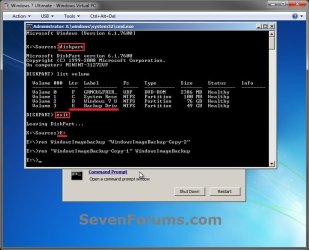
2. If you are "Not Able to Boot" into Windows 7 A) If you have the system image backup save to an external device, be sure that it is connected now.

B) Open a command prompt at boot.

C) In the command prompt, type diskpart and press enter. (see screenshot below)

D) In the command prompt, type list volume and press enter. (see screenshot below)

E) Make note of the drive letter (ex: E: ) that you have the system image backup saved to.

F) In the command prompt, type exit and press enter. (see screenshot below)

G) In the command prompt, type the E: and press enter. (see screenshot below)
NOTE: Subsititute E: for your actual drive letter at step 2E instead.

H) If you already have a folder named "WindowsImageBackup"

NOTE: This is if you already have a folder named WindowsImageBackup that is not the system image version that you want to restore. If so, you would need to rename it to say WindowsImageBackup-Copy-2 as an example.
  • In the command prompt, type the command below and press enter. (see screenshot below)
    NOTE: Substitute WindowsImageBackup-Copy-2 in the command below with any name in quotes that you would like to rename it to instead.
Code:
[B]ren WindowsImageBackup "[COLOR=red]WindowsImageBackup-Copy-2[/COLOR]"[/B]
I) In the command prompt, type the command below and press enter. (see screenshot below)
NOTE: Substitute WindowsImageBackup-Copy-1 in the command below with the actual name of your renamed system image folder in quotes that you want to use to restore instead.
Code:
[B]ren "[COLOR=red]WindowsImageBackup-Copy-1[/COLOR]" WindowsImageBackup[/B]
J) Close the command prompt window. (see screenshot below)

K) Continue on to step 3B in the STEP TWO section below to do the System Image Recovery.
Rename-1.jpg


STEP TWO

To Do the System Image Recovery

1. If you have the system image backup save to an external device, be sure that it is connected and turned on (powered up) now.
A) Start with either step 2 or step 3 below first.
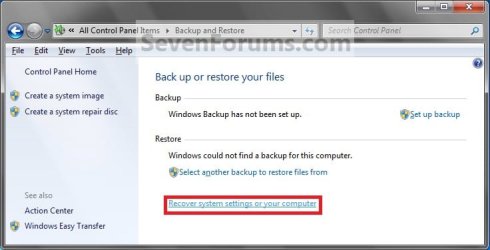
2. From "Backup and Restore" in the Control Panel while in Windows 7 A) Open the Control Panel (icons view), and click on Backup and Restore.

B) Click on the Recover system settings on your computer link. (see screenshot below) Step1.jpg
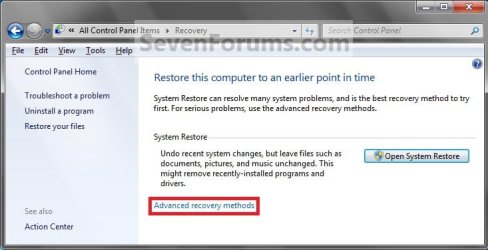
C) Click on the Advanced recovery methods link. (see screenshot below) Step2.jpg
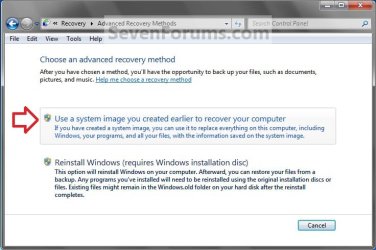
D) Select the Use a system image you created earlier to recover your computer option. (see screenshot below) Step3.jpg
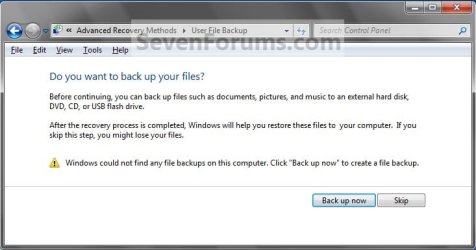
E) Select to either create a Back up now, or to Skip it and continue the system image recovery without backing up any of your current files.
NOTE: If you select Back up now, it will take you to step 6 in this tutorial link to create a User and System File back up of your current files first before continuing to step 1F. (see screenshot below) Step4A.jpg
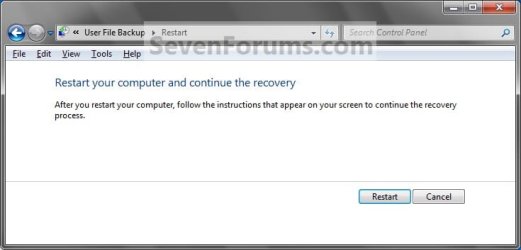
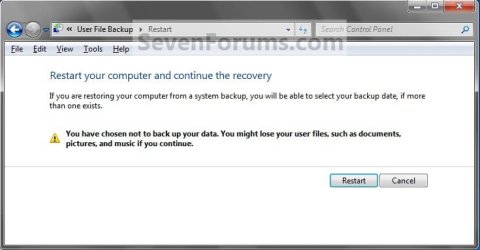
F) Click on Restart. (see screenshot below) Step5A.jpg
Step5B.jpg

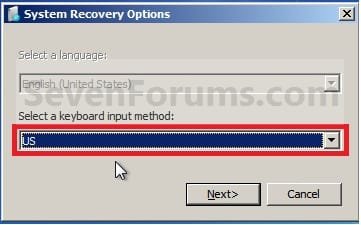
G) Select a languange to be used for your keyboard input and click on Next. (see screenshot below) Step6.jpg
H) Go to step 4.
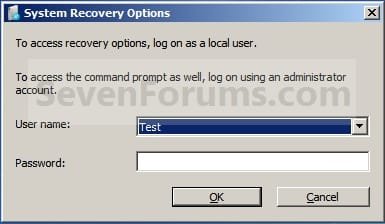
3. From the System Recovery Options Screen at Boot A) Boot to the System Recovery Options screen from your Windows 7 installation DVD/USB, or System Repair Disc.

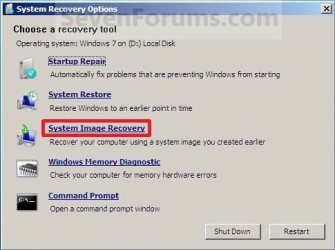
B) Select the System Image Recovery option. (see screenshot below) System_Recovery_Options.jpg
4. If you saved the system image backup to a set of DVDs, then insert the last DVD from the set when prompted. If not, go to step 5 for a system image backup on a hard drive. A) Go to step 7 below.
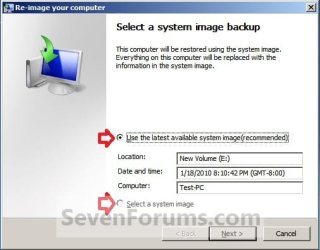
5. To Use the Latest System Image A) Select (dot) Use the latest available system image and click on Next. (see screenshot below) Step7.jpg
B) Go to step 7.
6. To Select a System Image A) Select (dot) Select a system image, and click on Next. (see screenshot above)
NOTE: This is if the system image that you want to use is not listed here and is at another location that you wish to choose from instead.

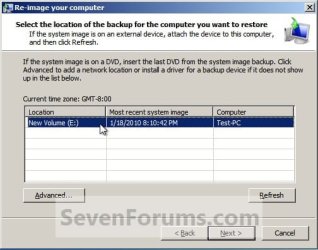
B) Select the location of the backup image for the computer you want to restore from the list, and click on Next. (see screenshot below)

   Note
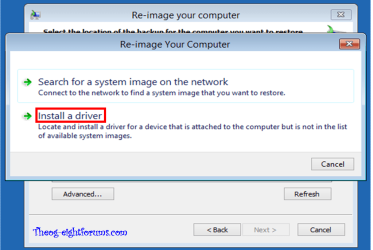
To add a image from a network location, click on the Advanced button, and on the Search for a system image on the network option.

If the drive cannot be seen to select a system image from, then you may need to use the tutorial below to load your SATA or RAID drivers before it will be seen. You would click on the Advanced button, and on the Install a driver option.

SATA Drivers - Load in Windows 8 System Image Recovery
RecoveryBackup004-8.PNG


Step8A.jpg
C) Select the date and time of the system image to restore, and click on Next. (see screenshot below) Step8B.jpg
7. To Do a Full System Image Recovery
NOTE: This option will format everything on each hard disk drive that was included in the system image, then restore them as they were when the system image was created.

   Note
Format and repartition disks box:
NOTE: Special thanks to MJF for this addition. 1) Grayed out and selected
You are forced to have the whole disk formatted and repartitioned to match the partition structure of the disk the image was made from. This can occur when restoring an image to a new disk or the original disk with a modified partition structure. Data on other partitions on the disk you are restoring to will be lost.

2) Grayed out and unselected
You are not given the option to format and repartition the disk. This will occur if you are restoring Windows from a partition on the same disk.

3) Not grayed out and unselected
Here you have the option to select format the whole disk and repartition or not. In this case the disk the image was taken from has a matching partition structure to the disk you are restoring the image to. By not selecting the format and repartition option your image will be restored and other partitions untouched such as valuable data partitions.
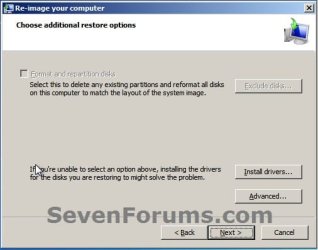
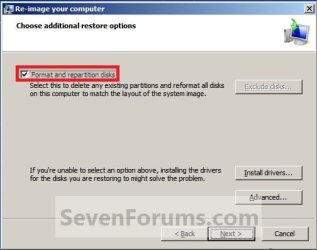
A) Check the Format and repartition disks box (if not grayed out) and uncheck Only restore system drives box (if available), and click on Next. (see screenshots below) Exclude_Disks.jpg
Step9.jpg
System_Drives.jpg
B) Go to step 10.
8. To Only Restore System Drives in System Image Recovery
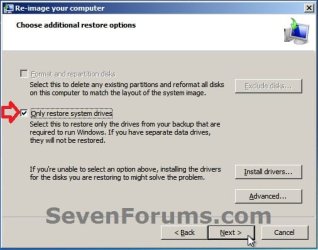
NOTE: When restoring to the same disk containing data partitions, the Format and repartition disks option may format the data partitions as well. If this is the case and you have the option to leave the Format and repartition disks box unchecked, then initially attempt your image recovery with the Format and repartition disks box unchecked. If recovery is unsuccessful, repeat the process with the format box ticked. A) If available, check the Only restore system drives box, and click on Next. (see screenshot below) System_Drives.jpg
B) Go to step 10.
9. To Exclude Restoring Specific Drives in System Image Recovery
NOTE: Since a system image recovery will format everything on each hard disk drive that was included in a system image, this will allow you to exclude specific disks so that specific disk will not be formated or restored. A) Check the Format and repartition disks box , and click on the Exclude disks button (if not grayed out). (see screenshot below)
NOTE: If the Exclude disks button is grayed out, then the HDD that you are restoring to is empty, or you do not have any disks in the system image that are able to be excluded from being restored. Exclude 001.JPG
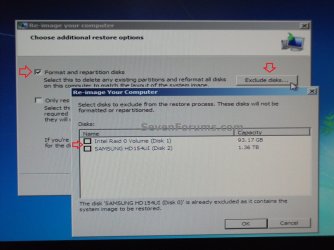
B) Unselect the drives that you want to exclude from being restored.

C) Click on Next.
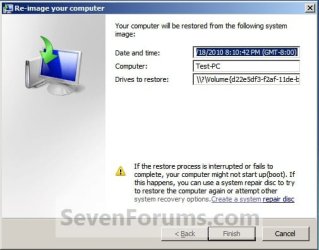
10. Click on Finish. (see screenshot below) Step10.jpg
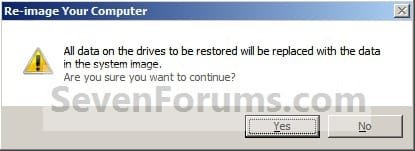
11. Click on Yes. (See screenshot below) Step11.jpg
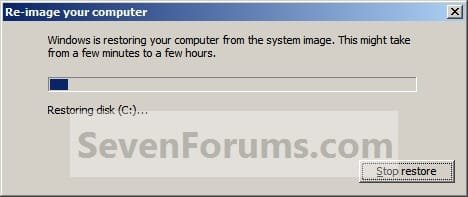
12. You will now see this screenshot below.
NOTE: If you have the backup image on DVDs, have them ready. See step 4 above. Step12.jpg
13. When it is through, click on Restart Now to finish. (see screenshot below)
NOTE: Your computer will restart and the backup image restoration will be done. Step13.jpg
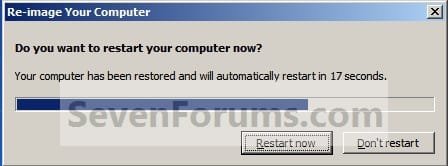
14. If you created a backup in step 1E, then you will now see this option to Restore my files after the computer restarts. (see screenshot below) Step14.jpg
That's it,
Shawn


Attachments

  • Step6A.jpg
    Step6A.jpg
    47.1 KB · Views: 244
Last edited:
Yeah, since it's technically still a different computer, you would have an issue with activation.

You would need to uninstall it from any previous computer before restoring it on the different computer, and possible have to do a phone activation on the different computer if it doesn't activate online.

OR

After you restored the image on the different computer, change the product key number to another valid legal key number and activate.
 

My Computer

Computer type
PC/Desktop
Computer Manufacturer/Model Number
Self built custom
OS
64-bit Windows 11 Pro for Workstations
CPU
Intel i7-8700K OC'd to 5 GHz
Motherboard
ASUS ROG Maximus XI Formula Z390
Memory
64 GB (4x16GB) G.SKILL TridentZ RGB DDR4 3600 MHz
Graphics Card(s)
ASUS ROG-STRIX-GTX1080TI-O11G-GAMING
Sound Card
Integrated
Monitor(s) Displays
2 x Samsung Odyssey G7 27"
Screen Resolution
2560x1440
Hard Drives
1TB Samsung 990 PRO M.2,
4TB Samsung 990 PRO PRO M.2,
TerraMaster F8 SSD Plus NAS
PSU
Seasonic Prime Titanium 850W
Case
Thermaltake Core P3
Cooling
Corsair Hydro H115i
Keyboard
Logitech wireless K800
Mouse
Logitech MX Master 4
Internet Speed
2 Gb/s Download and 100 Mb/s Upload
Antivirus
Malwarebyte Anti-Malware Premium
Browser
Google Chrome
Other Info
Logitech Z625 speaker system,
Logitech BRIO 4K Pro webcam,
HP Color LaserJet Pro MFP M477fdn,
APC SMART-UPS RT 1000 XL - SURT1000XLI,
Galaxy S23 Plus phone
I've got a rather complicated question, due to how I've laid my Windows 7 installation out. My PC Hard Drives are configured like this:

(200GB HDD):
C:\ Windows 7 Installation

(200GB HDD):
D:\ Program Files, Program Files (x86) and Games folders

(2 x 1TB HDD in RAID1 mirror):
E:\ User Folders, Media and Data

120GB HDD:
G:\ (116GB Partition) System Image (C: only - 20GB) and Registry Backup (153MB)
Z:\ (4GB Partition) Bootable Revovery Partition
My C:\ (200GB HDD) failed over the weekend, and I now have a brand new 500GB SATA Disk to replace it. If I boot from the recovery partition and tell it to restore the System Image of C:\ to the new disk using the tutorial above, will the restore leave my D:\ and E:\ untouched, or should I disconnect them before proceding?
 

My Computer

Computer Manufacturer/Model Number
Planeswalker-3/1108-09 (Rev 1.2)
OS
Windows 7 Pro 64-Bit
CPU
Intel Core 2 Duo @ 3.0GHz
Motherboard
Asus Maximus Formula
Memory
8GB OCZ PC3 6300 RAM (Nvidia SLI)
Graphics Card(s)
2 x Nvidia 8800 GTX Video Cards (SLI Enabled)
Sound Card
Supreme FX II
Monitor(s) Displays
17" IIyama
Screen Resolution
1280x1024
Hard Drives
C: 250GB SATA (OS)
D: 250GB SATA (APPS & GAMES)
E: 2 x 1TB in RAID1 (MEDIA)

Backup (500GB):
G: Backup Partition (System Image & Registry)
Y: 10GB Linux Bootable Partition (Ubuntu latest release)
Z: 4GB Bootable Windows 7 Recovery Partition
PSU
HighPower 750W Modular PSU
Case
Coolermaster Spedo
Cooling
6 x Fans
Keyboard
Logitech Wireless KB
Mouse
Standard Dell USB Mouse
Internet Speed
Sky Connect (4-8MB)
Hello Urza,

It depends on if they were included in the system image backup, but I would still recommend to disconnect them during the system image recovery to be safe though.

Hope this helps,
Shawn
 

My Computer

Computer type
PC/Desktop
Computer Manufacturer/Model Number
Self built custom
OS
64-bit Windows 11 Pro for Workstations
CPU
Intel i7-8700K OC'd to 5 GHz
Motherboard
ASUS ROG Maximus XI Formula Z390
Memory
64 GB (4x16GB) G.SKILL TridentZ RGB DDR4 3600 MHz
Graphics Card(s)
ASUS ROG-STRIX-GTX1080TI-O11G-GAMING
Sound Card
Integrated
Monitor(s) Displays
2 x Samsung Odyssey G7 27"
Screen Resolution
2560x1440
Hard Drives
1TB Samsung 990 PRO M.2,
4TB Samsung 990 PRO PRO M.2,
TerraMaster F8 SSD Plus NAS
PSU
Seasonic Prime Titanium 850W
Case
Thermaltake Core P3
Cooling
Corsair Hydro H115i
Keyboard
Logitech wireless K800
Mouse
Logitech MX Master 4
Internet Speed
2 Gb/s Download and 100 Mb/s Upload
Antivirus
Malwarebyte Anti-Malware Premium
Browser
Google Chrome
Other Info
Logitech Z625 speaker system,
Logitech BRIO 4K Pro webcam,
HP Color LaserJet Pro MFP M477fdn,
APC SMART-UPS RT 1000 XL - SURT1000XLI,
Galaxy S23 Plus phone
It depends on if they were included in the system image backup

Hi Shawn,

Thanks for the reply. The System Image was of the C:\ only, so I'm guessing that the restoration will only affect the replacement Hard Drive and not my other ones.

However I think I will disconnect them as you advise just to be on the safe side!

Many thanks,

Bryan.
 

My Computer

Computer Manufacturer/Model Number
Planeswalker-3/1108-09 (Rev 1.2)
OS
Windows 7 Pro 64-Bit
CPU
Intel Core 2 Duo @ 3.0GHz
Motherboard
Asus Maximus Formula
Memory
8GB OCZ PC3 6300 RAM (Nvidia SLI)
Graphics Card(s)
2 x Nvidia 8800 GTX Video Cards (SLI Enabled)
Sound Card
Supreme FX II
Monitor(s) Displays
17" IIyama
Screen Resolution
1280x1024
Hard Drives
C: 250GB SATA (OS)
D: 250GB SATA (APPS & GAMES)
E: 2 x 1TB in RAID1 (MEDIA)

Backup (500GB):
G: Backup Partition (System Image & Registry)
Y: 10GB Linux Bootable Partition (Ubuntu latest release)
Z: 4GB Bootable Windows 7 Recovery Partition
PSU
HighPower 750W Modular PSU
Case
Coolermaster Spedo
Cooling
6 x Fans
Keyboard
Logitech Wireless KB
Mouse
Standard Dell USB Mouse
Internet Speed
Sky Connect (4-8MB)
You're mose welcome Bryan. I hope is goes smoothly for you. :)
 

My Computer

Computer type
PC/Desktop
Computer Manufacturer/Model Number
Self built custom
OS
64-bit Windows 11 Pro for Workstations
CPU
Intel i7-8700K OC'd to 5 GHz
Motherboard
ASUS ROG Maximus XI Formula Z390
Memory
64 GB (4x16GB) G.SKILL TridentZ RGB DDR4 3600 MHz
Graphics Card(s)
ASUS ROG-STRIX-GTX1080TI-O11G-GAMING
Sound Card
Integrated
Monitor(s) Displays
2 x Samsung Odyssey G7 27"
Screen Resolution
2560x1440
Hard Drives
1TB Samsung 990 PRO M.2,
4TB Samsung 990 PRO PRO M.2,
TerraMaster F8 SSD Plus NAS
PSU
Seasonic Prime Titanium 850W
Case
Thermaltake Core P3
Cooling
Corsair Hydro H115i
Keyboard
Logitech wireless K800
Mouse
Logitech MX Master 4
Internet Speed
2 Gb/s Download and 100 Mb/s Upload
Antivirus
Malwarebyte Anti-Malware Premium
Browser
Google Chrome
Other Info
Logitech Z625 speaker system,
Logitech BRIO 4K Pro webcam,
HP Color LaserJet Pro MFP M477fdn,
APC SMART-UPS RT 1000 XL - SURT1000XLI,
Galaxy S23 Plus phone
I know this post is old but i couldn't help but say something. This does suck that you have to restore to the same partition that the image was taken from. I found it out the hard way. I was really happy that image backups were now possible without a third party program. One less program i need to install, and being built in, you would think (or hope) that there is great integration options. I wonder if anyone has tried just setting the restore partition to the same size as the one the image came from works. But does it need to be exactly the same size down to the byte? I wonder if this was done on purpose for some Anti-piracy reason.

Oh well, guess ill be keeping Acronis around.

woops!!! i didnt see there were multiple pages on this topic, so my post probably dosent make muc sense.

Sorry
 

My Computer

OS
windows 7 Ultimate
Ok, Now I have read through all of the posts here. But now im a little confused. I had Windows set up just the way i wanted and had been making regular images with the built in backup program. But then i aquired a larger HDD for my laptop and thought i could just pop it in and restore from my image that was on A Usb drive. It wouldn't let me though. I recieved errors saying it couldn't finish the restore. I did some googling and what i was finding is that the image has to be restored to the same Drive that it was made from. I assumed that they just needed to be the same size. Now should i be able to just restore my image to the larger drive without any problems, or do i have to make a partition that is the same size as the one i imaged.
 

My Computer

OS
windows 7 Ultimate
Hello PRC,

Yes, you can restore a system image to any hard drive as long as it has enough free space to restore it to. It doesn't have to be the exact same hard drive, size, or partition that the system image was created from.

Did you move or rename the original backup folder? It sounds like your system image backup may have been corrupted instead. :(
 

My Computer

Computer type
PC/Desktop
Computer Manufacturer/Model Number
Self built custom
OS
64-bit Windows 11 Pro for Workstations
CPU
Intel i7-8700K OC'd to 5 GHz
Motherboard
ASUS ROG Maximus XI Formula Z390
Memory
64 GB (4x16GB) G.SKILL TridentZ RGB DDR4 3600 MHz
Graphics Card(s)
ASUS ROG-STRIX-GTX1080TI-O11G-GAMING
Sound Card
Integrated
Monitor(s) Displays
2 x Samsung Odyssey G7 27"
Screen Resolution
2560x1440
Hard Drives
1TB Samsung 990 PRO M.2,
4TB Samsung 990 PRO PRO M.2,
TerraMaster F8 SSD Plus NAS
PSU
Seasonic Prime Titanium 850W
Case
Thermaltake Core P3
Cooling
Corsair Hydro H115i
Keyboard
Logitech wireless K800
Mouse
Logitech MX Master 4
Internet Speed
2 Gb/s Download and 100 Mb/s Upload
Antivirus
Malwarebyte Anti-Malware Premium
Browser
Google Chrome
Other Info
Logitech Z625 speaker system,
Logitech BRIO 4K Pro webcam,
HP Color LaserJet Pro MFP M477fdn,
APC SMART-UPS RT 1000 XL - SURT1000XLI,
Galaxy S23 Plus phone
i was thinking maybe it was just a fluke and my image was corrupted somehow. i didnt move it or anything but it just wouldnt restore to the new drive. oh well. maybe ill run a test restore on another drive and see what happens. just want to make sure that my backups are gonna be there and ready for me in case of a failure or other problem.

thx for the response
 

My Computer

OS
windows 7 Ultimate
Hello everyone, newbie here with some knowledge. I am having trouble restoring Windows 7 Ultimate from a system image stored on a network folder.

When I go into System Recovery Options screen and select System Image Recovery, I do Select a system image manually, as mine is not on any internal or external drives and Windows doesn't see it.

Then it connects to my network fine. I get to Search for the system image on the network and I have to enter the folder name where the image is - it gives the example of \\server\share. It asks for login credentials for the NAS which I enter correctly; and then I invariably get the 0x80070035 message "the network path is not found"! The name of my NAS is DiskStation so I've tried Diskstation\backup\WindowsImageBackup\{My PC's name}\{Backup Date and Time} There is a folder \\DISKSTATION\backup\WindowsImageBackup\MyPC\Backup 2009-08-30 230012 on my NAS, I just copied and pasted this from Windows Explorer so you can see the exact folder location. I can browse this folder and open it and whatnot in Windows, of course.

I tried this over WiFi and Ethernet, same thing. I've tried other folders on my NAS, same message. If I enter a non-existent location just for the heck of it, I get 0x70070043, which makes me think it does perhaps see... something and connectivity is not the issue.

What is the deal?! Please help.

If you still need help, I found that the complete path should not be entered for the folder name where the image is located. You might try stopping at \\DISKSTATION\backup\WindowsImageBackup and see if the image file appears on the list of files you can select.
 

My Computer

Computer Manufacturer/Model Number
Dell XPS 9000
OS
Windows 7 Professional
Superb tutorial thanks, exactly what i was doing since i bought windows 7 (and laptop), my old PC had windows xp and the backup system sucks comparing with this so in the past i had to use copy partition that comes with western digital data life diagnostic, but this is better and works all the time.
 

My Computer

Computer type
Laptop
Computer Manufacturer/Model Number
Acer Aspire 5810T8929
OS
Windows 10 Home 64b
CPU
Intel Core Solo 1.4Ghz 800Mhz FSB
Memory
Samsung 4GB DDR3
Graphics Card(s)
Intel GMA 4500MHD
Screen Resolution
1366x768
Hard Drives
Seagate Momentus XT (Hybrid HD) 750GB
Internet Speed
40 Mbs
Antivirus
Kaspersky Free Antivirus
Browser
Chrome 60.0.3112.113 (Official Build) (64-bit)
System Image Recovery doesn't work from Network

milanmpq posted a problem getting his system image recognized on 9-1-09, post #12. I have the same problem: I created a system image on a network drive, carefully noting the credentials and folder path. I booted to the System Repair Disk that I had created with the MS Win 7-64 Ultimate OS Backup and Recovery function, and went to Advanced, selected Network, put in the \\path exactly as reported when created, put in credentials exactly as created when the System Image was created, etc., and I get the same error as milanmpq: The network path was not found. (0x8007035) I have another computer on the same network so I have verified that the boot OS is connecting to the router (it reports a domain name which appears on the router's DHCP client list, further the NAS is also listed in the router DHCP client list and accessible from the other computer on the network (right down to the folder/files constituting the System Image). The System Image is just created--no changes in name, path, etc. This NAS doesn't require credentials, but I followed the Win Help instructions on this and created the required credentials when creating the Image.
What I wonder is if there is some trick in this. Is the path name case sensitive? I have tried pretty much every possible verision upper/lower etc. Or does this function simply not work? Has anyone been able to access their System Image stored on a NAS? Too bad, as I had hoped to use the canned function in my Ultimate instead of buying ShadowProtect, but I may have to see if the ShadowProtect trial version can handle this--bet so.
I did try Markah1's suggestion in the many path name iterations I attempted--didn't work.
Anyone else? Does System Image Recovery from a network not really work?
 

My Computer

OS
Win 7-64 Ultimate
Network access trick...use IP, not name for path.

I got access to my System Image on the NAS. Here is the trick: specify the path using the NAS's IP, not name. In my case, I had been specifying the network name of the NAS: \\dlink-0766E\Volume_1\etc. Instead I put: \\192.168.1.3\Volume_1\etc. Viola, I was on to the next error (but I was past the network access hurdle).

Next error? Not relevant to this post (but maybe to the thread/tutorial), but I got a very long winded error and possible 1) excluded disk a. b. c., 2) USB drives a. b. 3) invalid system disk a. solution message ending (0x80042412). The short answer is that when creating my System Image I had excluded the second physical disk in the computer (as it was empty and was just in for a hardware check before I intended to put my System Image on it--a new HD). I only wanted an image of the C:drive, not the H:drive (2nd physical disk in for testing) as it was empty anyway. So before the attempted System Image Recovery I pulled the C:drive, swapped what had been the H:drive to its position, and attempted the recovery. (I figured that I would be fine as the H:drive would be completely reformatted to the Image of the C:drive.) But no, as I had excluded the H:drive from the Image, somehow the Recovery wouldn't write to it. So now I am creating another System Image with only one physical drive in the computer (thus no excluded drive letters, etc.). Then I will reattempt cloning the C:drive to the new HD. If my supposition about (0x80042412) is wrong I will be back. (That error also goes into USB disk issues and invalid system disks.) Maybe I could have reformatted that H:drive from the Win RE first before attempting the System Image Recovery and the process then wouldn't have recognized it as from the excluded list. Whatever.
 
Last edited:

My Computer

OS
Win 7-64 Ultimate
Good day. I don't know if this question has been answered yet, but would just like to ask if it would be possible for me to install windows 7 using system image recovery on a NEW 160ssd? my previous hardrive where my OS is installed now is a 500gb 5400rpm. Thank you in advance. :doh:
 

My Computer

Computer Manufacturer/Model Number
Toshiba Satellite a505
OS
windows 7 home
CPU
i7 Q720
Memory
4gb
Graphics Card(s)
Nvidia 310m
Sound Card
integrated
Monitor(s) Displays
16"
Hard Drives
500 GB 5400rpm
Good day. I don't know if this question has been answered yet, but would just like to ask if it would be possible for me to install windows 7 using system image recovery on a NEW 160ssd? my previous hardrive where my OS is installed now is a 500gb 5400rpm. Thank you in advance. :doh:

Hello Louj, and welcome to Seven Forums.

Yes, you can restore a system image to another hard drive like that as long as there is enough space on it for the image. :)
 

My Computer

Computer type
PC/Desktop
Computer Manufacturer/Model Number
Self built custom
OS
64-bit Windows 11 Pro for Workstations
CPU
Intel i7-8700K OC'd to 5 GHz
Motherboard
ASUS ROG Maximus XI Formula Z390
Memory
64 GB (4x16GB) G.SKILL TridentZ RGB DDR4 3600 MHz
Graphics Card(s)
ASUS ROG-STRIX-GTX1080TI-O11G-GAMING
Sound Card
Integrated
Monitor(s) Displays
2 x Samsung Odyssey G7 27"
Screen Resolution
2560x1440
Hard Drives
1TB Samsung 990 PRO M.2,
4TB Samsung 990 PRO PRO M.2,
TerraMaster F8 SSD Plus NAS
PSU
Seasonic Prime Titanium 850W
Case
Thermaltake Core P3
Cooling
Corsair Hydro H115i
Keyboard
Logitech wireless K800
Mouse
Logitech MX Master 4
Internet Speed
2 Gb/s Download and 100 Mb/s Upload
Antivirus
Malwarebyte Anti-Malware Premium
Browser
Google Chrome
Other Info
Logitech Z625 speaker system,
Logitech BRIO 4K Pro webcam,
HP Color LaserJet Pro MFP M477fdn,
APC SMART-UPS RT 1000 XL - SURT1000XLI,
Galaxy S23 Plus phone
thanks for the very quick response. on that note, I'll go and purchase the ssd now and be on my merry way. =) thanks again brink. will be posting if I would experience any difficulties. fingers crossed.
 

My Computer

Computer Manufacturer/Model Number
Toshiba Satellite a505
OS
windows 7 home
CPU
i7 Q720
Memory
4gb
Graphics Card(s)
Nvidia 310m
Sound Card
integrated
Monitor(s) Displays
16"
Hard Drives
500 GB 5400rpm
Hopefully not. Just be sure to not move or rename the image backup folder to avoid any possible issues with Windows 7 being able to detect it when you're ready to restore it.
 
Last edited:

My Computer

Computer type
PC/Desktop
Computer Manufacturer/Model Number
Self built custom
OS
64-bit Windows 11 Pro for Workstations
CPU
Intel i7-8700K OC'd to 5 GHz
Motherboard
ASUS ROG Maximus XI Formula Z390
Memory
64 GB (4x16GB) G.SKILL TridentZ RGB DDR4 3600 MHz
Graphics Card(s)
ASUS ROG-STRIX-GTX1080TI-O11G-GAMING
Sound Card
Integrated
Monitor(s) Displays
2 x Samsung Odyssey G7 27"
Screen Resolution
2560x1440
Hard Drives
1TB Samsung 990 PRO M.2,
4TB Samsung 990 PRO PRO M.2,
TerraMaster F8 SSD Plus NAS
PSU
Seasonic Prime Titanium 850W
Case
Thermaltake Core P3
Cooling
Corsair Hydro H115i
Keyboard
Logitech wireless K800
Mouse
Logitech MX Master 4
Internet Speed
2 Gb/s Download and 100 Mb/s Upload
Antivirus
Malwarebyte Anti-Malware Premium
Browser
Google Chrome
Other Info
Logitech Z625 speaker system,
Logitech BRIO 4K Pro webcam,
HP Color LaserJet Pro MFP M477fdn,
APC SMART-UPS RT 1000 XL - SURT1000XLI,
Galaxy S23 Plus phone
OK, I am trying to do a recovery, but I'm stuck on steps 4-5. My Select a System Image list is empty. I have roughly half a dozen system images that I manually made with Windows 7 backup tools. I was backing up C:, which is a single system partition/disk, onto a partition on a larger, separate drive. However, (as I've read in this thread this is important), I not only renamed the folders, I also moved them.

Backup was set up to image onto K:\WindowsImageBackup and I moved them to K:\Backups\ and renamed them by adding a date so I have folders WindowsImageBackup1-12-10 and WindowsImageBackup2-15-10 and so on. I did this because I was worried every new image would overwrite the first (which probably wasn't a valid concern), but now I am learning that recovery can no longer see these backup images because of the move and/or rename?

What am I to do now? Anything? Thanks!
 

My Computer

OS
W7 Pro x64
CPU
AMD|A64 X2 5400+ 2.8G
Motherboard
ASUS M3A78-EM AM2+ 780G
Memory
1Gx2|OCZ DII1066OCZ2N10662GK R
Graphics Card(s)
onboard Radeon 3200HD
Sound Card
M-Audio Revolution 7.1
Monitor(s) Displays
Dell 30" 3007wfp-HC
Hard Drives
320G WD3200AAKS
1T WD10EACS
1.5T SAMSUNG HD154UI
PSU
SEASONIC|SS-550HT 550W
Case
ANTEC|SOLO BK/SIL
Cooling
Scythe Ninja 2
Hello Blotsome,

It's a slim chance, but you might see if renaming the main backup folder that you want to restore with back to WindowsImageBackup may be able to allow Windows to see it afterwards. If not, then copy it back to K: to see if it may.

Hope this helps,
Shawn
 

My Computer

Computer type
PC/Desktop
Computer Manufacturer/Model Number
Self built custom
OS
64-bit Windows 11 Pro for Workstations
CPU
Intel i7-8700K OC'd to 5 GHz
Motherboard
ASUS ROG Maximus XI Formula Z390
Memory
64 GB (4x16GB) G.SKILL TridentZ RGB DDR4 3600 MHz
Graphics Card(s)
ASUS ROG-STRIX-GTX1080TI-O11G-GAMING
Sound Card
Integrated
Monitor(s) Displays
2 x Samsung Odyssey G7 27"
Screen Resolution
2560x1440
Hard Drives
1TB Samsung 990 PRO M.2,
4TB Samsung 990 PRO PRO M.2,
TerraMaster F8 SSD Plus NAS
PSU
Seasonic Prime Titanium 850W
Case
Thermaltake Core P3
Cooling
Corsair Hydro H115i
Keyboard
Logitech wireless K800
Mouse
Logitech MX Master 4
Internet Speed
2 Gb/s Download and 100 Mb/s Upload
Antivirus
Malwarebyte Anti-Malware Premium
Browser
Google Chrome
Other Info
Logitech Z625 speaker system,
Logitech BRIO 4K Pro webcam,
HP Color LaserJet Pro MFP M477fdn,
APC SMART-UPS RT 1000 XL - SURT1000XLI,
Galaxy S23 Plus phone
Renaming by itself did not work. But I then tried it moving it back to the original location, and it was able to see that system image and I recovered fine.

In the future, if I want to create a system image, if I choose say K:, will it overwrite my old system image? I'm creating the system images manually, should I just set up Windows Backup instead? I didn't want to do that because I didn't want any system resources going to something like that, and I wanted full control over when I make backups and such (I like having a very minimal system). Probably those concerns aren't warranted, but I'm worried about a program always running in the background, or system back up running at a bad time for me or something like that, you know?
 

My Computer

OS
W7 Pro x64
CPU
AMD|A64 X2 5400+ 2.8G
Motherboard
ASUS M3A78-EM AM2+ 780G
Memory
1Gx2|OCZ DII1066OCZ2N10662GK R
Graphics Card(s)
onboard Radeon 3200HD
Sound Card
M-Audio Revolution 7.1
Monitor(s) Displays
Dell 30" 3007wfp-HC
Hard Drives
320G WD3200AAKS
1T WD10EACS
1.5T SAMSUNG HD154UI
PSU
SEASONIC|SS-550HT 550W
Case
ANTEC|SOLO BK/SIL
Cooling
Scythe Ninja 2
Back
Top