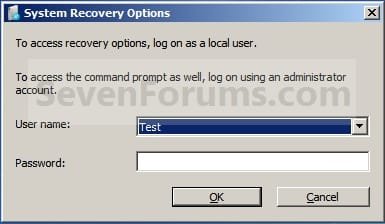
System Image Recovery

How to Do a System Image Recovery in Windows 7


   Information
This will show you how to restore your Windows 7 hard disk back to exactly how it was when you created a system image backup.
   Warning

  • You can only do a system image recovery to a HDD that is the same size or larger than the one the system image was created from. You will not be able to do a system image recovery to a smaller HDD.
  • When you restore your computer from a image backup, it is a complete restoration. You can't choose individual items to restore, and all of your current programs, system settings, and files are replaced.
  • If your backup image is on a external device (ex: USB drive), then make sure it is connected before starting. If USB drive, then also make sure that you have your BIOS settings (ex: Legacy USB) set to allow USB devices at boot.
  • A system image recovery will format everything on each hard drive that was included in a system image, and will only restore what is included (see steps 7-9 in STEP TWO below) in the system image back. Be sure to backup anything that you do not want to lose that is not included in the system image backup first.


STEP ONE

Only if You Renamed the "WindowsImageBackup" Folder


   Note
To be able to have multiple versions of system images saved on the same drive or partition, you would need to rename the older WindowsImageBackup folder from the previously created system image as described in the NOTE box at the top of this tutorial.

If you renamed the WindowsImageBackup folder for the system image version that you wanted to restore, then you will need to do the steps below before you will be able to restore that system image.

1. If you are "Able to Boot" into Windows 7 A) In Windows Explorer, navigate to the renamed (drive letter)\WindowsImageBackup folder location of the system image that you want to restore.

B) If you already have a folder named WindowsImageBackup that is not the system image version that you want to restore, then you will need to right click on it, click on Rename, and type in say WindowsImageBackup-Copy-2 as an example.

C) Now, right click on the renamed system image version (ex: WindowsImageBackup-Copy-1) that you did want to restore, click on Rename, type in WindowsImageBackup an press enter.

D) Go to the STEP TWO section below to do the System Image Recovery.
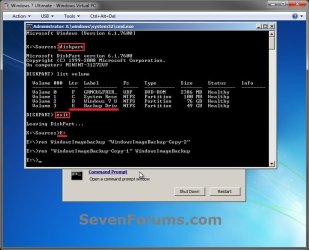
2. If you are "Not Able to Boot" into Windows 7 A) If you have the system image backup save to an external device, be sure that it is connected now.

B) Open a command prompt at boot.

C) In the command prompt, type diskpart and press enter. (see screenshot below)

D) In the command prompt, type list volume and press enter. (see screenshot below)

E) Make note of the drive letter (ex: E: ) that you have the system image backup saved to.

F) In the command prompt, type exit and press enter. (see screenshot below)

G) In the command prompt, type the E: and press enter. (see screenshot below)
NOTE: Subsititute E: for your actual drive letter at step 2E instead.

H) If you already have a folder named "WindowsImageBackup"

NOTE: This is if you already have a folder named WindowsImageBackup that is not the system image version that you want to restore. If so, you would need to rename it to say WindowsImageBackup-Copy-2 as an example.
  • In the command prompt, type the command below and press enter. (see screenshot below)
    NOTE: Substitute WindowsImageBackup-Copy-2 in the command below with any name in quotes that you would like to rename it to instead.
Code:
[B]ren WindowsImageBackup "[COLOR=red]WindowsImageBackup-Copy-2[/COLOR]"[/B]
I) In the command prompt, type the command below and press enter. (see screenshot below)
NOTE: Substitute WindowsImageBackup-Copy-1 in the command below with the actual name of your renamed system image folder in quotes that you want to use to restore instead.
Code:
[B]ren "[COLOR=red]WindowsImageBackup-Copy-1[/COLOR]" WindowsImageBackup[/B]
J) Close the command prompt window. (see screenshot below)

K) Continue on to step 3B in the STEP TWO section below to do the System Image Recovery.
Rename-1.jpg


STEP TWO

To Do the System Image Recovery

1. If you have the system image backup save to an external device, be sure that it is connected and turned on (powered up) now.
A) Start with either step 2 or step 3 below first.
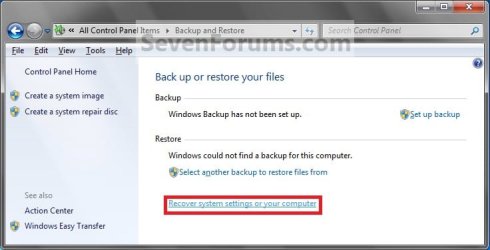
2. From "Backup and Restore" in the Control Panel while in Windows 7 A) Open the Control Panel (icons view), and click on Backup and Restore.

B) Click on the Recover system settings on your computer link. (see screenshot below) Step1.jpg
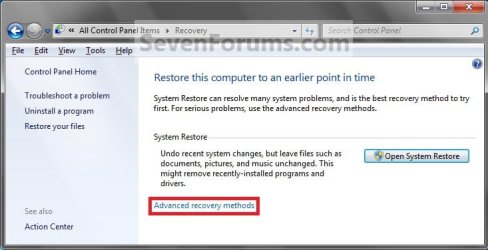
C) Click on the Advanced recovery methods link. (see screenshot below) Step2.jpg
D) Select the Use a system image you created earlier to recover your computer option. (see screenshot below) Step3.jpg
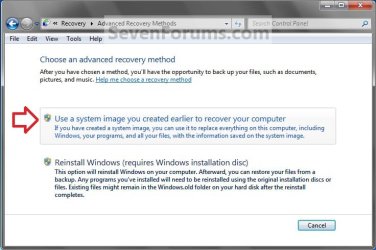
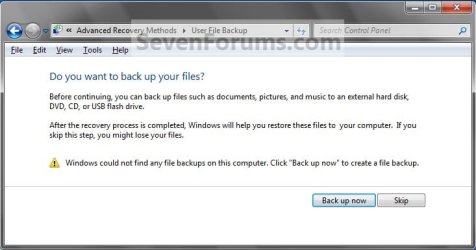
E) Select to either create a Back up now, or to Skip it and continue the system image recovery without backing up any of your current files.
NOTE: If you select Back up now, it will take you to step 6 in this tutorial link to create a User and System File back up of your current files first before continuing to step 1F. (see screenshot below) Step4A.jpg
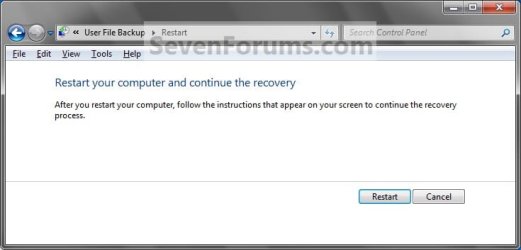
F) Click on Restart. (see screenshot below) Step5A.jpg
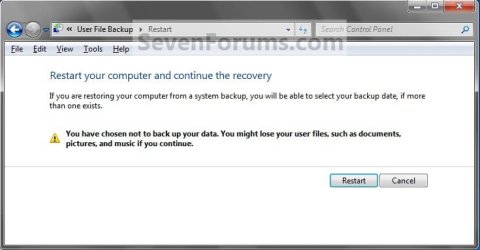
Step5B.jpg

G) Select a languange to be used for your keyboard input and click on Next. (see screenshot below) Step6.jpg
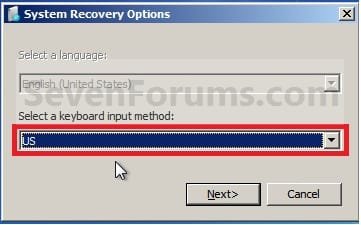
H) Go to step 4.
3. From the System Recovery Options Screen at Boot A) Boot to the System Recovery Options screen from your Windows 7 installation DVD/USB, or System Repair Disc.

B) Select the System Image Recovery option. (see screenshot below) System_Recovery_Options.jpg
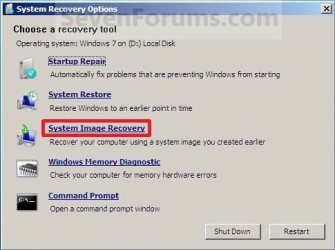
4. If you saved the system image backup to a set of DVDs, then insert the last DVD from the set when prompted. If not, go to step 5 for a system image backup on a hard drive. A) Go to step 7 below.
5. To Use the Latest System Image A) Select (dot) Use the latest available system image and click on Next. (see screenshot below) Step7.jpg
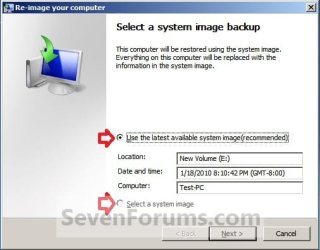
B) Go to step 7.
6. To Select a System Image A) Select (dot) Select a system image, and click on Next. (see screenshot above)
NOTE: This is if the system image that you want to use is not listed here and is at another location that you wish to choose from instead.

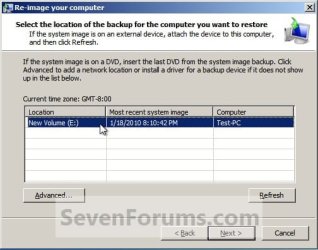
B) Select the location of the backup image for the computer you want to restore from the list, and click on Next. (see screenshot below)

   Note
To add a image from a network location, click on the Advanced button, and on the Search for a system image on the network option.

If the drive cannot be seen to select a system image from, then you may need to use the tutorial below to load your SATA or RAID drivers before it will be seen. You would click on the Advanced button, and on the Install a driver option.

SATA Drivers - Load in Windows 8 System Image Recovery
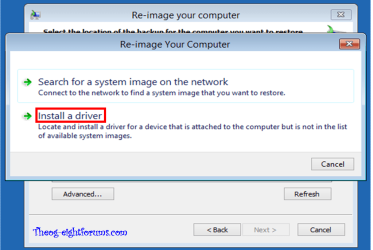
RecoveryBackup004-8.PNG


Step8A.jpg
C) Select the date and time of the system image to restore, and click on Next. (see screenshot below) Step8B.jpg
7. To Do a Full System Image Recovery
NOTE: This option will format everything on each hard disk drive that was included in the system image, then restore them as they were when the system image was created.

   Note
Format and repartition disks box:
NOTE: Special thanks to MJF for this addition. 1) Grayed out and selected
You are forced to have the whole disk formatted and repartitioned to match the partition structure of the disk the image was made from. This can occur when restoring an image to a new disk or the original disk with a modified partition structure. Data on other partitions on the disk you are restoring to will be lost.

2) Grayed out and unselected
You are not given the option to format and repartition the disk. This will occur if you are restoring Windows from a partition on the same disk.

3) Not grayed out and unselected
Here you have the option to select format the whole disk and repartition or not. In this case the disk the image was taken from has a matching partition structure to the disk you are restoring the image to. By not selecting the format and repartition option your image will be restored and other partitions untouched such as valuable data partitions.
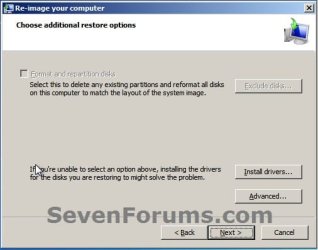
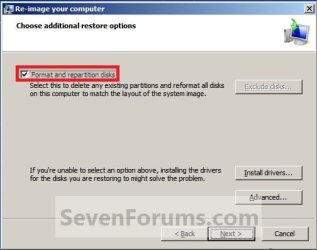
A) Check the Format and repartition disks box (if not grayed out) and uncheck Only restore system drives box (if available), and click on Next. (see screenshots below) Exclude_Disks.jpg
Step9.jpg
System_Drives.jpg
B) Go to step 10.
8. To Only Restore System Drives in System Image Recovery
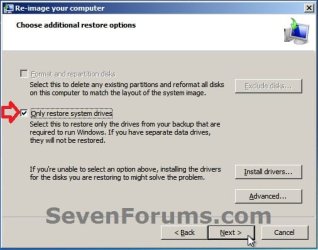
NOTE: When restoring to the same disk containing data partitions, the Format and repartition disks option may format the data partitions as well. If this is the case and you have the option to leave the Format and repartition disks box unchecked, then initially attempt your image recovery with the Format and repartition disks box unchecked. If recovery is unsuccessful, repeat the process with the format box ticked. A) If available, check the Only restore system drives box, and click on Next. (see screenshot below) System_Drives.jpg
B) Go to step 10.
9. To Exclude Restoring Specific Drives in System Image Recovery
NOTE: Since a system image recovery will format everything on each hard disk drive that was included in a system image, this will allow you to exclude specific disks so that specific disk will not be formated or restored. A) Check the Format and repartition disks box , and click on the Exclude disks button (if not grayed out). (see screenshot below)
NOTE: If the Exclude disks button is grayed out, then the HDD that you are restoring to is empty, or you do not have any disks in the system image that are able to be excluded from being restored. Exclude 001.JPG
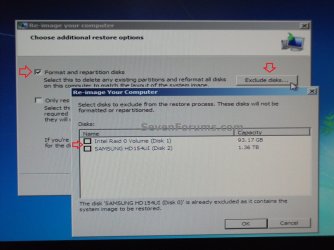
B) Unselect the drives that you want to exclude from being restored.

C) Click on Next.
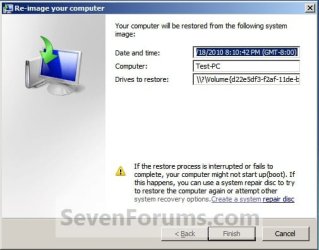
10. Click on Finish. (see screenshot below) Step10.jpg
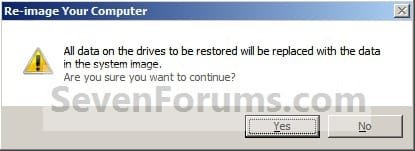
11. Click on Yes. (See screenshot below) Step11.jpg
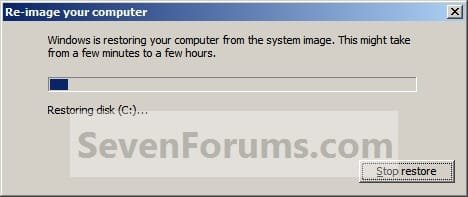
12. You will now see this screenshot below.
NOTE: If you have the backup image on DVDs, have them ready. See step 4 above. Step12.jpg
13. When it is through, click on Restart Now to finish. (see screenshot below)
NOTE: Your computer will restart and the backup image restoration will be done. Step13.jpg
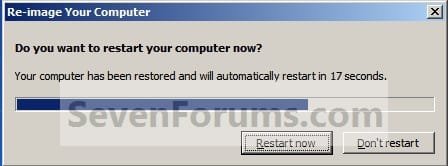
14. If you created a backup in step 1E, then you will now see this option to Restore my files after the computer restarts. (see screenshot below) Step14.jpg
That's it,
Shawn


Attachments

  • Step6A.jpg
    Step6A.jpg
    47.1 KB · Views: 244
Last edited:
Renaming by itself did not work. But I then tried it moving it back to the original location, and it was able to see that system image and I recovered fine.

In the future, if I want to create a system image, if I choose say K:, will it overwrite my old system image? I'm creating the system images manually, should I just set up Windows Backup instead? I didn't want to do that because I didn't want any system resources going to something like that, and I wanted full control over when I make backups and such (I like having a very minimal system). Probably those concerns aren't warranted, but I'm worried about a program always running in the background, or system back up running at a bad time for me or something like that, you know?

If you move the WindowsImageBackup folder to another location, then be sure to also move the MediaID.bin file with it. That file is what helps Windows 7 locate the folder.


System images are saved incrementally when save to a location where another system image has been saved at. If you would like to keep them separate, then you could create a new folder on K, then move the older WindowsImageBackup folder and it's MediaID.bin file into the new folder. Afterwards, you can create a new system image on K without affecting the older one. :)
 

My Computer

Computer type
PC/Desktop
Computer Manufacturer/Model Number
Self built custom
OS
64-bit Windows 11 Pro for Workstations
CPU
Intel i7-8700K OC'd to 5 GHz
Motherboard
ASUS ROG Maximus XI Formula Z390
Memory
64 GB (4x16GB) G.SKILL TridentZ RGB DDR4 3600 MHz
Graphics Card(s)
ASUS ROG-STRIX-GTX1080TI-O11G-GAMING
Sound Card
Integrated
Monitor(s) Displays
2 x Samsung Odyssey G7 27"
Screen Resolution
2560x1440
Hard Drives
1TB Samsung 990 PRO M.2,
4TB Samsung 990 PRO PRO M.2,
TerraMaster F8 SSD Plus NAS
PSU
Seasonic Prime Titanium 850W
Case
Thermaltake Core P3
Cooling
Corsair Hydro H115i
Keyboard
Logitech wireless K800
Mouse
Logitech MX Master 4
Internet Speed
2 Gb/s Download and 100 Mb/s Upload
Antivirus
Malwarebyte Anti-Malware Premium
Browser
Google Chrome
Other Info
Logitech Z625 speaker system,
Logitech BRIO 4K Pro webcam,
HP Color LaserJet Pro MFP M477fdn,
APC SMART-UPS RT 1000 XL - SURT1000XLI,
Galaxy S23 Plus phone
RAID 1 or MIRROR drives, restoring

What a great thread.

I have set my 2 Velociraptor discs as one RAID 1 drive in W7 software raid-ing. The system quite properly sees each of them as a C drive.

I have done a System Image backup of them/it, and to my surprise it went down quite straighforwardly.

I have considered taking an old machine, building it with two old identical drives that I have as a W7 machine (activation might be a problem... but I think I get 30 days or something??). Anyway, I was thinking of doing an experiment like that, as I have no information to suggest that W7 would restore properly.

So, do you know if anyone has successfully done this ? - it is a small world, so I am sure someone must at least have tried !!

I await the crystal ball results...

SF
 

My Computer

Computer type
PC/Desktop
Computer Manufacturer/Model Number
PCSpecialist
OS
Windows 7/64pro(SSD)
CPU
i7 eXtreme 980, 3.33GHz, 6 Cores, 12 Logical Processors
Motherboard
Asus P6TD Deluxe, BIOS 0501
Memory
24 GB
Graphics Card(s)
Nvidia GeForce GTX 285
Sound Card
SoundMax Integrated Digital HD Audio
Monitor(s) Displays
NEC Multisync LCD2690wuxi2 Reference & NEC MultiSync EA232WM
Screen Resolution
1920x1200 & 1920x1080
Hard Drives
System Disk 256GB Samsung SSD, SATA-6, (OS only) +
300G WD3000 Velociraptor (weekly system Clone) +
2 x 1.5TB Seagate 315 Barracuda (in Mirror, RAID 1) (all data) +
2 x 2TB (ext USB3) WD Raid 1 (weekly backup).
Case
Cosmos 1000
Internet Speed
20Mbps
Other Info
APC Back-UPS BR1500GI
Hello SF, and welcome to Seven Forums.

As long as the system image is recognized, then you should have no problems restoring it on the other computer. You will have a issue with restoring the image on another computer since the system image was created from a different computer with different motherboard chipset drivers and such.

Hope this helps,
Shawn
 

My Computer

Computer type
PC/Desktop
Computer Manufacturer/Model Number
Self built custom
OS
64-bit Windows 11 Pro for Workstations
CPU
Intel i7-8700K OC'd to 5 GHz
Motherboard
ASUS ROG Maximus XI Formula Z390
Memory
64 GB (4x16GB) G.SKILL TridentZ RGB DDR4 3600 MHz
Graphics Card(s)
ASUS ROG-STRIX-GTX1080TI-O11G-GAMING
Sound Card
Integrated
Monitor(s) Displays
2 x Samsung Odyssey G7 27"
Screen Resolution
2560x1440
Hard Drives
1TB Samsung 990 PRO M.2,
4TB Samsung 990 PRO PRO M.2,
TerraMaster F8 SSD Plus NAS
PSU
Seasonic Prime Titanium 850W
Case
Thermaltake Core P3
Cooling
Corsair Hydro H115i
Keyboard
Logitech wireless K800
Mouse
Logitech MX Master 4
Internet Speed
2 Gb/s Download and 100 Mb/s Upload
Antivirus
Malwarebyte Anti-Malware Premium
Browser
Google Chrome
Other Info
Logitech Z625 speaker system,
Logitech BRIO 4K Pro webcam,
HP Color LaserJet Pro MFP M477fdn,
APC SMART-UPS RT 1000 XL - SURT1000XLI,
Galaxy S23 Plus phone
I put my question very badly.

I was referring to creating a RAID 1-based system on another computer to test the principle, not the actuality.

That is to say that I am backing up my 'real' system, but have been too wary of trying to restore it, as I cannot afford the time involved if the restore doesn't work, but does screw up the system. I have put the question on other forums, and nobody has responded that they have backed up and restored a system image where all discs are mirrored. That is the real question I am putting.

My favourite utility Acronis, cannot do this in its current version ATIH2010 :(. I had to buy it and go through a number of hoops before finding that Raid 1 and 5 are not supported. That is why I am so doubtful for what is, after all, a free utility in W7.

As I say, I rather confused it originally. I hope you can see where I am coming from now.
 

My Computer

Computer type
PC/Desktop
Computer Manufacturer/Model Number
PCSpecialist
OS
Windows 7/64pro(SSD)
CPU
i7 eXtreme 980, 3.33GHz, 6 Cores, 12 Logical Processors
Motherboard
Asus P6TD Deluxe, BIOS 0501
Memory
24 GB
Graphics Card(s)
Nvidia GeForce GTX 285
Sound Card
SoundMax Integrated Digital HD Audio
Monitor(s) Displays
NEC Multisync LCD2690wuxi2 Reference & NEC MultiSync EA232WM
Screen Resolution
1920x1200 & 1920x1080
Hard Drives
System Disk 256GB Samsung SSD, SATA-6, (OS only) +
300G WD3000 Velociraptor (weekly system Clone) +
2 x 1.5TB Seagate 315 Barracuda (in Mirror, RAID 1) (all data) +
2 x 2TB (ext USB3) WD Raid 1 (weekly backup).
Case
Cosmos 1000
Internet Speed
20Mbps
Other Info
APC Back-UPS BR1500GI
SF,

I have not tried to do a system image recovery to a RAID setup before. I would think that as long as you had the RAID drives setup in BIOS the same way as they were on the image, and had the RAID drivers on a USB stick as a backup incase they needed to be loaded for Windows to recognize the RAID drivers, then you should be able to.

If not, then you will still be able to manually extract any needed files from the system image as well.
 

My Computer

Computer type
PC/Desktop
Computer Manufacturer/Model Number
Self built custom
OS
64-bit Windows 11 Pro for Workstations
CPU
Intel i7-8700K OC'd to 5 GHz
Motherboard
ASUS ROG Maximus XI Formula Z390
Memory
64 GB (4x16GB) G.SKILL TridentZ RGB DDR4 3600 MHz
Graphics Card(s)
ASUS ROG-STRIX-GTX1080TI-O11G-GAMING
Sound Card
Integrated
Monitor(s) Displays
2 x Samsung Odyssey G7 27"
Screen Resolution
2560x1440
Hard Drives
1TB Samsung 990 PRO M.2,
4TB Samsung 990 PRO PRO M.2,
TerraMaster F8 SSD Plus NAS
PSU
Seasonic Prime Titanium 850W
Case
Thermaltake Core P3
Cooling
Corsair Hydro H115i
Keyboard
Logitech wireless K800
Mouse
Logitech MX Master 4
Internet Speed
2 Gb/s Download and 100 Mb/s Upload
Antivirus
Malwarebyte Anti-Malware Premium
Browser
Google Chrome
Other Info
Logitech Z625 speaker system,
Logitech BRIO 4K Pro webcam,
HP Color LaserJet Pro MFP M477fdn,
APC SMART-UPS RT 1000 XL - SURT1000XLI,
Galaxy S23 Plus phone
RAID 1 or MIRROR drives, restoring

OK, Thanks for the info.

As it is my System Drive I am wanting to restore, getting individual files will only be of help if I am an expert and using an emergency repair disc... I want to have the same turnkey performance I am used to with my Acronis 11 on non-Raided XP computers.

So, I am going to build a new W7 installation on my old XP platform (after taking an Acronis 11 backup, of course) and make it RAID 1 to see what backup and restore does. You can be sure I will come back and let you know.

Anyone following this thread that HAS done this, please cough up, or send me a PM !! For more general information on RAID on W7, please note that only PRO and upward will allow RAID-ing of drives.
 

My Computer

Computer type
PC/Desktop
Computer Manufacturer/Model Number
PCSpecialist
OS
Windows 7/64pro(SSD)
CPU
i7 eXtreme 980, 3.33GHz, 6 Cores, 12 Logical Processors
Motherboard
Asus P6TD Deluxe, BIOS 0501
Memory
24 GB
Graphics Card(s)
Nvidia GeForce GTX 285
Sound Card
SoundMax Integrated Digital HD Audio
Monitor(s) Displays
NEC Multisync LCD2690wuxi2 Reference & NEC MultiSync EA232WM
Screen Resolution
1920x1200 & 1920x1080
Hard Drives
System Disk 256GB Samsung SSD, SATA-6, (OS only) +
300G WD3000 Velociraptor (weekly system Clone) +
2 x 1.5TB Seagate 315 Barracuda (in Mirror, RAID 1) (all data) +
2 x 2TB (ext USB3) WD Raid 1 (weekly backup).
Case
Cosmos 1000
Internet Speed
20Mbps
Other Info
APC Back-UPS BR1500GI
RAID 1 SYSTEM DISK NOT A GOOD IDEA AT ALL WINDOWS 7

Withdrawn this posting. I am not at all sure I did not make a mistake by confusing RAID leads in my box!! I am repeating these tests on my old P4 platform.
 
Last edited:

My Computer

Computer type
PC/Desktop
Computer Manufacturer/Model Number
PCSpecialist
OS
Windows 7/64pro(SSD)
CPU
i7 eXtreme 980, 3.33GHz, 6 Cores, 12 Logical Processors
Motherboard
Asus P6TD Deluxe, BIOS 0501
Memory
24 GB
Graphics Card(s)
Nvidia GeForce GTX 285
Sound Card
SoundMax Integrated Digital HD Audio
Monitor(s) Displays
NEC Multisync LCD2690wuxi2 Reference & NEC MultiSync EA232WM
Screen Resolution
1920x1200 & 1920x1080
Hard Drives
System Disk 256GB Samsung SSD, SATA-6, (OS only) +
300G WD3000 Velociraptor (weekly system Clone) +
2 x 1.5TB Seagate 315 Barracuda (in Mirror, RAID 1) (all data) +
2 x 2TB (ext USB3) WD Raid 1 (weekly backup).
Case
Cosmos 1000
Internet Speed
20Mbps
Other Info
APC Back-UPS BR1500GI
SF,

For the best performance and backup security, I would recommend to run a RAID 0 for you Windows 7 installation, then create a system image backup on another HDD than the RAID 0. This way your covered for speed and for RAID drive failure.
 

My Computer

Computer type
PC/Desktop
Computer Manufacturer/Model Number
Self built custom
OS
64-bit Windows 11 Pro for Workstations
CPU
Intel i7-8700K OC'd to 5 GHz
Motherboard
ASUS ROG Maximus XI Formula Z390
Memory
64 GB (4x16GB) G.SKILL TridentZ RGB DDR4 3600 MHz
Graphics Card(s)
ASUS ROG-STRIX-GTX1080TI-O11G-GAMING
Sound Card
Integrated
Monitor(s) Displays
2 x Samsung Odyssey G7 27"
Screen Resolution
2560x1440
Hard Drives
1TB Samsung 990 PRO M.2,
4TB Samsung 990 PRO PRO M.2,
TerraMaster F8 SSD Plus NAS
PSU
Seasonic Prime Titanium 850W
Case
Thermaltake Core P3
Cooling
Corsair Hydro H115i
Keyboard
Logitech wireless K800
Mouse
Logitech MX Master 4
Internet Speed
2 Gb/s Download and 100 Mb/s Upload
Antivirus
Malwarebyte Anti-Malware Premium
Browser
Google Chrome
Other Info
Logitech Z625 speaker system,
Logitech BRIO 4K Pro webcam,
HP Color LaserJet Pro MFP M477fdn,
APC SMART-UPS RT 1000 XL - SURT1000XLI,
Galaxy S23 Plus phone
Did you try running startup repair on DiskM ( after removing DiskS ) ?

OK. I have done some experiments and am a bit unhappy.

I am going to use the names DISK-S and DISK-M for the two disks which make up the mirror set, the C: or system drive. DISK-S is the original system disk, and I added DISK-M to create the mirror set.

  • I can backup the C drive fine (actually is is a backup of DISK-S).
  • I cannot restore the C drive as a mirror set directly, I had to remove DISK-M from the mirror and then restore. Then recreate the mirror set. No sweat, but...
  • I removed the DISK-S physical disk and found that I cannot boot off DISK-M, I found that in the W7 small print, it says so, so there it is. The mirror is therefore not boot security for failure of the original boot disk. It is only a data source.
I have now removed DISK-M from the mirror set, and left DISK-S on its own, and I can do backup and restores, using the native W7 or Acronis.

My own conclusion: Creating a mirror set for the boot drive is pointless. It yeilds little or no security.

As mirror gives no resistance to messing up your system disk in the first place [mistake, virus, instal something mucky] it can only be useful as a real-time hardware backup. But if you cannot actually boot from both drives, you are stuffed.

I have Googled around, following many threads, and found no reference to anyone actually being able to make the mirror bootable.

I am quite happy to leave my two big 1.5TB disks as a mirror set, as I only want hardware protection, if one fails, no major problems - it is just data, I don't have to boot off them.

This draws a line under this topic for me, hope my findings are of help to some other poor soul.

SF

PS. I built a new W7 system on my old P4 computer to try all this, and then duplicated on my new i7.


i7 x980 3.3Ghz, 12GB, Velociraptor 300, Nvidia GeForce GTX 285, NEC Reference 2690, WD Studio Ed II 2TB
 

My Computers

System One System Two

  • Computer type
    PC/Desktop
    OS
    7 X64
    CPU
    i5 8400
    Motherboard
    gigabyte b365m ds3h
    Memory
    2x8gb 3200mhz
    Hard Drives
    various
    PSU
    pure power 11 400w cm
    Case
    Coolermaster
    Cooling
    cryorig m9i
  • Computer type
    PC/Desktop
    OS
    7x64
    CPU
    g5400
    Motherboard
    ga b365m ds3h
    Memory
    8gb ddr4 2400
    PSU
    xfx pro 450w
Shawn,

I think you are right. Assuming all goes well with my P4 experiments, the two VelociRaptors in RAID 0 should be pretty nippy !

SF.
 

My Computer

Computer type
PC/Desktop
Computer Manufacturer/Model Number
PCSpecialist
OS
Windows 7/64pro(SSD)
CPU
i7 eXtreme 980, 3.33GHz, 6 Cores, 12 Logical Processors
Motherboard
Asus P6TD Deluxe, BIOS 0501
Memory
24 GB
Graphics Card(s)
Nvidia GeForce GTX 285
Sound Card
SoundMax Integrated Digital HD Audio
Monitor(s) Displays
NEC Multisync LCD2690wuxi2 Reference & NEC MultiSync EA232WM
Screen Resolution
1920x1200 & 1920x1080
Hard Drives
System Disk 256GB Samsung SSD, SATA-6, (OS only) +
300G WD3000 Velociraptor (weekly system Clone) +
2 x 1.5TB Seagate 315 Barracuda (in Mirror, RAID 1) (all data) +
2 x 2TB (ext USB3) WD Raid 1 (weekly backup).
Case
Cosmos 1000
Internet Speed
20Mbps
Other Info
APC Back-UPS BR1500GI
WINDOWS 7 RAID 1 / MIRROR OF SYSTEM DRIVE

... and how it affects system recovery.
I apologize for posting (slight) misinformation, but it was just a minor mistake, and I can now spell things out a bit better. And I will make it short. If anyone is intested in fine detail, please PM me.

Backing up a system image with Windows 7 native utility is straightforward, if slow.

Removal of either of the two disks is fine, and one can boot off the other. The original system, pre-mirroring, remains the boot drive until it has failed/removed, at which point one boots off the 'secondary plex'.

THUS THE FUNDAMENTAL REQUIREMENT OF MIRRORING IS MET. However, continue...

With secondary plex removed, one can do a restore of system image to the orignal disk.

With original disk removed, one cannot do a restore to the secondary plex. Everything goes well until step 9 in Shawn's original 'how to' on this thread. At that point, the Step 9 screen appears for some moments and then a restore failed screen appears saying that the restore disk is unsuitable for backup, or some such words. A big error message comes up (if you want to know what it says, PM me) which is quite unhelpful, for example suggesting the disk it knows about might be offline.... Having tried everything which is suggested in the repertoire, including invoking a repair, and one or two ideas of my own, I stopped.

My conclusions are more or less the same as before. The RAID1 / MIRROR works as it should and will do what is intended, continuing in the case that one disk fails. But it will not allow restore to the secondary disk. As failure of one disk may have implications for the integrity of the remaining disk, implying a restore of a recent backup, it will not do this without a fight. Not for naive users.

I am not going to mirror my system disk. I belong to the school which expects things to work, and if they don't, I am prepared to do a certain amount of techy stuff, but I am not a Windows 7 development engineer!!

Incidentally, after finishing my tests, I wanted to return my P4 platform back to its old XP state. Acronis could see the disk, but greyed it out as unusable :(

I had to fire up to DISKPART with my Windows 7 installation disk and get rid of the whole Windows 7 setup and partitioning of the disk:-

Fire up the Windows 7 repair or installation disk, get to STEP 2 in the original post of this thread. Select Command Prompt
>DISKPART
DISKPART> LIST DISK (find out the ID of your problem disk, 1 in my case)
DISKPART> SELECT DISK 1 (make the disk having problems the focus)
DISKPART> CREATE VOLUME SIMPLE (without this, you do not have a volume)
DISKPART> LIST VOLUME (and thus identify the volume ID, in my case it was 3)
DISKPART> SELECT VOLUME 3 (make this volume the focus)
DISKPART> CLEAN (get rid of all the partitioning etc)
DISKPART> FORMAT FS=NTFS QUICK (does the format to the current volume)

Now it appears in Acronis and I am back where I started.

I have now satisfied myself as to the state of affairs, and I suggest that anyone who feels I did not go far enough -- do what I did, get an old system together with two drives. Put Windows 7 on the smallest and then make a mirror with the other and do your own experiments, but until you have, don't mirror your system drive on your 'real' working system.

Geeks: if you find a way to sort out the restore to a surviving secondary plex - I'd love to know, please PM me. But suggestions as to how to do it from 'guessers' would not be welcome, try the suggestion before posting it.
 

My Computer

Computer type
PC/Desktop
Computer Manufacturer/Model Number
PCSpecialist
OS
Windows 7/64pro(SSD)
CPU
i7 eXtreme 980, 3.33GHz, 6 Cores, 12 Logical Processors
Motherboard
Asus P6TD Deluxe, BIOS 0501
Memory
24 GB
Graphics Card(s)
Nvidia GeForce GTX 285
Sound Card
SoundMax Integrated Digital HD Audio
Monitor(s) Displays
NEC Multisync LCD2690wuxi2 Reference & NEC MultiSync EA232WM
Screen Resolution
1920x1200 & 1920x1080
Hard Drives
System Disk 256GB Samsung SSD, SATA-6, (OS only) +
300G WD3000 Velociraptor (weekly system Clone) +
2 x 1.5TB Seagate 315 Barracuda (in Mirror, RAID 1) (all data) +
2 x 2TB (ext USB3) WD Raid 1 (weekly backup).
Case
Cosmos 1000
Internet Speed
20Mbps
Other Info
APC Back-UPS BR1500GI
hi. I tried to install image to my new 160gb ssd on my laptop. but an error message popped up.

"no disk that can be used for recovering the system can be found"

what seems to be the problem here? thanks in advance.
 

My Computer

Computer Manufacturer/Model Number
Toshiba Satellite a505
OS
windows 7 home
CPU
i7 Q720
Memory
4gb
Graphics Card(s)
Nvidia 310m
Sound Card
integrated
Monitor(s) Displays
16"
Hard Drives
500 GB 5400rpm
Hello Louj,

This means that Windows 7 cannot find a hard disk to restore your system image to. If you have a RAID setup, then you may need to load your RAID drivers before it will see and recognize the RAID drives to restore the system image to. You should have a "Load drivers" button in the window with this error message in it.

Hope this helps,
Shawn
 

My Computer

Computer type
PC/Desktop
Computer Manufacturer/Model Number
Self built custom
OS
64-bit Windows 11 Pro for Workstations
CPU
Intel i7-8700K OC'd to 5 GHz
Motherboard
ASUS ROG Maximus XI Formula Z390
Memory
64 GB (4x16GB) G.SKILL TridentZ RGB DDR4 3600 MHz
Graphics Card(s)
ASUS ROG-STRIX-GTX1080TI-O11G-GAMING
Sound Card
Integrated
Monitor(s) Displays
2 x Samsung Odyssey G7 27"
Screen Resolution
2560x1440
Hard Drives
1TB Samsung 990 PRO M.2,
4TB Samsung 990 PRO PRO M.2,
TerraMaster F8 SSD Plus NAS
PSU
Seasonic Prime Titanium 850W
Case
Thermaltake Core P3
Cooling
Corsair Hydro H115i
Keyboard
Logitech wireless K800
Mouse
Logitech MX Master 4
Internet Speed
2 Gb/s Download and 100 Mb/s Upload
Antivirus
Malwarebyte Anti-Malware Premium
Browser
Google Chrome
Other Info
Logitech Z625 speaker system,
Logitech BRIO 4K Pro webcam,
HP Color LaserJet Pro MFP M477fdn,
APC SMART-UPS RT 1000 XL - SURT1000XLI,
Galaxy S23 Plus phone
thanks for the reply, but I just installed a 160gb SSD and it's a toshiba laptop so probably I would need a toshiba recovery disc for this as based on my past experiences with toshiba laptops from XP to Vista. Thanks again. will get back if I do get over this bump.
 

My Computer

Computer Manufacturer/Model Number
Toshiba Satellite a505
OS
windows 7 home
CPU
i7 Q720
Memory
4gb
Graphics Card(s)
Nvidia 310m
Sound Card
integrated
Monitor(s) Displays
16"
Hard Drives
500 GB 5400rpm
Hey Brink

Here is my setup :
1tb = 3 Partitions c(boot+system) / d(storage) / system recovery
1tb = Storage
250gig = external

I made a system image of my C drive on the external 250gig drive, it's +-160gig

My question is,will I be able to restore ONLY the C drive from the image I made??
The D drive is full of files and I'm not keen on loosing it.

Will this be safe to do, will my other partitions on the main TB be untouched??

Tnx in advance
 

My Computer

Computer Manufacturer/Model Number
-ME-
OS
Windows 7 Ultimate 64 bit
CPU
INTEL sandybridge i7 2600 @ 3,4ghz
Motherboard
Asus p8p67 REV 3.1
Memory
Corsiar 1333mhz 4x2gig DDR3, total 8gig
Graphics Card(s)
MSI GTX560 ti Twin Frozer II 1gb 256bit GDDR5
Monitor(s) Displays
Samsung B2330 23" , LG 22" Flatron W2242S
Screen Resolution
1920x1080p , 1680 x 1050
Hard Drives
250 gig WD : System,
1TB Seagate Barraguda 7200rpm,
2TB Seagate Barraguda 7200rpm,
1TB Seagate Barraguda 7200rpm external
2TB WD Elements External
PSU
Corsair TX750w
Case
Cooler Master 690 ii Advance Side Window
Cooling
CPU: CM Hyper 212 Plus with 2 Blue LED 120mm CM fans
Keyboard
Microsoft Sidewinder 4
Mouse
Saitec CYBORG R.A.T.5 Lazer gaming mouse
Hello Stomper,

A system image recovery will format everything on each hard drive that was included in a system image, and will only restore what is included in the system image back. Be sure to backup anything that you do not want to lose that is not included in the system image backup first.
 
Last edited:

My Computer

Computer type
PC/Desktop
Computer Manufacturer/Model Number
Self built custom
OS
64-bit Windows 11 Pro for Workstations
CPU
Intel i7-8700K OC'd to 5 GHz
Motherboard
ASUS ROG Maximus XI Formula Z390
Memory
64 GB (4x16GB) G.SKILL TridentZ RGB DDR4 3600 MHz
Graphics Card(s)
ASUS ROG-STRIX-GTX1080TI-O11G-GAMING
Sound Card
Integrated
Monitor(s) Displays
2 x Samsung Odyssey G7 27"
Screen Resolution
2560x1440
Hard Drives
1TB Samsung 990 PRO M.2,
4TB Samsung 990 PRO PRO M.2,
TerraMaster F8 SSD Plus NAS
PSU
Seasonic Prime Titanium 850W
Case
Thermaltake Core P3
Cooling
Corsair Hydro H115i
Keyboard
Logitech wireless K800
Mouse
Logitech MX Master 4
Internet Speed
2 Gb/s Download and 100 Mb/s Upload
Antivirus
Malwarebyte Anti-Malware Premium
Browser
Google Chrome
Other Info
Logitech Z625 speaker system,
Logitech BRIO 4K Pro webcam,
HP Color LaserJet Pro MFP M477fdn,
APC SMART-UPS RT 1000 XL - SURT1000XLI,
Galaxy S23 Plus phone
I am a very novice user and do not have alot of knowledge about computers, just basis stuff. I am using windows 7 and i cannot figure what the difference is between a normal system backup where I would burn to a disk and a "System Image Backup", what is the difference? I have googled it and it kinda talks over my head. I want to make sure that I am doing what i need to when i do backups so I will be safe should i need to restore everything. Can you please explain this to me? Thank you very much:)
 

My Computer

Computer Manufacturer/Model Number
HP dv7-3057nr Notebook laptop
OS
windows 7
CPU
AMD Turion(tm) 11 dual-core modbile m500 2.20 ghz
Motherboard
dont know
Memory
4.00 gb
Sound Card
ATI High Defination Audio device/ IDT High Def Audio CODEC
Monitor(s) Displays
GENERIC pNp
Hard Drives
IOMEGA 500GB EHD
Hello Kariok, and welcome to Seven Forums.

A normal file backup (see blue NOTE box at this link for more details) is where you backup only files or type of files with or without being on a schedule, and the option to include a full system image backup as well if wanted.

A system image backup is a complete clone (copy) of the selected hard drives that you select. See red WARNING box at the top of the first page for more details though.

Hope this helps,
Shawn
 

My Computer

Computer type
PC/Desktop
Computer Manufacturer/Model Number
Self built custom
OS
64-bit Windows 11 Pro for Workstations
CPU
Intel i7-8700K OC'd to 5 GHz
Motherboard
ASUS ROG Maximus XI Formula Z390
Memory
64 GB (4x16GB) G.SKILL TridentZ RGB DDR4 3600 MHz
Graphics Card(s)
ASUS ROG-STRIX-GTX1080TI-O11G-GAMING
Sound Card
Integrated
Monitor(s) Displays
2 x Samsung Odyssey G7 27"
Screen Resolution
2560x1440
Hard Drives
1TB Samsung 990 PRO M.2,
4TB Samsung 990 PRO PRO M.2,
TerraMaster F8 SSD Plus NAS
PSU
Seasonic Prime Titanium 850W
Case
Thermaltake Core P3
Cooling
Corsair Hydro H115i
Keyboard
Logitech wireless K800
Mouse
Logitech MX Master 4
Internet Speed
2 Gb/s Download and 100 Mb/s Upload
Antivirus
Malwarebyte Anti-Malware Premium
Browser
Google Chrome
Other Info
Logitech Z625 speaker system,
Logitech BRIO 4K Pro webcam,
HP Color LaserJet Pro MFP M477fdn,
APC SMART-UPS RT 1000 XL - SURT1000XLI,
Galaxy S23 Plus phone
Thank you so much Shawn!! this really clears things up for me and I really appreciate the quick response to my question. Kari
 

My Computer

Computer Manufacturer/Model Number
HP dv7-3057nr Notebook laptop
OS
windows 7
CPU
AMD Turion(tm) 11 dual-core modbile m500 2.20 ghz
Motherboard
dont know
Memory
4.00 gb
Sound Card
ATI High Defination Audio device/ IDT High Def Audio CODEC
Monitor(s) Displays
GENERIC pNp
Hard Drives
IOMEGA 500GB EHD
You're most welcome Kariok. :)
 

My Computer

Computer type
PC/Desktop
Computer Manufacturer/Model Number
Self built custom
OS
64-bit Windows 11 Pro for Workstations
CPU
Intel i7-8700K OC'd to 5 GHz
Motherboard
ASUS ROG Maximus XI Formula Z390
Memory
64 GB (4x16GB) G.SKILL TridentZ RGB DDR4 3600 MHz
Graphics Card(s)
ASUS ROG-STRIX-GTX1080TI-O11G-GAMING
Sound Card
Integrated
Monitor(s) Displays
2 x Samsung Odyssey G7 27"
Screen Resolution
2560x1440
Hard Drives
1TB Samsung 990 PRO M.2,
4TB Samsung 990 PRO PRO M.2,
TerraMaster F8 SSD Plus NAS
PSU
Seasonic Prime Titanium 850W
Case
Thermaltake Core P3
Cooling
Corsair Hydro H115i
Keyboard
Logitech wireless K800
Mouse
Logitech MX Master 4
Internet Speed
2 Gb/s Download and 100 Mb/s Upload
Antivirus
Malwarebyte Anti-Malware Premium
Browser
Google Chrome
Other Info
Logitech Z625 speaker system,
Logitech BRIO 4K Pro webcam,
HP Color LaserJet Pro MFP M477fdn,
APC SMART-UPS RT 1000 XL - SURT1000XLI,
Galaxy S23 Plus phone
Back
Top