User Folders - Change Default Location

How to Change the Default Location of User Folders in Windows 7 and Windows 8

   Information
This will show you how to change (move) the default location of your account's C:\Users\(user-name) folders to another location of your choice instead in Windows 7 and Windows 8, and still have access to the user folder from the Start Menu (Windows 7 only) location.

   Tip
If you are just wanting to save HDD space, then you might consider this below to be able to access the files from your libraries with the files actually located where you like instead. This way you will not have to worry about any potential issues that come with moving user folder locations. For example, whatever partition you move your user folders to will now be included in a system image in Windows 7 and Windows 8.

  • Create a new folder at any location you want.
  • Move any files you want into the new folder.
  • Include the new folder into a library (Windows 7 or Windows 8) of your choice.
  • If you like, you can also set the new folder to be the default save to location (Windows 7 or Windows 8) for the library as well.
   Warning
If you change the default location of your Favorites folder in Windows 8 or 8.1, your Favorites in Internet Explorer will no longer be available until you move your Favorites back to the default "C:\Users\(user-name)" location.


EXAMPLE: User Folders
NOTE: This is at the default C:\Users\(user-name) location.
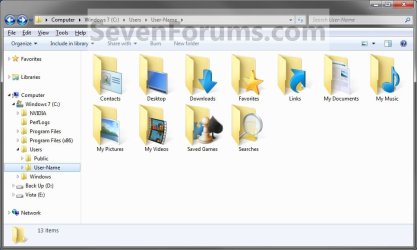
Example1.jpg

Windows_8.1.jpg


OPTION ONE

To Change Main User Profile Folder Location


1. For how, see:
http://www.sevenforums.com/tutorials/87555-user-profile-change-default-location.html

OR

How to Relocate User Profiles to another Partition or Disk in Windows 8


OPTION TWO

To Change User Folders Location from within User Profile Folder


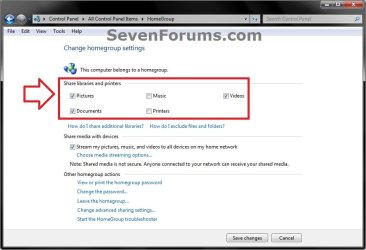
1. If you a part of a homegroup, then you will need to change the homegroup settings to no longer share the user folder (ex: My Music) that you want to move first by unchecking the folder and clicking on Save Changes. (see screenshot below)
NOTE: This is so the user folder (ex: My Music) will not be shared on the homegroup anymore.
Homegroup.jpg
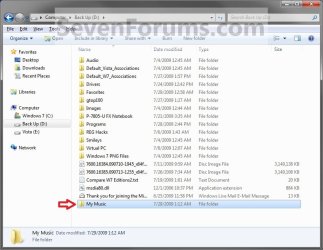
2. In Windows Explorer, navigate to where (ex: D: drive) you want to move the default user folder (ex: My Music) location to.

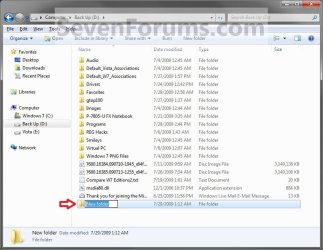
3. Create a New Folder by right clicking or press and hold on a empty space in the main window there, and click/tap on New and Folder. Name the new folder without spaces (ex: "Music" for My Music) for the user folder that you want to move there. (See screenshots below)
NOTE: The name that you type in for the new folder will be what you see as the user folder name in the Start Menu (shell:UsersFilesFolder) location when finished with all of these steps. It would be best to use the same name as the user folder to avoid confusion.
Rename1.jpg

Rename2.jpg

4. Close this window. (See screenshots above)

5. Press the Windows+R keys to open the Run dialog, type shell:UsersFilesFolder, and press enter.
NOTE: This will open your C:\Users\(user-name) folder.

6. Right click or press and hold on a user folder (ex: My Music, My Documents, My Pictures, etc.....) that you want to move the default location for, and click/tap on Properties. (See screenshot below)
Right_Click_On_A_User_Folder.jpg
7. Click/tap on the Location tab, and Move button. (See screenshot below)
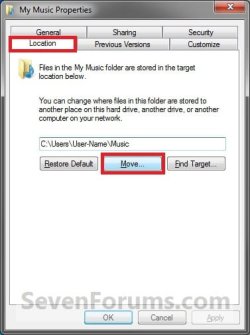
Properties1.jpg
8. Navigate to the same location as in step 2 and 3 above, then select the renamed new folder (ex: Music), and click/tap on the Select Folder button. (See screenshot below)
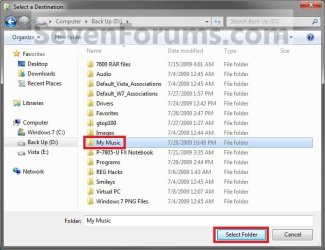
Properties2.jpg
9. Click/tap on OK. (See screenshot below)
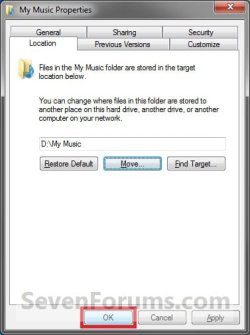
Properties3.jpg
10. Click/tap on Yes. (See screenshot below)
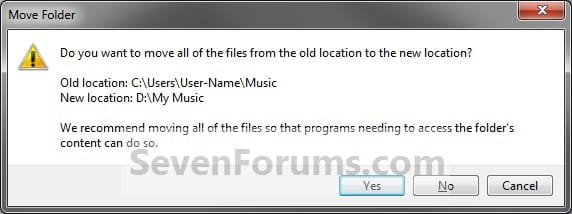
Properties4.jpg
11. After a few seconds when the location has been changed, the Properties window (screenshot under step 9) will then close.

12. Check back at the C:\Users\(user-name) location to make sure that the old user folder (ex: My Music) that you moved is no longer there. If it is, then make sure that the contents of the folder were moved to the new location, and delete it. (See screenshot below)
NOTE: If you are unable to delete the folder, then restart the computer and try again.
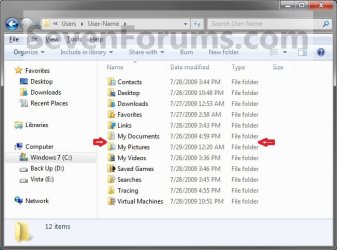
Finished2.jpg
13. You will notice that the folder at the shell:UsersFilesFolder location and the new location (ex: D drive) you moved the user folder to, now has the default user folder (ex: My Music) icon. (See screenshot below)
NOTE: The Start Menu in Windows 7 now opens the user folder from the new location (ex: D: drive) that you moved the user folder to.
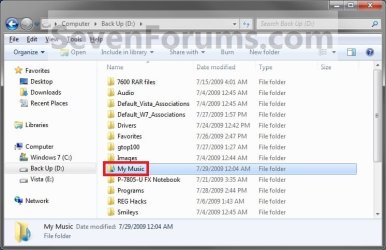
Finished.jpg
14. If you a part of a homegroup, then you can now change the homegroup settings back to share the user folder (ex: My Music) again if you like by checking the folder, and click/tap on Save Changes. (see screenshot below)
Homegroup.jpg
   Tip
If you wanted to restore the default location of the user folder, then see:

How to Restore the Default Location of User Folders in Windows 7 and Windows 8


That's it,
Shawn


Last edited:
  • Like
Reactions: Lee
Brink,

Thanks, after finishing reading, I printed it to PDF. That way I can get right the first time. Good info. :thumbsup:
 

My Computer

Computer Manufacturer/Model Number
HP Pavilion a4302f
OS
Win 7 Pro x64, VM Win XP, Win7 Pro Sandbox, Kubuntu 11
CPU
AMD Athlon(tm) II X4 640 @ 3.0 Gbz
Memory
12GB 1066MHz DDR3 SDRAM - 2x4GB, 2x2GB
Graphics Card(s)
ATI Radeon HD 4350 HD Graphics/Audio with 512MB
Sound Card
Realtek High Definition Audio
Monitor(s) Displays
1. Dell 23" SP2307, 2. Mitsublishi 40" HDTV, Hannspree 25"
Screen Resolution
1. 2048x1152, 2. 1920-1080, 3. 1920x1200
Hard Drives
Int: 1 120 Gig SSD i
1 - 2.5" 500 USB External HDD
1 -1 Tb USB External HDD
Case
Mid Tower
Cooling
Standard Fans - 5 fans (very quiet)
Keyboard
Microsoft Wireless 2000
Mouse
Microsoft Wireless Mouse 5000
Internet Speed
10 Mbit (realistically 500 Kbit - 1.2 Mbit)
Other Info
Speakers - Bose Desktop (Excellent Sound)
1 external CD|DVD\Blue-ray Recorders/Players (Sony)
You're most welcome Lee. :)
 

My Computer

Computer type
PC/Desktop
Computer Manufacturer/Model Number
Self built custom
OS
64-bit Windows 11 Pro for Workstations
CPU
Intel i7-8700K OC'd to 5 GHz
Motherboard
ASUS ROG Maximus XI Formula Z390
Memory
64 GB (4x16GB) G.SKILL TridentZ RGB DDR4 3600 MHz
Graphics Card(s)
ASUS ROG-STRIX-GTX1080TI-O11G-GAMING
Sound Card
Integrated
Monitor(s) Displays
2 x Samsung Odyssey G7 27"
Screen Resolution
2560x1440
Hard Drives
1TB Samsung 990 PRO M.2,
4TB Samsung 990 PRO PRO M.2,
TerraMaster F8 SSD Plus NAS
PSU
Seasonic Prime Titanium 850W
Case
Thermaltake Core P3
Cooling
Corsair Hydro H115i
Keyboard
Logitech wireless K800
Mouse
Logitech MX Master 4
Internet Speed
2 Gb/s Download and 100 Mb/s Upload
Antivirus
Malwarebyte Anti-Malware Premium
Browser
Google Chrome
Other Info
Logitech Z625 speaker system,
Logitech BRIO 4K Pro webcam,
HP Color LaserJet Pro MFP M477fdn,
APC SMART-UPS RT 1000 XL - SURT1000XLI,
Galaxy S23 Plus phone
You presented the exact question I was seeking, but your answer illustrates moving a sub-folder of the default user. I installed Windows 7 and provided a username, so the default folder is c:\users\user1. There is a lock icon on this folder. I want to assign this machine to jjones and want the default directory to be c:\users\jjones with all the sub-folders of music, video, documents... I changed the login to jjones(admin), thinking it would change the folders. Maybe I missed a step... Thanks!
 

My Computer

Computer Manufacturer/Model Number
Dell Inspiron 1420
OS
Windows 7
CPU
Intel
Motherboard
Intel
Memory
3GB
Graphics Card(s)
Nvidia
Hello SHOGuide, and welcome to Seven Forums.

The only way you can change the C:\Users\(user name) folder is to create a new administrator account with a different name than the user1 and jjones that you assigned to the other account. Afterwards, copy the contents of your C:\users\user1 folders into the corresponding new account's C:\Users\(user name) folders. When everything checks out ok, you can then delete the old user account from within the new one.

Hope this helps,
Shawn
 
Last edited:

My Computer

Computer type
PC/Desktop
Computer Manufacturer/Model Number
Self built custom
OS
64-bit Windows 11 Pro for Workstations
CPU
Intel i7-8700K OC'd to 5 GHz
Motherboard
ASUS ROG Maximus XI Formula Z390
Memory
64 GB (4x16GB) G.SKILL TridentZ RGB DDR4 3600 MHz
Graphics Card(s)
ASUS ROG-STRIX-GTX1080TI-O11G-GAMING
Sound Card
Integrated
Monitor(s) Displays
2 x Samsung Odyssey G7 27"
Screen Resolution
2560x1440
Hard Drives
1TB Samsung 990 PRO M.2,
4TB Samsung 990 PRO PRO M.2,
TerraMaster F8 SSD Plus NAS
PSU
Seasonic Prime Titanium 850W
Case
Thermaltake Core P3
Cooling
Corsair Hydro H115i
Keyboard
Logitech wireless K800
Mouse
Logitech MX Master 4
Internet Speed
2 Gb/s Download and 100 Mb/s Upload
Antivirus
Malwarebyte Anti-Malware Premium
Browser
Google Chrome
Other Info
Logitech Z625 speaker system,
Logitech BRIO 4K Pro webcam,
HP Color LaserJet Pro MFP M477fdn,
APC SMART-UPS RT 1000 XL - SURT1000XLI,
Galaxy S23 Plus phone
Thank you! This is what I was looking for. I was hopeful that if I just changed the only Admin login from user1 to jjones that Windows would simply prompt me to rename everything that was associated with user1. After thinking about it, that would not be easy for the system to do. I'm still trying to get used to the Libraries folder structure. It has initially been confusing.
 

My Computer

Computer Manufacturer/Model Number
Dell Inspiron 1420
OS
Windows 7
CPU
Intel
Motherboard
Intel
Memory
3GB
Graphics Card(s)
Nvidia
You're welcome SHOGuide.

If it helps any, you can think of the Libraries as a collections of shortcuts to make accessing and changing files from different locations easier to do in one location (library) instead.
 

My Computer

Computer type
PC/Desktop
Computer Manufacturer/Model Number
Self built custom
OS
64-bit Windows 11 Pro for Workstations
CPU
Intel i7-8700K OC'd to 5 GHz
Motherboard
ASUS ROG Maximus XI Formula Z390
Memory
64 GB (4x16GB) G.SKILL TridentZ RGB DDR4 3600 MHz
Graphics Card(s)
ASUS ROG-STRIX-GTX1080TI-O11G-GAMING
Sound Card
Integrated
Monitor(s) Displays
2 x Samsung Odyssey G7 27"
Screen Resolution
2560x1440
Hard Drives
1TB Samsung 990 PRO M.2,
4TB Samsung 990 PRO PRO M.2,
TerraMaster F8 SSD Plus NAS
PSU
Seasonic Prime Titanium 850W
Case
Thermaltake Core P3
Cooling
Corsair Hydro H115i
Keyboard
Logitech wireless K800
Mouse
Logitech MX Master 4
Internet Speed
2 Gb/s Download and 100 Mb/s Upload
Antivirus
Malwarebyte Anti-Malware Premium
Browser
Google Chrome
Other Info
Logitech Z625 speaker system,
Logitech BRIO 4K Pro webcam,
HP Color LaserJet Pro MFP M477fdn,
APC SMART-UPS RT 1000 XL - SURT1000XLI,
Galaxy S23 Plus phone
What is UsersFilesFolder in shell:UsersFilesFolder in Setp 3.? I thought it is Favorites when I wanted to relocate this folder but it does not seems to be so.
 

My Computer

Computer type
PC/Desktop
OS
W7 Ult x64, W8 Pro x64 and W10 Pro x64
CPU
Phenom FX6300
Motherboard
Gigabyte GA-970A-UD3 rev. 1.2
Memory
16GB DDR3 1866 G.Skill F3-1866C9D-16GWM x2
Graphics Card(s)
Radeon R7 360
Sound Card
Asus Xonar DS
Monitor(s) Displays
27" x2, Dell P2715Q
Screen Resolution
3840 x 2160
Hard Drives
Samsung 850Pro 1TB SSD - system
Samsung 4TB SSD - Data
PSU
Corsair CX450M
Case
Corsair 200R
Cooling
Zalman CNPS5X Performa
Internet Speed
400Mbps/12Mbps
Other Info
2nd machine: Same as above
3rd machine: Apple MacAir with W7 Ult installed
What is UsersFilesFolder in shell:UsersFilesFolder in Setp 3.? I thought it is Favorites when I wanted to relocate this folder but it does not seems to be so.

The shell:UsersFilesFolder is the system identifier for the user folder which appers as the user name in the start menu or explorer.

It is the pointer to the folder c:\users\{user} in the default setup but is not as far as I am aware relocatable using the location function
 

My Computers

System One System Two

  • Computer type
    PC/Desktop
    Computer Manufacturer/Model Number
    ChillBlast - Custom to my design
    OS
    Windows 11 Pro x64 [Latest Release and Release Preview]
    CPU
    Ryzen 9 5950X, 3.8 - 5.2 MHz
    Motherboard
    Asus Prime X570-Pro
    Memory
    64GB [2 x 32GB] DDR4 3200MHz
    Graphics Card(s)
    4GB NVIDIA GEFORCE GTX 1650 Ti
    Sound Card
    On-board SPDIF to 5.1 System + HDMI [5.1 system]
    Monitor(s) Displays
    32" UHD 32 Bit HDR Monitor + 43" UHD 4K 32Bit HDR TV
    Screen Resolution
    2 x 3840 x 2160 @60Hz
    Hard Drives
    1TB M2 SSD OS, 500GB Fast Access SSD, 2 x 8TB Data + Various Externals from 1TB to 4TB, 10TB NAS
    PSU
    NZXT C750 80 PLUS Gold 750W Modular PSU
    Case
    Workstation Case [Matt Black]
    Cooling
    NZXT Kraken X63 280mm CPU Cooler +2x Quiet Case fans
    Keyboard
    Logitech Wireless MX Keys & K400 + others
    Mouse
    Logitech Wireless MX Master 3S
    Internet Speed
    920 MB Down 50 MB Up
    Antivirus
    BitDefender Total Security Pro
    Browser
    Chrome (always run latest Non-Beta)
    Other Info
    Also run ...
    Laptop - Quad 8GB - Windows 10 Pro x64
    Nexus 7 Android tablet x2
    Samsung 10.2" tablet
    Blackview TAB 8 4G Android Tablet c/w Keyboard
    Wacom Intuos Pro Medium Pen Pad
    Wacom Intuos Pro Small Pen Pad
    Wacom Expresskeys Remote
    Loopdeck+ Graphics Controller
    Shuttle Pro v2 Control
  • Computer type
    Laptop
    System Manufacturer/Model Number
    Dell XPS 17 10750H
    OS
    Windows 11 Pro x64 Latest RP
    CPU
    Intel I7 10750H 5.0GHz
    Motherboard
    Dell XPS
    Memory
    32GB [2x16GB] DDR4 2933 MHz
    Graphics Card(s)
    nVidia GTX1650Ti 4 GB GDDR6
    Sound Card
    Stock [Realtek] 4 Speaker
    Monitor(s) Displays
    17" IPS UHD+ Infinity Edge Touchscreen
    Screen Resolution
    3840 x 2400
    Hard Drives
    2TB M2 NVMe, 4TB External + various 500GB & 1TB External NVMe (also have access to spinner HDD from
    PSU
    Stock
    Case
    Stock XPS Aluminium & Carbon Fibre
    Cooling
    Stock - Active Fan Control
    Keyboard
    Backlit + Various Logitech
    Mouse
    Stock Track Pad + Logitech MX Trackball
    Internet Speed
    72 MB Down 18MB Up
    Browser
    Chrome
    Other Info
    Also run ...
    Laptop - Quad 8GB - Windows 10 Pro x64
    Nexus 7 Android tablet x2
    10.2" tablet
    Sony Z3 Android Smartphone
    Wacom Intuos Pro Medium Pen Pad
    Wacom Intuos Pro Small Pen Pad
    Wacom Expresskeys Remote
    Loopdeck+ Graphics Controller
    Shuttle Pro v2 Control Pad
    10TB NAS
What is UsersFilesFolder in shell:UsersFilesFolder in Setp 3.? I thought it is Favorites when I wanted to relocate this folder but it does not seems to be so.

The shell:UsersFilesFolder is the system identifier for the user folder which appers as the user name in the start menu or explorer.

My question is what the UsersFilesFolder is. Whereas your answer is shell:UsersFilesFolder is ........ Please provide what goes in place of UsersFilesFolder by a spcific example.
 

My Computer

Computer type
PC/Desktop
OS
W7 Ult x64, W8 Pro x64 and W10 Pro x64
CPU
Phenom FX6300
Motherboard
Gigabyte GA-970A-UD3 rev. 1.2
Memory
16GB DDR3 1866 G.Skill F3-1866C9D-16GWM x2
Graphics Card(s)
Radeon R7 360
Sound Card
Asus Xonar DS
Monitor(s) Displays
27" x2, Dell P2715Q
Screen Resolution
3840 x 2160
Hard Drives
Samsung 850Pro 1TB SSD - system
Samsung 4TB SSD - Data
PSU
Corsair CX450M
Case
Corsair 200R
Cooling
Zalman CNPS5X Performa
Internet Speed
400Mbps/12Mbps
Other Info
2nd machine: Same as above
3rd machine: Apple MacAir with W7 Ult installed
Hello Churin,

The shell command shell:UsersFilesFolder is just another way to open the C:\Users\(user-name) folder. That's all.

If you wanted to relocate the C:\Users\(user-name)\Favorites folder, then you would select the Favorites folder when you get to step 5.

Hope this helps,
Shawn
 

My Computer

Computer type
PC/Desktop
Computer Manufacturer/Model Number
Self built custom
OS
64-bit Windows 11 Pro for Workstations
CPU
Intel i7-8700K OC'd to 5 GHz
Motherboard
ASUS ROG Maximus XI Formula Z390
Memory
64 GB (4x16GB) G.SKILL TridentZ RGB DDR4 3600 MHz
Graphics Card(s)
ASUS ROG-STRIX-GTX1080TI-O11G-GAMING
Sound Card
Integrated
Monitor(s) Displays
2 x Samsung Odyssey G7 27"
Screen Resolution
2560x1440
Hard Drives
1TB Samsung 990 PRO M.2,
4TB Samsung 990 PRO PRO M.2,
TerraMaster F8 SSD Plus NAS
PSU
Seasonic Prime Titanium 850W
Case
Thermaltake Core P3
Cooling
Corsair Hydro H115i
Keyboard
Logitech wireless K800
Mouse
Logitech MX Master 4
Internet Speed
2 Gb/s Download and 100 Mb/s Upload
Antivirus
Malwarebyte Anti-Malware Premium
Browser
Google Chrome
Other Info
Logitech Z625 speaker system,
Logitech BRIO 4K Pro webcam,
HP Color LaserJet Pro MFP M477fdn,
APC SMART-UPS RT 1000 XL - SURT1000XLI,
Galaxy S23 Plus phone
Hi, Brink;

As you know my recent problem of relocating Favorites folder has been resolved but I am still asking question in that thread about Barman58's recommended practice. I thought reviewing this Tutorial might help understand what he is saying.

Getting back to the topic of this thread, I read the entire tutorial before posting my question.

For example, if shell:Favorites is executed a list of its contents is displayed. Then what to do with it? Why is this step neccessary to do the step 5?
 

My Computer

Computer type
PC/Desktop
OS
W7 Ult x64, W8 Pro x64 and W10 Pro x64
CPU
Phenom FX6300
Motherboard
Gigabyte GA-970A-UD3 rev. 1.2
Memory
16GB DDR3 1866 G.Skill F3-1866C9D-16GWM x2
Graphics Card(s)
Radeon R7 360
Sound Card
Asus Xonar DS
Monitor(s) Displays
27" x2, Dell P2715Q
Screen Resolution
3840 x 2160
Hard Drives
Samsung 850Pro 1TB SSD - system
Samsung 4TB SSD - Data
PSU
Corsair CX450M
Case
Corsair 200R
Cooling
Zalman CNPS5X Performa
Internet Speed
400Mbps/12Mbps
Other Info
2nd machine: Same as above
3rd machine: Apple MacAir with W7 Ult installed
Churin,

I think you may have gotten twisted up a bit with this. ;)

In step 4, you would only want to type exacly shell:UsersFilesFolder in the Start Menu and press enter to open the C:\Users\(user name) folder. Not shell:Favorites.

Then in step 5, you would right click on the Favorites folder to finish the rest of the tutorial to relocate it.
 

My Computer

Computer type
PC/Desktop
Computer Manufacturer/Model Number
Self built custom
OS
64-bit Windows 11 Pro for Workstations
CPU
Intel i7-8700K OC'd to 5 GHz
Motherboard
ASUS ROG Maximus XI Formula Z390
Memory
64 GB (4x16GB) G.SKILL TridentZ RGB DDR4 3600 MHz
Graphics Card(s)
ASUS ROG-STRIX-GTX1080TI-O11G-GAMING
Sound Card
Integrated
Monitor(s) Displays
2 x Samsung Odyssey G7 27"
Screen Resolution
2560x1440
Hard Drives
1TB Samsung 990 PRO M.2,
4TB Samsung 990 PRO PRO M.2,
TerraMaster F8 SSD Plus NAS
PSU
Seasonic Prime Titanium 850W
Case
Thermaltake Core P3
Cooling
Corsair Hydro H115i
Keyboard
Logitech wireless K800
Mouse
Logitech MX Master 4
Internet Speed
2 Gb/s Download and 100 Mb/s Upload
Antivirus
Malwarebyte Anti-Malware Premium
Browser
Google Chrome
Other Info
Logitech Z625 speaker system,
Logitech BRIO 4K Pro webcam,
HP Color LaserJet Pro MFP M477fdn,
APC SMART-UPS RT 1000 XL - SURT1000XLI,
Galaxy S23 Plus phone
Move user folder to another partition

Hi, First thanks for keep running this useful forum, My English is not very good, so please be bear with me.

My problem is: I have already moved all the sub-folders to another partition (from "C:\users\me\xxx-xxx-xxx" to "D:\me\xxx-xxx-xxx") but when I click on the start menu "me" it sends me to "C:\Users\me" and I have all my data in "D:\me".
So my question is how can I do the same thing I did with the sub-folders with the main folder, I mean change its location to my other partition??

by the way, when I type shell:UsersFilesFolder inthe start menu and it opens the "C:\Users\me" folder when I do right click on it there is not properties menu and when I click Customize Folder a message that says "the properties for this item are not available".

Thanks In Advance.:D
 

My Computer

Computer Manufacturer/Model Number
Custom Made
OS
Windows 7
CPU
Intel Quad Core 2.4Mhz
Motherboard
MSI G31
Memory
4GB
Graphics Card(s)
Nvidia 9800GTX+
Sound Card
Realtek Integrated 5.1 sound card
Monitor(s) Displays
Sharp Aquos LCD TV 37"
Hard Drives
Maxtor Diamond Max 250GB Sata II
Western Digital Blue Caviar 320GB Sata II
Maxtor Diamond Max 80GB IDE
PSU
Thermaltake TR2-RX
Case
Achilles Gaming Case
Cooling
Thermaltake ISGC fan x4
Keyboard
Logitech G15
Mouse
Genius Optical Mouse
Internet Speed
2mbps
Hi, First thanks for keep running this useful forum, My English is not very good, so please be bear with me.
...Thanks In Advance.:D
Read the very first message in this thread. It is a how to guide.


I see that now thanks for pointing it out, however if you check the title of the tutorial you can realize that it is not accurate because you are not changing the default location of the user folders but the sub-folders, and that is the reason of my question. So I think it would be appropriate to answer it here instead of somewhere else IMAO. But it is alright if you can't do it here.
Thanks anyway.
http://www.sevenforums.com/tutorials/18629-user-folders-change-default-location-2.html#post264225
 

My Computer

Computer Manufacturer/Model Number
Custom Made
OS
Windows 7
CPU
Intel Quad Core 2.4Mhz
Motherboard
MSI G31
Memory
4GB
Graphics Card(s)
Nvidia 9800GTX+
Sound Card
Realtek Integrated 5.1 sound card
Monitor(s) Displays
Sharp Aquos LCD TV 37"
Hard Drives
Maxtor Diamond Max 250GB Sata II
Western Digital Blue Caviar 320GB Sata II
Maxtor Diamond Max 80GB IDE
PSU
Thermaltake TR2-RX
Case
Achilles Gaming Case
Cooling
Thermaltake ISGC fan x4
Keyboard
Logitech G15
Mouse
Genius Optical Mouse
Internet Speed
2mbps
Hello Crasher,

The title is "User Folders" for changing the user folders, and not "User Folder" for changing the user folder itself. ;)

I have added more to the tutorial under step 5 to help show you how to do this better.

Hope this helps,
Shawn
 

My Computer

Computer type
PC/Desktop
Computer Manufacturer/Model Number
Self built custom
OS
64-bit Windows 11 Pro for Workstations
CPU
Intel i7-8700K OC'd to 5 GHz
Motherboard
ASUS ROG Maximus XI Formula Z390
Memory
64 GB (4x16GB) G.SKILL TridentZ RGB DDR4 3600 MHz
Graphics Card(s)
ASUS ROG-STRIX-GTX1080TI-O11G-GAMING
Sound Card
Integrated
Monitor(s) Displays
2 x Samsung Odyssey G7 27"
Screen Resolution
2560x1440
Hard Drives
1TB Samsung 990 PRO M.2,
4TB Samsung 990 PRO PRO M.2,
TerraMaster F8 SSD Plus NAS
PSU
Seasonic Prime Titanium 850W
Case
Thermaltake Core P3
Cooling
Corsair Hydro H115i
Keyboard
Logitech wireless K800
Mouse
Logitech MX Master 4
Internet Speed
2 Gb/s Download and 100 Mb/s Upload
Antivirus
Malwarebyte Anti-Malware Premium
Browser
Google Chrome
Other Info
Logitech Z625 speaker system,
Logitech BRIO 4K Pro webcam,
HP Color LaserJet Pro MFP M477fdn,
APC SMART-UPS RT 1000 XL - SURT1000XLI,
Galaxy S23 Plus phone
Churin,

I think you may have gotten twisted up a bit with this. ;)

In step 4, you would only want to type exacly shell:UsersFilesFolder in the Start Menu and press enter to open the C:\Users\(user name) folder. Not shell:Favorites.

Then in step 5, you would right click on the Favorites folder to finish the rest of the tutorial to relocate it.
My apology:o: It must be that I did not type shell:UsersFilesFolder correctly since I got "No items match search".
 

My Computer

Computer type
PC/Desktop
OS
W7 Ult x64, W8 Pro x64 and W10 Pro x64
CPU
Phenom FX6300
Motherboard
Gigabyte GA-970A-UD3 rev. 1.2
Memory
16GB DDR3 1866 G.Skill F3-1866C9D-16GWM x2
Graphics Card(s)
Radeon R7 360
Sound Card
Asus Xonar DS
Monitor(s) Displays
27" x2, Dell P2715Q
Screen Resolution
3840 x 2160
Hard Drives
Samsung 850Pro 1TB SSD - system
Samsung 4TB SSD - Data
PSU
Corsair CX450M
Case
Corsair 200R
Cooling
Zalman CNPS5X Performa
Internet Speed
400Mbps/12Mbps
Other Info
2nd machine: Same as above
3rd machine: Apple MacAir with W7 Ult installed
Churin,

I think you may have gotten twisted up a bit with this. ;)

In step 4, you would only want to type exacly shell:UsersFilesFolder in the Start Menu and press enter to open the C:\Users\(user name) folder. Not shell:Favorites.

Then in step 5, you would right click on the Favorites folder to finish the rest of the tutorial to relocate it.
My apology:o: It must be that I did not type shell:UsersFilesFolder correctly since I got "No items match search".

No problem Churin. Did you get it sorted out?
 

My Computer

Computer type
PC/Desktop
Computer Manufacturer/Model Number
Self built custom
OS
64-bit Windows 11 Pro for Workstations
CPU
Intel i7-8700K OC'd to 5 GHz
Motherboard
ASUS ROG Maximus XI Formula Z390
Memory
64 GB (4x16GB) G.SKILL TridentZ RGB DDR4 3600 MHz
Graphics Card(s)
ASUS ROG-STRIX-GTX1080TI-O11G-GAMING
Sound Card
Integrated
Monitor(s) Displays
2 x Samsung Odyssey G7 27"
Screen Resolution
2560x1440
Hard Drives
1TB Samsung 990 PRO M.2,
4TB Samsung 990 PRO PRO M.2,
TerraMaster F8 SSD Plus NAS
PSU
Seasonic Prime Titanium 850W
Case
Thermaltake Core P3
Cooling
Corsair Hydro H115i
Keyboard
Logitech wireless K800
Mouse
Logitech MX Master 4
Internet Speed
2 Gb/s Download and 100 Mb/s Upload
Antivirus
Malwarebyte Anti-Malware Premium
Browser
Google Chrome
Other Info
Logitech Z625 speaker system,
Logitech BRIO 4K Pro webcam,
HP Color LaserJet Pro MFP M477fdn,
APC SMART-UPS RT 1000 XL - SURT1000XLI,
Galaxy S23 Plus phone
Churin,

I think you may have gotten twisted up a bit with this. ;)

In step 4, you would only want to type exacly shell:UsersFilesFolder in the Start Menu and press enter to open the C:\Users\(user name) folder. Not shell:Favorites.

Then in step 5, you would right click on the Favorites folder to finish the rest of the tutorial to relocate it.
My apology:o: It must be that I did not type shell:UsersFilesFolder correctly since I got "No items match search".

No problem Churin. Did you get it sorted out?
Yes. I could resume the procedure correctly at the step 5 even though I goofed at the step 4. That's why I wondered what the step 4 was for, which prompted me to post the question.
Thanks for your help.
 

My Computer

Computer type
PC/Desktop
OS
W7 Ult x64, W8 Pro x64 and W10 Pro x64
CPU
Phenom FX6300
Motherboard
Gigabyte GA-970A-UD3 rev. 1.2
Memory
16GB DDR3 1866 G.Skill F3-1866C9D-16GWM x2
Graphics Card(s)
Radeon R7 360
Sound Card
Asus Xonar DS
Monitor(s) Displays
27" x2, Dell P2715Q
Screen Resolution
3840 x 2160
Hard Drives
Samsung 850Pro 1TB SSD - system
Samsung 4TB SSD - Data
PSU
Corsair CX450M
Case
Corsair 200R
Cooling
Zalman CNPS5X Performa
Internet Speed
400Mbps/12Mbps
Other Info
2nd machine: Same as above
3rd machine: Apple MacAir with W7 Ult installed
Back
Top