
Weird icon spacing issue

SketchSlayer

New member
Local time
2:06 PM
Messages
5
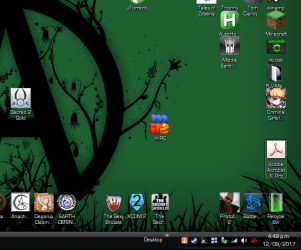
So my secondary monitor recently died, and since replacing it with a larger one the icon spacing on the right-most of my right (primary, unchanged) monitor and the lower bit of the same screen seems to have become screwed up and refuses to allow me to place things flush with the edge like I have always done.

I assume it's not to do with the screens being different aspect ratios since whle my replacement screen was shipping I used and old square monitor for a secondary and spacing worked normally.

Current primary is a 19'' widescreen that runs at 1440x900, the secondary is some 20 something inch screen that runs at 1680 x 1050.

All I've been able to dig up with google regarding similar issues has been unhelpful trash where it's got the questions and no good answers... so anyone know what the cause/fix would be here?

Update: moving the taskbar away from the bottom of the screen allows icons to be placed properly on the right hand side of the screen for some reason?

Update 2: Seems to definately relate to having the larger monitor at 1680 x 1050, unsure how you'd fix it.. odd that it's resolution related as the temporary one was running like 1280 x 800
 

Attachments
  • spac.png
    spac.png
    104.5 KB · Views: 13
Last edited:

My Computer

Computer type
PC/Desktop
OS
7 home premium 64 bit
The first thing I would do is check the resolution settings in Windows for the second monitor. Make it as big as you can, which will have the effect of making the icons and everything else on the screen small. You can reduce the numbers if it's too small.

If that doesn't fix it, then I would reinstall the driver for my video card, and I would see if there is a driver available to install for the monitor itself.

On the Display Property setup screen, there will be an option to make the second monitor either a duplicate of the first monitor, or make it an extension of the first monitor. Disable the second monitor on this screen, and click Apply. Then enable it, and click Apply. (Make sure the Display Property setup screen is showing on the first monitor, not the second, or you won't be able to see the property setup screen when you disable the second monitor!) If that didn't fix it, then play with other settings on that screen, making sure to click Apply whenever you make a change.
 

My Computer

Computer type
PC/Desktop
Computer Manufacturer/Model Number
Dell
OS
Linux Mint 18.2 xfce 64-bit (VMWare host) / Windows 8.1 Pro 32-bit (VMWare guest)
CPU
Haswell
Memory
4 GB
Monitor(s) Displays
Acer 23"
Screen Resolution
1920 x 1080
Hard Drives
Two hard drives, 1TB each: One for Linux, one for my data.
Keyboard
IBM Model M
Antivirus
Sophos (Linux), Trend Micro (Windows)
Browser
Firefox, Opera
Other Info
I use Samba to share my data drive with the other computers at my house and with my guest session in VMWare Workstation Player.
The first thing I would do is check the resolution settings in Windows for the second monitor. Make it as big as you can, which will have the effect of making the icons and everything else on the screen small. You can reduce the numbers if it's too small.

If that doesn't fix it, then I would reinstall the driver for my video card, and I would see if there is a driver available to install for the monitor itself.

On the Display Property setup screen, there will be an option to make the second monitor either a duplicate of the first monitor, or make it an extension of the first monitor. Disable the second monitor on this screen, and click Apply. Then enable it, and click Apply. (Make sure the Display Property setup screen is showing on the first monitor, not the second, or you won't be able to see the property setup screen when you disable the second monitor!) If that didn't fix it, then play with other settings on that screen, making sure to click Apply whenever you make a change.

The reason the left (secondary) screen has a higher resolution is because it is at it's maximum already and I did just after getting it update my drivers and do a clean install of them since it ahd to update anyway.

I know what I'm doing for the most part which is why since I couldn't work out the root cause I came here to ask about it, the higher resolution (secondary) monitor is set up as monitor 2 and is set as an exension (to the left side of the primary, which if the extension bit was the cause I'd expect the issue to be on the opposite side) as there's no reason to have 2 monitors set to show the same shiz.

The issue seems to somehow relate to differing resolutions of the same aspect ratio across two connected screens interacting weirdly with the grid which icons align to with alignment on (which if you turn off leads to hell when you want shiz to look right)

But yeah not to be dismissive or anything but my level of skill is at a point where I'd already checked everything you've suggested, doesn't seem the issue is present when both are set to 1440x900 but that brings up the issue of icons on hte left monitor being overly large making it clear how low res the .ico files are in some cases.
 

My Computer

Computer type
PC/Desktop
OS
7 home premium 64 bit
...which makes me wonder if there is a hardware problem with your monitor or your video card.
 

My Computer

Computer type
PC/Desktop
Computer Manufacturer/Model Number
Dell
OS
Linux Mint 18.2 xfce 64-bit (VMWare host) / Windows 8.1 Pro 32-bit (VMWare guest)
CPU
Haswell
Memory
4 GB
Monitor(s) Displays
Acer 23"
Screen Resolution
1920 x 1080
Hard Drives
Two hard drives, 1TB each: One for Linux, one for my data.
Keyboard
IBM Model M
Antivirus
Sophos (Linux), Trend Micro (Windows)
Browser
Firefox, Opera
Other Info
I use Samba to share my data drive with the other computers at my house and with my guest session in VMWare Workstation Player.
Only if there was a problem with the monitor the issue is on it would be present regardless of what the secondary monitor is or how it's set, and if there was with the videocard it should be more of an issue, I mean an issue only arising when the secondary monitor is set specifically 1 resolution higher than the primary can be is pretty weird...

I'd be more inclined to suspect some sort of corruption of the install of windows regarding whatever files handle the grid, I mean what are the chances it's a videocard issue where all it does is messes with the grid placement in very specific scenarios?
Seems the least likely theory all things considered.
 

My Computer

Computer type
PC/Desktop
OS
7 home premium 64 bit
You could easily test to see if there is a hardware issue by booting into Linux, and seeing if everything works correctly there.

Most Linux distros allow you to make a Linux DVD and run Linux entirely from the DVD, without having to install Linux on your computer.

Xubuntu Linux: Go to www.xubuntu.com and make a Xubuntu disk (64-bit), then boot to that disk. Once it boots up, choose the option which runs Linux from the DVD. Once you are in, see if your video works correctly. If it does, then you know that it is a bug or an issue with Windows. However, if the same problem exists in Linux, then there could be a hardware issue somewhere.
 

My Computer

Computer type
PC/Desktop
Computer Manufacturer/Model Number
Dell
OS
Linux Mint 18.2 xfce 64-bit (VMWare host) / Windows 8.1 Pro 32-bit (VMWare guest)
CPU
Haswell
Memory
4 GB
Monitor(s) Displays
Acer 23"
Screen Resolution
1920 x 1080
Hard Drives
Two hard drives, 1TB each: One for Linux, one for my data.
Keyboard
IBM Model M
Antivirus
Sophos (Linux), Trend Micro (Windows)
Browser
Firefox, Opera
Other Info
I use Samba to share my data drive with the other computers at my house and with my guest session in VMWare Workstation Player.
Back
Top