
In assorted other threads I have occasionally mentioned a portable app tangentially and described some of its advantages. This post is meant to bring those scattered arguments together in a single place, and make the case for why you should be using portable versions of apps as a general policy. I use portable versions extensively. For virtually any software I use, I'll first check if a portable version is available, and if so I'll choose that instead of an installable version.
WHY USE PORTABLE APPS?
HOW TO USE PORTABLE APPS
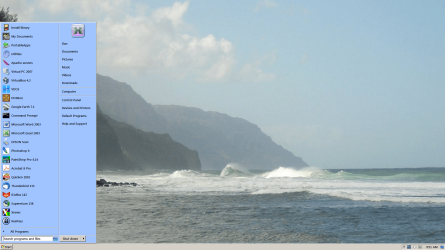
The screenshot below shows shortcuts to a few portable browsers added to my Start Menu for easy access:
The screenshot below shows a collection of several of the portable apps in my "D:\PortableApps" folder:
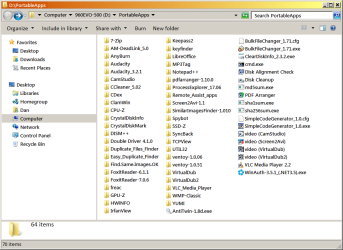
(Incidentally, if you look closely you might spot I have multiple versions of four apps at the moment -- Audacity, FoxitReader, Ventoy, and VirtualDub -- where I haven't fully migrated off the older version yet. You can't do that with installed apps!)
Not shown is my "D:\Browsers" folder, where I store about nine browsers. I add shortcuts to the Start Menu only for the browsers I use most frequently. If I want to launch one of the lesser used browsers, it's easy to navigate to "D:\Browsers" and launch it from there, without cluttering up my Start Menu.
WHY USE PORTABLE APPS?
** A portable app merely extracts to its own folder.
** Everything is self-contained in a single folder.
** Keeping everything in one folder makes it trivial to move, backup, delete, or update the app, if and when you choose.
** A portable app is ideal if you just want to test a piece of software, or if you will only be using it temporarily.
** Most portable apps do not auto-update
** A portable app makes it easy to use multiple versions of the same app.
** Portable apps can reside in any folder anywhere on your system.
** Portable apps stored on a non-OS partition provide a unique advantage to managing your OS imaging or restoring strategy.
** Portable apps can be copied to a USB stick.
It does not technically get "installed" -- and consequently never needs to be "uninstalled", either.
** Everything is self-contained in a single folder.
Files are not splattered all over your system in "Program Files", "Appdata", "Userdata", "System32", and numerous registry entries.
(I've seen this splattering described as "contamination" of your Windows system, which I find to be an apt characterization of the common installation process.)
(I've seen this splattering described as "contamination" of your Windows system, which I find to be an apt characterization of the common installation process.)
** Keeping everything in one folder makes it trivial to move, backup, delete, or update the app, if and when you choose.
** A portable app is ideal if you just want to test a piece of software, or if you will only be using it temporarily.
Running a portable app typically makes no changes to your PC, so if you try it and it doesn't meet your needs you can simply toss the folder, no harm done.
To delete the app, just delete its folder from your drive. Nothing needs to be "uninstalled".
To delete the app, just delete its folder from your drive. Nothing needs to be "uninstalled".
** Most portable apps do not auto-update
You are in control of when and how to update the app, on your own terms and in your own timeframe.
I hate it when an update capriciously removes a feature I was using, or adds stuff I don't want, or otherwise breaks things. I'd rather extend the time between updates to reduce the time I have to spend relearning how to use it.
Firefox, for example, has a history of just blowing away extensions I used to rely on, so I prefer not to commit to an upgrade until I can verify developers have had time to create compatible extensions.
When you do eventually choose to update or upgrade, the process is as simple as deleting its folder from your computer and replacing it with a downloaded/extracted different version. No "uninstall" or registry cleaning is required.
I hate it when an update capriciously removes a feature I was using, or adds stuff I don't want, or otherwise breaks things. I'd rather extend the time between updates to reduce the time I have to spend relearning how to use it.
Firefox, for example, has a history of just blowing away extensions I used to rely on, so I prefer not to commit to an upgrade until I can verify developers have had time to create compatible extensions.
When you do eventually choose to update or upgrade, the process is as simple as deleting its folder from your computer and replacing it with a downloaded/extracted different version. No "uninstall" or registry cleaning is required.
** A portable app makes it easy to use multiple versions of the same app.
Since the app resides in its own folder, you can have different versions in different folders.
For example, you can use different versions of the same browser interchangeably. That allows you to start migrating to the newer version at your leisure without having to leave your previous version until you're ready to.
(Caveat: note that in many cases, you can't actively launch multiple versions at the same time, but you can compare them by selectively launching one at a time, back and forth.)
For example, you can use different versions of the same browser interchangeably. That allows you to start migrating to the newer version at your leisure without having to leave your previous version until you're ready to.
(Caveat: note that in many cases, you can't actively launch multiple versions at the same time, but you can compare them by selectively launching one at a time, back and forth.)
** Portable apps can reside in any folder anywhere on your system.
There's no requirement to put a portable app on your system partition, so it could be on an alternate partition or even a USB stick.
For example, I choose to store my portable apps in "D:\Browsers" and "D:\PortableApps" folders and not on the "C:" system partition.
For example, I choose to store my portable apps in "D:\Browsers" and "D:\PortableApps" folders and not on the "C:" system partition.
** Portable apps stored on a non-OS partition provide a unique advantage to managing your OS imaging or restoring strategy.
If your portable apps are not on the system partition, that partition will see fewer changes -- and consequently, will need less frequent updating of your backup images.
To me, this is a huge advantage. Since Win7 is no longer being updated, and since I tend to use a lot of older installed programs that are also no longer being updated, my system partition isn't really changing. Thus, I can restore a system image made a year ago or even longer (which I regularly do -- see my "Rolling Clean Install" strategy) and I'll still have the current complement of my browsers and portable apps. Since they were not on my system partition to begin with, they will still be there, unchanged, after the image restore. Periodically restoring the system partition has the added benefit of clearing out any detritus that tends to accumulate over time as Windows is used, and also makes it harder for malware to gain a permanent foothold in my system.
To me, this is a huge advantage. Since Win7 is no longer being updated, and since I tend to use a lot of older installed programs that are also no longer being updated, my system partition isn't really changing. Thus, I can restore a system image made a year ago or even longer (which I regularly do -- see my "Rolling Clean Install" strategy) and I'll still have the current complement of my browsers and portable apps. Since they were not on my system partition to begin with, they will still be there, unchanged, after the image restore. Periodically restoring the system partition has the added benefit of clearing out any detritus that tends to accumulate over time as Windows is used, and also makes it harder for malware to gain a permanent foothold in my system.
** Portable apps can be copied to a USB stick.
That makes it handy for temporarily accessing your apps from other computers. You can use somebody else's computer yet carry along your own apps. Imagine traveling to visit relatives, and using their computer to check your email, but with your own browser with your own bookmarks and extensions. And they won't have to be concerned that you'll install something or otherwise make permanent changes to their computer.
HOW TO USE PORTABLE APPS
Download the portable app, which will typically be delivered as a .exe, .zip or .7z file.
If the download is provided in .exe format:
You can subsequently rename the folder if desired, and move it to some place more suitable on your system. Finish by creating a shortcut with which to launch the app, and put the shortcut either on your desktop or Start Menu or pin it to your taskbar, whatever is your personal preference.
When choosing a location to store your portable apps, I suggest you do not mix portable apps in with the places traditionally used by installed programs ("C:\Program Files", "C:\Program Files (x86)", et al). You could end up confusing yourself later when you need to remember whether a folder is a portable app or is an installed app. That could get messy because installed apps might entail critical registry entries or program files scattered in other system folders (e.g., "appdata" and "programdata"). That could have an impact on how to go about upgrading or deleting different apps in the future.
I recommend keeping portable apps together in a separate folder so that it's instantly visible to you which portable apps you have, and easier to remember how to upgrade or delete any if and when you choose.
If the download is provided in .exe format:
- Download the .exe file and place on your desktop.
- Double-click the .exe to launch the self-extractor, and it will extract itself to a folder.
- During this pseudo "installation" phase, watch and direct it to "install" to a new folder on your desktop rather than getting buried somewhere else on your hard drive. (Not the end of the world if it does, because you can always move the folder afterward -- but it's easier to find if it's on your desktop to begin with.)
- Download the .zip file and place on your desktop.
- Create a folder on your desktop and name it something relevant.
- Use Windows Explorer to open the .zip file and drag-and-drop the contents to the desktop folder you created.
- Download the .7z file and place on your desktop.
- Create a folder on your desktop and name it something relevant.
- Launch the 7-Zip utility and open the .7z file you downloaded. (BTW, note 7-Zip even comes in a portable version!)
- Extract the contents to the desktop folder you created.
You can subsequently rename the folder if desired, and move it to some place more suitable on your system. Finish by creating a shortcut with which to launch the app, and put the shortcut either on your desktop or Start Menu or pin it to your taskbar, whatever is your personal preference.
When choosing a location to store your portable apps, I suggest you do not mix portable apps in with the places traditionally used by installed programs ("C:\Program Files", "C:\Program Files (x86)", et al). You could end up confusing yourself later when you need to remember whether a folder is a portable app or is an installed app. That could get messy because installed apps might entail critical registry entries or program files scattered in other system folders (e.g., "appdata" and "programdata"). That could have an impact on how to go about upgrading or deleting different apps in the future.
I recommend keeping portable apps together in a separate folder so that it's instantly visible to you which portable apps you have, and easier to remember how to upgrade or delete any if and when you choose.
The screenshot below shows shortcuts to a few portable browsers added to my Start Menu for easy access:
The screenshot below shows a collection of several of the portable apps in my "D:\PortableApps" folder:
(Incidentally, if you look closely you might spot I have multiple versions of four apps at the moment -- Audacity, FoxitReader, Ventoy, and VirtualDub -- where I haven't fully migrated off the older version yet. You can't do that with installed apps!)
Not shown is my "D:\Browsers" folder, where I store about nine browsers. I add shortcuts to the Start Menu only for the browsers I use most frequently. If I want to launch one of the lesser used browsers, it's easy to navigate to "D:\Browsers" and launch it from there, without cluttering up my Start Menu.
My Computer
At a glance
Windows 7/8.1/10 multibootIntel Core i7-770048GB (2x16GB Crucial DDR4-3200 + 2x8GB Hynix ...Intel HD630 + AMD Radeon R7 450 PCIe
- Computer type
- PC/Desktop
- Computer Manufacturer/Model Number
- Dell Optiplex 7050
- OS
- Windows 7/8.1/10 multiboot
- CPU
- Intel Core i7-7700
- Motherboard
- Dell, Intel Q270 chipset
- Memory
- 48GB (2x16GB Crucial DDR4-3200 + 2x8GB Hynix DDR4-2400)
- Graphics Card(s)
- Intel HD630 + AMD Radeon R7 450 PCIe
- Monitor(s) Displays
- Asus VC279 (27")
- Screen Resolution
- 1920x1080
- Hard Drives
- Toshiba M.2 NVMe (256GB),
Samsung 960 Evo (500GB),
WD Red Plus 80EFBX (8TB)


