How to Transfer Files from One Computer to Another Computer with Windows Easy Transfer
Information
This tutorial will show you how to transfer your user files and settings from one computer to another using the Windows Easy Transfer tool.
Note
This feature is available in Vista and Windows 7. It can also be used as a handy backup if you are thinking about installing a new build of Windows 7 on your current machine.
Tip
This process can also be used between accounts if, for example, your old account has been acting up and you do not want to re-install and transfer your old data.
Tip
To do this you will need to follow the steps outlined in Step 1 below, then create a new user account. Next, log into the new User account and proceed to follow Step 2 below to invoke the copy process.
Many thanks to Ztruker for testing & highlighting the above possibility.
STEP ONE
Save Transfer File from Old Computer
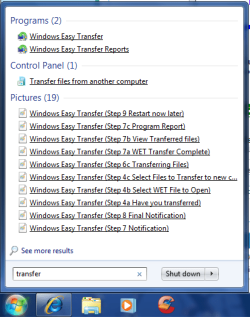
1. Open the start menu and type transfer in the search line, or navigate to All Programs, Accessories, System Tools, and click on Windows Easy Transfer.

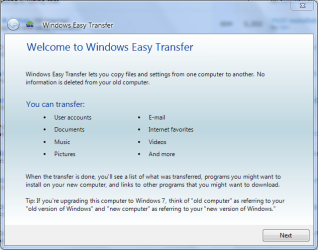
2. Click on Next when the application opens.
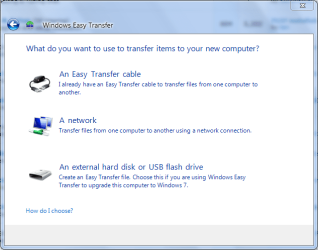
3. Choose destination to save the Transfer file and click on Next.
NOTE: Please note for the purpose of this tutorial I have selected the external hard disk or USB flash drive.
4. Select This is my old computer from the list.
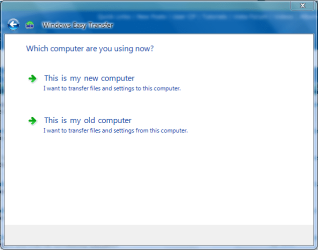
5. Windows Easy Transfer will scan for files that can be transferred.
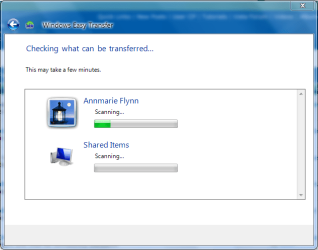
6. Select which files you wish saved suring the transfer process, then click on Next.

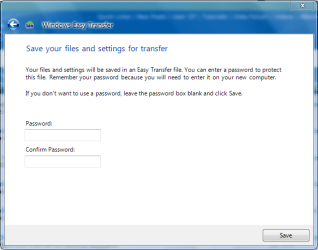
7. You will be prompted for a password in the next screen, but this is optional.
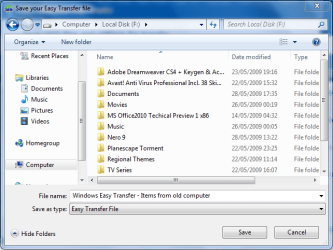
8. Choose where to save your Transfer file and what to name it, then click Save.
9. Windows will begin the saving process.
WARNING: This can take some time depending on the overall size of the data being saved.
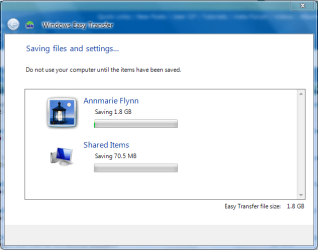
10. Windows will prompt when saving has finished.


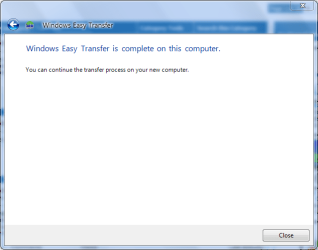
STEP TWO
Transfer Files to New Computer
1. Follow steps 1, 2 & 3 in the STEP ONE section above.
2. Select This is my new computer from the list.
3. Windows will display a notification asking if you have already saved files from your old computer, select Yes.
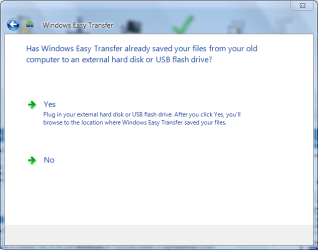
4. Select the Transfer file previously saved in the STEP ONE (step 6) section and click on Open.

5. You will be shown a selection of options that can be transferred. Choose which the options you want and click on Transfer.

6. Windows will start transferring user files and settings to your new computer.
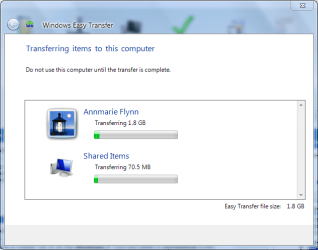
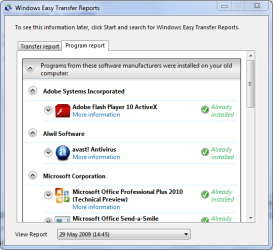
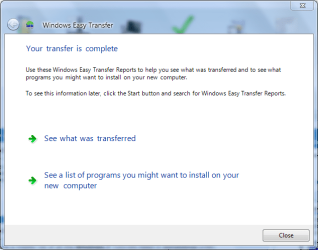
7. Once finished, Windows will give the option to view which files have been transfered....
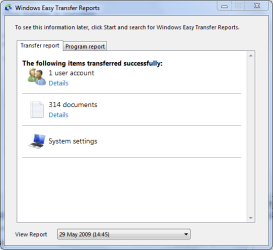
and which programs you will need to install for some settings to work correctly.
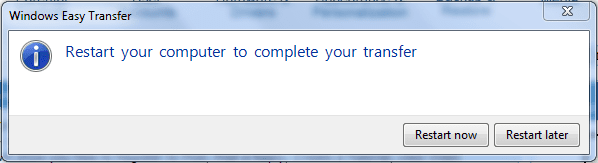
8. You will recieve a final completion notification and asked if you wish to restart your computer.
Note
Once Windows restarts, you can now access all the files and folders that have been transferred.
Attachments
Last edited by a moderator: