
Solved Windows Explorer Slow Sort

gogreen

New member
When I sort files in programs like MS Word, Excel, and others, sort is lightning-fast. When I sort files in Windows Explorer, the process is painfully slow. Explorer tells me my searches are slow because index isn't running. I turn on Index when prompted to do so, but when I check it in Index Options, it always reports it's not running.


When I drill down to a folder, right-click on it, and click the Customize tab, I make sure the default setting of "General Items" is set. Still very slow sort. I've tried the other settings, too, but the slow sort continues.


Thumbnails appear very slowly, too, when I look in jpeg directories, for example.


I'm talking about folders with 250 to about 400 files. As I recall, Windows Explorer sort in XP was blazingly fast--at least for me. Same number of files, or more.


Windows 7 is up to date, and I'm using only a fraction of the total hard drive space. Plenty of RAM (see specs). How do I get that fast sort again?
 

My Computer

Computer type
PC/Desktop
Computer Manufacturer/Model Number
Dell Studio XPS 8100, Dell XPS 15 laptop
OS
Windows 10 Home, 64 bit
CPU
Intel Core i7 860 @ 2.8 GHz
Motherboard
Dell 0T568R (CPU1)
Memory
8.0 GB Dual Channel DDR3 @ 664 MHz (9-9-9-24)
Graphics Card(s)
nVidia GeForce GTS 240
Sound Card
M-Audio Delta Audiophile 2496
Monitor(s) Displays
Dell 2407WFP
Screen Resolution
1920x1200
Hard Drives
977 GB Western Digital WDC WD1001FAES-75W7A0 (SCSI)
Antivirus
Windows Defender, MalwareBytes Anti-Malware, AdwCleaner
Browser
Firefox, occasionally IE and Edge
Other Info
Mozilla Firefox, Mozilla Thunderbird. Western Digital Passport 250 GB external HD, two Mushkin Enhanced Mulholland 32GB USB flash drives, AKG K240 Studio headphones, Asus AC-1900 dual band wireless router.
Check and make sure the Windows Search Service is running first. If it is, then run a CHKDSK. Then run a Defrag.
If you don't know how to do any of this, here you go:

Step 1. Check the Windows Search Service is running

  1. Click Start
  2. Click Control Panel
  3. Click Administrative Tools
  4. Click Services
  5. Find the Service called "Windows Search"
  6. Make sure it is running, and set to Automatic.
  7. If not, start it and change the Startup Type to "Automatic"
Step 2: Run a CHKDSK (Check Disk)

  1. Click Start
  2. Click Run, and type in "cmd" (without quotes), and make sure to check Run with Admin privs.
    If Run isn't there, type in "cmd" (without quotes) in the Search box. An icon will appear saying cmd. Right click it, and select "Run as Administrator". You may have to enter an admin password.
  3. A black box will open. Type the following: "chkdsk c: /f" (without quotes)
  4. It will give you a message saying it cannot check the volume since it is in use, and ask you to allow it to do it on a reboot. Answer "Y" (Yes). After that, reboot the computer. You will see a blue background with white text doing a check on the disk. Don't worry, it will complete by itself in 5-15 minutes, and then reboot.
Step 3: Run a Defrag (MAY help your issue)

  1. Click Start
  2. Click Run, and type in "cmd" (without quotes), and make sure to check Run with Admin privs.
    If Run isn't there, type in "cmd" (without quotes) in the Search box. An icon will appear saying cmd. Right click it, and select "Run as Administrator". You may have to enter an admin password.
  3. A black box will open. Type the following: "defrag c:" (without quotes)
  4. Wait for it to finish.
  5. I would highly recommend another program called Raxco PerfectDisk or Diskeeper - much better than the built in defrag tool, and quicker, FYI.
If you need more help if this doesn't fix it, let us know.
Chris
 

My Computer

Computer Manufacturer/Model Number
XFX NForce 780i SLI
OS
Win7 64-bit Ultimate
CPU
Intel Core2 Extrme X9650 3.0Ghz @ 3.33Ghz
Motherboard
XFX Intel 780i
Memory
8GB DDR-2 1333Mhz
Graphics Card(s)
2x SLI NVIDIA 780GTX
Sound Card
PCI Express X-Fi Titanium Fatal1ty Champion PCI-X
Monitor(s) Displays
2x Samsung LCD
Screen Resolution
1280x1024
Hard Drives
4x Seagate Barracuda 500GB something.10
PSU
PC Power & Cooling 1000W
Case
Thermaltake
Cooling
Water - 2x Koolance EXOS 2.5
Keyboard
Logitech DiNovo
Mouse
Logitech MX1000
Internet Speed
25 Down/5 Up
Thanks, chrisf8657. CHKDSK is OK, and I recently defragged the hard disk. When I try to start Windows Search service, though, I get "Error 5: Access is denied." My account is the administrator's. Any idea what's going on here? Thanks again.
 

Attachments

  • search service.png
    search service.png
    7.2 KB · Views: 30

My Computer

Computer type
PC/Desktop
Computer Manufacturer/Model Number
Dell Studio XPS 8100, Dell XPS 15 laptop
OS
Windows 10 Home, 64 bit
CPU
Intel Core i7 860 @ 2.8 GHz
Motherboard
Dell 0T568R (CPU1)
Memory
8.0 GB Dual Channel DDR3 @ 664 MHz (9-9-9-24)
Graphics Card(s)
nVidia GeForce GTS 240
Sound Card
M-Audio Delta Audiophile 2496
Monitor(s) Displays
Dell 2407WFP
Screen Resolution
1920x1200
Hard Drives
977 GB Western Digital WDC WD1001FAES-75W7A0 (SCSI)
Antivirus
Windows Defender, MalwareBytes Anti-Malware, AdwCleaner
Browser
Firefox, occasionally IE and Edge
Other Info
Mozilla Firefox, Mozilla Thunderbird. Western Digital Passport 250 GB external HD, two Mushkin Enhanced Mulholland 32GB USB flash drives, AKG K240 Studio headphones, Asus AC-1900 dual band wireless router.
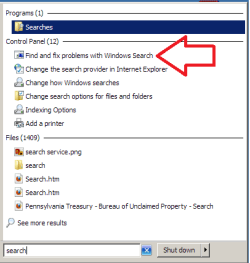
Problem solved! In the Start search box, I typed "Search." And one of the options was what appears to be a troubleshooter. I clicked on it, and followed the prompts. Windows automatically solved my problem with searching and indexing. Apparently, I had problems with permissions.

Slow sorting, which led me to looking into searching and i
ndexing, is now blazingly fast.

I'm mentioning this because in all my searching similar items in Sevenforums, I did not come upon this option--letting Windows solve the problem. I'm sure it's there somewhere, but I just didn't find it.


Could be a viable option for others with my problem, and for other problems for which there are built-in troubleshooters.


I'm now a very happy camper. :cool:
 

Attachments

  • search.png
    search.png
    18.7 KB · Views: 48
Last edited:

My Computer

Computer type
PC/Desktop
Computer Manufacturer/Model Number
Dell Studio XPS 8100, Dell XPS 15 laptop
OS
Windows 10 Home, 64 bit
CPU
Intel Core i7 860 @ 2.8 GHz
Motherboard
Dell 0T568R (CPU1)
Memory
8.0 GB Dual Channel DDR3 @ 664 MHz (9-9-9-24)
Graphics Card(s)
nVidia GeForce GTS 240
Sound Card
M-Audio Delta Audiophile 2496
Monitor(s) Displays
Dell 2407WFP
Screen Resolution
1920x1200
Hard Drives
977 GB Western Digital WDC WD1001FAES-75W7A0 (SCSI)
Antivirus
Windows Defender, MalwareBytes Anti-Malware, AdwCleaner
Browser
Firefox, occasionally IE and Edge
Other Info
Mozilla Firefox, Mozilla Thunderbird. Western Digital Passport 250 GB external HD, two Mushkin Enhanced Mulholland 32GB USB flash drives, AKG K240 Studio headphones, Asus AC-1900 dual band wireless router.
Thanks again but these do not appear to apply. Here's why:
  • Sorts in Explorer are fast
  • My Windows Search service can't be turned on
  • I get Error 2, not Error 5
  • Chkdsk returns no errors
  • Defrag runs fine
  • In Explorer, when I type a search term in the upper right hand box, the search does run. But as stated above, Windows Search service can't be turned on and none of the Advanced features are available. And, in Outlook 2010, entering a term in the Search Inbox search field results in an endless loop search that never finishes and produces no results.
 

My Computer

Computer Manufacturer/Model Number
cool tech, quiet elite
OS
win 7 64 ultimate
CPU
Intel i& 950 3.06GHz
Motherboard
Asus P6TD Deluxe
Memory
12GB PC3 12800
Graphics Card(s)
ATI Radeon HD 4850
Sound Card
-
Monitor(s) Displays
HP w2207
Hard Drives
2 WD Quiet 640GB 7200
Case
Antec P183
Cooling
Noctua NH-U12P SE 1366
hxl7: Did you try the troubleshooter? My problem with slow sorts and slow searches was that ownership, and therefore, permissions, of the affected files was incorrect. The troubleshooter fixed that automatically for me. Do try it if you haven't already!
 

My Computer

Computer type
PC/Desktop
Computer Manufacturer/Model Number
Dell Studio XPS 8100, Dell XPS 15 laptop
OS
Windows 10 Home, 64 bit
CPU
Intel Core i7 860 @ 2.8 GHz
Motherboard
Dell 0T568R (CPU1)
Memory
8.0 GB Dual Channel DDR3 @ 664 MHz (9-9-9-24)
Graphics Card(s)
nVidia GeForce GTS 240
Sound Card
M-Audio Delta Audiophile 2496
Monitor(s) Displays
Dell 2407WFP
Screen Resolution
1920x1200
Hard Drives
977 GB Western Digital WDC WD1001FAES-75W7A0 (SCSI)
Antivirus
Windows Defender, MalwareBytes Anti-Malware, AdwCleaner
Browser
Firefox, occasionally IE and Edge
Other Info
Mozilla Firefox, Mozilla Thunderbird. Western Digital Passport 250 GB external HD, two Mushkin Enhanced Mulholland 32GB USB flash drives, AKG K240 Studio headphones, Asus AC-1900 dual band wireless router.
Thank you very much for the reply.
Yes, I used the troubleshooter but it could not fix the problem.

It only stated Windows Search was not turned on and the permissions on the search folders was improper.

However, I can't find the folders in question.
 

My Computer

Computer Manufacturer/Model Number
cool tech, quiet elite
OS
win 7 64 ultimate
CPU
Intel i& 950 3.06GHz
Motherboard
Asus P6TD Deluxe
Memory
12GB PC3 12800
Graphics Card(s)
ATI Radeon HD 4850
Sound Card
-
Monitor(s) Displays
HP w2207
Hard Drives
2 WD Quiet 640GB 7200
Case
Antec P183
Cooling
Noctua NH-U12P SE 1366
Turn Windows Search on, if you haven't tried that.

Here are chrisf8657's instructions (see post, above):

Step 1. Check the Windows Search Service is running

  1. Click Start
  2. Click Control Panel
  3. Click Administrative Tools
  4. Click Services
  5. Find the Service called "Windows Search"
  6. Make sure it is running, and set to Automatic.
  7. If not, start it and change the Startup Type to "Automatic."
 

My Computer

Computer type
PC/Desktop
Computer Manufacturer/Model Number
Dell Studio XPS 8100, Dell XPS 15 laptop
OS
Windows 10 Home, 64 bit
CPU
Intel Core i7 860 @ 2.8 GHz
Motherboard
Dell 0T568R (CPU1)
Memory
8.0 GB Dual Channel DDR3 @ 664 MHz (9-9-9-24)
Graphics Card(s)
nVidia GeForce GTS 240
Sound Card
M-Audio Delta Audiophile 2496
Monitor(s) Displays
Dell 2407WFP
Screen Resolution
1920x1200
Hard Drives
977 GB Western Digital WDC WD1001FAES-75W7A0 (SCSI)
Antivirus
Windows Defender, MalwareBytes Anti-Malware, AdwCleaner
Browser
Firefox, occasionally IE and Edge
Other Info
Mozilla Firefox, Mozilla Thunderbird. Western Digital Passport 250 GB external HD, two Mushkin Enhanced Mulholland 32GB USB flash drives, AKG K240 Studio headphones, Asus AC-1900 dual band wireless router.
This is my main problem: I can't get Windows Search service to start.
Thank you.
 

My Computer

Computer Manufacturer/Model Number
cool tech, quiet elite
OS
win 7 64 ultimate
CPU
Intel i& 950 3.06GHz
Motherboard
Asus P6TD Deluxe
Memory
12GB PC3 12800
Graphics Card(s)
ATI Radeon HD 4850
Sound Card
-
Monitor(s) Displays
HP w2207
Hard Drives
2 WD Quiet 640GB 7200
Case
Antec P183
Cooling
Noctua NH-U12P SE 1366

My Computer

Computer type
PC/Desktop
Computer Manufacturer/Model Number
Dell Studio XPS 8100, Dell XPS 15 laptop
OS
Windows 10 Home, 64 bit
CPU
Intel Core i7 860 @ 2.8 GHz
Motherboard
Dell 0T568R (CPU1)
Memory
8.0 GB Dual Channel DDR3 @ 664 MHz (9-9-9-24)
Graphics Card(s)
nVidia GeForce GTS 240
Sound Card
M-Audio Delta Audiophile 2496
Monitor(s) Displays
Dell 2407WFP
Screen Resolution
1920x1200
Hard Drives
977 GB Western Digital WDC WD1001FAES-75W7A0 (SCSI)
Antivirus
Windows Defender, MalwareBytes Anti-Malware, AdwCleaner
Browser
Firefox, occasionally IE and Edge
Other Info
Mozilla Firefox, Mozilla Thunderbird. Western Digital Passport 250 GB external HD, two Mushkin Enhanced Mulholland 32GB USB flash drives, AKG K240 Studio headphones, Asus AC-1900 dual band wireless router.
gogreen, glad you got it solved. Haven't used those troubleshooters alot because they seem to not work 95% of the time - guess yours was an exception! :D

hxl7:
Check the Event Log in Administrative Tools and see what the error is for the Search service not starting. Is it the same as gogreen's Error 5, or another error?
 

My Computer

Computer Manufacturer/Model Number
XFX NForce 780i SLI
OS
Win7 64-bit Ultimate
CPU
Intel Core2 Extrme X9650 3.0Ghz @ 3.33Ghz
Motherboard
XFX Intel 780i
Memory
8GB DDR-2 1333Mhz
Graphics Card(s)
2x SLI NVIDIA 780GTX
Sound Card
PCI Express X-Fi Titanium Fatal1ty Champion PCI-X
Monitor(s) Displays
2x Samsung LCD
Screen Resolution
1280x1024
Hard Drives
4x Seagate Barracuda 500GB something.10
PSU
PC Power & Cooling 1000W
Case
Thermaltake
Cooling
Water - 2x Koolance EXOS 2.5
Keyboard
Logitech DiNovo
Mouse
Logitech MX1000
Internet Speed
25 Down/5 Up
chrisf8657:
Thank you so much for your reply. I manually attempted to Start the Windows Search service. The Error 2 can't find file message immediately pops up.

Then I checked the Event Viewer and found the following:

1. Warning! Source: Search, Event ID: 1008, Task Category: Search service, "The Windows Search Service is starting up and attempting to remove the old search index {Reason: Full Index Reset}.

2. Error: Source: Search, Event ID: 1001, Task Category: Search service, "The Windows Search Service has failed to remove the old search index. Internal error <0,0x80070002>.

3. Error: Source: Search, Event ID: 7023, Task Category: None, "The Windows Search Service terminated with the following error: The system cannot find the file specified. Keywords: 0x8080000000000000

4. Error: Source: Search, Event ID: 7035, Task Category: None, "The Windows Search Service terminated unexpectedly. It has done this 943 times. Keywords: 0x8080000000000000

Thank you for any suggestions about this.
Bill

gogreen:
Taking ownership of the files did not change anything.
I could not find the search folders to change ownership and permissions.
Does anyone know the names of the folders ?
Thank you.
Bill
 

My Computer

Computer Manufacturer/Model Number
cool tech, quiet elite
OS
win 7 64 ultimate
CPU
Intel i& 950 3.06GHz
Motherboard
Asus P6TD Deluxe
Memory
12GB PC3 12800
Graphics Card(s)
ATI Radeon HD 4850
Sound Card
-
Monitor(s) Displays
HP w2207
Hard Drives
2 WD Quiet 640GB 7200
Case
Antec P183
Cooling
Noctua NH-U12P SE 1366
You do know that taking ownership of a file changes only the "owner" of the file or folder--it does not change the permission level of the file. Right?

If you're able, enter "search" in the Start search box, and click on "Change how Windows searches." Can you see a list of files and folders under "included locations"? This list contains the files and folders to be indexed. These are the files and folders you need to own. Then you'd change your permission level with them.
 

My Computer

Computer type
PC/Desktop
Computer Manufacturer/Model Number
Dell Studio XPS 8100, Dell XPS 15 laptop
OS
Windows 10 Home, 64 bit
CPU
Intel Core i7 860 @ 2.8 GHz
Motherboard
Dell 0T568R (CPU1)
Memory
8.0 GB Dual Channel DDR3 @ 664 MHz (9-9-9-24)
Graphics Card(s)
nVidia GeForce GTS 240
Sound Card
M-Audio Delta Audiophile 2496
Monitor(s) Displays
Dell 2407WFP
Screen Resolution
1920x1200
Hard Drives
977 GB Western Digital WDC WD1001FAES-75W7A0 (SCSI)
Antivirus
Windows Defender, MalwareBytes Anti-Malware, AdwCleaner
Browser
Firefox, occasionally IE and Edge
Other Info
Mozilla Firefox, Mozilla Thunderbird. Western Digital Passport 250 GB external HD, two Mushkin Enhanced Mulholland 32GB USB flash drives, AKG K240 Studio headphones, Asus AC-1900 dual band wireless router.
I'm posting here because my problem is that Windows Explorer is s-l-o-w to display drives on my network and also within the "master" PC. I have 3 laptops all running Windows 7 Home Premium 64-bit.

I record huge chunks of video from wildlife webcams on the "weaker" laptops and transfer the files over the wifi network to the "strongest" one for editing. Sometimes it takes ages for Windows Explorer to see the network, or it takes ages to open the required drive when it does see the network.

I've also had the problem on 2 different laptops where Windows Explorer opens showing only the Libraries (which I don't use, though stuff seems to get dumped into them by Windows), I partition my drives and all data is stored on D. Someone gave me the following 'code' to enter into WE's Properties and now it always opens at Computer, showing drives C and D in the right-hand pane: %SystemRoot%\explorer.exe /E,::{20D04FE0-3AEA-1069-A2D8-08002B30309D}

I don't understand indexing but under guidance from Dell I did something with it :confused: but I still sometimes get the green progress bar constantly filling up...
I wonder if you have any tips? The laptop I do the editing on is Alienware M11x-R3 with i7-2637M CPU, 6gb RAM and a 2gb video card.
 

My Computer

Computer type
Laptop
Computer Manufacturer/Model Number
Clevo W230ST | Precision M3800 | Precision M4500 | Alienware M11x-R3
OS
W7 Pro 64-bit | W10 Pro 64-bit
CPU
i7-4700MQ
Memory
16GB
Graphics Card(s)
NVIDIA GTX 765M
Screen Resolution
1920x1080
Hard Drives
256GB SSD | 1TB HD
Antivirus
Microsoft Security Essentials, Malwarebytes Pro
Browser
Firefox, Chrome, Pale Moon
gogreen:

Thank you again for posting and trying to help.

When I entered 'search' in the Start search box, and clicked on 'Change how Windows searches,' I just get the Indexing Options window with the message 'Indexing is not running,' and of course then no files/folders list is present.

I still have not found a solution.:cry:

Bill
 

My Computer

Computer Manufacturer/Model Number
cool tech, quiet elite
OS
win 7 64 ultimate
CPU
Intel i& 950 3.06GHz
Motherboard
Asus P6TD Deluxe
Memory
12GB PC3 12800
Graphics Card(s)
ATI Radeon HD 4850
Sound Card
-
Monitor(s) Displays
HP w2207
Hard Drives
2 WD Quiet 640GB 7200
Case
Antec P183
Cooling
Noctua NH-U12P SE 1366
If you haven't done this, try it. I apologize if you've been through this:

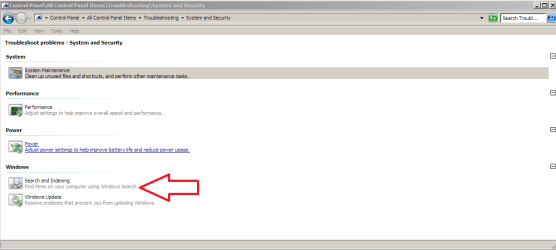
1. Type "troubleshoot" in the "Search programs and files" start box.
2. Highlight and click on "Troubleshooting," which is probably the first choice listed.
3. Click "System and Security."
3. Then under "Windows," click on "Search and Indexing" and go through the troubleshooter.

If your specific problem isn't listed in the choices of items to fix, click "My problem isn't listed above," and in the next screen type "cannot start search" or something similar and press enter.

I discovered that I could not get searching and indexing to work because ownership and permissions somehow became wrong. I fixed it this way. You may have to keep entering a few different descriptions before you hit one that works.

Again, I apologize if you've tried this unsuccessfully--I know how frustrating it can be!
 

Attachments

  • index.png
    index.png
    58.4 KB · Views: 78

My Computer

Computer type
PC/Desktop
Computer Manufacturer/Model Number
Dell Studio XPS 8100, Dell XPS 15 laptop
OS
Windows 10 Home, 64 bit
CPU
Intel Core i7 860 @ 2.8 GHz
Motherboard
Dell 0T568R (CPU1)
Memory
8.0 GB Dual Channel DDR3 @ 664 MHz (9-9-9-24)
Graphics Card(s)
nVidia GeForce GTS 240
Sound Card
M-Audio Delta Audiophile 2496
Monitor(s) Displays
Dell 2407WFP
Screen Resolution
1920x1200
Hard Drives
977 GB Western Digital WDC WD1001FAES-75W7A0 (SCSI)
Antivirus
Windows Defender, MalwareBytes Anti-Malware, AdwCleaner
Browser
Firefox, occasionally IE and Edge
Other Info
Mozilla Firefox, Mozilla Thunderbird. Western Digital Passport 250 GB external HD, two Mushkin Enhanced Mulholland 32GB USB flash drives, AKG K240 Studio headphones, Asus AC-1900 dual band wireless router.
gogreen:
Again, thank you SO much for sticking with me on this. You're right ... it's exceedingly frustrating, especially since I've always been pretty good at finding solutions. But not this time. But I don't want to give up. I really want to find a resolution and not just because I need the function; I just really hate to walk away from unsolved riddles.
OK ... so, I tried the suggestion and actually that was one of the first things I tried, long ago, now. And today, the same thing happened as it did originally. At the end, I got the messages:
"Problems found
Incorrect permissions on Windows Search directories Not fixed
Windows Search service not running Not fixed "
Thanks for any further ideas...
Bill
 

My Computer

Computer Manufacturer/Model Number
cool tech, quiet elite
OS
win 7 64 ultimate
CPU
Intel i& 950 3.06GHz
Motherboard
Asus P6TD Deluxe
Memory
12GB PC3 12800
Graphics Card(s)
ATI Radeon HD 4850
Sound Card
-
Monitor(s) Displays
HP w2207
Hard Drives
2 WD Quiet 640GB 7200
Case
Antec P183
Cooling
Noctua NH-U12P SE 1366
Try this: check to see if any of your protected system files have become corrupt:

Left click the Windows flag in the lower left corner of the screen. Type cmd, right click on cmd.exe and select Run as Administrator. You might have to click on Yes if the UAC security window pops up. In the command prompt window that appears type sfc /scannow and press enter.

You may have to run it multiple times to get an error free run.

If that doesn't solve it directly, then retry the troubleshooter and see if it can now fix the problem.
 

My Computer

OS
Windows 7 Ultimate x64
sibbil:
Thanks so much for the suggestion.
Unfortunately, I tried this long ago and everything checked out fine.
Just now reran it and again, no problems are present - "no integrity violations."
Bill
 

My Computer

Computer Manufacturer/Model Number
cool tech, quiet elite
OS
win 7 64 ultimate
CPU
Intel i& 950 3.06GHz
Motherboard
Asus P6TD Deluxe
Memory
12GB PC3 12800
Graphics Card(s)
ATI Radeon HD 4850
Sound Card
-
Monitor(s) Displays
HP w2207
Hard Drives
2 WD Quiet 640GB 7200
Case
Antec P183
Cooling
Noctua NH-U12P SE 1366
Back
Top