Windows Live Mail - Import Windows Mail Messages

How to Import "Windows Mail" Messages into Windows Live Mail

   Information
This will show you how to export your Windows Mail messages from Vista and then import them into Windows Live Mail inside Windows 7.
   Tip
You can get information on how to download the latest version of Windows Live Mail here.


Here's How:
1. Export your Windows Mail messages from inside Vista into a empty new folder (ex: Messages) on your Vista Desktop.

2. Save and copy the new Messages folder to your desktop in Windows 7.
NOTE: For example, I exported my Vista Windows Mails messages to the new Messages folder from the link in step 1, so I would save the Messages folder to my Windows 7 desktop.

3. In Windows 7, open Windows Live Mail.

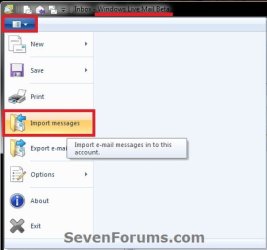
4. In Windows Live Mail, click on File on the menu bar, Import, and Messages. (See left screenshot below)
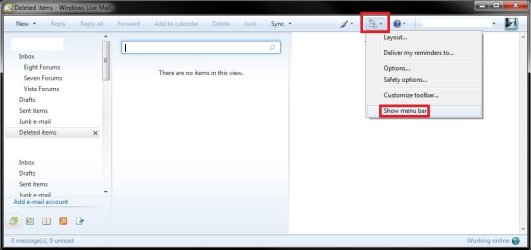
NOTE: If you do not have a menu bar displayed, then press Alt+M and click on Show menu bar. (see right screenshot below)
Step1.jpg

WLM_Wave-4_Beta-Import.jpg

Menu.jpg
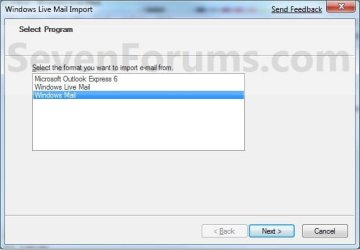
5. Select Windows Mail, and click on the Next button. (See screenshot below)
Step2.jpg
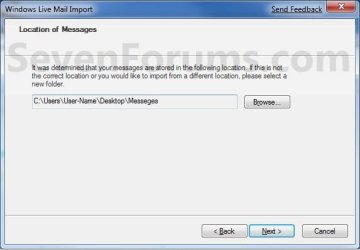
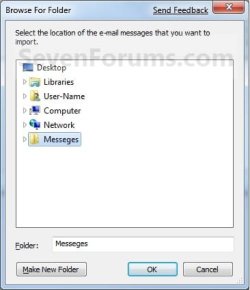
6. Click on the Browse button and navigate to the new Messages folder on your desktop (step 2), then select (highlight) it and click on OK and the Next button. (See screenshots below)
Step3.jpg

Step4.jpg
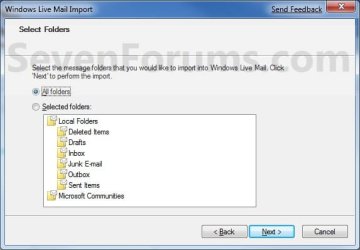
7. Select (dot) All folders, then click on the Next button. (See screenshot below)
Step5.jpg
8. Click on the Finish button. (See screenshot below)
Step6.jpg
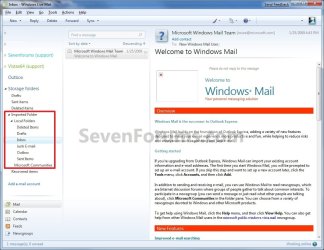
9. Your Vista Windows Mail messages have now been imported into Windows Live Mail under Storage Folders in the Imported Folders folder in Windows 7. (See screenshot below)
NOTE: Expand the folders inside the Imported Folders to see all of your messages.
Step7.jpg
10. You can now move and copy the messages to any other email account folders that you like now. When done you can delete the Imported Folder folder if you like. (See screenshot above)
That's it,
Shawn


Last edited:
I have followed your instructions to export my messages from Windows Mail off of my desktop with Vista to try to import it to my new laptop with Windows 7. After exporting and saving a copy to my desktop, when I got into Windows Live Mail and try to import, I follow the instructions to find the files. After having found them when I try to go to the next step I get the message "No messages can be found in this folder or another application is running that has the required files open. Please select another folder or try closing applications that may have files open." I don't know what to do at this point. The program is closed on my desktop computer, and I haven't gotten the files open anywhere else that I know of. Does anyone have any input on what I am doing wrong? I would really appreciate the help. Thanks.
 

My Computer

Computer Manufacturer/Model Number
Dell Inspiron
OS
Windows 7 Premium 64-bit
Hello Darcie, and welcome to Seven Forums.

Double check while going through the steps one more time to make sure that you exported into a new empty folder, and that you only select the new folder and not any of the subfolders in it when importing.
 

My Computer

Computer type
PC/Desktop
Computer Manufacturer/Model Number
Self built custom
OS
64-bit Windows 11 Pro for Workstations
CPU
Intel i7-8700K OC'd to 5 GHz
Motherboard
ASUS ROG Maximus XI Formula Z390
Memory
64 GB (4x16GB) G.SKILL TridentZ RGB DDR4 3600 MHz
Graphics Card(s)
ASUS ROG-STRIX-GTX1080TI-O11G-GAMING
Sound Card
Integrated
Monitor(s) Displays
2 x Samsung Odyssey G7 27"
Screen Resolution
2560x1440
Hard Drives
1TB Samsung 990 PRO M.2,
4TB Samsung 990 PRO PRO M.2,
TerraMaster F8 SSD Plus NAS
PSU
Seasonic Prime Titanium 850W
Case
Thermaltake Core P3
Cooling
Corsair Hydro H115i
Keyboard
Logitech wireless K800
Mouse
Logitech MX Master 4
Internet Speed
2 Gb/s Download and 100 Mb/s Upload
Antivirus
Malwarebyte Anti-Malware Premium
Browser
Google Chrome
Other Info
Logitech Z625 speaker system,
Logitech BRIO 4K Pro webcam,
HP Color LaserJet Pro MFP M477fdn,
APC SMART-UPS RT 1000 XL - SURT1000XLI,
Galaxy S23 Plus phone
I am trying to import contacts and messages into Windows Live mail on a new Windows 7 machine. All posts I have read (including this tutorial) say to click the File menu, then import, then messages. But there is no file menu... the ALT key displays a BROWSER file menu only (no mail import options), and the ALT-M suggestion does not display a "Show Menu Bar" option as stated in this tutorial.
What am I missing?
 

My Computer

OS
Windows 7
Hello Gholovacs, and welcome to Seven Forums.

I add a second right screenshot to step 4 to help show you where in Windows Live Mail for the "Show menu bar" option.

Hope this helps,
Shawn
 

My Computer

Computer type
PC/Desktop
Computer Manufacturer/Model Number
Self built custom
OS
64-bit Windows 11 Pro for Workstations
CPU
Intel i7-8700K OC'd to 5 GHz
Motherboard
ASUS ROG Maximus XI Formula Z390
Memory
64 GB (4x16GB) G.SKILL TridentZ RGB DDR4 3600 MHz
Graphics Card(s)
ASUS ROG-STRIX-GTX1080TI-O11G-GAMING
Sound Card
Integrated
Monitor(s) Displays
2 x Samsung Odyssey G7 27"
Screen Resolution
2560x1440
Hard Drives
1TB Samsung 990 PRO M.2,
4TB Samsung 990 PRO PRO M.2,
TerraMaster F8 SSD Plus NAS
PSU
Seasonic Prime Titanium 850W
Case
Thermaltake Core P3
Cooling
Corsair Hydro H115i
Keyboard
Logitech wireless K800
Mouse
Logitech MX Master 4
Internet Speed
2 Gb/s Download and 100 Mb/s Upload
Antivirus
Malwarebyte Anti-Malware Premium
Browser
Google Chrome
Other Info
Logitech Z625 speaker system,
Logitech BRIO 4K Pro webcam,
HP Color LaserJet Pro MFP M477fdn,
APC SMART-UPS RT 1000 XL - SURT1000XLI,
Galaxy S23 Plus phone
Brink: Thank you for your reply. Unfortunately, I don't have the Icon you show in the new JPG either. In fact, I don't have that entire toolbar that you show.
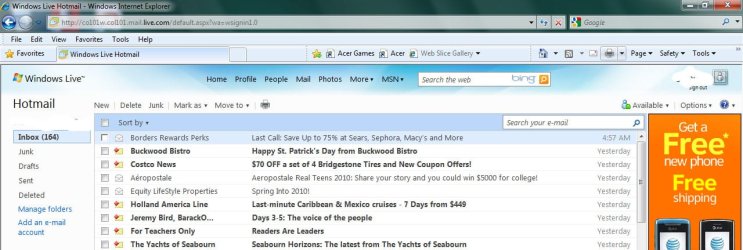
I suspect I might not really be in Windows Live Mail at all... Maybe I got into Windows Hotmail instead, which has fewer features.
But if that's true, I don't see any way to get into the real Windows Live Mail... I entered "Windows Live Mail" in the program search field, and this is where it brought me. Thinking it might not be installed, I even tried downloading MS Windows Live Essentials again, and a message box indicated that Windows Live Mail was already installed.
I'm attaching a screenshot of what I'm looking at. Any help would be greatly appreciated.
 

Attachments

  • WMScreenshot.jpg
    WMScreenshot.jpg
    190.9 KB · Views: 520

My Computer

OS
Windows 7
LOL, I see why now. You are accessing it from the hotmail website instead of using Windows Live Mail. :)
 

My Computer

Computer type
PC/Desktop
Computer Manufacturer/Model Number
Self built custom
OS
64-bit Windows 11 Pro for Workstations
CPU
Intel i7-8700K OC'd to 5 GHz
Motherboard
ASUS ROG Maximus XI Formula Z390
Memory
64 GB (4x16GB) G.SKILL TridentZ RGB DDR4 3600 MHz
Graphics Card(s)
ASUS ROG-STRIX-GTX1080TI-O11G-GAMING
Sound Card
Integrated
Monitor(s) Displays
2 x Samsung Odyssey G7 27"
Screen Resolution
2560x1440
Hard Drives
1TB Samsung 990 PRO M.2,
4TB Samsung 990 PRO PRO M.2,
TerraMaster F8 SSD Plus NAS
PSU
Seasonic Prime Titanium 850W
Case
Thermaltake Core P3
Cooling
Corsair Hydro H115i
Keyboard
Logitech wireless K800
Mouse
Logitech MX Master 4
Internet Speed
2 Gb/s Download and 100 Mb/s Upload
Antivirus
Malwarebyte Anti-Malware Premium
Browser
Google Chrome
Other Info
Logitech Z625 speaker system,
Logitech BRIO 4K Pro webcam,
HP Color LaserJet Pro MFP M477fdn,
APC SMART-UPS RT 1000 XL - SURT1000XLI,
Galaxy S23 Plus phone
Will the REAL Windows Live Mail please stand up?

Amazing what happens when you use the right program! Thanks for your help!

For others out there who, like me, get into Windows Hotmail instead of the real Windows Live Mail: I found that putting "Windows Live Mail" in the program search box did not work for me. Each time I did that, I saw a listing for "Windows Live Mail" , but it was in fact a link to Hotmail instead!!

To get to the REAL Windows Live Mail, don't use the Search box. Instead, open the existing "Windows Live" folder, then select "Windows Live Mail" from those items.

Hope this helps the next guy.
 

My Computer

OS
Windows 7
That's great news Gholovacs. Thank you for posting back your results.
 

My Computer

Computer type
PC/Desktop
Computer Manufacturer/Model Number
Self built custom
OS
64-bit Windows 11 Pro for Workstations
CPU
Intel i7-8700K OC'd to 5 GHz
Motherboard
ASUS ROG Maximus XI Formula Z390
Memory
64 GB (4x16GB) G.SKILL TridentZ RGB DDR4 3600 MHz
Graphics Card(s)
ASUS ROG-STRIX-GTX1080TI-O11G-GAMING
Sound Card
Integrated
Monitor(s) Displays
2 x Samsung Odyssey G7 27"
Screen Resolution
2560x1440
Hard Drives
1TB Samsung 990 PRO M.2,
4TB Samsung 990 PRO PRO M.2,
TerraMaster F8 SSD Plus NAS
PSU
Seasonic Prime Titanium 850W
Case
Thermaltake Core P3
Cooling
Corsair Hydro H115i
Keyboard
Logitech wireless K800
Mouse
Logitech MX Master 4
Internet Speed
2 Gb/s Download and 100 Mb/s Upload
Antivirus
Malwarebyte Anti-Malware Premium
Browser
Google Chrome
Other Info
Logitech Z625 speaker system,
Logitech BRIO 4K Pro webcam,
HP Color LaserJet Pro MFP M477fdn,
APC SMART-UPS RT 1000 XL - SURT1000XLI,
Galaxy S23 Plus phone
Try Drag and Drop to import mail

I also could not import messages into a new Windows Live Mail (running on Windows 7) from a Windows Live Mail running on another computer (Windows XP). I had both the 'empty folder' message and the apparently successful transfer but nothing turning up in the storage folders. The process just increased the number of storage folders in the receiving Live Mail with each 'transfer', all of them empty. Changing the files to be transferred by removing the 'read only' property did not solve the problem either. There is clearly a problem with this process which is not simply caused by people not doing it properly but equally it is obviously working for a lot of others.

When I looked at the folders I was using to import from, they contained all the email files I was wanting to transfer. In a last throw of the dice before giving up, I tried the old 'drag and drop' technique, and it worked. Moreover, instead of putting all my transferred emails into storage folders, separate from my active account, I inserted them directly into the active account folders. Everything was together as it should be. So the process was:

1. Export from old mail client (in my case, Live Mail) to folders as described by the tutorials. I used empty folders in My Documents, one each for the in box, sent mail and deleted messages.
2.Copy these folders to an external hard drive or memory stick (I found that the export did not work directly to folders created on the external drive for some reason).
3. Connect the external drive to the new computer and open this drive and then open the folder containing, for example, the in box messages.
4. Open your importing Live Mail then open the in box folder, as you would to read the emails in it.
5. Simply drag and drop. Repeat with each folder until all the messages have been transferred.
 
Last edited:

My Computer

OS
Windows 7
ALL OF THIS to keep our same emails, so I can keep my emails back to 1998, because MICROSOFT refuses to create an OUTLOOK that will easily import all of our addresses, messages and so forth.

Before windows I used DOS, before DOS I used Apple, and have used every windows version since, and WINDOWS 7 was without a question created to mess with every user who is foolish enough to buy it.

Every PC I have, except this crappy dell have been upgraded from Windows 7 to Windows XP pro,

Why do I hate windows 7, OH GOD< give me an hour
 

My Computer

OS
Windows 7 Ultimate x64
ALL OF THIS to keep our same emails, so I can keep my emails back to 1998, because MICROSOFT refuses to create an OUTLOOK that will easily import all of our addresses, messages and so forth.

Before windows I used DOS, before DOS I used Apple, and have used every windows version since, and WINDOWS 7 was without a question created to mess with every user who is foolish enough to buy it.

Every PC I have, except this crappy dell have been upgraded from Windows 7 to Windows XP pro,

Why do I hate windows 7, OH GOD< give me an hour

Hello tgvas, and welcome to Seven Forums.

Another much easier way to do so in the future is to set your email account settings/properties to keep a copy of your email messages on your email server. This way all you would have to do is setup the email account in whatever email client, and all of your email messages will automatically be downloaded to it as well.

Hope this helps,
Shawn
 
Last edited:

My Computer

Computer type
PC/Desktop
Computer Manufacturer/Model Number
Self built custom
OS
64-bit Windows 11 Pro for Workstations
CPU
Intel i7-8700K OC'd to 5 GHz
Motherboard
ASUS ROG Maximus XI Formula Z390
Memory
64 GB (4x16GB) G.SKILL TridentZ RGB DDR4 3600 MHz
Graphics Card(s)
ASUS ROG-STRIX-GTX1080TI-O11G-GAMING
Sound Card
Integrated
Monitor(s) Displays
2 x Samsung Odyssey G7 27"
Screen Resolution
2560x1440
Hard Drives
1TB Samsung 990 PRO M.2,
4TB Samsung 990 PRO PRO M.2,
TerraMaster F8 SSD Plus NAS
PSU
Seasonic Prime Titanium 850W
Case
Thermaltake Core P3
Cooling
Corsair Hydro H115i
Keyboard
Logitech wireless K800
Mouse
Logitech MX Master 4
Internet Speed
2 Gb/s Download and 100 Mb/s Upload
Antivirus
Malwarebyte Anti-Malware Premium
Browser
Google Chrome
Other Info
Logitech Z625 speaker system,
Logitech BRIO 4K Pro webcam,
HP Color LaserJet Pro MFP M477fdn,
APC SMART-UPS RT 1000 XL - SURT1000XLI,
Galaxy S23 Plus phone
I think I see the problem ...

I did just try this again, and all I get is another empty imported folder. I started over with a whole new export, then imported those messages (after copying and pasting to a location on the new PC). It counts them down as it imports them but then fails to show them. Any other thoughts as to where these messages might be?

Look at the tiny triangle to the left of the perceived to be empty imported folder. That little triangle pointing right really means that there is an underlying tree level that you do not see. Click on the triangle which takes you to the next lower tree level. For whatever reason Windows 7 Live Mail throws in an extra layer or two but keep doing that until you finally see your imported messages. They ARE there. I tried this on a small sample (just 2 messages in dummy local folder to play with) and it works fine. The main disease of the process is that all "read vs unread" highlighting and status is lost. All messages come through as if they had been "read" whether you have ever opened them or not.
 

My Computer

Computer type
PC/Desktop
Computer Manufacturer/Model Number
Acer Predator G3620
OS
Windows 7 Home Premium 64 bit
CPU
Intel Core i7-3770
Memory
12GB
Monitor(s) Displays
Two; 22 inch
Hard Drives
1.5TB
Keyboard
Acer with caps lock key removed
Internet Speed
cable, medium high speed (about 7MB/sec down)
Hello Paul, and welcome to Seven Forums.

For the best results, it best to only copy the imported emails into your email account's folders and not the imported folders.

Is there a way of setting what will be displayed for each folder like there is in almost every other email program I've ever used?
Do you mean messaged rules? If so, then you can click on Tools (Alt+M), Message Rules, and Mail to create rules for how messages are filtered to your inbox folders.

Hope this helps,
Shawn

pretty clever comment there, because this process is for JUST moving the messages from one space to another... a point not clear at all (it already has been explained), do we have to create the account first? will the messages go directly to the account? will this process create the account (of course not... but many doest knows, [like my mom, who was expecting this process to create her accounts in the new pc] )

i have 5 years i dont do this process and i dont remember, now i have to do it because i had to change the hdd (i heard some non usual sounds and i didnt wanted to wait the worse) then i am in this part with my emails... but if am not wrong when you set an account in windows live mail, doesnt download all its emails? does it?

if so, (what i am almost sure) the import export process only have two uses (to import messages that are not inside any email account, or for when you have a slow internet connection)

BUT what will it happen if i set an account, then the wlm starts to sync, i stop the processs then i import the messages... and move it to the account inbox folder..... will this prevent duplicate emails?

i simply words... the same question, doesnt just setting up an existing account downloads all the emails?
 

My Computer

OS
widnows 7 professional 32 bits
Hello Kharl,

If you set your email account properties to have the messages stored on the email server, then they will always be available from the email server until deleted.
 

My Computer

Computer type
PC/Desktop
Computer Manufacturer/Model Number
Self built custom
OS
64-bit Windows 11 Pro for Workstations
CPU
Intel i7-8700K OC'd to 5 GHz
Motherboard
ASUS ROG Maximus XI Formula Z390
Memory
64 GB (4x16GB) G.SKILL TridentZ RGB DDR4 3600 MHz
Graphics Card(s)
ASUS ROG-STRIX-GTX1080TI-O11G-GAMING
Sound Card
Integrated
Monitor(s) Displays
2 x Samsung Odyssey G7 27"
Screen Resolution
2560x1440
Hard Drives
1TB Samsung 990 PRO M.2,
4TB Samsung 990 PRO PRO M.2,
TerraMaster F8 SSD Plus NAS
PSU
Seasonic Prime Titanium 850W
Case
Thermaltake Core P3
Cooling
Corsair Hydro H115i
Keyboard
Logitech wireless K800
Mouse
Logitech MX Master 4
Internet Speed
2 Gb/s Download and 100 Mb/s Upload
Antivirus
Malwarebyte Anti-Malware Premium
Browser
Google Chrome
Other Info
Logitech Z625 speaker system,
Logitech BRIO 4K Pro webcam,
HP Color LaserJet Pro MFP M477fdn,
APC SMART-UPS RT 1000 XL - SURT1000XLI,
Galaxy S23 Plus phone
Hello Kharl,

If you set your email account properties to have the messages stored on the email server, then they will always be available from the email server until deleted.

Hi Brink!

So i just only have to create an existing account into the WLM and everything will be like in my other computer was, right?
 

My Computer

OS
widnows 7 professional 32 bits
If you had it previously set to store your messages on the email server, then your current messages will automatically be loaded (synced) from the email server whenever you set up the email account again.
 

My Computer

Computer type
PC/Desktop
Computer Manufacturer/Model Number
Self built custom
OS
64-bit Windows 11 Pro for Workstations
CPU
Intel i7-8700K OC'd to 5 GHz
Motherboard
ASUS ROG Maximus XI Formula Z390
Memory
64 GB (4x16GB) G.SKILL TridentZ RGB DDR4 3600 MHz
Graphics Card(s)
ASUS ROG-STRIX-GTX1080TI-O11G-GAMING
Sound Card
Integrated
Monitor(s) Displays
2 x Samsung Odyssey G7 27"
Screen Resolution
2560x1440
Hard Drives
1TB Samsung 990 PRO M.2,
4TB Samsung 990 PRO PRO M.2,
TerraMaster F8 SSD Plus NAS
PSU
Seasonic Prime Titanium 850W
Case
Thermaltake Core P3
Cooling
Corsair Hydro H115i
Keyboard
Logitech wireless K800
Mouse
Logitech MX Master 4
Internet Speed
2 Gb/s Download and 100 Mb/s Upload
Antivirus
Malwarebyte Anti-Malware Premium
Browser
Google Chrome
Other Info
Logitech Z625 speaker system,
Logitech BRIO 4K Pro webcam,
HP Color LaserJet Pro MFP M477fdn,
APC SMART-UPS RT 1000 XL - SURT1000XLI,
Galaxy S23 Plus phone
If you had it previously set to store your messages on the email server, then your current messages will automatically be loaded (synced) from the email server whenever you set up the email account again.


Yep! you are right!

it looks it is the default option for hotmail accounts because i dont remember to have touched those settings in my accounts and the messages are dowloading right now.

thank you for the clarification!
 

My Computer

OS
widnows 7 professional 32 bits
You're welcome. I'm happy to hear that your messages are downloading. :)
 

My Computer

Computer type
PC/Desktop
Computer Manufacturer/Model Number
Self built custom
OS
64-bit Windows 11 Pro for Workstations
CPU
Intel i7-8700K OC'd to 5 GHz
Motherboard
ASUS ROG Maximus XI Formula Z390
Memory
64 GB (4x16GB) G.SKILL TridentZ RGB DDR4 3600 MHz
Graphics Card(s)
ASUS ROG-STRIX-GTX1080TI-O11G-GAMING
Sound Card
Integrated
Monitor(s) Displays
2 x Samsung Odyssey G7 27"
Screen Resolution
2560x1440
Hard Drives
1TB Samsung 990 PRO M.2,
4TB Samsung 990 PRO PRO M.2,
TerraMaster F8 SSD Plus NAS
PSU
Seasonic Prime Titanium 850W
Case
Thermaltake Core P3
Cooling
Corsair Hydro H115i
Keyboard
Logitech wireless K800
Mouse
Logitech MX Master 4
Internet Speed
2 Gb/s Download and 100 Mb/s Upload
Antivirus
Malwarebyte Anti-Malware Premium
Browser
Google Chrome
Other Info
Logitech Z625 speaker system,
Logitech BRIO 4K Pro webcam,
HP Color LaserJet Pro MFP M477fdn,
APC SMART-UPS RT 1000 XL - SURT1000XLI,
Galaxy S23 Plus phone
Back
Top