Solved Windows restore doesn't show backup location

Andrewcc

New member
Greetings all, I'm hoping someone among you will take pity on a poor soul who didn't do all the reading he should have and thus didn't use Macrium like he should have.

I used the built-in Windows tool to backup my C: drive to an external Hard disk. Now, after having reinstalled Windows I'd like to put that backup to work. But, whenever I tell it to "restore my files" it looks for a backup device and tells me there isn't one. I know it exists because I can see it, and I can access the backup (and the other files) as well. If I "open" instead of "restore" the backup, I can see all the files that are supposed to be there, so it doesn't appear any data is missing, it's simply a case of Windows not being able to see the files, and I don't see a way to point the program directly to it.

Thanks (in advance) for the help.

I'm using Windows 7, 64 bit, Ultimate edition (thank God for student discounts), 3 GHz Processor, 4 GB Ram, HD4850 if the hardware has anything to do with it.
 

My Computer

OS
Window 7 Ultimate x64
Within Windows 7 "Backup & Restore" are two quite different backup types.
1) File/folder backup - generally your personal files and folders as the name suggests
2) System image backups - A complete snapshot of your partition. This include the OS, installed programs, all data - the works.

Which one are you having difficulty with?

Given you have just reinstalled Windows I suspect you just want your file/folders back.
If it is 1) then select "Select another backup to retrieve files from"
This should allow you to browse all backup sets on all attached drives, not just the default backup drive.
 
Last edited:

My Computer

Computer type
PC/Desktop
Computer Manufacturer/Model Number
Own build
OS
Windows 7x64 Home Premium SP1
CPU
Intel i7 2600k
Motherboard
ASUS P8Z68 Deluxe
Memory
G.Skill Ripjaws (DDR3-1600) 2x4GB
Graphics Card(s)
Nvidia GeForce GTS 450; Intel HD Graphics 3000(GT2+)
Monitor(s) Displays
Dell Ultrasharp IPS panel U2311H, Samsung SyncMaster P2350
Screen Resolution
1920x1080
Hard Drives
Samsung 850 Pro SSD 256GB, Samsung SSD 840 120GB, Seagates 1TB Barracuda ST31000528AS x2
PSU
Seasonic M12II 520W
Case
Lian Li Lancool PC-K60
Cooling
Case: 1x120mm, 3x140mm CPU: Hyper 212+
Keyboard
Logitech MK520 (wireless)
Mouse
Logitech MK520
Internet Speed
6-7 Mbps
Antivirus
Norton Security Premium, Malwarebytes on 2 (MSE on 3rd PC)
Browser
FireFox
Other Info
Audio: Logitech Z523 2.1
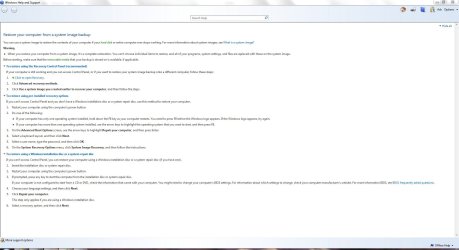
Check this Windows help screenie:

Recovery.JPG
 

My Computer

Computer Manufacturer/Model Number
HP Pavilion Elite 495UK
OS
Windows 7 Ultimate SP1 64-Bit
CPU
Intel Core i7 870 @ 2.93GHz
Motherboard
MSI 2A9C (CPU1)
Memory
8Gb Dual-Channel DDR3 @ 664MHz
Graphics Card(s)
nVidia GeForce GTX 460 1024MB dedicated RAM
Sound Card
Realtek HD Audio
Monitor(s) Displays
HP2310i
Screen Resolution
1920 x 1080
Hard Drives
1x1954GB Hitachi HDS22020ALA 330 (RAID), 1x1954GB Hitachi External for backup and storage
PSU
460W
Case
HP Elite
Cooling
Air cooled
Keyboard
Logitech K750 solar-powered keyboard
Mouse
Logitech Wireless M180 mouse
Internet Speed
2Mb
Other Info
Pure Avanti Flow Internet Radio with iPod Dock, 64Gb iPod, HP USB Speakers, Sony MDR-V500 Headphones, Sony Vaio F-Series Laptop
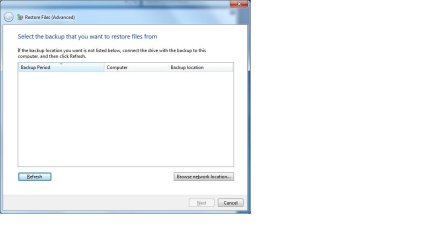
You're correct, mjf, I just want my files and stuff back. The problem is that when I hit the "Select another backup" it pops up a window that scans for backups, and tells me it can't find any. Then, my only options are to "Browse network" and "Refresh" neither of which are of any use to me. (Note attached photo)

The backup is on an external Hard drive, plugged in via USB, and I can see the backup file on it, and access it fine, it's just the backup system can't see it. If I were to remove the HD from the external housing and plug it in via sata, might that help the situation?
 

Attachments

  • Stupid Backup Window.jpg
    Stupid Backup Window.jpg
    64.5 KB · Views: 44

My Computer

OS
Window 7 Ultimate x64
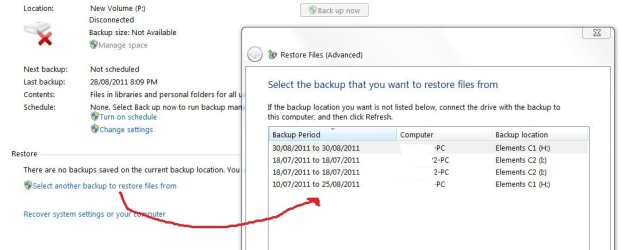
This is what you might expect. Here is an example of one of my portable HDDs with 2 partitions containing backup sets for 2 computers.
SS25_9_11.JPG
So can you see these backup folders (eg. Jone-PC) with windows explorer?
You can do a file system check on the external and check that you can read and write to it. If yes then I wouldn't think it's a USB issue but you could try a direct sata connection.

I use Partition Wizard (see free program list) mini Tool's "Explore Partition" to safely poke around. Here you can go into your backup folder until you hit the zip files. This would show if your data is there.

You can pull data directly from the zips but I'd wait to see if someone else has a better idea.
 

My Computer

Computer type
PC/Desktop
Computer Manufacturer/Model Number
Own build
OS
Windows 7x64 Home Premium SP1
CPU
Intel i7 2600k
Motherboard
ASUS P8Z68 Deluxe
Memory
G.Skill Ripjaws (DDR3-1600) 2x4GB
Graphics Card(s)
Nvidia GeForce GTS 450; Intel HD Graphics 3000(GT2+)
Monitor(s) Displays
Dell Ultrasharp IPS panel U2311H, Samsung SyncMaster P2350
Screen Resolution
1920x1080
Hard Drives
Samsung 850 Pro SSD 256GB, Samsung SSD 840 120GB, Seagates 1TB Barracuda ST31000528AS x2
PSU
Seasonic M12II 520W
Case
Lian Li Lancool PC-K60
Cooling
Case: 1x120mm, 3x140mm CPU: Hyper 212+
Keyboard
Logitech MK520 (wireless)
Mouse
Logitech MK520
Internet Speed
6-7 Mbps
Antivirus
Norton Security Premium, Malwarebytes on 2 (MSE on 3rd PC)
Browser
FireFox
Other Info
Audio: Logitech Z523 2.1
I ran the file system check on the external, and also just tried to swap a couple of documents back and forth, and everything checks out, there's no errors, everything reads/writes ok. And yes, I can see the backup files in windows explorer, I took a tour down through everything to the zips, and it's all there, it just won't come up in the bloody restore window.

I'll try the sata thing, I guess. My google-fu hasn't come up with any better solutions yet either.
 

My Computer

OS
Window 7 Ultimate x64
Being disaster averse I once went through the exercise of pulling files & folder structure out of the zips. I used 7-zip to a scratch partition. Once you use the correct extract option (forget what it was now) it all went quite easily.
I had lots of zips and just extracted each in turn.
 

My Computer

Computer type
PC/Desktop
Computer Manufacturer/Model Number
Own build
OS
Windows 7x64 Home Premium SP1
CPU
Intel i7 2600k
Motherboard
ASUS P8Z68 Deluxe
Memory
G.Skill Ripjaws (DDR3-1600) 2x4GB
Graphics Card(s)
Nvidia GeForce GTS 450; Intel HD Graphics 3000(GT2+)
Monitor(s) Displays
Dell Ultrasharp IPS panel U2311H, Samsung SyncMaster P2350
Screen Resolution
1920x1080
Hard Drives
Samsung 850 Pro SSD 256GB, Samsung SSD 840 120GB, Seagates 1TB Barracuda ST31000528AS x2
PSU
Seasonic M12II 520W
Case
Lian Li Lancool PC-K60
Cooling
Case: 1x120mm, 3x140mm CPU: Hyper 212+
Keyboard
Logitech MK520 (wireless)
Mouse
Logitech MK520
Internet Speed
6-7 Mbps
Antivirus
Norton Security Premium, Malwarebytes on 2 (MSE on 3rd PC)
Browser
FireFox
Other Info
Audio: Logitech Z523 2.1
Well, I think I got it. I pulled the drive out of the cage, and installed it via internal sata. This didn't help. Same problem. So, feeling annoyed, I was going to try and slide the backup over to my media center and see if it could get picked up over the network from there. But, lo and behold, when I allowed the network to "share" the new drive, the backup appeared in the restore window. It's currently running, so I can't check to make sure everything is perfect, but it appears as though it is going to work.

Edit: Great Success. Everything that should have come back, did.

tl;dr:
-Allow sharing on secondary HD
-Browse to backup location via pretend 'network'
-Curse Microsoft for making it this ridiculous, and self for assuming a windows utility would do what it's supposed to.
 
Last edited:

My Computer

OS
Window 7 Ultimate x64
Back
Top