
How to Set Time Limit for Idle Remote Desktop Sessions
Information
This allows you to specify the maximum amount of time that an active Remote Desktop Services session can be idle (without user input) before it is automatically disconnected.
If a time limit is set, the user receives a warning two minutes before the Remote Desktop Services session disconnects, which allows the user to press a key or move the mouse to keep the session active.
If you have a console session, active session time limits do not apply.
You must be logged in as an administrator to be able to do this tutorial.
If a time limit is set, the user receives a warning two minutes before the Remote Desktop Services session disconnects, which allows the user to press a key or move the mouse to keep the session active.
If you have a console session, active session time limits do not apply.
You must be logged in as an administrator to be able to do this tutorial.
Warning
While all editions of Vista, Windows 7, and Windows 8 can be a remote desktop client...
- Only the Vista Business, Ultimate, and Enterprise editions can host a remote desktop connection.
- Only the Windows 7 Professional, Ultimate, and Enterprise editions can host a remote desktop connection.
- Only the Windows 8 Pro and Enterprise editions can host a remote desktop connection.
OPTION ONE
Through the Local Group Policy Editor
2. In the left pane, click on to expand User Configuration, Administrative Templates, Windows Components, Remote Desktop Services, Remote Desktop Session Host, and Session Time Limits. (see screenshot below)
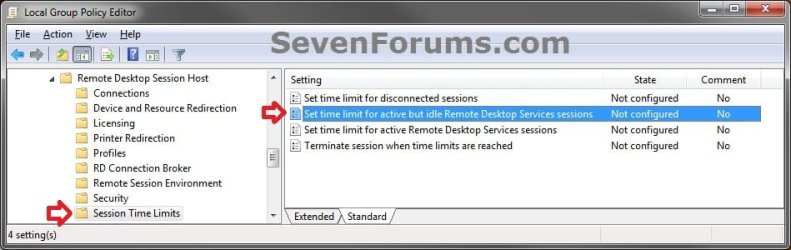
3. In the right pane, right click on Set time limit for active but idle Remote Desktop Services sessions and click on Edit. (see screenshot above)
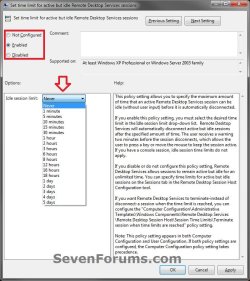
4. To Remove Time Limit for Idle Remote Desktop Services SessionsA) Select (dot) either Not Configured or Disabled. (see screenshot below step 6)
NOTE: Not Configured is the default setting.
B) Go to step 6.
5. To Set Time Limit for Idle Remote Desktop Services Sessions A) Select (dot) Enabled. (see screenshot below step 6)
B) Under Options, click on the Idle session limit drop down box and select an amount of time you would like to set as the time limit. (see screenshot below step 6)
6. Click on OK. (see screenshot below)
7. Close the Local Group Policy Editor window.
OPTION TWO
Manually in Registry Editor
2. If prompted by UAC, then click on Yes.
3. In regedit, navigate to the location below: (see screenshot below)
Code:
HKEY_LOCAL_MACHINE\SOFTWARE\Policies\Microsoft\Windows NT\Terminal Services
4. To Set Time Limit for Idle Remote Desktop Services SessionsA) In the right pane of Terminal Services, right click on a empty space, click on New and DWORD (32-bit) Value, type MaxIdleTime and press Enter. (see screenshot below)
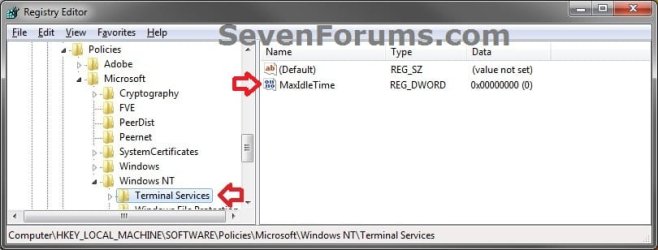
B) In the right pane, right click MaxIdleTime and click on Modify. (see screenshot above)
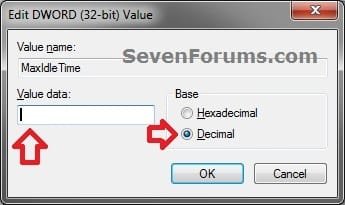
C) Select (dot) Decimal, then type in the registry Value data in the table below for the amount of time you want to set as the time limit and click on OK. (see screenshot below)
| Time Limit | Registry Value data |
|---|---|
| Never | 0 (number zero) |
| 1 minute | 60000 |
| 5 minutes | 300000 |
| 10 minutes | 600000 |
| 15 minutes | 900000 |
| 30 minutes | 1800000 |
| 1 hour | 3600000 |
| 2 hours | 7200000 |
| 3 hours | 10800000 |
| 6 hours | 21600000 |
| 8 hours | 28000000 |
| 12 hours | 43200000 |
| 16 hours | 57600000 |
| 18 hours | 64800000 |
| 1 day | 86400000 |
| 2 days | 172800000 |
| 3 days | 259200000 |
| 4 days | 345600000 |
| 5 days | 432000000 |
D) Go to step 6.
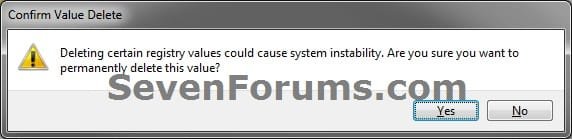
5. To Remove Time Limit for Idle Remote Desktop Services SessionsA) In the right pane, right click MaxIdleTime and click on Delete. (see screenshot below step 4A)
B) Click on Yes. (see screenshot below)
6. Close regedit.
7. Log off and log on, or restart the computer to apply the changes.
That's it,
Shawn Brink
Related Tutorials
- How to Set Time Limit for Active Remote Desktop Sessions
- How to Terminate Remote Desktop Session when Active or Idle Time Limits are Reached
- How to Enable Windows to make a Remote Desktop Connection
- How to Create a Windows 7 Remote System Properties Shortcut
- How to Create a Windows RemoteApp and Desktop Connections Shortcut
- How to Turn On or Off Automatic Log On for a Remote Desktop Connection
- Allow or Prevent Remote Desktop Connection Clients to Automatically Log On to Host Computer
- How to Create a "Remote Desktop Connection" Shortcut to a Specific Computer
- How to Create a "Remote Shutdown Dialog" Shortcut
- How to Reset and Clear Remote Desktop Connection History in Windows 7 and Windows 8
- How to Delete Credentials of a Remote Desktop Connection in Windows 7 and Windows 8
Last edited: