Startup Repair Infinite Loop Recovery

How to Recover from an Infinitely Looping Startup Repair Loop without Reinstalling Windows

If you've ever experienced a Startup Repair that continously loops and fails to fix the problem of not being able to load windows, even in safe mode, then you'll know that usually the only way to recover from this when System Restore does not work is to do a clean install of Windows.

Until now.

This tutorial will show you how to use the System Recovery Options provided by Windows to recover your system to a working state so that you don't have to risk losing data by performing a clean install.

   Warning
The instructions presented withing this tutorial must be followed correctly, or you can damage your Windows 7 installation even further. This tutorial is designed to help recover from a bad registry that is causing the startup repair loop. You should note that there may still be some issues remaining that cannot be fixed by manually restoring the registry.


Recovering Your System
  1. Boot to the System Recovery Options screen.
    • If Windows automatically opens Startup Repair, and subsequently fails to fix a problem, you can skip ahead to step 4 below.
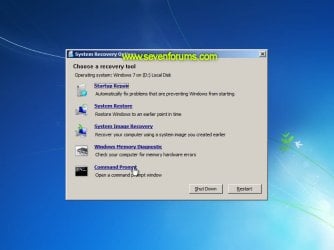
  2. In the System Recovery Options screen, click Startup Repair:
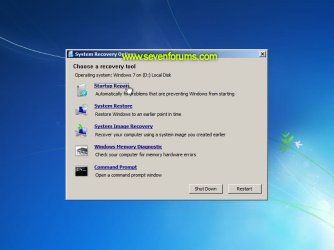
    Image05_startuprepair.jpg


  3. Windows will search for an attempt to repair startup problems:
    Image06_searching.jpg


  4. If startup problems could not be repaired, you will receive the message Windows cannot repair this computer automatically. Click View advanced options for system recovery and support:
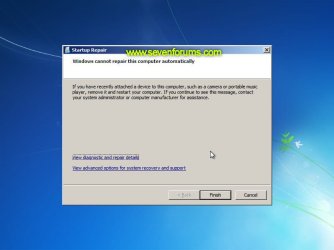
    Image07_cannotfix.jpg


  5. Click View advanced options for system recovery and support, which which bring you back to the main System Recovery Options screen.
  6. Click Command Prompt:
    Image08_clickcommand.jpg


  7. Command Prompt should open to X:, which is an internal ram disk use by System Repair:
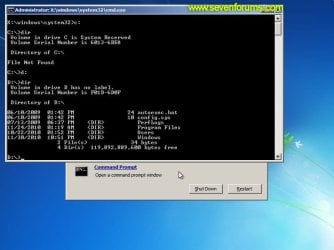
    Image10_changedrive.jpg


  8. Now you need to find your system drive. Depending on how your system is setup, this could be either C: or D:.
    • Type C: and press <ENTER>.
    • Verify that this is your system drive by typing DIR and pressing <ENTER>. If you see the Program Files, Users and Windows folders, then you have found your system drive, and can continue to step 9 below.
    • If the drive is not your system drive, repeat steps I and II above, changing the drive letter to D, E or some other letter until the system drive is located.
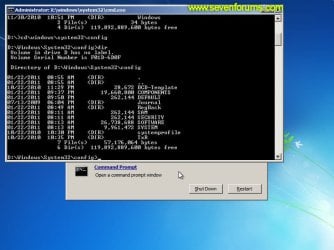
      Image11_chdir_config.jpg

  9. When you have located your Windows system drive, type CD \windows\system32\config and press <ENTER>:
  10. Type DIR and press <ENTER>, and verify that the following files and folders exist in the config folder:
    • RegBack (which is a folder)
    • DEFAULT
    • SAM
    • SECURITY
    • SOFTWARE
    • SYSTEM
      Image11_chdir_config.jpg

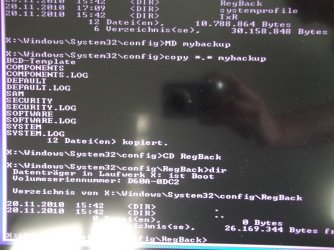
  11. Type MD mybackup and press <ENTER> to create a backup folder that you can use incase this procedure does not work as expected.
  12. Type copy *.* mybackup and press <ENTER>.
    • If you are prompted to overwrite existing files, press A to allow all backups to be overwritten.
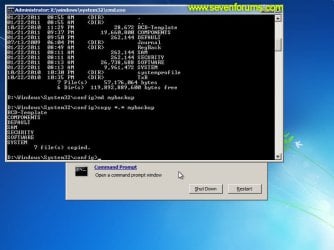
      Image12_mybackup.jpg

  13. Now you need to check if you can use the automatic Windows backups to restore your registry:
    • Type CD RegBack and press <ENTER> to go to the RegBack folder.
    • Type DIR and press <ENTER> to view the contents of the folder. All the following files must exist:
      • The DEFAULT, SAM and SECURITY files should each be about 262,000 bytes in size.
      • The SOFTWARE file should be about 26,000,000 bytes.
      • The SYSTEM file should be about 9,900,000 bytes.
      • The file sizes presented here are approximate estimations, and may vary depending on your system. If any one of them are 0 bytes, then you should stop what you're doing now and seek an alternative method of recovering your system, because Windows cannot function with a 0-byte size registry hive.
    • If the hive files listed in RegBack are ok, then proceed to step 14 of the tutorial.
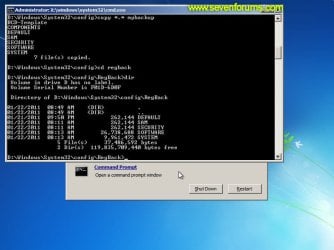
      Image13_checkregback.jpg


  14. Type copy *.* .. and press <ENTER> to copy the backup hive files to \Windows\System32\config.
    • If you are prompted to overwrite existing files, press A to allow all file to be overwritten.
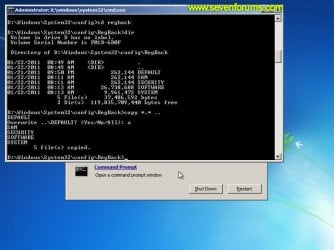
      Image14_copyregback.jpg

  15. Type exit and press <ENTER> to close the command prompt.
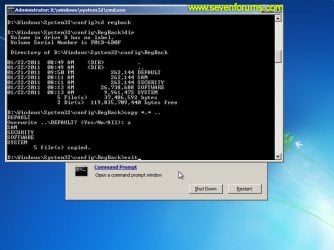
    Image15_exit.jpg


  16. Click the Restart button to reboot your computer. If all goes well, your system will boot normally.
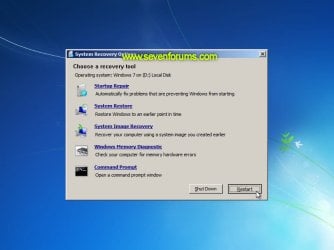
    Image16_restart.jpg
    Image17_working.jpg


Reference Information
This tutorial was made possible after learning how to manualy replace the Windows 7 Registry Hives after reading the Recovering Windows 7 Registry Hives/Files article on Microsoft Technet.


Attachments
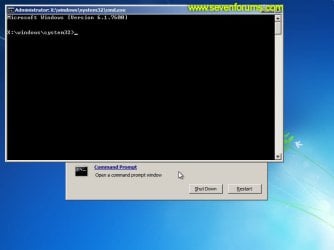
  • Image09_commandprompt.jpg
    Image09_commandprompt.jpg
    26.1 KB · Views: 373
Last edited by a moderator:
Great indications - it works on windows 10 also

I have a lite version of windows 10, that I use for my work, working in a virtual machine under ubuntu.
After a system update of virtualbox, windows wasn't able to start entering in an infinite loop of automatic repair.
Following this guide, after 10 min. of timework I resolved.
Thank you very mutch!

Fabio
 

My Computer My Computer

Computer type
PC/Desktop
OS
Windows 10 - 64 bit
question

I am trying to do this but in step 13 the last line say
DIR 0 bytes of free space. The other numbers are almost the same in the instructions. I can still do this if my hard drives has no free space? Do you know how I can free disc space to complete the procedure?
Thanks
 

My Computer My Computer

Computer type
Laptop
Computer Manufacturer/Model Number
dell
OS
windows 7
Hi Eli21,

ITS NOT saying not enough Disk space BUT NOTHING in the hive if its showing 0 , which it needs to complete the repair, hence the rider you will need to do it a different way
Have you any re-install disks??. if so follow this tutorial
Repair Install - Windows 7 Help Forums

Roy
 

My Computer My Computer

Computer type
PC/Desktop
Computer Manufacturer/Model Number
medionl/Aspire 6930G/acer x55a
OS
W7 home premium 32bit/W7HP 64bit/w10 tp insider ring
CPU
E5300 dual core
Motherboard
medion MS7366
Memory
3gb
Graphics Card(s)
Nvidia Geforce 7100 Nforce 630i
Monitor(s) Displays
avixc
Internet Speed
n (isp resticted to 72)
Antivirus
mse/pands
Browser
palemoon
Other Info
Belkin Fd7050 n USB using Railink RT2870 drivers, more upto date
Reg takeover!

Just like to thank Peter for this very good info,because I had completely lost Windows.
I persevered refusing to fresh instal Windows,and after 50 or maybe more restarting I actually was able to get into cmd prompt again,and so THANKS you are doing great work Peter.
 

My Computer My Computer

Computer type
PC/Desktop
Computer Manufacturer/Model Number
Dell
OS
64Bit Home Premnium
Antivirus
Microsoft Security Essentials
Browser
Chrome
Thanks!

I've registered on the forum just to say thanks. I'm on Windows 10 Pro, got the infinite startup loop after windows update (I think). Spent hours trying google searched answers, stumbled on this thread, follow the steps, and it worked! Much appreciated!
 

My Computer My Computer

Computer type
PC/Desktop
OS
Windows 10 Pro
Thank you very much!

I am yet another happy customer. This tutorial was perfect and fixed my problem without a hitch. Thank you so much!
 

My Computer My Computer

Computer type
PC/Desktop
OS
Windows 7 Ultimate x64
i already had that loop problem some time ago, then used those commands, of the front page

CD \windows\system32\config
DIR
MD mybackup
copy *.* mybackup
overwrite with A
CD RegBack
DIR
copy *.* ..
overwrite with A
exit
remove windows DVD and restart go to BIOS and select hard drive as boot device

now it happens again

when entering those commands i get this screen

X is now the new boot drive, which is new to my knowledge
I have double the amount of config files ? with .log endings
And one of those rows show 0 Bytes, so i stopped with going on entering any further commands

is this all just a mistake, and simply means nothing else than, that there is an already once created backup that i can use to restore

sorry for the english, german native language

someone in another forum posted to copy those files, in cmd command window, from the original windows DVD to the hard drive that windows is installed on and everyone was happy with the result, but i am not sure if i should do that, because i am confused as to why the boot drive is called X, why are there a double amount of config files with .log endings, and therefore how to behave in my case

C:\windows\system32\config\regback\system c:\windows\system32\config\system
C:\windows\system32\config\regback\software c:\windows\system32\config\software
C:\windows\system32\config\regback\security c:\windows\system32\config\security
C:\windows\system32\config\regback\sam c:\windows\system32\config\sam
C:\windows\system32\config\regback\default c:\windows\system32\config\default
 

Attachments

  • cmd.jpg
    cmd.jpg
    655.5 KB · Views: 50

My Computer My Computer

Computer type
PC/Desktop
Computer Manufacturer/Model Number
self built
OS
windows 7 home premium 64 bit
CPU
q8300 4x2.5ghz
Memory
4 gb
Graphics Card(s)
nvidia gts 250
Hard Drives
thoshiba 500gb
Antivirus
avira
Browser
chrome
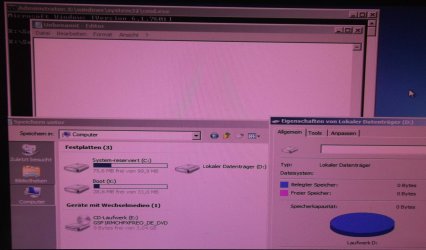
X is the winpe drive in RAM. Nothing to do with your hard drive.

You need to locate your windows installation partition. It can be done via diskpart commands, or it is easier to type the following in cmd prompt:

Notepad

(then press enter)

When notepad pops up, click File, then Save and you can use the browse dialog to browse your computer and get the drive letter that has been assigned to your windows partition ( it might not be C - don't worry, use the drive letter that you see in the browse dialog )

Alternatively, you can use my boot media which includes windows explorer ( and lots of tools ) so you can see what you are doing:

17514x86.iso

17514x64-v10.iso
 

My Computers My Computers

System One System Two

  • Computer type
    PC/Desktop
    OS
    7 X64
    CPU
    i5 8400
    Motherboard
    gigabyte b365m ds3h
    Memory
    2x8gb 3200mhz
    Hard Drives
    various
    PSU
    pure power 11 400w cm
    Case
    Coolermaster
    Cooling
    cryorig m9i
  • Computer type
    PC/Desktop
    OS
    7x64
    CPU
    g5400
    Motherboard
    ga b365m ds3h
    Memory
    8gb ddr4 2400
    PSU
    xfx pro 450w
ok going to try that

1. should i be concerned about those double entries ? one time normal and a second time with .log endings

2. and when i copy those commands from the windows dvd onto the hard drive

for example the command:

copy C:\windows\system32\config\regback\system c:\windows\system32\config\system

i have to change the second c: in that command line, to the letter of my hard drive, right?

3. i also got a "CRC" error message on drive D:

thinking about to do that chksdk /f /r command first or those windows dvd copy files command onto hard drive
 
Last edited:

My Computer My Computer

Computer type
PC/Desktop
Computer Manufacturer/Model Number
self built
OS
windows 7 home premium 64 bit
CPU
q8300 4x2.5ghz
Memory
4 gb
Graphics Card(s)
nvidia gts 250
Hard Drives
thoshiba 500gb
Antivirus
avira
Browser
chrome
copy ?:\windows\system32\config\regback\system ?:\windows\system32\config\system

You need to use the letter of your windows partition for both the ? above. That is the letter as seen from your booted media

It might be C, or it might be D or another letter. That is why you need to look to find the windows partition letter - as seen from your booted media.


1. should i be concerned about those double entries ? one time normal and a second time with .log endings

No - because they are on the X drive ( winpe drive) - they are nothing to do with your windows installation at all - completeley irrelevant.
 

My Computers My Computers

System One System Two

  • Computer type
    PC/Desktop
    OS
    7 X64
    CPU
    i5 8400
    Motherboard
    gigabyte b365m ds3h
    Memory
    2x8gb 3200mhz
    Hard Drives
    various
    PSU
    pure power 11 400w cm
    Case
    Coolermaster
    Cooling
    cryorig m9i
  • Computer type
    PC/Desktop
    OS
    7x64
    CPU
    g5400
    Motherboard
    ga b365m ds3h
    Memory
    8gb ddr4 2400
    PSU
    xfx pro 450w
there are 3 hard drives llisted and 1 that has to be the one, because its a 500GB hard drive, but shows 0 Bytes

when right clicking that drive, and going into properties, i can click on that first button, to check for errors, but then it says, "cant check for errors on the drive, because cant access the drive"

so copying those commands doesnt work

if i just type D: in CMD, to jump to that drive it says, "D: CRC error"

and so happens, when i type that command line "copy D: ... and so on

running chkdsk D: /f /r right now
 

Attachments

  • d1.jpg
    d1.jpg
    728.2 KB · Views: 44
  • d2.jpg
    d2.jpg
    897.1 KB · Views: 35

My Computer My Computer

Computer type
PC/Desktop
Computer Manufacturer/Model Number
self built
OS
windows 7 home premium 64 bit
CPU
q8300 4x2.5ghz
Memory
4 gb
Graphics Card(s)
nvidia gts 250
Hard Drives
thoshiba 500gb
Antivirus
avira
Browser
chrome
Yes, it looks like D is the problem.
 

My Computers My Computers

System One System Two

  • Computer type
    PC/Desktop
    OS
    7 X64
    CPU
    i5 8400
    Motherboard
    gigabyte b365m ds3h
    Memory
    2x8gb 3200mhz
    Hard Drives
    various
    PSU
    pure power 11 400w cm
    Case
    Coolermaster
    Cooling
    cryorig m9i
  • Computer type
    PC/Desktop
    OS
    7x64
    CPU
    g5400
    Motherboard
    ga b365m ds3h
    Memory
    8gb ddr4 2400
    PSU
    xfx pro 450w
the chkdsk /f /r command does work, to make the pc boot up again

but the pc gets that infinite loop problem, almost every day, that means i have to enter the chkdsk /f /r command almost every day
 

My Computer My Computer

Computer type
PC/Desktop
Computer Manufacturer/Model Number
self built
OS
windows 7 home premium 64 bit
CPU
q8300 4x2.5ghz
Memory
4 gb
Graphics Card(s)
nvidia gts 250
Hard Drives
thoshiba 500gb
Antivirus
avira
Browser
chrome
Could be a problem with the disk. Safer to get a new disk. They are cheap nowadays.
 

My Computers My Computers

System One System Two

  • Computer type
    PC/Desktop
    OS
    7 X64
    CPU
    i5 8400
    Motherboard
    gigabyte b365m ds3h
    Memory
    2x8gb 3200mhz
    Hard Drives
    various
    PSU
    pure power 11 400w cm
    Case
    Coolermaster
    Cooling
    cryorig m9i
  • Computer type
    PC/Desktop
    OS
    7x64
    CPU
    g5400
    Motherboard
    ga b365m ds3h
    Memory
    8gb ddr4 2400
    PSU
    xfx pro 450w
Signed up especially to say thanks to the OP for the first post. After trying multiple system recovery from win 7 iso, rebuild MBR etc, chkdsk, SFC scannow etc etc, using the reg backup files worked. (Win 7 64 bit Samsung laptop)

Cheers :-)
 

My Computer My Computer

Computer type
PC/Desktop
OS
Win 7 64 bit
That did not work.
 

My Computers My Computers

System One System Two

  • Computer type
    PC/Desktop
    Computer Manufacturer/Model Number
    Me
    OS
    Windows 7 Professional 64
    CPU
    AMD Phenom II X4 840 3.2GHz
    Motherboard
    MSI 970A-G43 Plus
    Memory
    Ballistix Sport 16GB (2 x 8GB) DDR3 1600
    Graphics Card(s)
    NVIDIA GeForce GT 610
    Hard Drives
    ST2000DM 008-2FR102 SATA Disk Device
  • Computer type
    PC/Desktop
    System Manufacturer/Model Number
    Dell Optiplex 3020
    OS
    Windows 10
    CPU
    i5-4590
    Motherboard
    0WMJ54
    Memory
    8GB DDR3
    Graphics Card(s)
    Intel HD 4600
    Monitor(s) Displays
    Samsung
    Hard Drives
    WD5000AAKX ATA Device
Hello, when I tried to copy all the files to my backup folder, the other 6 files were copied, but the "system" file fails to copy with the error "The request could not be performed because of an I/O device error."
 

My Computers My Computers

System One System Two

  • OS
    Windows 7 home premium 64 bit
  • Computer type
    PC/Desktop
Back
Top