
How to Pin Search Connectors to Search and See More Results in Start Menu
Information
This tutorial will show you how to add links for the Search Connectors in the Start Menu, to be able to search from the Start Menu Search Bar and See More Results directly from the Connectors.
Note
You will only be able to add a total of Five Search Connectors at a time, three that will be directly on the Start Menu along with the See More Results, and the other two from within See More Results.
Warning
- This will only be available for the Ultimate/Enterprise Editions of Windows 7, as the Ultimate/Enterprise Editions will be the only Editions to have Federated Search available.
- You will need to be an administrator to open the Local Group Policy Editor.
Here's How:
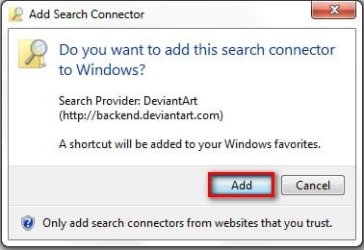
1. Go to this tutorial here and download whatever Search Providers you like, or make your own.
Example:
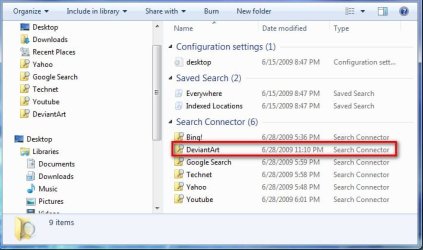
Which will end up here: C:\Users\UserName\Searches
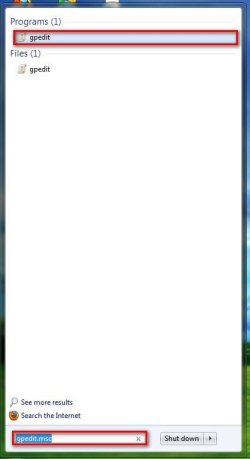
2. Go to the Start Menu and type gpedit.msc in the Search bar and press Enter. Click OK for the UAC prompt.
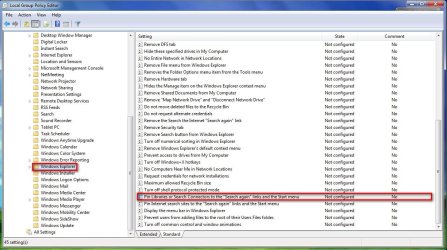
3. In the Local Group Policy Editor, go to User Configuration/Administrative Templates/Windows Components/Windows Explorer/Pin Libraries or Search Connectors to the "Search Again" links and the Start Menu,and double-click on it.
4. To enable the setting, click the dot for Enabled. Add the location for the Search Provider you want. I have given an example in the screenshot below, just Enter your own Username and the name of the Search Provider, followed by .searchConnector-ms. I have used the Bing! search provider for an example here. Enter it, along with any others, into the 5 Location to Pin areas. Click Apply - OK. You can now close gpedit.msc.

5. Now you can go to the Start Menu, and enter your search query into the bar, and you will see the first 3 Search Providers there along with the See More Results.

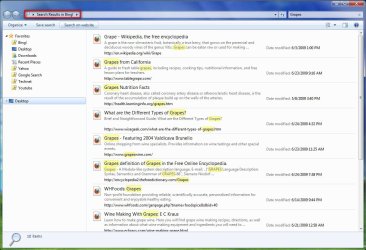
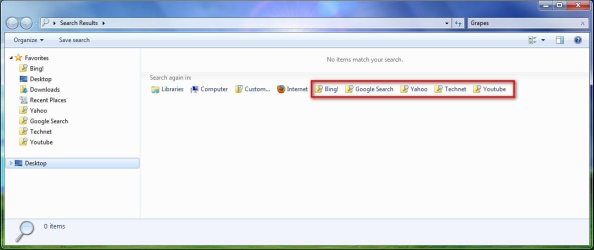
6. When you type your query in the search bar, you can choose to click on one of your Search Provider links, which will then give you your displayed results in the Explorer Window. Or you can choose See More Results, which will open a Window with all your displayed ''Search Again" links, including the other two Search Providers. You can then search from there if you want.
That's it,
Airbot
Related Tutorials
- Windows 7 Search Federation Providers
- How to Add or Remove "See more results" Link in Start Menu Search Box
- How to Add Search Internet Link to the Windows 7 Start Menu Search Box
- How to Pin Libraries to Search and See More Results in Start Menu
- How to Turn Windows 7 Search On or Off
- How to Search in Windows 7
- How to Change or Restore the Default Windows 7 Search Options
Last edited by a moderator:


