Screen Capture and Video Editing in High Quality

I have been looking for a long time to find suitable programs to produce video tutorials like this one or that one. Most free screen capture programs produce poor quality and editing the resulting video is also a quality challenge.

The particular problem for tutorials is the fact that one often uses text pages (PDF documents or webpages) in the tutorial. That is a real challenge for the screen capture program. Very often you are unable to read the text or it is very fuzzy in the resulting video. Action movies are a lot easier to capture because the quality deterioration is not so obvious.

After trying about a dozen free and paid options, I have settled for two capture programs and two editing options. I also use YouTube and Vimeo for uploads. Since they do an additional conversion, this is another source of quality deterioration. So there is an interest to start with excellent input quality.

Screen capture programs

The program I have been using for a long time is WMCapture. I bought this for $39.95. The output quality is very good but the controls are not. There is no keyboard combination for Pause or Stop which makes it necessary to activate their control window each time. This, of course, shows up in the captured video and has to be cropped each time. I will not go into the operational details of this program because they are pretty obvious.

One day I found Microsoft Expression Encoder 4. This produces outstanding output quality and has the keyboard controls I always wanted. If you buy it, you will have to pay $199, but that is not necessary. They have a free download and you can use it forever. The only restriction of the free version is that you are only allowed 10 minutes for each capture. That was never a problem for me because after 10 minutes I run out of words anyhow and have to take a break and regroup. For capturing e.g. YouTube musicals it is usually also sufficient. I prefer the capture over the download because then I run no risk of collecting malware.

Microsoft Expression Encoder 4 (MSEE4)

I will explain the operation of MSEE4 because I found a few tricks that are useful to know. When you start MSEE4, you get this control.


2011-03-06_1831.png


All you usually need to do is click on the microphone icon and then on the red dot. Just be aware that the default settings are 15FPS and both the microphone and the headphone ports are activated. If you have your speakers attached to the headphone port and run e.g. the internet radio, the radio output will also record. This is, of course, handy if you play e.g. a video during your recording. Hence the video sound will be recorded.

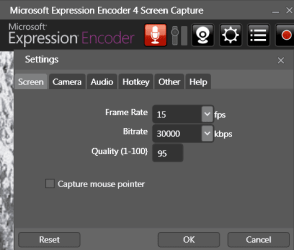
If you want to change the settings, you click on the cog wheel and you get these controls.

2011-03-06_1852.png


Here you see the 15FPS frame rate which you can augment up to 60FPS – this is recommended if you record action videos. But it will considerably increase the size of your output file.

Once you are done with the settings, click on the red dot which gets you to this Control.


2011-03-06_1859.png


Click on the leftmost box (under the word “Select”), release the clicker and move the cursor to the top left corner of your screen. Then hold the left clicker down and drag the cursor to the right bottom corner and release the clicker. Now you have selected the entire screen for the recording. If you want to record only parts of the screen, you have to move/drag the cursor accordingly.

When you are done with the screen selection, click on the red dot of this control and you get this last control.
2011-03-06_1907.png


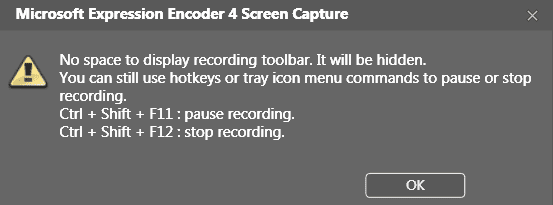
Here it tells you that you can pause with CTL+Shift+F11 and that you can stop with CTL+Shift+F12. That is the function I was always missing in WMCapture. It is very convenient.

When you click OK, a countdown of 3 seconds will start (big 3,2,1 on the screen) and the recording will start.

To end the recording, you press CTL+Shift+12 and the recording stops – or after 10 minutes when the program stops the recording automatically and informs you with a pop-up. Then you get this control.
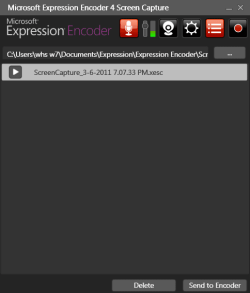

2011-03-06_1908.png


Here they want you to send the output to the encoder. In typical Microsoft fashion they did not go the easy way and record in a known filetype (e.g. .wmv), but they had to invent this special filetype .xesc. If you want to deal with the encoder, that is fine. But there is a much easier way. The encoder will keep your system really busy. Depending on the power of your system, the encoding takes 3 to 6 minutes for every minute of recorded video. So a 10 minute screen capture can take up to an hour of encoding.

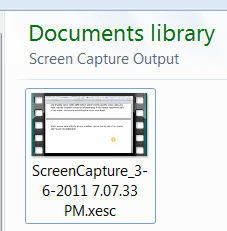
But we will do that “encoding” the smart way. We go to the MSEE4 output which is in:

C:\Users\yourname\Documents\Expression\Expression Encoder\Screen Capture Output.

And it looks like this:

2011-03-06_1937.png


Here we will use a simple trick. We will rename the filetype from .xesc to .wmv.. The result is the same as the result from the encoder. I could not see any difference. The .xesc filetype is more or less the same as the .wmv filetype. Note though that this “conversion” will not work if you rename it to .avi or any other known video filetypes – only .wmv is permissible. After the renaming you will get a warning message which you can ignore – just click Yes.

If you want to be 100% sure that your tweaked .wmv is really good under all circumstances, run it thru Format Factory and convert is from .wmv to .wmv. That is sometimes neccessary for uploads because the upload sites may have problems with this "hybrid .wmv". That way you have no loss of quality and Format Factory has done a genuine .wmv job.

But if Format Factory fails too (which happens on rare occasions), run it thru WLMM as the usltimate cure. None of that is required if you only use the video on a PC or burn it to a DVD. The hybrid .wmv is good enough for that.

Video Editing

Now you have this screen capture and probably a few more 10 minute pieces that you want to edit – crop off the possible MSEE4 pop-up and assemble the pieces. Here again you have a few options.

You can use the Windows Live Movie Maker (WLMM) – but do not use the older WMM which produces really poor output even at the best settings. If you use WLMM at the recommended settings, you can expect a reasonable result. The video does, however, go thru a conversion and it takes a long processing time for the output.

What you really want is a lossless editing. The best program I found for that is Machete. For $19.95, this little program is really good value. They do have a 2 week trial period – so you can try it out. They also have a free Machete Lite which I have never tried.

To get you started with Machete, I will explain the most basic operations. For more complex operations you can refer to their “How to..” documentation.

Cropping a video

Open Machete and follow the steps in the picture.
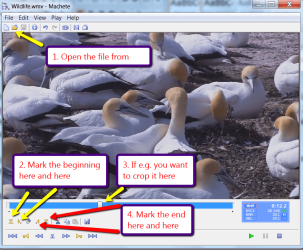

2011-03-06_2025.png


Once you have set the end point, go to File and Save the selection as… You will notice that the saving is extremely fast. Compare that to e.g. WLMM.

If you later want to assemble your pieces with Machete, you should familiarize yourself with the Key Frame concept which is well explained in the Machete documentation. If you assemble with WLMM, this is irrelevant.

Assembling videos

I will assume that you are familiar with WLMM and only explain the assembly procedure with Machete.

You open your first file and set the markers in the front and at the end. Make sure the “runner” is at the end of file1. Then you go to the icon as shown in the picture and insert the second file.
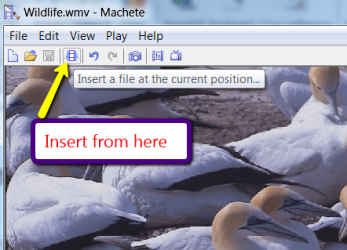

2011-03-06_2310.png


Now you set the marker at the end of this composite so that file1 and file2 are shown as one file. Then you can go back to the icon in the picture and insert file3 – and so on. Just make sure you also set the marker at the end after inserting the last file.

Once you have inserted all files you want to assemble, you go to File and click on Save the Selection as…Now you can select the folder to where you want to save. Saving your whole assembly will only take a few seconds – not hours like in WLMM. And the best part is that we still have the original quality of our screen capture.

Uploading

I prefer Vimeo as uploading site but I also use YouTube. Both sites will convert your video and that means the quality will deteriorate. But there is nothing you can do about that. After all, we are using their free service.

Vimeo limits you to 500MB per week on the free account. They also allow only one HD video per week.

YouTube allows up to 2GB per upload, but it must not be longer than 15 minutes. They convert everything to .flv which is a highly compressed format with the corresponding impact on quality.
 
Last edited:
Thanks for sharing! I'm currently using Camtasia Studio but I think I'll try MSEE4 out :)
 

My Computer

Computer type
PC/Desktop
OS
10 Home x64
CPU
Intel Core i5 4670K
Motherboard
Gigabyte GA-Z87-D3HP
Memory
Corsair XMS3 8GB DDr3 1600MHz
Graphics Card(s)
Sapphire NITRO Radeon R9 Fury
Sound Card
Asus Xonar DX
Monitor(s) Displays
Acer H236HLbmjd
Screen Resolution
1920x1080
Hard Drives
Force GS 128GB - Seagate 320GB - WD Caviar Black 1TB - WD Caviar Blue 500GB
PSU
EVGA SuperNOVA 650 P2
Case
Silverstone Raven 3 RV03B-W
Keyboard
Topre Realforce 104UG-HiPro
Mouse
Mionix Naos 7000
Internet Speed
76/4 On a good day
Antivirus
SmartScreen
Browser
Internet Explorer 11
Thank you, Wolfgang, once again a useful tutorial.

One question: I'm trying to set a webcam overlay, to get a small webcam pic on a corner of full screen capture. I have the settings correctly on Expression Encoder, I believe ;). No luck, it records simultaneously resulting two video files, one the screen capture and other the webcam (notice the time stamps on screen and webcam files):

Expression_Encoder_2.png

How can I do "wysiwyg", to see the webcam overlay on screen when recording? Or do I have to do it when editing?

Kari

P.S. Sorry:

whs_rep_nogo.png
 

My Computer

Computer type
Laptop
Computer Manufacturer/Model Number
HP ENVY 17-1150eg
OS
Windows 10 Pro x64 EN-GB
CPU
1.6 GHz Intel Core i7-720QM Processor
Memory
6 GB
Graphics Card(s)
ATI Mobility Radeon HD 5850 Graphics
Sound Card
Beats sound system with integrated subwoofer
Monitor(s) Displays
17" laptop display, 22" LED and 32" Full HD TV through HDMI
Screen Resolution
1600*900 (1), 1920*1080 (2&3)
Hard Drives
Internal: 2 x 500 GB SATA Hard Disk Drive 7200 rpm
External: 2TB for backups, 3TB USB3 network drive for media
Cooling
As Envy runs a bit warm, I have it on a Cooler Master pad
Keyboard
Logitech diNovo Media Desktop Laser (bluetooth)
Mouse
Logitech Performance Mouse MX
Internet Speed
50/10 Mbps VDSL
Antivirus
Windows Defender 4.3.9431.0
Browser
Maxthon 3.5.2., IE11
Thank you, Wolfgang, once again a useful tutorial.

One question: I'm trying to set a webcam overlay, to get a small webcam pic on a corner of full screen capture. I have the settings correctly on Expression Encoder, I believe ;). No luck, it records simultaneously resulting two video files, one the screen capture and other the webcam (notice the time stamps on screen and webcam files):

View attachment 149262

How can I do "wysiwyg", to see the webcam overlay on screen when recording? Or do I have to do it when editing?

Kari

P.S. Sorry:

View attachment 149263
Kari, You got me there. I see what you are trying to do, but I do not have the faintest idea how to do that. The encoder is so complex, but I am sure there is a way - somehow. I have uploaded my EE4 guide so that you can check: Expression4_QuickStart.zip - Windows Live
 

My Computer

Computer Manufacturer/Model Number
HP, Dell, Gateway, Toshiba - 4 laptops and 2 desktops
OS
Vista, Windows7, Mint Mate, Zorin, Windows 8
CPU
from 1.6GHz Duo to i7
Monitor(s) Displays
2x HP w2207
Hard Drives
5x HDD, 7x SSD, 12x Externals
Keyboard
with trackball - no mices
Mouse
Trackball mice
Internet Speed
DSL 6000

My Computer

Computer Manufacturer/Model Number
HP, Dell, Gateway, Toshiba - 4 laptops and 2 desktops
OS
Vista, Windows7, Mint Mate, Zorin, Windows 8
CPU
from 1.6GHz Duo to i7
Monitor(s) Displays
2x HP w2207
Hard Drives
5x HDD, 7x SSD, 12x Externals
Keyboard
with trackball - no mices
Mouse
Trackball mice
Internet Speed
DSL 6000
Thanks, Wolfgang. It's just that when I'm doing it in my "workaround" system, having webcam independently on a corner, a full screen window when active steels the focus and hides webcam display. I think the overlay is possible with Expression Encoder, have to find it ;)

Kari
 

My Computer

Computer type
Laptop
Computer Manufacturer/Model Number
HP ENVY 17-1150eg
OS
Windows 10 Pro x64 EN-GB
CPU
1.6 GHz Intel Core i7-720QM Processor
Memory
6 GB
Graphics Card(s)
ATI Mobility Radeon HD 5850 Graphics
Sound Card
Beats sound system with integrated subwoofer
Monitor(s) Displays
17" laptop display, 22" LED and 32" Full HD TV through HDMI
Screen Resolution
1600*900 (1), 1920*1080 (2&3)
Hard Drives
Internal: 2 x 500 GB SATA Hard Disk Drive 7200 rpm
External: 2TB for backups, 3TB USB3 network drive for media
Cooling
As Envy runs a bit warm, I have it on a Cooler Master pad
Keyboard
Logitech diNovo Media Desktop Laser (bluetooth)
Mouse
Logitech Performance Mouse MX
Internet Speed
50/10 Mbps VDSL
Antivirus
Windows Defender 4.3.9431.0
Browser
Maxthon 3.5.2., IE11
Thanks for the valuable info!

I had an issue on my computer with some very expensive ($70K) hardware/software. I wanted to show the manufacturer in Germany the issues I was having. Your advice and solution was just what I needed. I created a two minute screen video using the expression 4 software and uploaded it to a private video in YouTube. The manufacturer immediately responded with acknowledgment of the hardware issue.

Many thanks for a well crafted post!

Ron

"Perfect is... barely tolerable" - Phil Edwards, world champion surfer dude.
 
Last edited:

My Computer

OS
Windows 7 pro 64
whs, i cannot express what good hd quality you get from mirillis action, and it is very cheap. have a look at it ,its a little limited by comparison to the feature rich camtasia, but the quality is superb, when i have a full screen capture playing back i cant tell which is the desktop or the playback.

give the free trial a go and you will see what i mean...

Action! - The world's No. 1 games and desktop recorder!
 

My Computer

Computer Manufacturer/Model Number
Hewlett packard/p6512uk
OS
Microsoft Windows 7 Home Premium 64-bit 7600
CPU
IIx4 amd athelon 635 processor
Motherboard
FOXCONN 2AA9
Memory
2x2gb
Graphics Card(s)
ati radeon HD 5450
Sound Card
(1) Realtek High Definition Audio (2) AMD High Definition
Monitor(s) Displays
samsung lcd tv 32"
Screen Resolution
1360x 768
Hard Drives
(1) WDC WD10 01FAES-60Z2A0 SATA Disk Device (2) Maxtor OneTouch USB Device (3) ST310003 33AS USB Device (4) WD My Book 1111 USB Device
PSU
?
Cooling
air!
Keyboard
wireless hp
Mouse
wireless Hp,optical
Internet Speed
1.10mb/s
Antivirus
MSE
Browser
Firefox
Thanks Julian. I'll give it a try tomorrow. Most programs will not work with my setup because I changed the DPI to 150% (because of my bad eyesight). The two I mentioned above are the only once that can deal with that.
 

My Computer

Computer Manufacturer/Model Number
HP, Dell, Gateway, Toshiba - 4 laptops and 2 desktops
OS
Vista, Windows7, Mint Mate, Zorin, Windows 8
CPU
from 1.6GHz Duo to i7
Monitor(s) Displays
2x HP w2207
Hard Drives
5x HDD, 7x SSD, 12x Externals
Keyboard
with trackball - no mices
Mouse
Trackball mice
Internet Speed
DSL 6000
...Well... I thought "at last I have found a program that will work"...unfortunately the link to Microsoft is not available any more. I am open to any other program suggests one might have...
 

My Computer

Computer Manufacturer/Model Number
HP elite E9240F
OS
Windows 7 Home premium 64 bit

My Computer

Computer Manufacturer/Model Number
HP, Dell, Gateway, Toshiba - 4 laptops and 2 desktops
OS
Vista, Windows7, Mint Mate, Zorin, Windows 8
CPU
from 1.6GHz Duo to i7
Monitor(s) Displays
2x HP w2207
Hard Drives
5x HDD, 7x SSD, 12x Externals
Keyboard
with trackball - no mices
Mouse
Trackball mice
Internet Speed
DSL 6000
Wolfgang, I don't suppose you still have the images for this so we can attach them into the tutorial as all the ones you used on photobucket have now gone.
 

My Computer

Computer type
PC/Desktop
OS
Windows 11
Wolfgang, I don't suppose you still have the images for this so we can attach them into the tutorial as all the ones you used on photobucket have now gone.
Hi John, I fixed it. No idea what happened at Photobucket.
 

My Computer

Computer Manufacturer/Model Number
HP, Dell, Gateway, Toshiba - 4 laptops and 2 desktops
OS
Vista, Windows7, Mint Mate, Zorin, Windows 8
CPU
from 1.6GHz Duo to i7
Monitor(s) Displays
2x HP w2207
Hard Drives
5x HDD, 7x SSD, 12x Externals
Keyboard
with trackball - no mices
Mouse
Trackball mice
Internet Speed
DSL 6000
Thanks, that should make it easier for those trying to follow the tutorial ;)
 

My Computer

Computer type
PC/Desktop
OS
Windows 11
Well, I have lots of tutorial videos need to be captured and uploaded to youtube, I tried Smartpixel software, it's pretty easy for the HD screen and webcam video recording editing.
 

My Computer

Computer type
PC/Desktop
Computer Manufacturer/Model Number
Acer
OS
Win 7 64bit
CPU
G645
Motherboard
Ausus
Memory
4GB
Graphics Card(s)
Intergrated
Browser
Firefox
Anyone using Freecorder with Windows 7 and Explorer 11? I have used it with no issues for a few years seems to have issues now that I have updated to Explorer 11..............
 

My Computer

Computer type
PC/Desktop
Computer Manufacturer/Model Number
CyberPower
OS
Windows 7 Pro 64 Bit SP1
CPU
Intel I7 960 3.2 ghz
Motherboard
Asus PT6 SE X58 Crossfire Triple Channel DDR3
Memory
12 Gig DDR3 1600
Graphics Card(s)
Nvidia Geforce GTX 660 Ti 3GB
Sound Card
Creative SB Xfi Xtreme
Monitor(s) Displays
ViewSonic 27 inch wb
Screen Resolution
1400 X 1050
Hard Drives
2TB SATA III 6GB 7200 RPM 64mb Cache
2TB SATA III 6GB 7200 RPM 64 MB Cache
PSU
Xtremegear 950 Watt
Case
Coolermaster HAF 932 Advanced
Cooling
Asetek 510LC 120MM Watercooler
Keyboard
Razer Death Stalker
Mouse
Logitech Trackman Wheel
Internet Speed
Cable
Antivirus
Norton Internet Security 2014
Browser
Windows Explorer 11
Hi Wolfgang,

I mentioned here that there is a SP1 for MSEE4, and when I went over 10' the first time I saw an alert that I couldn't go any longer so I looked around and saw that MSEE4 needs SP2 to remove that limitation. I installed SP2 over top of SP1 and after testing I can now go beyond 10minutes.

I noticed during both installs there is a page asking for a registration/License number, I entered nothing and clicked on OK and both times MSEE4 finished the installation.

I've done my Eagle captures with only MSEE4 and YouTube (YT) and for me it is a mildly steep learning curve. Before the last one I posted here I needed to edit it and following your tut and MSEE4's Help file I needed the preview pane, it isn't turned on by default, once you send the capture to encoding you need to go to Window in the Menu bar and click on preview at the bottom it will stay selected until changed back.

Question(s):
YT has this in the left pane while uploading:
YT Vid Rq.JPG

I do have 16:9 display resolution set for my monitor, but I'm cropping the eagle capture in MSEE4 to 9:5 and 15p. So far I don't see any difference in quality and YT hasn't warned me about the upload being too big and doesn't seem to be struggling in its conversion so, I'm going to do what I think you're going to say, and don't worry about it until it happens. ;)

I did have another question about MSEE4 but it escapes me now. :doh:And I'll save it for later.
 

My Computer

Computer type
PC/Desktop
Computer Manufacturer/Model Number
Gateway DX4831-01e (Mid-Tower Desktop)
OS
Originally Win 7 Hm Prem x64 Ver 6.1.7600 Build 7601-SP1 | Upgraded to Windows 10 December 14, 2019
CPU
Intel i3 530 2.93GHz, 2933MHz 2 Cores 4 Logical Processors
Motherboard
Gateway H57M01 133 megahertz
Memory
6GB of 1,333MHz DDR3 SDRAM
Graphics Card(s)
32MB Intel Graphics Media Accelerator HD IGChip
Sound Card
Realtek High Definition Audio
Monitor(s) Displays
Gateway HX2000 20inch TFT active matrix TN
Screen Resolution
1600 x 900 x 59 hertz
Hard Drives
WDC WD10EADS-00M2B0 [HDD] (1000.20 GB) -- drive 0,
HL-DT-ST DVDRAM GH41N [CD-ROM dr]
Four card readers, and Four USB 2.0
PSU
300watts.
Case
Mid-Tower Desktop
Cooling
Stock from Gateway
Keyboard
Natural Ergonomic Keyboard 4000, see Other Info
Mouse
Orig. Gateway wore out now using Insignia USB wired optical
Internet Speed
Vz FIOS 10ms png 57.64Mbps down 65.53Mbps up Speedtest.org
Antivirus
Zamana Anti-logger with Anti-malware, MSE, Windows Firewall,
Browser
IE11.0.9600.19399-Upd ver11.0.135, Firefox 68.0.1 x64
Other Info
System Specs by Belarc.

BIOS: American Megatrends Inc. P01-A0 11/17/2009

Replaced the MS 'Natural' Standard PS/2 Enhanced 101-102 Keyboard with a new Natural Ergonomic Keyboard 4000 on August 1st 2014.

Canon Pixma MG3222 Printer.

Updated to IE11 on 12102015 | Fios Quantum Router g1100

Additional AV: SpywareBlaster, manual Mbam, SAS
You are doing good. I have uploaded files to Youtube in all kinds of formats and file types and I really never saw much of a difference. I edit the videos (shorten, delete scenes and brighten) with the Windows Movie Maker. That is the easiest. When you record the Eagles nest, you may want to shut the sound recording off since there is no sound. That makes the files smaller.
 

My Computer

Computer Manufacturer/Model Number
HP, Dell, Gateway, Toshiba - 4 laptops and 2 desktops
OS
Vista, Windows7, Mint Mate, Zorin, Windows 8
CPU
from 1.6GHz Duo to i7
Monitor(s) Displays
2x HP w2207
Hard Drives
5x HDD, 7x SSD, 12x Externals
Keyboard
with trackball - no mices
Mouse
Trackball mice
Internet Speed
DSL 6000
Thanks Wolfgang for your words of encouragement!

I have and will try Windows Movie Maker (WMM) one problem I've seen, the more I watch the eagle cam the more I believe the lens is getting foggier so I don't know how much WMM can sharpen the video, but I'll try. It's also a fish-eye lens, subjects/objects closer to the cam look larger and bent than when they are on the other side of the nest, and as you've noticed there is no sound output like there is at the Decorah cam site.

Where do I turn off the sound? I have the sound level all the way down at the eagle cam site, but I don't believe you mean that. There are two areas that handle sound that I'm aware of, the one is on the opening window:
e4audio1.JPG

Since I don't have a mike I've always left that off, it turns a bittersweet color like the capture manager button there to the right if on, is that where you mean? or,

The other area I found is after you send the capture to the encoder, In the right panel I see:
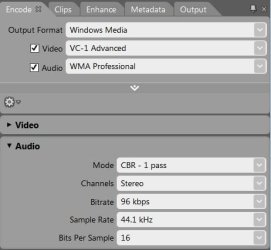
e4audio.JPG

and the same with the Audio unchecked:

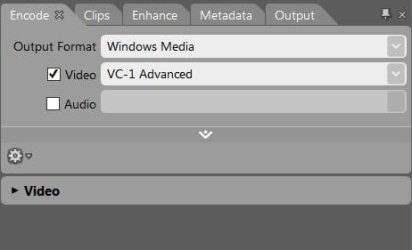
e4audiooff.JPG

If I uncheck Audio output the audio settings below also disappear, is that where you mean?
There are more audio settings on the Enhance tab, but they stay unchecked no matter what I do on the Encode tab.


I remembered that other question, It has to do with MSEE4's lifecycle:
MSEE4 support.JPG

Does it end in September this year or 2020 and, have you been getting any Windows Updates for it?
 

My Computer

Computer type
PC/Desktop
Computer Manufacturer/Model Number
Gateway DX4831-01e (Mid-Tower Desktop)
OS
Originally Win 7 Hm Prem x64 Ver 6.1.7600 Build 7601-SP1 | Upgraded to Windows 10 December 14, 2019
CPU
Intel i3 530 2.93GHz, 2933MHz 2 Cores 4 Logical Processors
Motherboard
Gateway H57M01 133 megahertz
Memory
6GB of 1,333MHz DDR3 SDRAM
Graphics Card(s)
32MB Intel Graphics Media Accelerator HD IGChip
Sound Card
Realtek High Definition Audio
Monitor(s) Displays
Gateway HX2000 20inch TFT active matrix TN
Screen Resolution
1600 x 900 x 59 hertz
Hard Drives
WDC WD10EADS-00M2B0 [HDD] (1000.20 GB) -- drive 0,
HL-DT-ST DVDRAM GH41N [CD-ROM dr]
Four card readers, and Four USB 2.0
PSU
300watts.
Case
Mid-Tower Desktop
Cooling
Stock from Gateway
Keyboard
Natural Ergonomic Keyboard 4000, see Other Info
Mouse
Orig. Gateway wore out now using Insignia USB wired optical
Internet Speed
Vz FIOS 10ms png 57.64Mbps down 65.53Mbps up Speedtest.org
Antivirus
Zamana Anti-logger with Anti-malware, MSE, Windows Firewall,
Browser
IE11.0.9600.19399-Upd ver11.0.135, Firefox 68.0.1 x64
Other Info
System Specs by Belarc.

BIOS: American Megatrends Inc. P01-A0 11/17/2009

Replaced the MS 'Natural' Standard PS/2 Enhanced 101-102 Keyboard with a new Natural Ergonomic Keyboard 4000 on August 1st 2014.

Canon Pixma MG3222 Printer.

Updated to IE11 on 12102015 | Fios Quantum Router g1100

Additional AV: SpywareBlaster, manual Mbam, SAS
Looks like you did the right thing regarding the audio. Yes there was an update once. But we have a lot of time until 2020. It will still work after that but they will just not update it any more after that - so what. The eagles will long be gone by then, LOL.
 

My Computer

Computer Manufacturer/Model Number
HP, Dell, Gateway, Toshiba - 4 laptops and 2 desktops
OS
Vista, Windows7, Mint Mate, Zorin, Windows 8
CPU
from 1.6GHz Duo to i7
Monitor(s) Displays
2x HP w2207
Hard Drives
5x HDD, 7x SSD, 12x Externals
Keyboard
with trackball - no mices
Mouse
Trackball mice
Internet Speed
DSL 6000
Back
Top