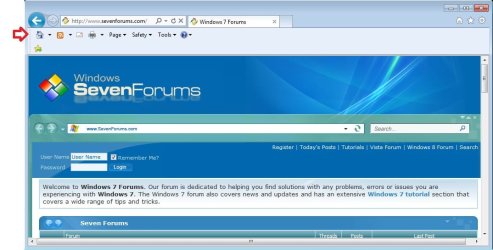
Internet Explorer Command Bar - Move to Left or Right

How to Move the "Command Bar" to the Left or Right Side in IE9 and IE10

   Information
The Command bar offers easy access to almost any setting or feature in IE9 and IE10.

This tutorial will show you how to move the Command bar to the left side or right side in IE9 and IE10.


OPTION ONE

To Move Command Bar from Left Side to Right Side in IE9 and IE10


NOTE: Unfortunately, the Favorties bar has to be used together with the Command bar on the same toolbar in order to have the Command bar on the right side. This option will show you how to do so.
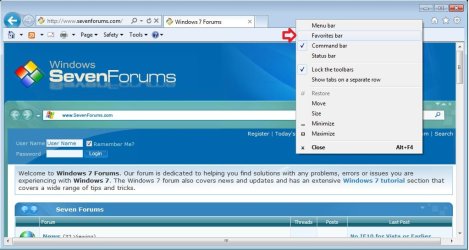
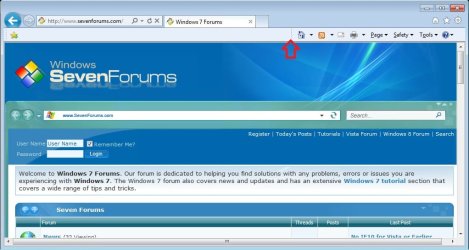
1. In IE9 or IE10, right click on a blank space on the toolbar, and click/tap on both Favorites bar and Command bar to have them checked. (see screenshot below)
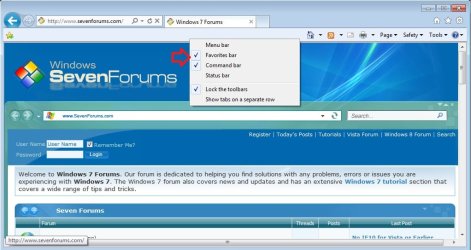
Right-1.jpg

A) If IE9 or IE10 looks like the screenshot above with the Favorites bar on the left and the Command bar on the right on the same toolbar, then you are done. If not, then you will need to do step 2 below instead.
OR

2. In IE9 or IE10, right click on a blank space on the toolbar, click/tap on both Favorites bar and Command bar to have them checked, then click/tap on Lock the toolbars to uncheck it. (see screenshot below)
NOTE: This step is for when you have the Favorites bar and Command bar on separate toolbars on the left when they are turned on.
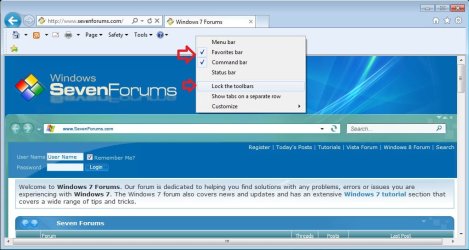
Right-2A.jpg
A) Move the mouse pointer over the dotted separator line Separator.jpg to the left of the Command bar until it turns into a double arrow Double_Arrow.jpg. (see screenshot below)
Right-2B.jpg
B) Left click/tap and hold, then drag the Command bar into the Favorites bar and release to drop it on the right side. (see screenshot below)
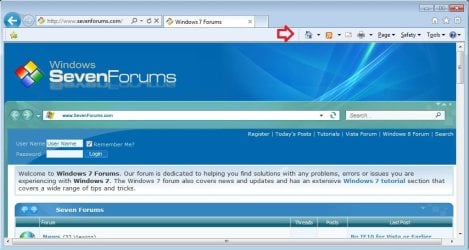
Right-2C.jpg
C) Right click on a blank space on the toolbar, then click/tap on Lock the toolbars to check it. (see screenshot below)
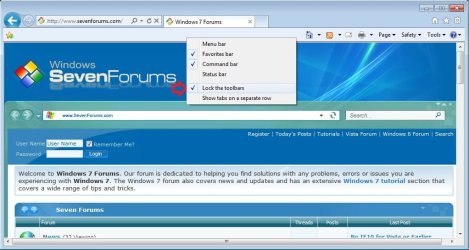
Right-2D.jpg


OPTION TWO

To Move Command Bar from Right Side to Left Side in IE9 and IE10


1. If You Did Not Want to Turn On the Favorites Bar
A) In IE9 or IE10, right click on a blank space on the toolbar, click/tap on the Command bar to check it, click/tap on the Favorites bar to uncheck it. (see screenshots below)
NOTE: You can also have the Menu bar or Status bar turned on as well if you like without affecting the Command bar. Only the Favorites bar can affect the Command bar.

Left-1A.jpgLeft-1B.jpg
2. If You Want Both the Favorties Bar and Command Bar Turned On
A) In IE9 or IE10, right click on a blank space on the toolbar, and click/tap on both Favorites bar and Command bar to have them checked. (see screenshot below)
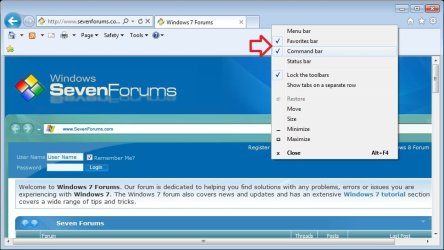
Left.jpg
B) If IE9 or IE10 looks like the screenshot above with the Favorites bar on and the Command bar on the left side on separate toolbars, then you are done. If not, then you will need to continue on to step 2C below instead.

C) Right click on a blank space on the toolbar, then click/tap on Lock the toolbars to uncheck it. (see screenshot below)
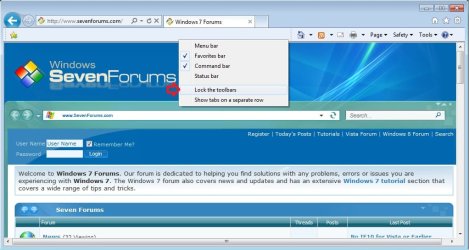
Left-2A.jpg
D) Move the mouse pointer over the dotted separator line Separator.jpg to the left of the Command bar until it turns into a double arrow Double_Arrow.jpg. (see screenshot below)
Left-2B.jpg
E) Left click/tap and hold, then drag the Command bar above the Favorites bar and release to drop it on the left side. (see screenshot below)
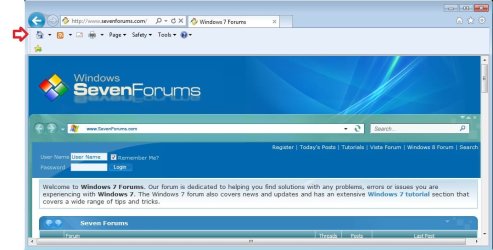
Left-2C.jpg
F) Right click on a blank space on the toolbar, then click/tap on Lock the toolbars to check it. (see screenshot below)
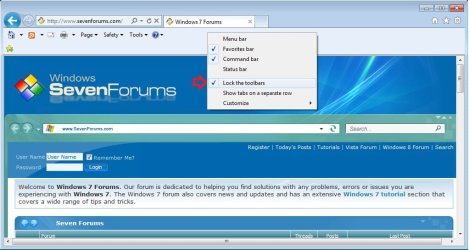
Left-2D.jpg
That's it,
Shawn


Last edited:
Uh...no mention of the fact that when on the left, the command bar it adds a new line? As opposed to when it goes on the right?

Any way to stop that from happening?
 

My Computer

OS
windows 7
Hello Daneyuleb, and welcome to Seven Forums.

Yeah, if the Command bar is moved to the left, it will be on it's own separate line. There's no way around. :(
 

My Computer

Computer type
PC/Desktop
Computer Manufacturer/Model Number
Self built custom
OS
64-bit Windows 11 Pro for Workstations
CPU
Intel i7-8700K OC'd to 5 GHz
Motherboard
ASUS ROG Maximus XI Formula Z390
Memory
64 GB (4x16GB) G.SKILL TridentZ RGB DDR4 3600 MHz
Graphics Card(s)
ASUS ROG-STRIX-GTX1080TI-O11G-GAMING
Sound Card
Integrated
Monitor(s) Displays
2 x Samsung Odyssey G7 27"
Screen Resolution
2560x1440
Hard Drives
1TB Samsung 990 PRO M.2,
4TB Samsung 990 PRO PRO M.2,
TerraMaster F8 SSD Plus NAS
PSU
Seasonic Prime Titanium 850W
Case
Thermaltake Core P3
Cooling
Corsair Hydro H115i
Keyboard
Logitech wireless K800
Mouse
Logitech MX Master 4
Internet Speed
2 Gb/s Download and 100 Mb/s Upload
Antivirus
Malwarebyte Anti-Malware Premium
Browser
Google Chrome
Other Info
Logitech Z625 speaker system,
Logitech BRIO 4K Pro webcam,
HP Color LaserJet Pro MFP M477fdn,
APC SMART-UPS RT 1000 XL - SURT1000XLI,
Galaxy S23 Plus phone
Great tutorial as always. To the earlier question, I don't get why MS keeps making the same stupid decision on placement of toolbars - requiring a 2nd toolbar line whether or not needed. Ties up screen real estate unnecessarily - I'd like to have the menu and command bar on the same line, no other toolbars. I'd like to see a design with no restrictions on dragging individual toolbars around, let me choose all on one line, or a 2nd line. Then whether or not they all fit is my problem.
 

My Computer

OS
Windows 7 64-bit
Hello Gary, and welcome to Seven Forums.

You could sign up at Microsoft Connect, and leave feedback about IE at the link below to help make suggestions that may get implemented in the next version of IE.

https://connect.microsoft.com/IE

Hope this helps,
Shawn
 

My Computer

Computer type
PC/Desktop
Computer Manufacturer/Model Number
Self built custom
OS
64-bit Windows 11 Pro for Workstations
CPU
Intel i7-8700K OC'd to 5 GHz
Motherboard
ASUS ROG Maximus XI Formula Z390
Memory
64 GB (4x16GB) G.SKILL TridentZ RGB DDR4 3600 MHz
Graphics Card(s)
ASUS ROG-STRIX-GTX1080TI-O11G-GAMING
Sound Card
Integrated
Monitor(s) Displays
2 x Samsung Odyssey G7 27"
Screen Resolution
2560x1440
Hard Drives
1TB Samsung 990 PRO M.2,
4TB Samsung 990 PRO PRO M.2,
TerraMaster F8 SSD Plus NAS
PSU
Seasonic Prime Titanium 850W
Case
Thermaltake Core P3
Cooling
Corsair Hydro H115i
Keyboard
Logitech wireless K800
Mouse
Logitech MX Master 4
Internet Speed
2 Gb/s Download and 100 Mb/s Upload
Antivirus
Malwarebyte Anti-Malware Premium
Browser
Google Chrome
Other Info
Logitech Z625 speaker system,
Logitech BRIO 4K Pro webcam,
HP Color LaserJet Pro MFP M477fdn,
APC SMART-UPS RT 1000 XL - SURT1000XLI,
Galaxy S23 Plus phone
Hi I have applied padding zero through javascript as given below for IE 9 but padding is not set, its take extra white space below the text. its user control make in javascript and i am using the user control in a website.please help me.

selectBox.style.padding=0; // Not works in IE 9.


Thanks And Regards
Kapil Gupta
INDIA
 

My Computer

OS
32bit
I give the answer of my question :)

I am developing the application in ASP.net . my application was in old version so designer.cs file was not there, only .resx file was there. now i created file in ASP.net new version which has a designer.cs file( contain definition of controls) and by do so padding is automatically remove in IE 9.


Thanks And Regards
kapil gupta
INDIA
 

My Computer

OS
32bit
That's great news Kapil. Thank you for posting back with your findings. :)
 

My Computer

Computer type
PC/Desktop
Computer Manufacturer/Model Number
Self built custom
OS
64-bit Windows 11 Pro for Workstations
CPU
Intel i7-8700K OC'd to 5 GHz
Motherboard
ASUS ROG Maximus XI Formula Z390
Memory
64 GB (4x16GB) G.SKILL TridentZ RGB DDR4 3600 MHz
Graphics Card(s)
ASUS ROG-STRIX-GTX1080TI-O11G-GAMING
Sound Card
Integrated
Monitor(s) Displays
2 x Samsung Odyssey G7 27"
Screen Resolution
2560x1440
Hard Drives
1TB Samsung 990 PRO M.2,
4TB Samsung 990 PRO PRO M.2,
TerraMaster F8 SSD Plus NAS
PSU
Seasonic Prime Titanium 850W
Case
Thermaltake Core P3
Cooling
Corsair Hydro H115i
Keyboard
Logitech wireless K800
Mouse
Logitech MX Master 4
Internet Speed
2 Gb/s Download and 100 Mb/s Upload
Antivirus
Malwarebyte Anti-Malware Premium
Browser
Google Chrome
Other Info
Logitech Z625 speaker system,
Logitech BRIO 4K Pro webcam,
HP Color LaserJet Pro MFP M477fdn,
APC SMART-UPS RT 1000 XL - SURT1000XLI,
Galaxy S23 Plus phone
Back
Top