
How to Slipstream Office 2010 with Service Pack 1 (SP1)
Information
By default the Office 2010 RTM installation DVD can be installed on both the 32-bit (x86) and 64-bit (x64) Windows.
This will show you how to slipstream Office 2010 and both the 32-bit (x86) and 64-bit (x64) Service Pack 1 (SP1) to be able to create a Office 2010 with SP1 installation DVD or USB that will also install on either a 32-bit or 64-bit Windows.
You will need to be logged in as an administrator to be able to do this tutorial.
This will show you how to slipstream Office 2010 and both the 32-bit (x86) and 64-bit (x64) Service Pack 1 (SP1) to be able to create a Office 2010 with SP1 installation DVD or USB that will also install on either a 32-bit or 64-bit Windows.
You will need to be logged in as an administrator to be able to do this tutorial.
Note
Here's What You Need
- Office 2010 RTM installation DVD or EXE file
- Office 2010 Service Pack 1 32-Bit (x86) (361MB)
- Office 2010 Service Pack 1 64-Bit (x64) (439MB)
OPTION ONE
If you have a Office 2010 RTM Installation DVD
NOTE: You would want to use this option if your Office 2010 RTM installation DVD includes both installers for the 32-bit (x86) and 64-bit (x64) version of the Office 2010 suite.
1. Download and save both the Office 2010 Service Pack 1 32-Bit (x86) and Office 2010 Service Pack 1 64-Bit (x64) exe files to your desktop.
2. Insert your Office 2010 RTM installation DVD into the DVD drive. Open the Computer window (Start Menu -> Computer), right click on the Office DVD drive, click on Copy, then right click on your desktop and click on Paste. When finished, you can remove the Office 2010 RTM installation DVD from the DVD drive. (see screenshot below)
NOTE: For example, this created a OFFICE14 folder on my desktop with the contents of the Office 2010 RTM installation DVD in it.

3. Open a command prompt, copy and paste the command below into the command prompt, and press Enter. (see screenshot below)
NOTE: This will extract the contents of the 32-bit Service Pack 1 exe file into a sp1-32 folder on your desktop.
Code:
%userprofile%\Desktop\officesuite2010sp1-kb2460049-x86-fullfile-en-us.exe /extract:%userprofile%\Desktop\sp1-32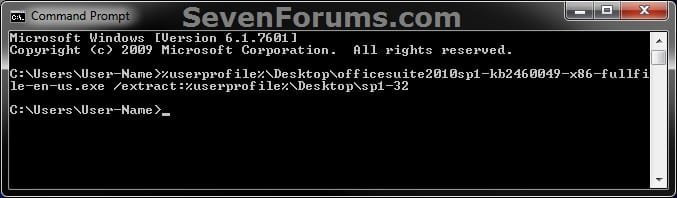
4. If prompted by UAC, then click on Yes (Windows 7) or Continue (Vista).
5. Check the accept EULA box, and click on Continue. (see screenshot below)

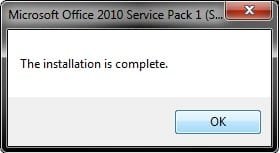
6. When finished extracting, click on OK. (see screenshots below)

7. In the same command prompt from step 3, copy and paste the command below into the command prompt, and press Enter. (see screenshot below)
NOTE: This will extract the contents of the 64-bit Service Pack 1 exe file into a sp1-64 folder on your desktop.
Code:
%userprofile%\Desktop\officesuite2010sp1-kb2460049-x64-fullfile-en-us.exe /extract:%userprofile%\Desktop\sp1-64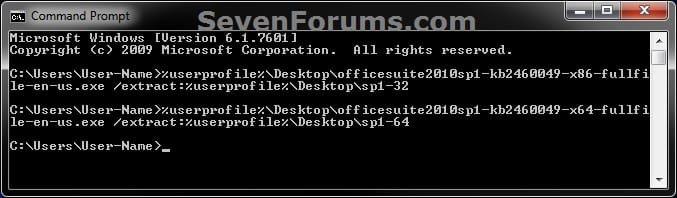
8. Repeat steps 4-6, close the command prompt, then continue on to step 9.
9. Open the sp1-32 folder on the desktop, select all files, right click on them, click on Copy, then close the sp1-32 folder. (see screenshot below)
NOTE: Only copy the contents inside the sp1-32 folder, and not the sp1-32 folder itself.
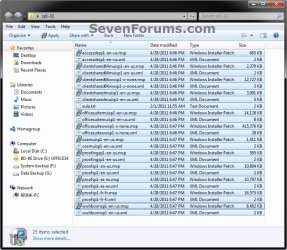
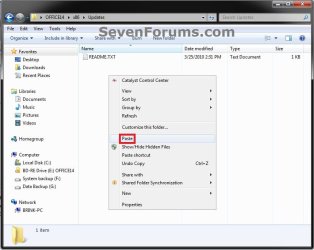
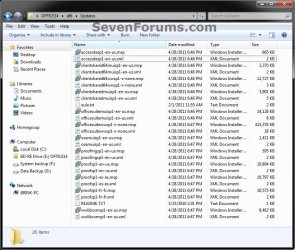
10. Open the OFFICE14 (name may vary for you) folder on the desktop from step 2, open the x86 folder, open the Updates folder, right click on a empty area, and click on Paste. (see screenshots below)
NOTE: This is to copy the contents inside the sp1-32 folder into the OFFICE14\x86\Updates folder on the desktop.
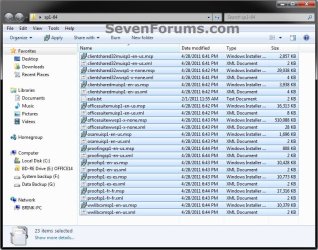
11. Open the sp1-64 folder on the desktop, select all files, right click on them, click on Copy, then close the sp1-64 folder. (see screenshot below)
NOTE: Only copy the contents inside the sp1-64 folder, and not the sp1-64 folder itself.
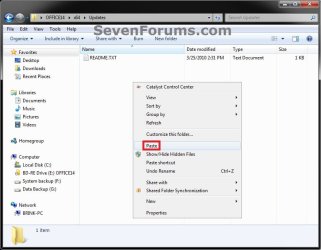
12. Open the OFFICE14 (name may vary for you) folder on the desktop from step 2, open the x64 folder, open the Updates folder, right click on a empty area, and click on Paste. (see screenshots below)
NOTE: This is to copy the contents inside the sp1-64 folder into the OFFICE14\x64\Updates folder on the desktop.
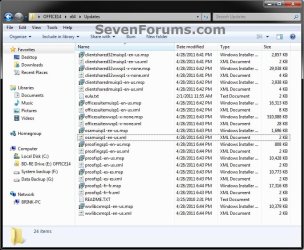
13. You can now copy the contents inside the OFFICE14 (name may vary for you) folder on the desktop from step 2 to a blank DVD or USB flash key. (see screenshot below)
NOTE: Only copy/burn the contents inside the OFFICE14 folder, and not the OFFICE14 folder itself.
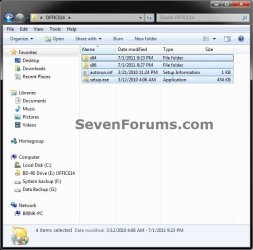
14. You now have a Office 2010 with SP1 installation DVD or USB.
OPTION TWO
If you have a Office 2010 EXE File
NOTE: You would want to use this option if you have a Office 2010 EXE file to install only either the 32-bit (x86) or 64-bit (x64) version of the Office 2010 suite.
1. If you have a 32-bit (x86) Office 2010 EXE Installation File
A) Copy the Office 2010 exe file to your desktop.
B) Download and save the Office 2010 Service Pack 1 32-Bit (x86) exe file to your desktop.
C) Open a command prompt, copy and paste the command below into the command prompt, and press Enter. (see screenshot below)
NOTE: This will extract the contents of the 32-bit Service Pack 1 exe file into a sp1-32 folder on your desktop.
Code:
%userprofile%\Desktop\officesuite2010sp1-kb2460049-x86-fullfile-en-us.exe /extract:%userprofile%\Desktop\sp1-32D) If prompted by UAC, then click on Yes (Windows 7) or Continue (Vista).
E) Check the accept EULA box, and click on Continue. (see screenshot below)
F) When finished extracting, click on OK. (see screenshots below)
G) Go to step 3.
2. If you have a 64-bit (x64) Office 2010 EXE Installation File
A) Copy the Office 2010 exe file to your desktop.
B) Download and save the Office 2010 Service Pack 1 64-Bit (x64) exe file to your desktop.
C) Open a command prompt, copy and paste the command below into the command prompt, and press Enter. (see screenshot below)
NOTE: This will extract the contents of the 64-bit Service Pack 1 exe file into a sp1-64 folder on your desktop.
Code:
%userprofile%\Desktop\officesuite2010sp1-kb2460049-x64-fullfile-en-us.exe /extract:%userprofile%\Desktop\sp1-64D) Repeat steps 1D to 1F.
E) Continue on to step 3.
3. In the same command prompt from step 1 or 2, type the command below into the command prompt for your Office 2010 EXE installation file, and press Enter.
NOTE: Substitute File-Name in the command below with the actual name of the Office 2010 EXE file including the .exe file extension. This will extract the contents of the Office 2010 EXE installation file into a Office folder on your desktop.
Code:
[B]%userprofile%\Desktop\[COLOR=red]File-Name[/COLOR].exe /extract:%userprofile%\Desktop\Office[/B]If my Office 2010 EXE file was named en_office_professional_plus_2010_x64_515489.exe, I would type this command below and press enter.
Code:
[B]%userprofile%\Desktop\[COLOR=red]en_office_professional_plus_2010_x64_515489[/COLOR].exe /extract:%userprofile%\Desktop\Office[/B]5. When it's finished extracting the Office 2010 EXE file, click on OK, and close the command prompt. (see screenshots below)
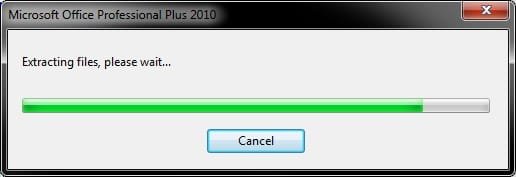
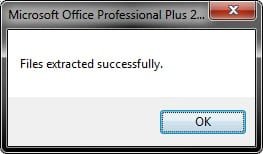
6. Open either the sp1-32 or sp1-64 folder on the desktop, select all files, right click on them, click on Copy, then close the folder. (see screenshots below)
NOTE: Only copy the contents inside the folder, and not the folder itself.
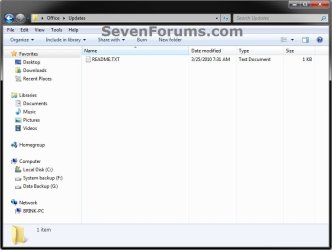
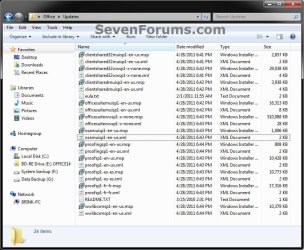
7. Open the Office folder on the desktop from step 3, open the Updates folder, right click on a empty area, and click on Paste. (see screenshots below)
NOTE: This is to copy the contents inside either the sp1-32 or sp1-64 folder into the Office\Updates folder on the desktop.
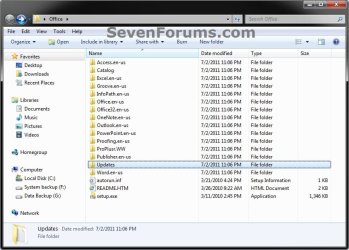
8. You can now copy the contents inside the Office folder on the desktop to a blank DVD or USB flash key. (see screenshot below)
NOTE: Only copy/burn the contents inside the Office folder, and not the Office folder itself.
9. You now have a Office 2010 with SP1 installation DVD or USB
That's it,
Shawn
Last edited:


